
Your First Analysis: From Dashboard to Minerva
This guide is for your first hour with Noreja when a perspective for your process is already set up: you see its key figures on a dashboard, look at how cases really run in the Analyzer, narrow them down with a filter and ask Minerva about what you see. The examples use the Purchase-to-Pay perspective, which describes a purchasing process. If no perspective is set up yet, start with Your First Project: From Data Source to Dashboard and Minerva.
Permissions: feature Dashboard: Read to open dashboards, Create to create your own. Feature Analyzer: Read to open analyzer tabs and filter them, Create to create your own, Edit to save filters with a tab. Feature Chat: Create for the Minerva-AI switch. Dashboards and analyzer tabs shared with you can be opened without the feature. See Create and Edit Roles.
Before You Start
- At least one perspective is shared with you. A perspective is what you choose in the Analyzer and on dashboards: the model of one process, for example Purchase-to-Pay. If the lists are empty, ask the person who manages your data to share a perspective with you; see Share Your Work with Colleagues.
- To create your own tabs and to use Minerva next to them, you need the permissions above. If you don't see the + in the Tab Explorer or the Minerva-AI switch in the top bar, ask your administrator. See Navigating Noreja.
1. Get an Overview on a Dashboard
- Open Dashboard in the top menu. Dashboards shared with you are listed in the Tab Explorer under Shared with me.
- To create your own, click +, choose the perspective, enter a Dashboard name, tick Add default widgets? and click Create. This needs Dashboard: Create.
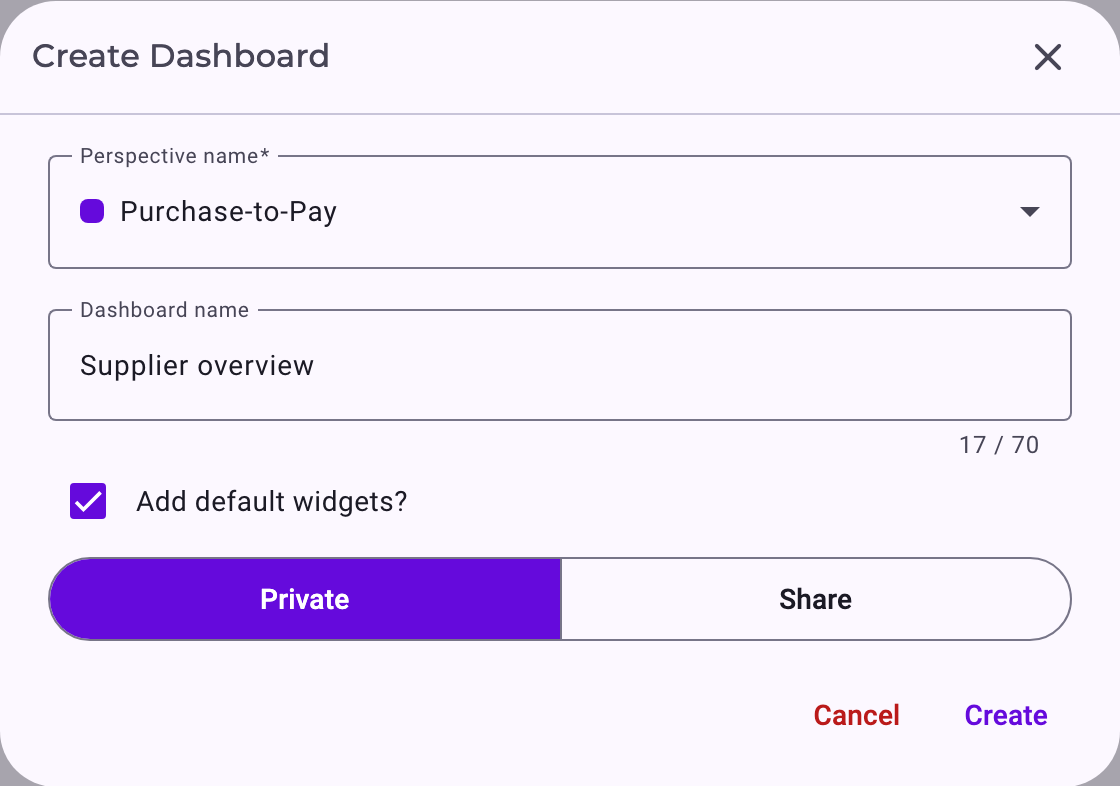
With Add default widgets? ticked, the new dashboard starts with Noreja's default widgets. The first row shows the four basic figures, a good place to start:
- Case amount: how many cases there are, for example 5,520 orders.
- Variant amount: how many different routes the cases took.
- Average process duration: how long a case takes on average from its first to its last activity.
- Violation rate: how many cases skipped a step or ran in the wrong order.
Below them follow the four Process complexity widgets, End activity type distribution, Process variants, Batching activity distribution and Average rework rate. You can remove, move and add widgets afterwards. What each figure means is explained in KPIs Explained and Dashboard Widgets; how to add and arrange widgets in Create a Dashboard Tab.
2. See How Cases Really Run
- Open Analyzer, click + at the top of the Tab Explorer, choose the perspective, enter a Tab name and click Create. This needs Analyzer: Create; without it, open a tab shared with you under Shared with me.
- The tab opens with the process graph of all cases. Click an activity or a relationship to see its figures below the graph.
- On the left, click the first variant: the graph now shows only the cases that took the most frequent route. The circular arrow shows all cases again.
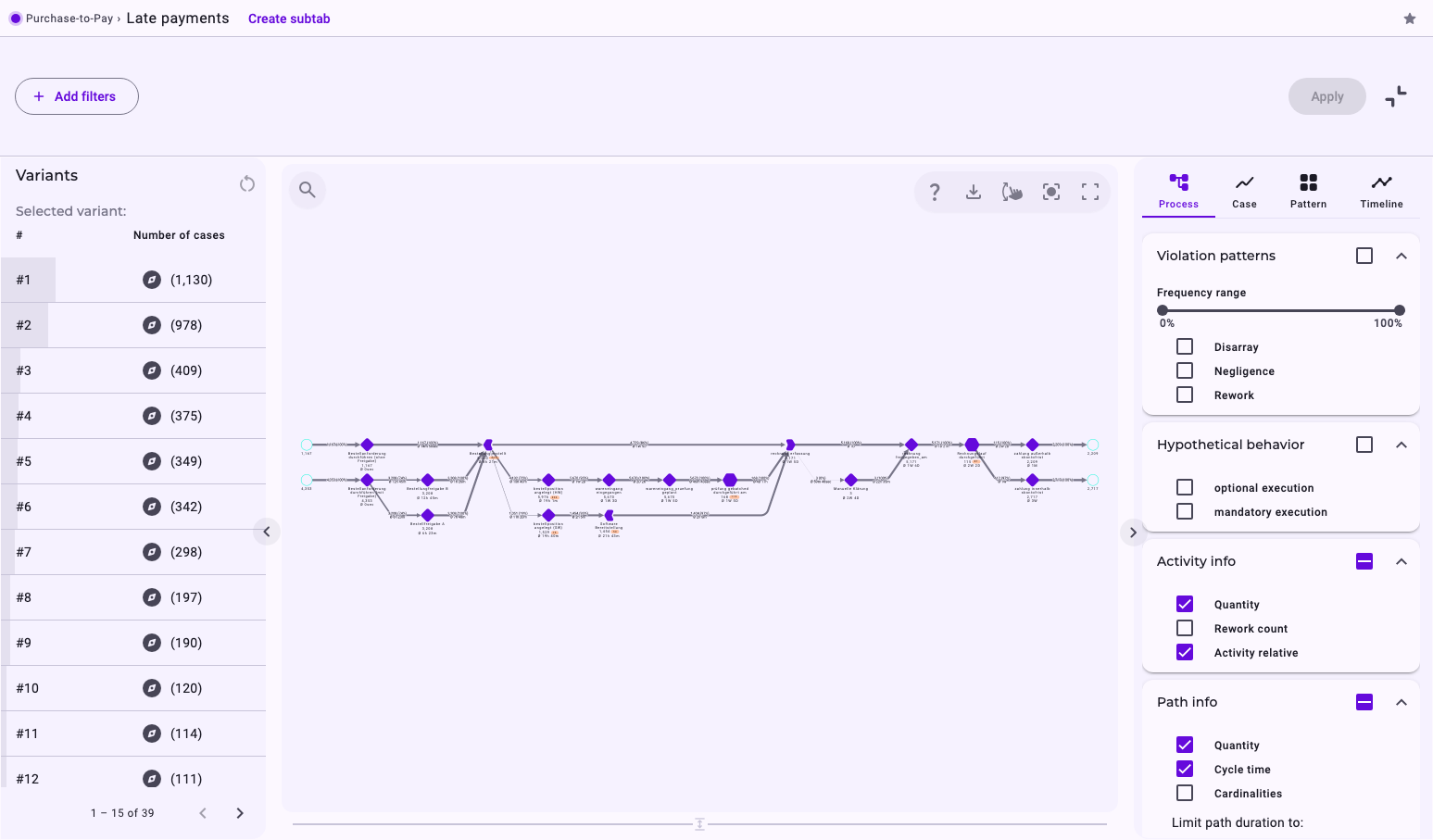
The numbers on activities say how often they were executed, those on relationships how many executions took that relationship. The thicker a relationship, the larger the share of its first activity's executions that took it. See Create an Analyzer Tab, Work with the Process View and Elements in Noreja Process Graphs.
3. Narrow It Down with a Filter
- Click Add filters in the filter bar and choose a filter, for example Activity types to keep only cases with a certain activity, or a date range.
- Set the values and click Apply.

The graph and its figures are calculated again from the matching cases. A filter always keeps or drops whole cases. Anyone who can open the tab can filter it, but the filter is saved with the tab only if you may edit it (Analyzer: Edit, or an Edit share). See Filter Cases in the Analyzer and Dashboards.
4. Ask Minerva about What You See
Switch on Minerva-AI in the top bar while the analyzer tab is open; the switch needs Chat: Create. Minerva opens next to the tab and can read the graph, the filters and what you selected, so short questions work: "Which transition takes longest on average in this view?"
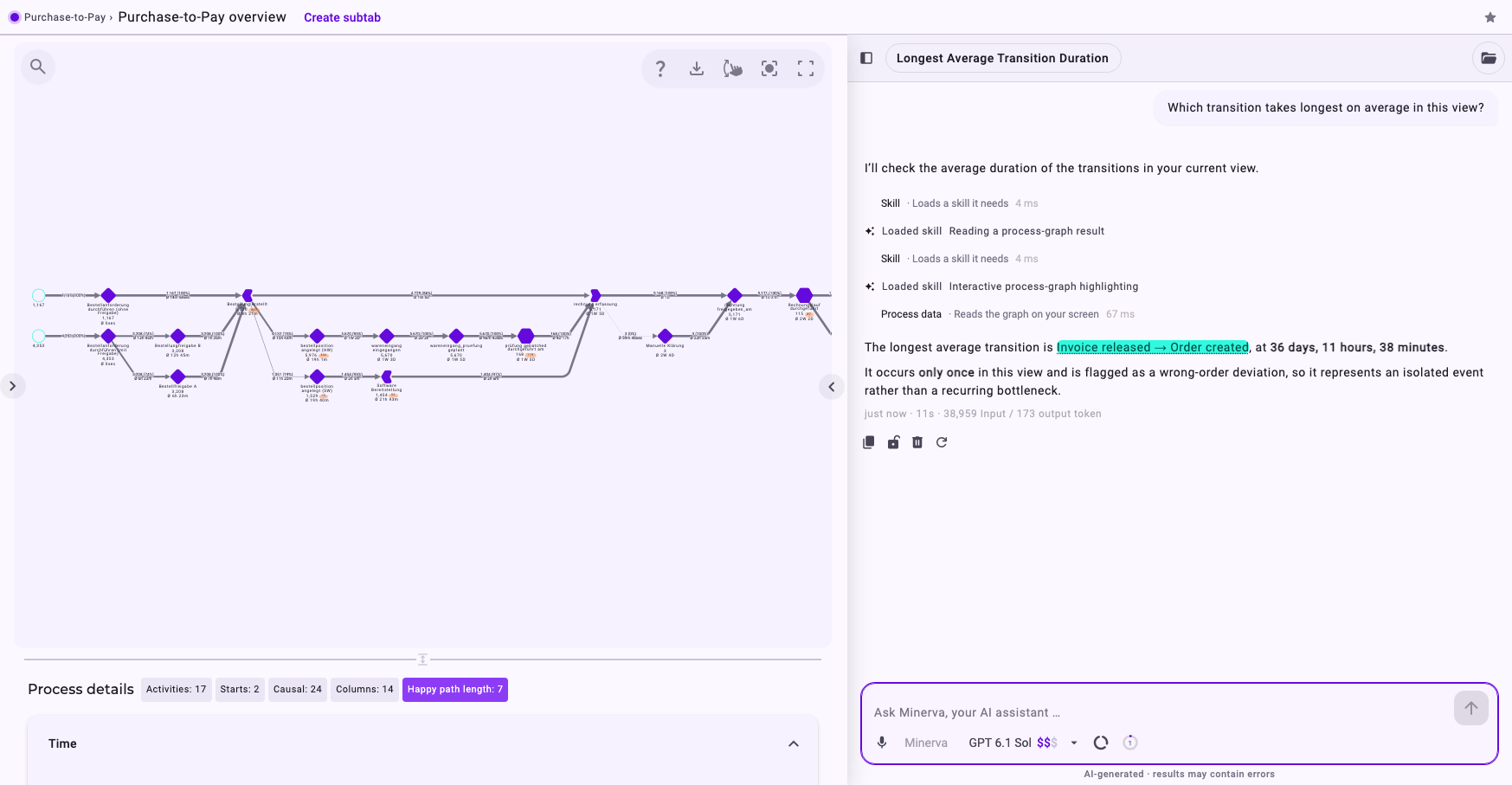
Hover over an underlined name in the answer to see it in the graph. For longer conversations and files, use the chat page: open it from the profile menu (the person icon in the top bar; see Navigating Noreja). With Chat: Read alone, the chat page is where you work with Minerva. See Chat with Minerva and Get Better Answers from Minerva.
Next Steps
- Keep your tabs in order with folders, favorites and subtabs: Organise Your Analyses: Tab Explorer, Folders, Favorites and Subtabs.
- Share a dashboard or an analyzer tab with colleagues: Share Your Work with Colleagues.
- Find out where and why cases deviate: Process Patterns: Disarray, Negligence, Rework and Allowed Deviations.