
Export Process Graphs
You can download the process graph of an analyzer tab as an image for presentations, or as a BPMN file for modelling tools. This page explains both. Perspective and entity configurations are exported in the Builder; see Export, Import and Copy Perspectives and Entities.
Permissions: anyone who can open the analyzer tab can download its graph: feature Analyzer with Read, or a tab shared with you. See Create and Edit Roles.
Download the Graph
- In the process view or the case view, click the download icon (Download) in the graph controls. See Work with the Process View.
- Choose the format: BPMN (XML), PNG or JPG.
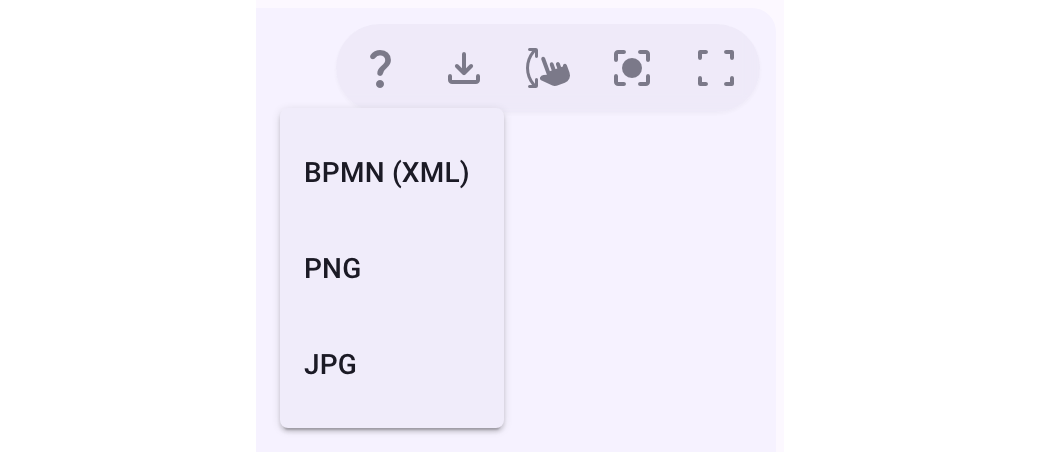
The file is named after the tab, the view or case, and the time of the download.
As an Image (PNG or JPG)
The dialog Download process image opens:
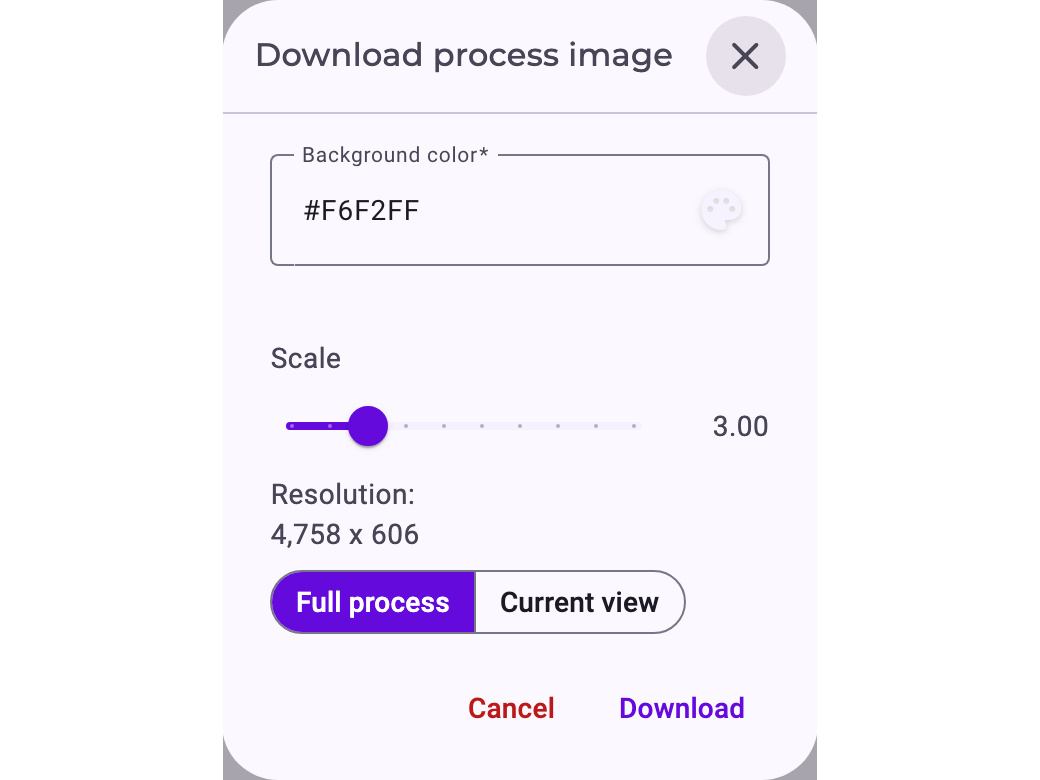
- Background color: the colour behind the graph. PNG can also be transparent.
- Scale: how large the image is; Resolution: shows the result in pixels. Very large graphs can only be exported smaller.
- Full process / Current view: the whole graph, or only the part you see.
- Quality (JPG only): higher means sharper and larger files.
Click Download. The image shows the graph as drawn, with your settings, highlighting and violation patterns. Labels can look slightly different from the screen. The details table, the settings and the colour scale of a highlighting aren't part of the image.
As BPMN (XML)
BPMN (XML) creates a BPMN 2.0 file that tools such as Camunda Modeler, Signavio or bpmn.io can open:
- It contains the expected order of the perspective as it applies to the tab's cases: activities as tasks with their number of executions, start and end events, and gateways derived from the figures (exclusive, parallel or inclusive). See The Expected Order: Perspective Hypothesis, Shortcuts and Backjumps.
- The relationships carry their cardinalities and quantities; further Noreja figures, such as transition durations, are included as extension data.
- The layout comes from an automatic arrangement, not from your screen.
- Violation patterns, highlighting and other view settings aren't exported.
In the case view, BPMN is available for Model, not for Instance; see Work with the Case View. If nothing happens after you click it, try again or ask your administrator: Noreja shows no error message for a failed BPMN download.
Other Data
- Minerva's answers: tables can be copied or downloaded as CSV; see Chat with Minerva.
- Dashboard charts: the chart menu (☰, shown when you hover over a chart) downloads the chart as a PNG, JPEG or SVG image. The Violation rate gauge has no chart menu. See Dashboard Widgets.
- Case lists and details tables: can't be exported as files.