
Set Up Noreja for Your Company: Who Does What
Setting up Noreja for a new process is teamwork: an admin invites the team, someone who knows the source systems connects the data, someone who knows the process models it, and then everyone else can analyse it and ask Minerva. This page shows the steps in order, who typically does each one, which permissions that person needs, and where the detailed instructions are. How the Builder steps fit together is explained in From Data Source to Perspective: How the Builder Works and Who Does What.
A Typical Division of Work
Noreja doesn't prescribe who does what. The parts below are a typical division of work and show the general direction in which Noreja is meant to be used. Adapt them to your company: use your own job titles and teams, merge parts or split them further. Only the Customer admin is an account type in Noreja; for everyone else, you decide what they may do with roles and user groups.
- Customer admin: manages users, user groups and roles, and the company settings.
- IT: gives Noreja read access to the source system, for example a database user.
- Data specialist: knows where the data is and how the tables are connected. Connects the data source and builds the entities.
- Process analyst: knows the process, not necessarily the tables. Builds the perspective, the expected order of the process, and the first dashboards.
- End users: work with dashboards, the Analyzer and Minerva.
One person can take on several of these parts. In small teams the Customer admin is often the data specialist as well.
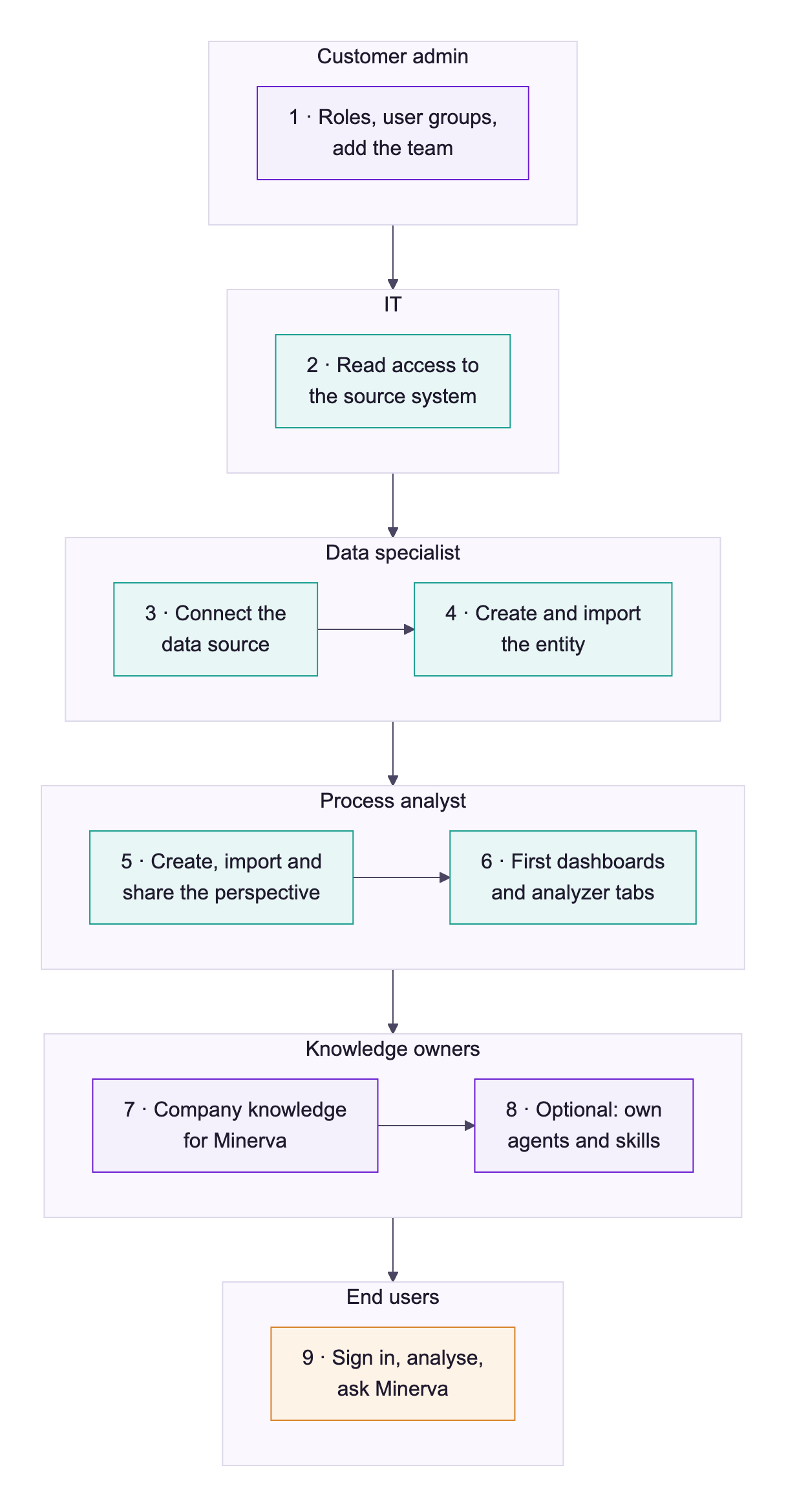
The Steps
# | Step | Typically done by | Permission needed | Details |
|---|---|---|---|---|
1 | Create roles and user groups, then add the team | Customer admin | Customer admin | |
2 | Give Noreja read access to the source system | IT | Access to the source system | Connect a Data Source, section for your database |
3 | Connect the data source | Data specialist | Builder: Create | |
4 | Create the entity and import it | Data specialist | Builder: Create and Edit | Entities Explained, Create an Entity, Manually or with Suggestions |
5 | Create the perspective, import it and share it | Process analyst | Builder: Create, Edit and Share | |
6 | Build the first dashboards and analyzer tabs and share them | Process analyst | Dashboard and Analyzer: Create and Share | |
7 | Add company knowledge for Minerva | Customer admin or the owners of the knowledge | Context: Create | |
8 | Optional: set up your own agents and skills | Customer admin | Agent and Prompt: Create | |
9 | End users sign in and start working | End users | Dashboard and Analyzer: Read (Create to build their own); Chat: Read (Create for the Minerva-AI switch) | Sign In for the First Time, Your First Analysis: From Dashboard to Minerva |
Notes on the Steps
Roles first. Create a role for each part someone plays in your company, for example Data specialists, Process analysts and End users, and assign the roles to user groups rather than to individual users. Then adding a colleague later only means putting them into the right group. Customer admins can use every feature without a role. See Create and Edit Roles and Manage User Groups.
One permission for the whole Builder. Data sources, entities and perspectives are all covered by the Builder feature: Create to create them, Edit to change and import them, Share to share them. The split between data specialist and process analyst is about knowledge, not about permissions.
Share the perspective. Users only see perspectives that are their own or have been shared with them, and they need to see a perspective to create their own dashboards and analyzer tabs on it. So share a new perspective with the user groups that will work with it, or with everyone. Sharing a perspective also opens the Builder for reading for these users, even without a Builder role. See Share Your Work with Colleagues.
Minerva. To chat with Minerva, users need the feature Chat: Read opens the chat page, where you can ask questions; Create adds the Minerva-AI switch next to dashboards and the Analyzer. Minerva uses only the company knowledge each user is allowed to see. The AI settings under Settings → Environment → Manage are available to Customer admins and to users with Context: Edit; see Environment Settings: Branding, AI and Import. For what Minerva can do, see What Minerva Can Do.
Tip: Start with one process and a small team. Once the first perspective and dashboard work, adding more processes follows the same steps.