
Configure Objects and Relationships
Every object and every data connection of an entity has settings that decide which rows Noreja reads, when they happened and how they belong together. This page explains them one by one, how to test them, and how to add context for Minerva to an activity. To get the objects onto the canvas in the first place, see Create an Entity, Manually or with Suggestions; for the ideas behind them, see Entities Explained.
Permissions: feature Builder: Edit, or an Edit share of the entity, to change the settings; Create to add data connections and cross tables, Delete (or an Edit share) to remove them. Feature Context: Read to see an activity's context, Create to add it. See Create and Edit Roles.
Open the Settings
In the step Build entity, right-click an object or the line of a data connection and choose Configure. The settings open in a panel below the canvas. Objects and data connections that aren't configured yet are highlighted on the canvas.
Object Settings
The panel Configure object shows the table the object reads under Name in source. Set these:
- Activity name: how the activity is called in perspectives and the Analyzer, for example "Bestellung erstellt". New objects are named after their table; replace that with a name the process analysts recognise. It must be unique in the entity and can have up to 100 characters.
- Start timestamp: the column with the date and time of the event. The list offers date and time columns; if you prepared a text column in the step Prepare timestamps, switch off Only date/time to see it.
- Change timestamp (optional): the column with the date of a later change. It's only used when it lies after the start time stamp. × clears it.
- Timestamp distribution: shows which date column usually holds the earliest and which the latest value, and how the dates spread over time. Use it to choose the two columns above; see Timestamps: Formats, Preview and Distribution.
- Properties: tick the columns that should come along with each execution, for example amounts, statuses or product groups. Search the list, or use Select all. Each column shows its data type, and columns from joined tables show their table. A warning icon marks columns that perspectives use, a plug icon columns that data connections use. Columns that a data connection needs are added automatically.
- Unique identifier: the columns that together identify one event. The table's primary key is selected by default. A key icon marks primary and foreign keys. Columns that a perspective uses for its case ID can't be cleared.
- Advanced queries (optional): a WHERE clause and a JOIN clause, described below.
Advanced Queries
- WHERE clause: a condition that limits the rows, without the word WHERE, for example
skonto_genutzt = 'ja'orrechnung_freigegeben_am is not null.
- JOIN clause: adds columns of other tables as properties, for example
LEFT JOIN dbo.lieferant ON lieferant.lieferant_id = bestellung.lieferant_id. Then click Reload properties list. See Use Joined Properties.
Test and Save
- Test query: saves the settings and reads the first rows: Data preview shows them with the total number of rows. If the query runs without errors, the object counts as configured.
- Show query: shows the query Noreja sends to the database.
- Confirm: tests and saves the object and closes the panel. If the test succeeds, the object counts as configured.
- Save draft: saves the settings without testing; the object stays unconfigured.
- Cancel: closes the panel without saving.
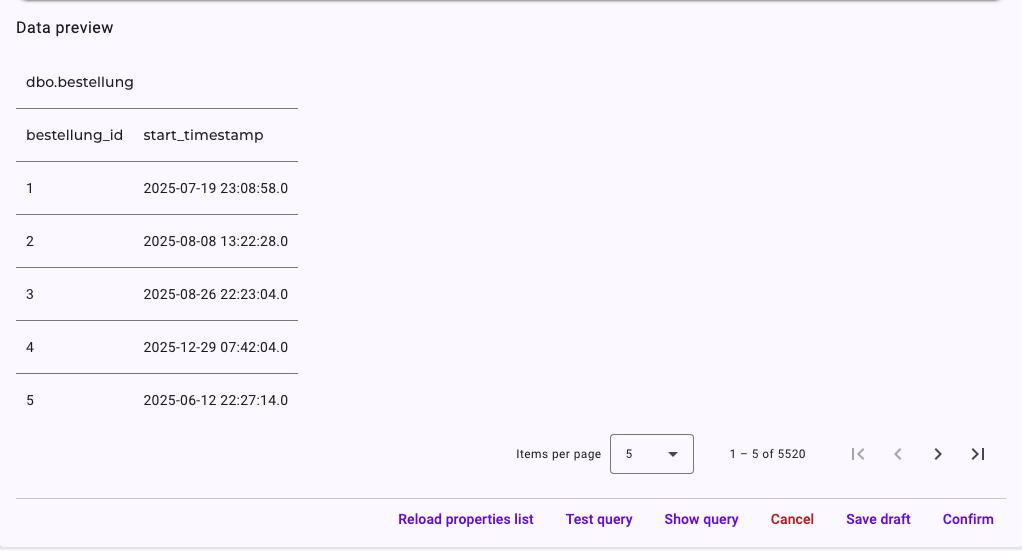
If the query fails, the panel shows The query resulted in an error: with the message of the database. If you change settings after a test, Noreja asks you to test again.
Noreja only reads from the source. Conditions and JOIN clauses that could change data are rejected with Found not allowed SQL constructs: statements such as INSERT, UPDATE, DELETE, DROP, ALTER, CREATE or EXEC, comments, semicolons and UNION. Put spaces around = in conditions that use AND or OR; without them the check can reject a valid clause.
Data Connection Settings
The panel Configure data connection shows the two objects as Source and Target. A data connection needs at least one pair of columns that match:
- In the target, find the column to match, for example bestellung_id of the order table.
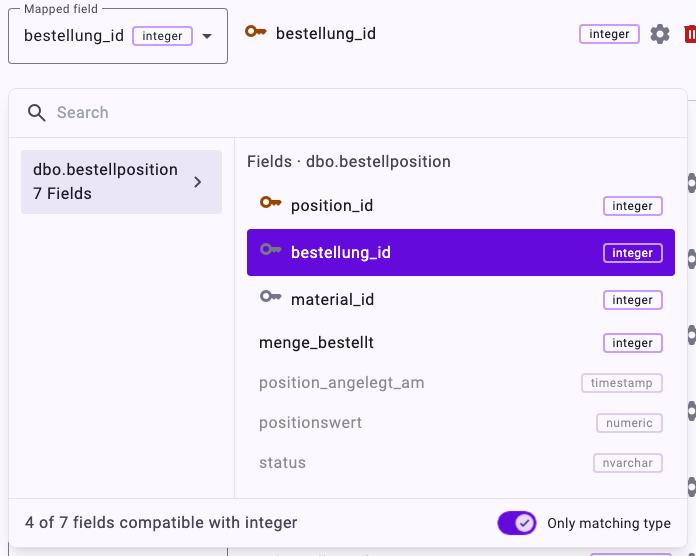
- Click its Mapped field and choose the matching column of the source, here bestellung_id of the items table. With Only matching type on, only columns of a compatible data type can be chosen; the others are greyed out. Switch it off to choose any column.
- Add further pairs if one column isn't enough, for example a document number together with a company code.
- Click Confirm to test and save.
The whole way, from the right-click on a new data connection to the configured connection:
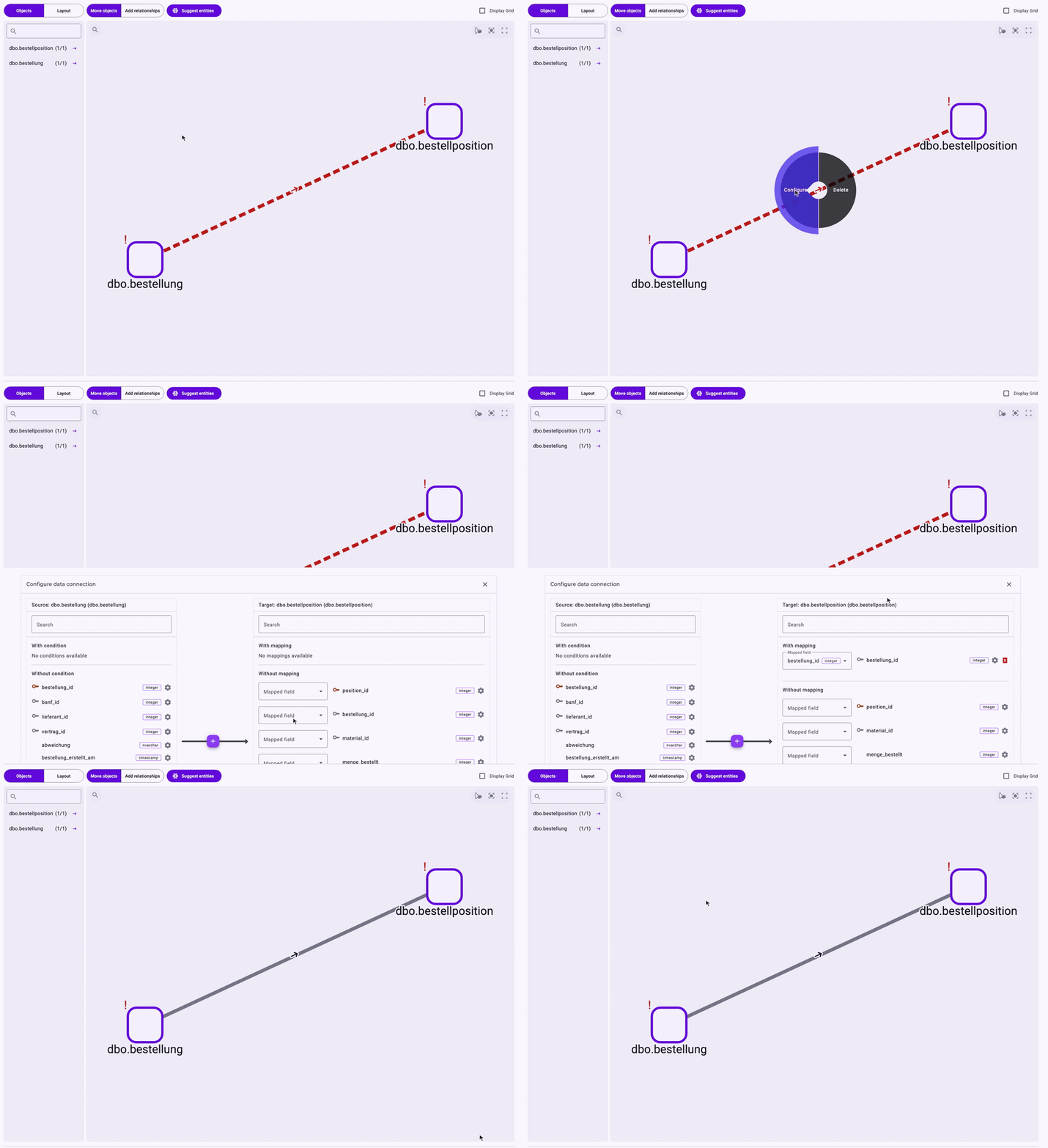
- With mapping: lists the mapped pairs; the bin icon removes one.
- Cross table: if the two tables have no column in common, click + between them, choose the table that links them and map the columns step by step.
- With condition: the gear icon next to a source column adds a JOIN condition, for an extra rule the rows must meet.
ServiceNow and OData Sources
For data sources connected through an interface, a few things differ:
- There is no Unique identifier, no Show query, no cross table and no JOIN condition.
- Test Setup replaces Test query.
- The WHERE clause uses the syntax of the interface, for example
active=truefor ServiceNow, and applies only to the object's own table. See Using Advanced Queries in ServiceNow API.
- Instead of a JOIN clause, choose a Join table and map its fields.
Add Context for Minerva
Process data shows what happened, rarely why. For each activity of the entity you can add what Minerva should know about it, for example what a manual clarification means, when it's needed or which rule causes a waiting time. When the activity comes up in an analysis, Minerva draws on this context.
- Right-click the object and choose Context. A dialog Add context for "…" with the activity's name opens. It lists the context already added to this activity.
- Click Add context. The form is the same as in the Context Hub, already attached to this activity: choose Text or File, enter the text or add the file, and choose who may see it and whether it must stay away from public AI models (Never allow access to public LLMs?). Minerva writes the title and summary.
- Click Save and close the dialog.
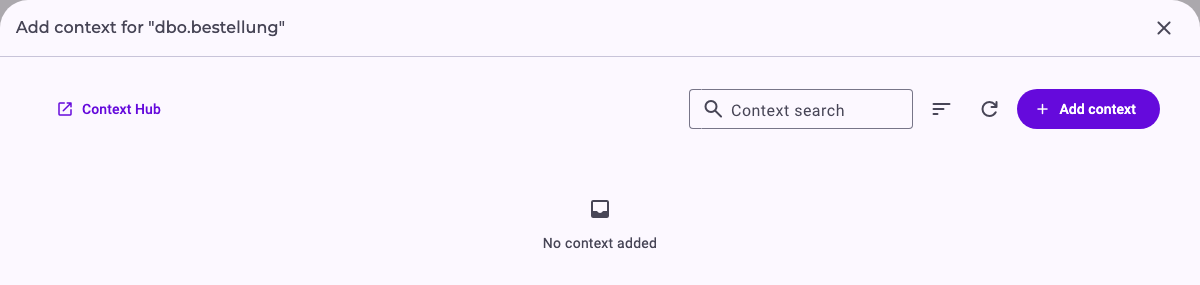
Context Hub in the dialog opens the Context Hub in a new browser tab, filtered to this activity, so the builder keeps your unsaved changes. The same context appears there under Activity context. See Context Hub: Knowledge for Minerva.