
Work with the Case View
The Case view shows one case at a time: which activities it went through, how often, when and in which order compared with the expected order. Use it to drill down from the process view to single cases, for example the slowest orders or the ones with a violation. What a case, a case model and a case instance are is explained in Process Models and Levels: Case, Variant, Process Model.
Permissions: feature Analyzer: Read to open analyzer tabs, or a tab shared with you. The selected case and settings are saved with the tab only if you may edit it. See Create and Edit Roles.
Open the Case View
- From the settings panel: in an analyzer tab, click Case at the top of the settings panel.
- From the process view: the compass icon next to a variant (Open all cases of this particular variant) filters the tab to this variant and switches to the case view. See Work with the Process View.
- From the pattern view: click a dot and then Open in Case view. See Work with the Pattern View.
Choose a Case
On the left, the list Cases shows the cases that match the tab's filters, 15 per page, sorted by their ID. Click a case to show it. Its ID appears above the graph. The arrow at the edge of the list hides it.
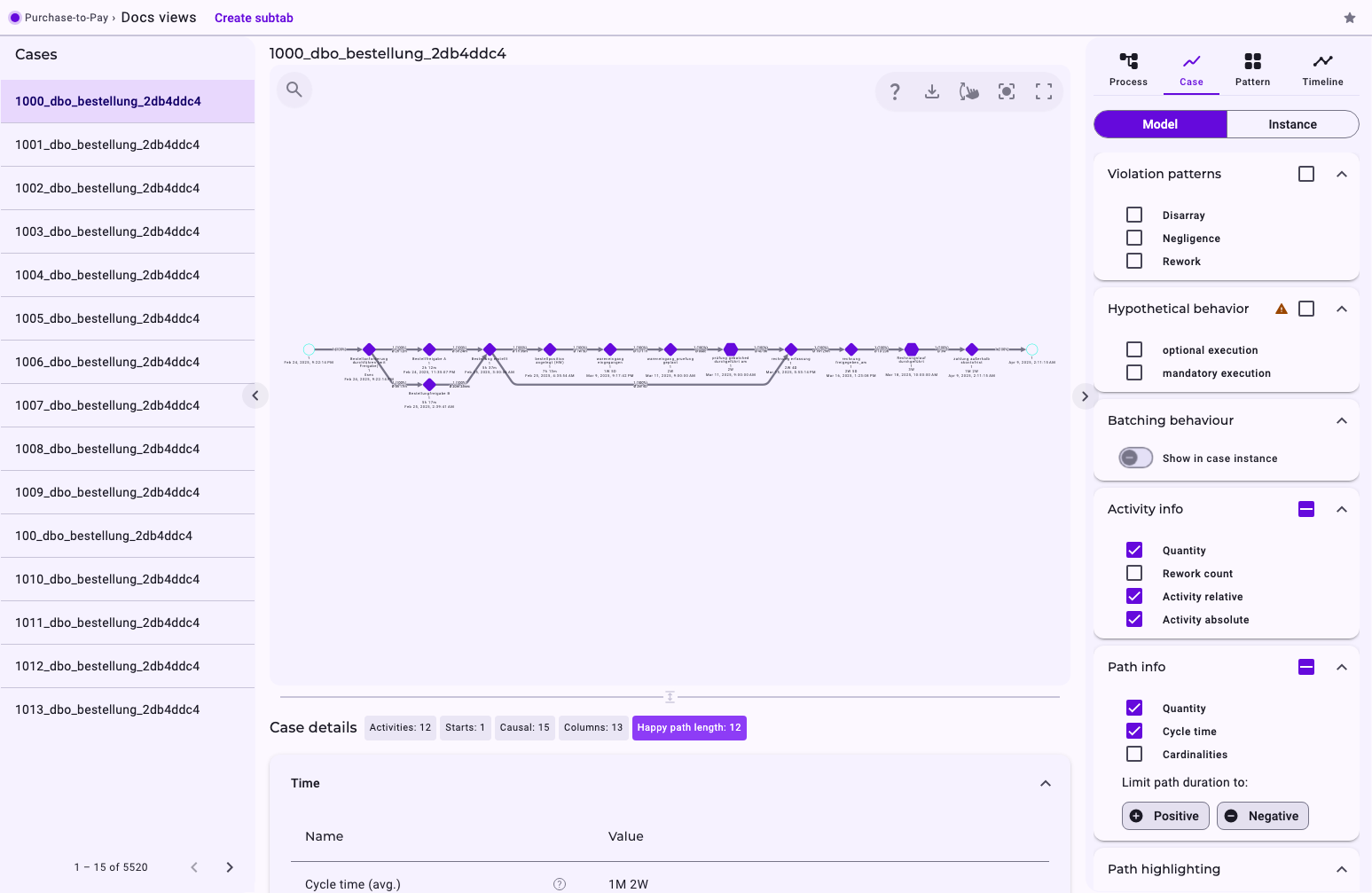
The list has no search. To find particular cases, set a filter first, for example on a variant, a period or a property; see Filter Cases in the Analyzer and Dashboards. The case IDs are built from the source data, for example the order number and the table. The list ignores a variant you clicked in the process view; only filters count.
Model or Instance
The switch at the top of the settings panel chooses how the case is shown:
- Model (default): each activity of the case once, with how often it was executed, for example one order with three items as one item activity with 3 executions.
- Instance: every single execution as an activity of its own, for example the three items side by side. Quantities and cardinalities aren't shown here, because each activity is one execution.
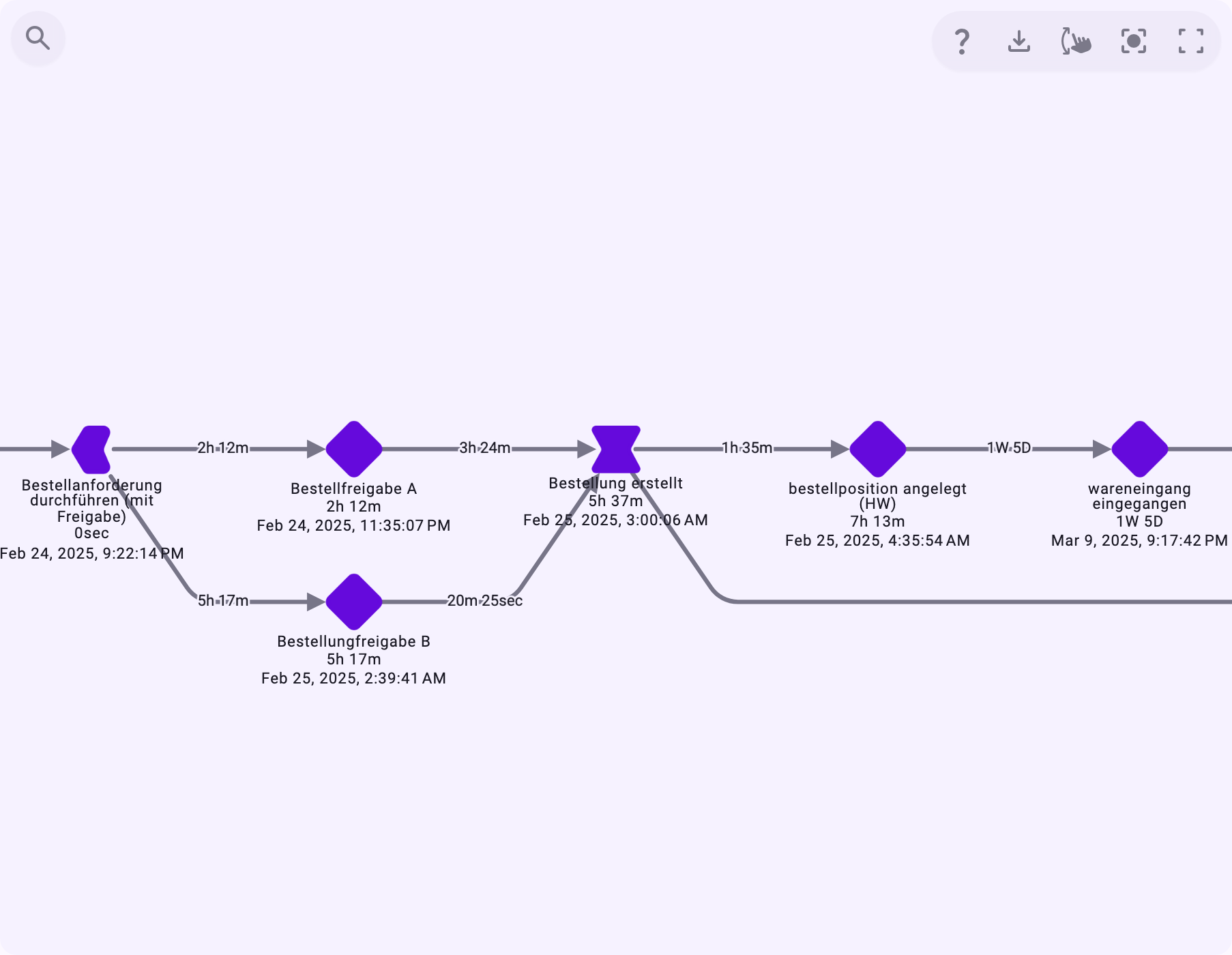
Both show the relationships of the expected order between the case's activities; see The Expected Order: Perspective Hypothesis, Shortcuts and Backjumps. Switch on Violation patterns to see where the case broke it. Very large case instances (more than 1,000 activities or relationships) can't be drawn: The process is too large to display.
Settings of the Case View
Most settings are the same as in the process view; see Work with the Process View. Differences:
- Activity info → Activity absolute shows when each activity started, as date and time.
- Batching behaviour → Show in case instance adds the cases that were processed together with this one, for example several orders paid in one payment run. Shared activities are drawn as blue hexagons (Batching activity). Use it to find bottlenecks where separate cases come together. How batched activities are counted is explained in Quantities and Cardinalities.
- Violation patterns has no Frequency range: a single case shows all its violations. See Process Patterns: Disarray, Negligence, Rework and Allowed Deviations.
Details of a Case
Below the graph, Case details shows the figures of the selected case: times, behaviour and properties; see KPIs Explained. Click an activity or a relationship to see its Details; click an empty area of the graph to go back to the case. If properties you expect are missing, ask your data specialist whether they are part of the entity and imported; see Entities Explained.
Good to Know
- The selected case and the settings are saved with the tab if you may edit the tab.
- In fullscreen, the case is chosen with Select Variant/Case, and Model / Instance sits next to it at the top. See Work with the Process Graph in Fullscreen.
- The graph can be downloaded like the process view; BPMN only as Model. See Export Process Graphs.