
Get Better Answers from Minerva
Minerva gives the best answers when it knows exactly which perspective you mean, which cases count and what the result is for. This guide collects what makes the difference, with examples from the Purchase-to-Pay perspective. For how the chat works, see Chat with Minerva.
Permissions: feature Chat: Read opens the chat page, where you can ask questions; Create adds the Minerva-AI switch next to dashboards and the Analyzer. Minerva only sees the perspectives, analyzer tabs and knowledge you may open yourself. See Create and Edit Roles.
1. Say Which Perspective or Analyzer Tab You Mean
Minerva finds a perspective or an analyzer tab by the name you type, so name it in your question:
- In the Purchase-to-Pay perspective: … analyses the whole perspective, with all cases.
- In my tab "Purchase-to-Pay 2025": … analyses the tab with its saved filters, so the figures match what you see in that tab.
- If a perspective and a tab have the same name, Minerva takes the tab and says so in its answer.
If you don't name anything, Minerva uses the analyzer tab you have open, and on the chat page the analyzer tab you opened last. That can be a different perspective than you have in mind. If nothing fits and there are several perspectives, Minerva lists them and asks.
Tip: When the figures don't match what you expected, check the first lines of the answer: Minerva usually says which perspective or tab it analysed.
2. Ask Next to What You're Looking At
Switch on Minerva-AI in the top bar while an analyzer tab is open (see Create an Analyzer Tab and Navigating Noreja). Minerva can then read the graph on your screen, the tab's filters and what you selected, so short questions work:
- Which relationship has the longest average transition duration in this view?
- Explain the selected case: why did it take so long?
- What do the filters in this tab leave out?
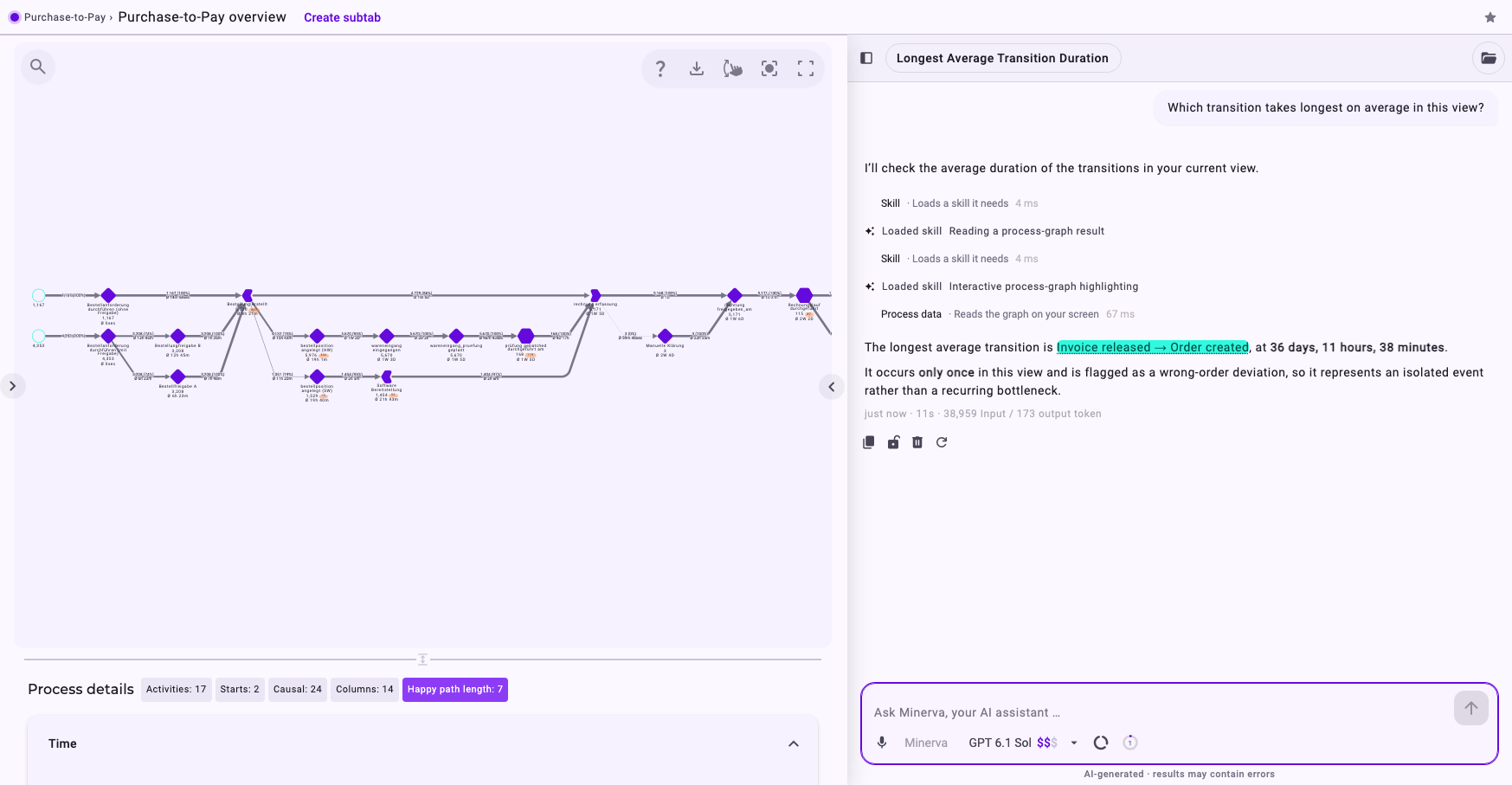
Hover over an underlined name in the answer to see it light up in the graph; click it to keep it lit.
Next to a dashboard, Minerva knows that you're on a dashboard but can't read its widgets. Name the perspective there.
3. Say Which Cases Count
Add the restriction to your question, for example a period, an activity or a variant. Minerva applies such a filter for this one answer; your analyzer tab and its filters stay as they are. If you ask about a tab, the tab's own filters always apply, and yours narrow it further.
A question that names the perspective, the period, the comparison and the form gets a direct answer:
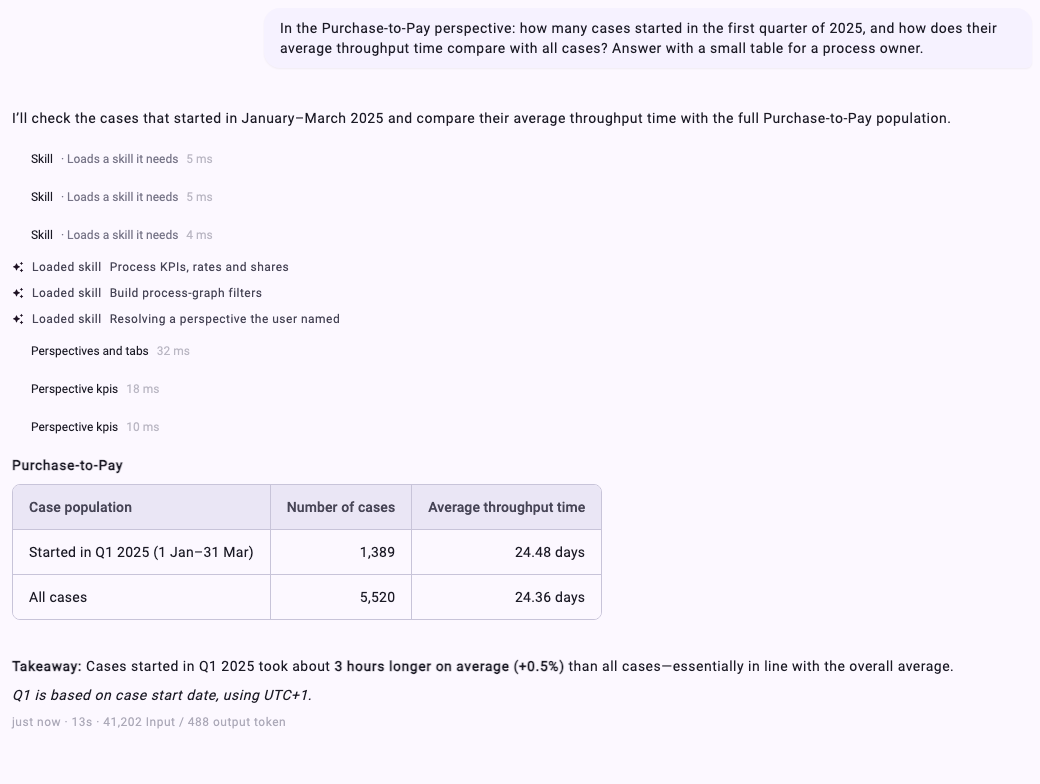
If Minerva can't apply a restriction, it says so and leaves the figure empty instead of guessing. Ask with a simpler restriction, or set the filter in an analyzer tab and ask about that tab. See Filter Cases in the Analyzer and Dashboards.
4. Say What You Want Back
Minerva answers in the language of your question. Tell it the form and the reader:
- Answer with a small table, as a flow chart or in three bullet points.
- For a process owner, one page, or with all figures for an audit.
- Create an Excel file or a slide deck: Minerva saves it in your workspace. See Work with Files in Minerva Workspaces.
If your company uses the same kind of report again and again, ask an admin for a skill: it fixes the format once for everyone. Type / in the chat to see the skills available to you. See Write Your Own Skill.
5. Ask for the Why, and Give Minerva the Background
Process data shows what happened. For why, Minerva searches the company knowledge in the Context Hub, for example process descriptions, policies or known issues, and can name the document it used. If an answer misses something everyone in your team knows, that knowledge is probably missing in the Context Hub. See Context Hub: Knowledge for Minerva.
You can also give background in the question itself: Orders under 500 euros don't need an approval. Taking that into account, …
6. Choose the Model
- For questions with several steps, such as comparisons, root-cause analyses or reports, a larger external model usually gives better answers. The dollar signs next to the model show its price range; see What a Model Costs.
- For confidential questions, choose a local model (see Minerva: Models, Data Flow and Data Protection). With the local model, the agent Minerva (On-Premise) is made for short, direct questions.
- You can also re-run an answer with another model: choose the model, click Re-run from here on the answer and confirm. Later messages in the chat are removed.
7. Keep One Topic per Chat
Follow-up questions build on the earlier answers in the same chat, so And for 2024? works. For a new topic, start a New chat: earlier answers about another process can mislead Minerva, and long chats get slower. The context indicator next to the model shows how full the chat is.
8. Check and Refine
- Hover over the underlined activities and relationships in an answer to see them in the process graph.
- Ask how a figure was calculated: Which cases did you count, and how?
- If the answer went in the wrong direction, use Edit message on your question, make it more precise and click Save and re-run.
- Check important figures in the Analyzer before you pass them on: answers are generated by AI and can contain errors.
When an Answer Isn't What You Expected
What you see | Likely reason | What to do |
|---|---|---|
Minerva analysed a different perspective | No perspective named; it took the open or last opened analyzer tab | Name the perspective or tab |
"I couldn't find …" a perspective | The name is spelled differently, or you have no access to it | Check the name in the Analyzer or the Builder; ask the owner to share it |
Figures differ from the Analyzer | Minerva analysed the whole perspective, you look at a filtered tab (or the other way round) | Ask about the tab by its name |
A figure is "not available" | A restriction couldn't be applied, or the data doesn't contain it | Ask with a simpler restriction, or filter in the Analyzer and ask about the tab |
The answer is too long or too general | No form or reader given | Say the form and the reader (section 4) |
Company reasons are missing | The knowledge isn't in the Context Hub, or it's marked for local models only | Add it to the Context Hub, or ask with a local model |