
Work with the Process Graph in Fullscreen
In fullscreen, the process graph of an analyzer tab fills the whole browser window. The settings move into small panels that float over the graph, so you can work with a large graph, present it in a meeting or ask Minerva about it side by side. This page explains the controls and what's different from the normal view. The graph itself is described in Work with the Process View.
Permissions: the same as for the analyzer tab: feature Analyzer with Read, or a tab shared with you. Settings are saved with the tab only if you may edit it. See Create and Edit Roles.
Open and Leave Fullscreen
- In the process view or the case view, click the fullscreen icon in the graph controls at the top right (Fullscreen).
- To leave, click the same place again (Exit). The Esc key doesn't leave fullscreen.
- Fullscreen also ends when you go to another area of Noreja or reload the page.
Your variant or case, the filters and the settings stay the same when you open or leave fullscreen.
What You See
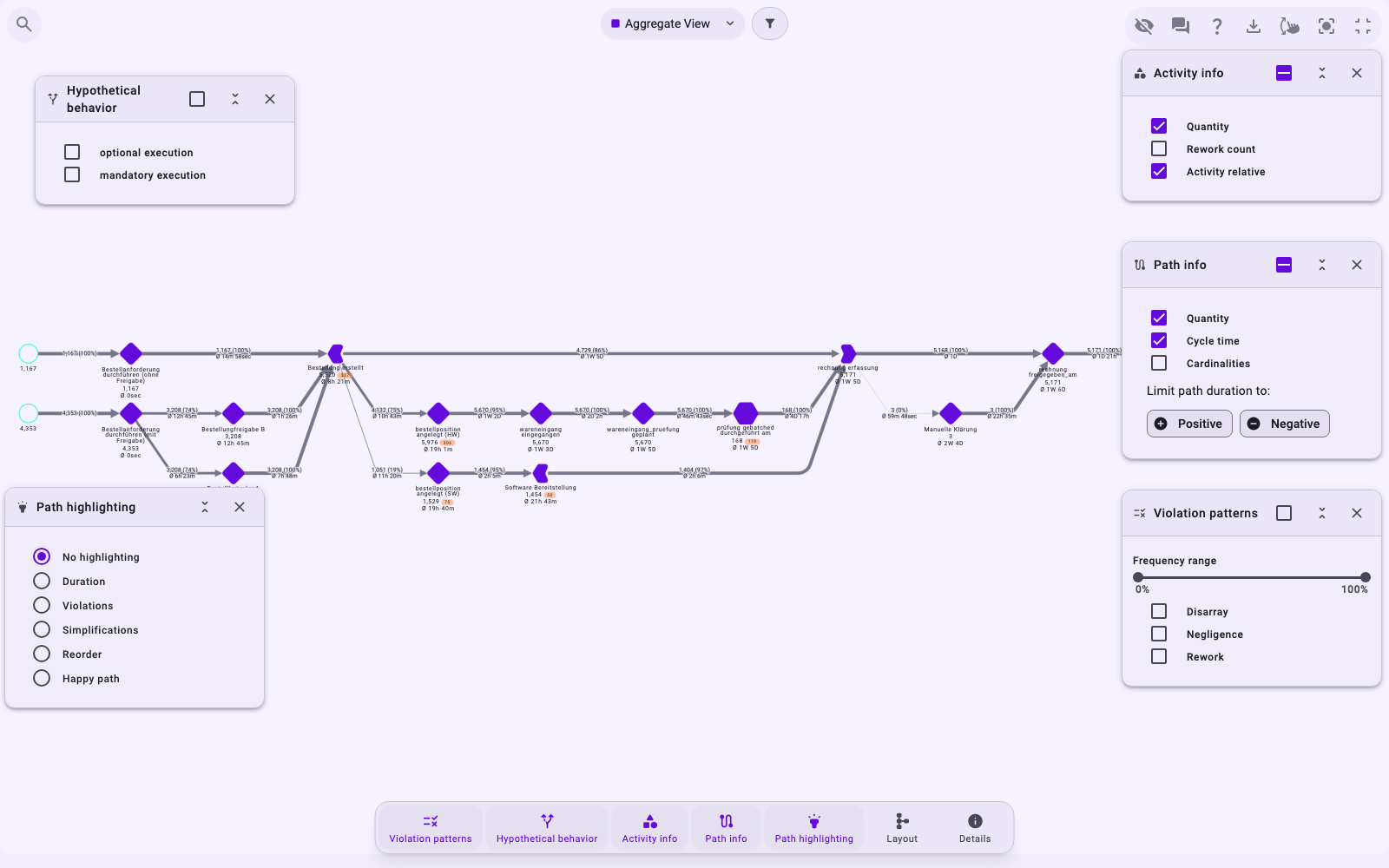
- Top centre: what the graph shows (Aggregate View, a variant or a case) and the filter button.
- Top left: the search.
- Top right: the graph controls: Hide controls, Open chat, Legend, Download, zoom speed, Centre and Exit. While an activity or relationship is selected, the filter button (Add activity to the filter or Add relation to the filter) is shown too.
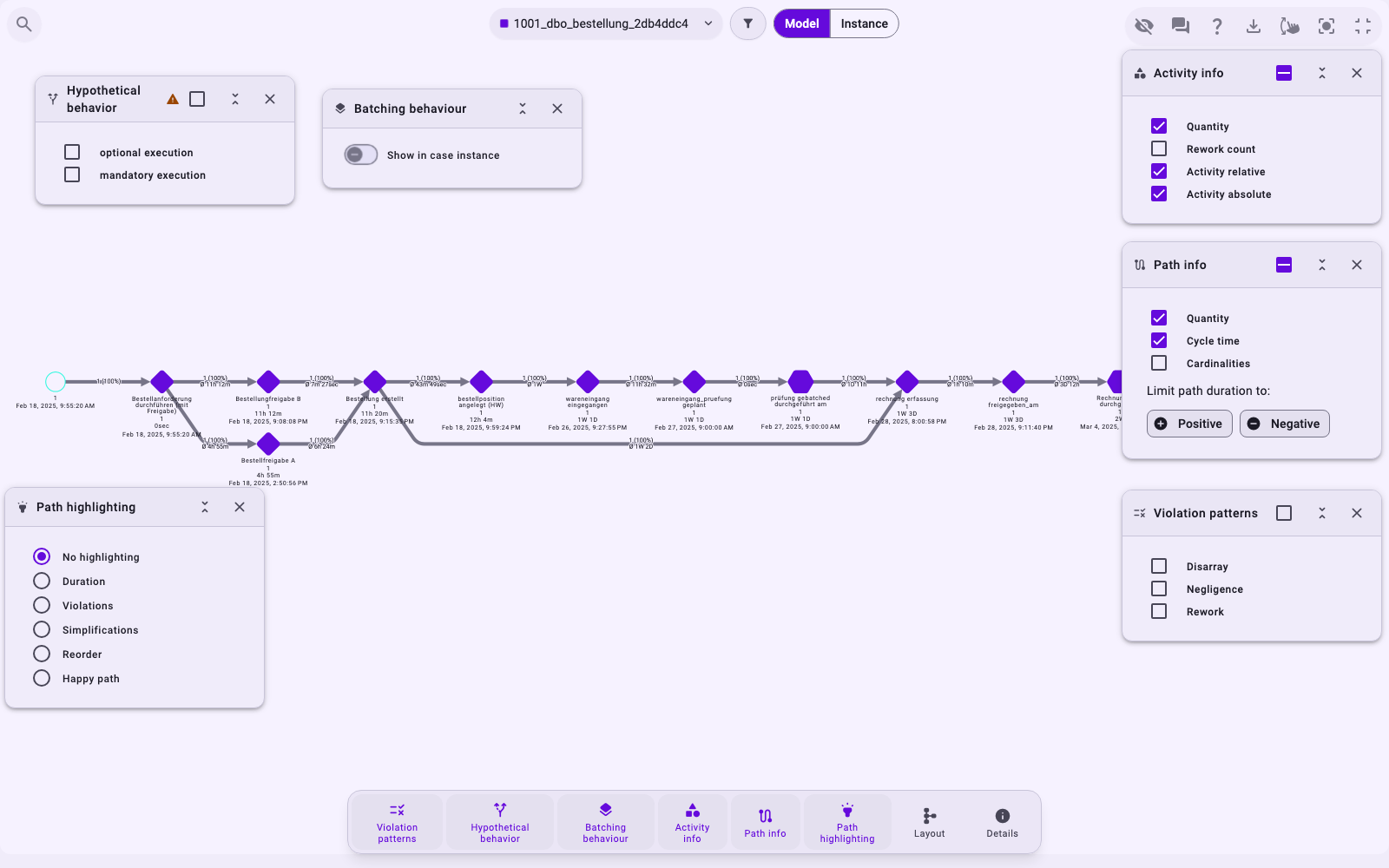
- Bottom: a bar with one button per settings panel (Violation patterns, Hypothetical behavior, Activity info, Path info, Path highlighting, Layout) and Details. In the case view, Batching behaviour is added.
The top menu, the Tab Explorer, the filter bar, the variant or case list and the settings panel on the right are hidden while you're in fullscreen.
Work with the Panels
- Click a button in the bottom bar to open or close its panel. The panels contain the same settings as the settings panel in the normal view; see Work with the Process View.
- Details shows the figures of the selected activity or relationship, or of the whole process. It replaces the details table below the graph.
- Drag a panel by its title to move it. Collapse reduces it to its title, Expand opens it again, × closes it.
- Your browser remembers which panels are open and where, separately for the process view and the case view.
Choose a Variant or Case
Click the button at the top centre (Select Variant/Case). The list shows the variants of the tab with their number of cases:
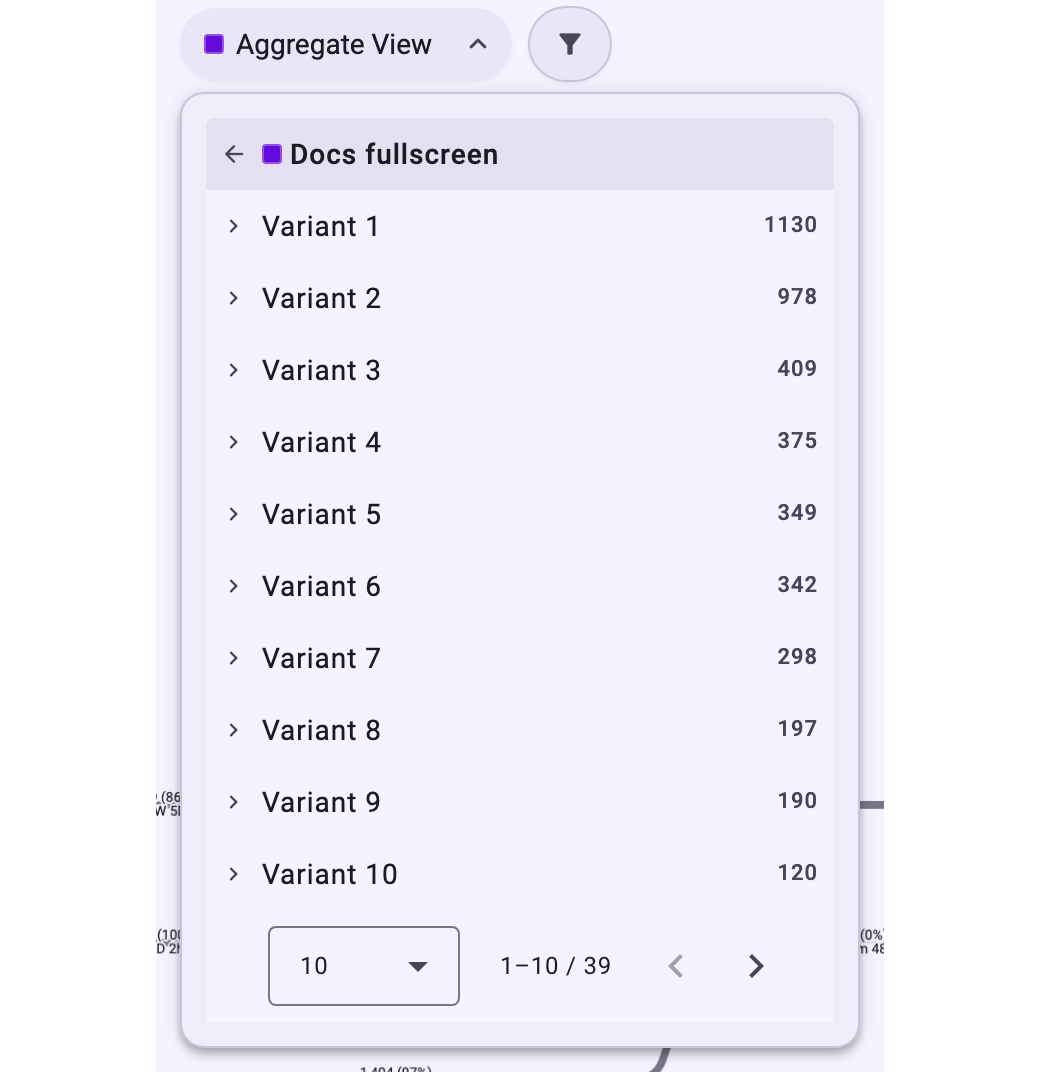
- Click a variant to show only its cases in the process view.
- Click the arrow next to a variant, then a case, to open that case in the case view.
- Click the tab name to go back to all cases (Aggregate View). The arrow at the top left lists your other analyzer tabs; switching to one keeps fullscreen.
In the case view, Model and Instance next to it switch how the case is shown; see Work with the Case View:
Filter in Fullscreen
The filter button at the top centre (Show / hide filters) opens the tab's filters as a panel; the number on it shows how many filters are set. Filters work as in the normal view; see Filter Cases in the Analyzer and Dashboards.
Present the Graph
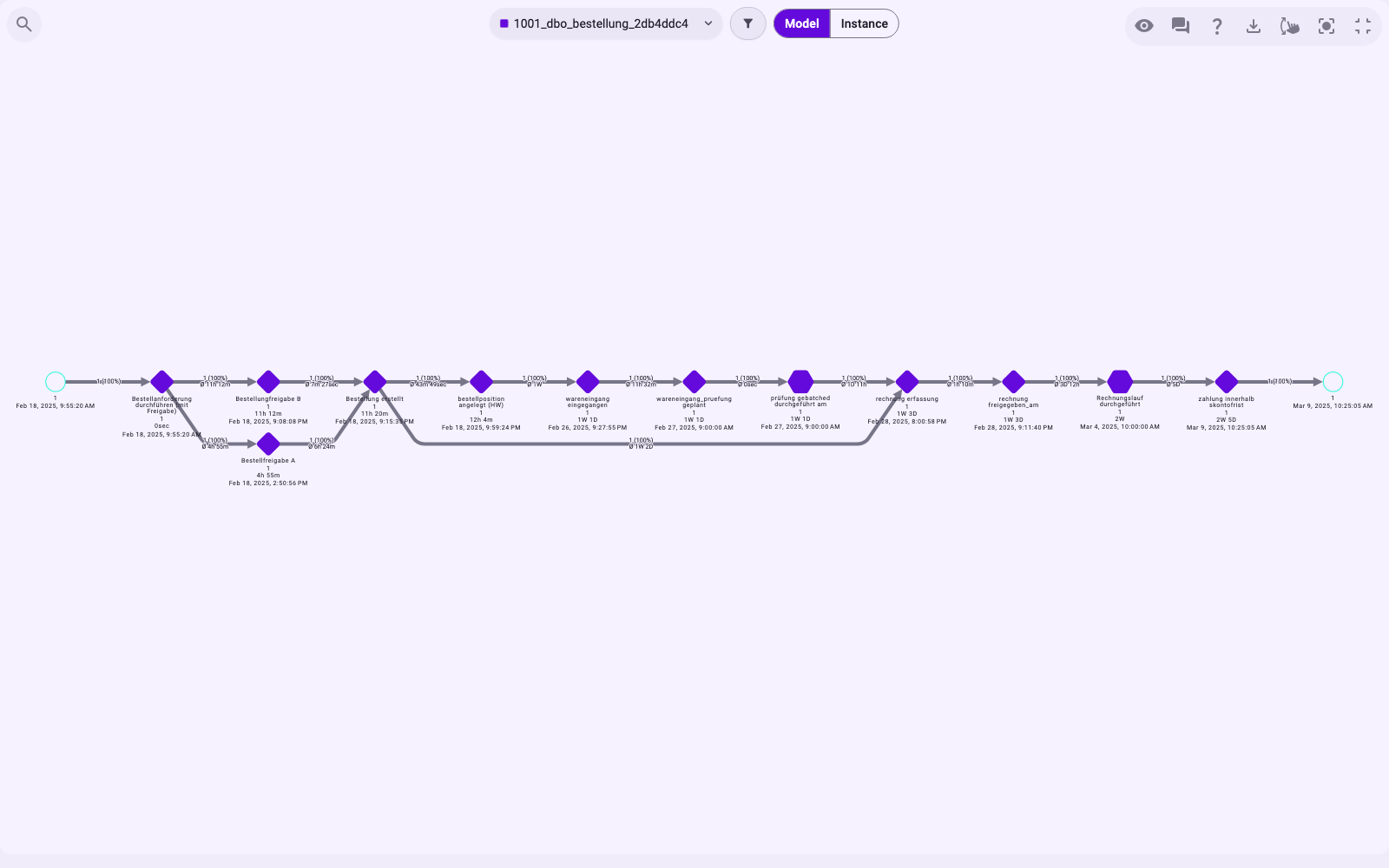
Hide controls hides the panels and the bottom bar, so the graph gets more room, for example in a meeting. The bar at the top and the graph controls stay; Show controls brings the panels back.
Ask Minerva Next to the Graph
Open chat shows Minerva on the right, next to the graph. Drag the line between them to change the width. Minerva reads the saved state of the tab: the open tab, its perspective, the selected variant or case and the filters. An activity or relationship you click in the graph isn't passed to Minerva, and neither are changes that aren't saved with the tab. See Chat with Minerva and Get Better Answers from Minerva.
Good to Know
- The pattern view and the timeline view aren't available in fullscreen. Switching to a tab saved in one of them ends fullscreen. See Work with the Pattern View and Work with the Timeline View.
- On smaller screens, the panels can overlap the graph when you open fullscreen the first time. Collapse or close the ones you don't need.
- Dashboards have no fullscreen of their own. On the chart widgets of a dashboard, the chart menu (☰, shown when you hover over the chart) offers View in full screen for that one chart. The Violation rate gauge has no chart menu. See Dashboard Widgets.