
Create a Perspective
A perspective is a view on a process, built on an entity: which activities belong to it, in which order they are expected to happen, and what counts as one case. Process analysts create perspectives; they don't need to know the tables behind the entity. Once a perspective is imported, it can be analysed in the Analyzer, on dashboards and with Minerva. This page walks you through creating one. The ideas behind the expected order are explained in The Expected Order: Perspective Hypothesis, Shortcuts and Backjumps.
Permissions: feature Builder: Create to create perspectives, Edit (or an Edit share) to configure and import them, Delete to delete and reset them. Feature Context: Read to see the perspective's context on the summary page, Create to add it. See Create and Edit Roles.
Before You Start
- The entity exists and has been imported. Only imported entities can be chosen. See Entities Explained and Create an Entity, Manually or with Suggestions.
- You need a role that allows creating in the Builder.
- Know the process: which activities matter, in which order they should happen, and what one case is, for example one purchase order.
One entity can carry several perspectives. Each uses only the activities it needs, so you can, for example, build one perspective on the whole purchasing process and another on invoice processing only, on the same entity.
1. Create the Perspective
- Open Builder and choose Perspective.
- Click Add perspective.
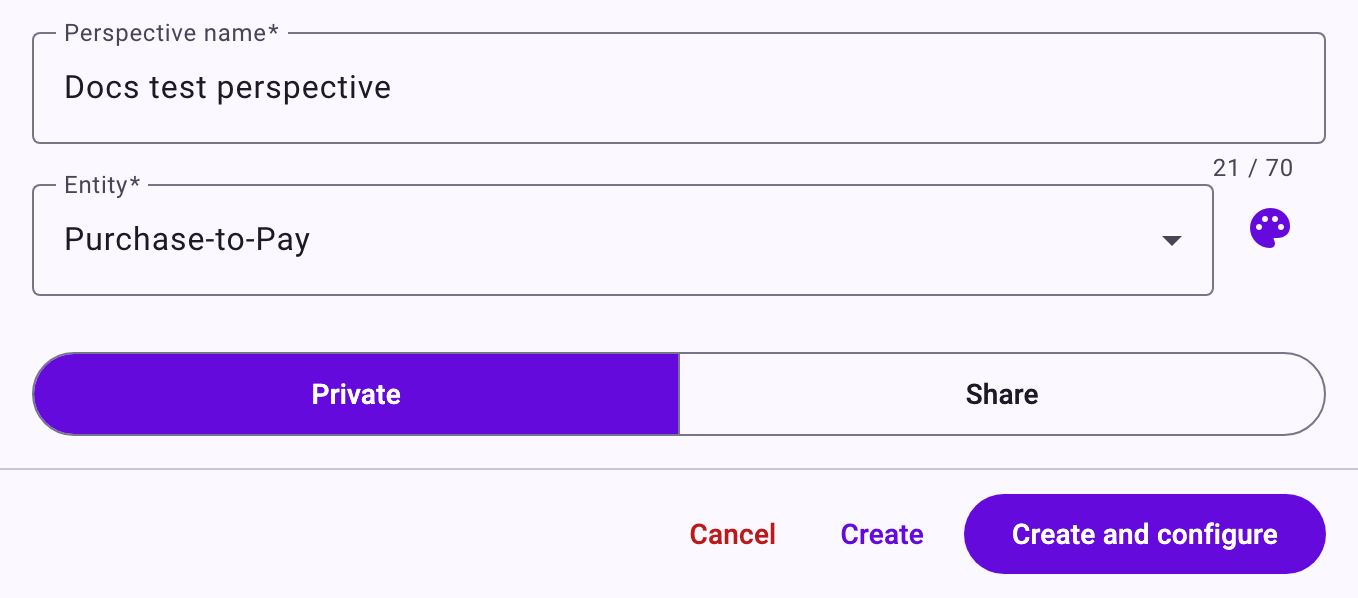
- Enter the Perspective name, for example "Purchase-to-Pay". Analysts see this name in the Analyzer and on dashboards. It can have up to 70 characters.
- Choose the Entity. It can't be changed later. With the palette icon next to it, choose the colour that marks the perspective's tabs.
- Choose Private, or Share to share the perspective with all users, single users or user groups.
- Click Create and configure.
2. Build the Expected Order
The builder has three steps. The first, Perspective hypothesis, is the expected order of the process. Every change is saved immediately.
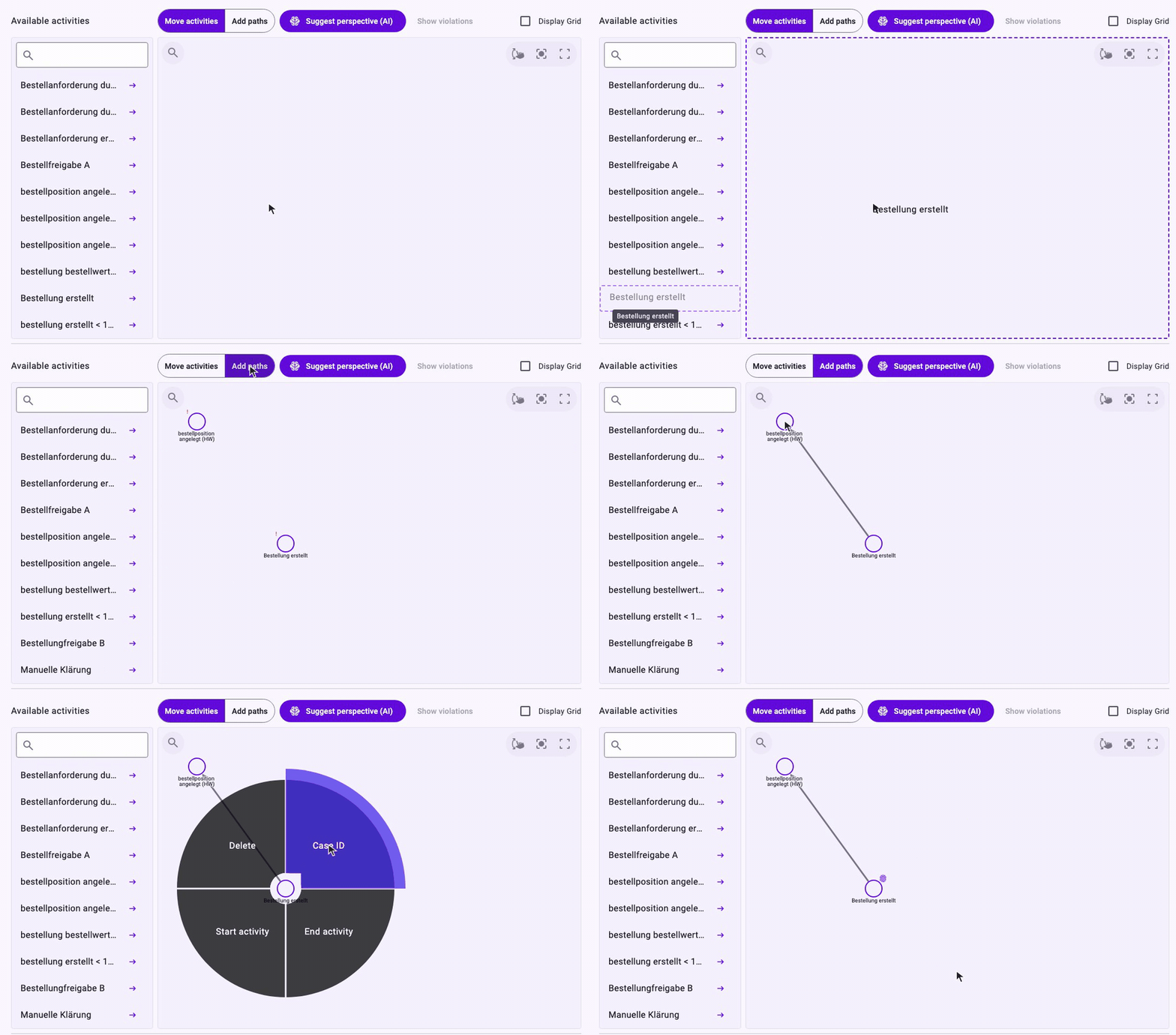
- Add activities: drag them from Available activities onto the canvas, or click the arrow next to one (Add activity). These are the objects of the entity; each can be added once. Add only the activities the process needs.
- Draw relationships: switch from Move activities to Add paths and drag from one activity to the one expected next. Switch back to Move activities to arrange them. An activity without any relationship shows a red exclamation mark.
- Set the case ID: right-click the activity that stands for the case, for example "Bestellung erstellt" for purchase orders, and choose Case ID. Its unique identifier becomes the case ID; every other activity is assigned to the cases through the data connections of the entity. A perspective has exactly one case ID; choosing another activity moves it.
- Mark start and end: right-click an activity and choose Start activity or End activity where cases are expected to begin or finish.
- Mark shortcuts and backjumps: a new relationship is a normal one. Right-click a relationship and choose Shortcut for an allowed skip or Backjump for an allowed jump back; choose it again to make it normal. Mark all of them; see The Expected Order: Perspective Hypothesis, Shortcuts and Backjumps.
Adding two activities, drawing the relationship between them and setting the case ID:
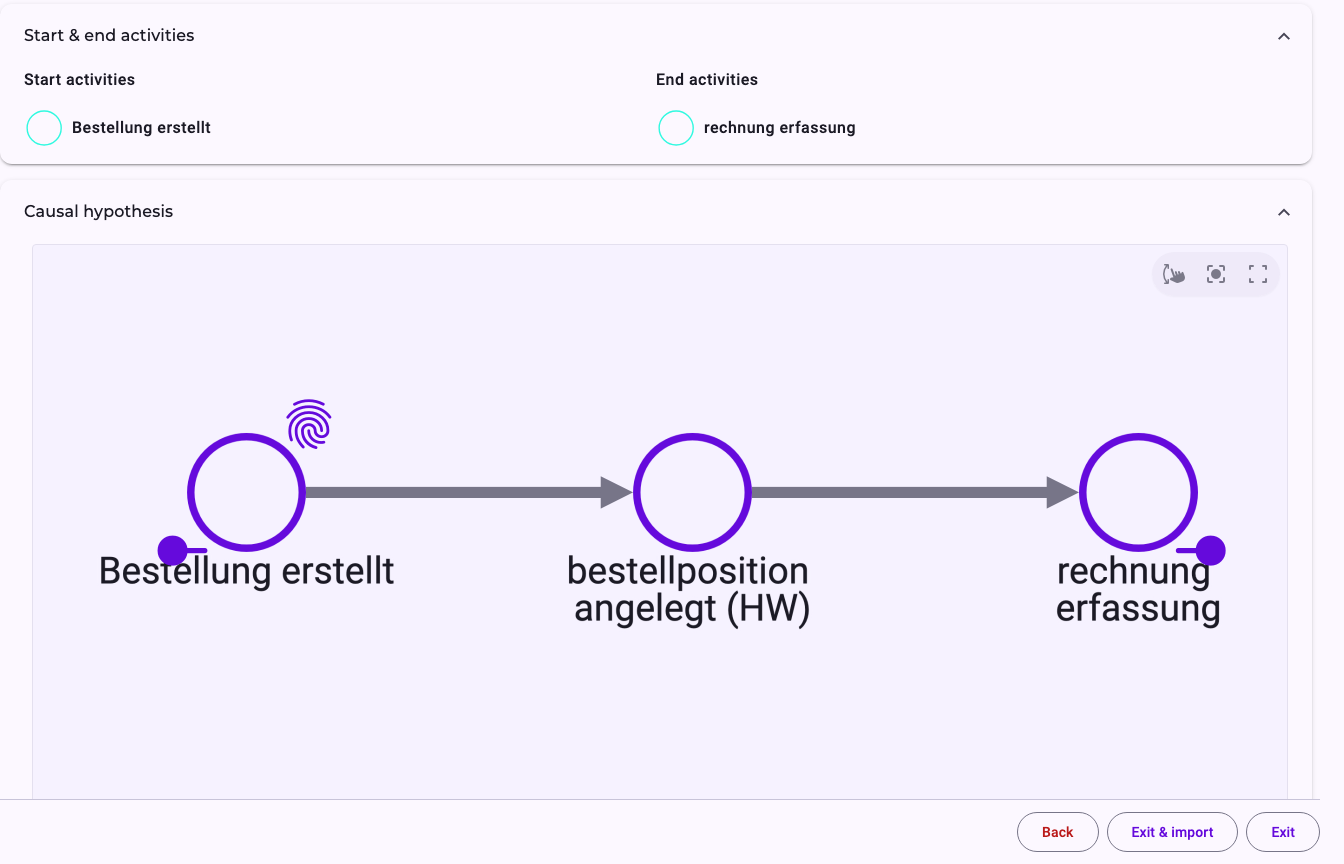
A perspective with three activities, two relationships, the case ID and the start and end marks:
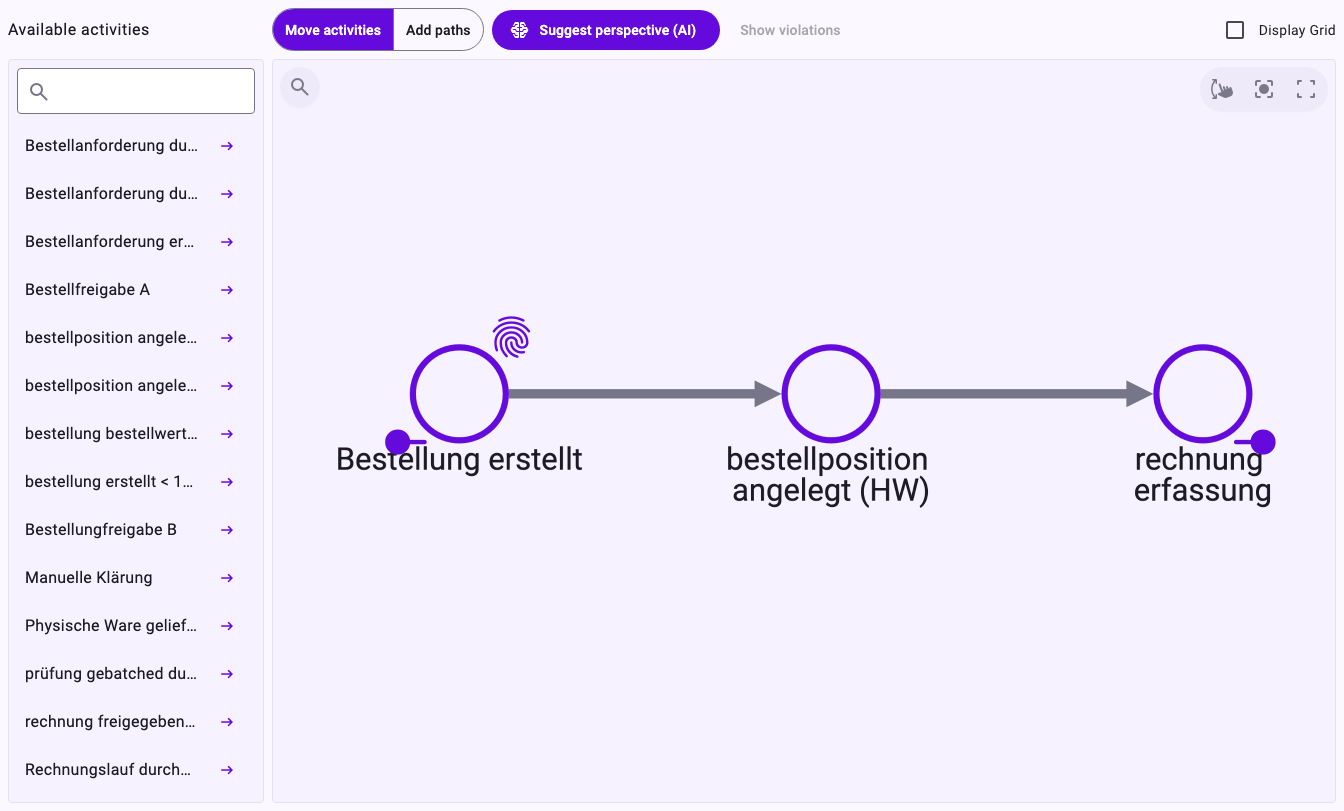
The fingerprint marks the case ID, the dot on the left the start, the dot on the right the end.
- Edit case ID: if the identifier of the case activity has several columns, this entry in its menu lets you choose which of them define a case (Select case ID columns). Choosing fewer columns merges events that share these values into one case, so choose with care.
- Suggest perspective (AI): lets Minerva put all activities of the entity in a likely order. It replaces what is on the canvas without asking and doesn't set the case ID, start or end activities. Use it on an empty canvas and check the result.
- Show violations: becomes available after the first import. It shows the steps cases actually took that the expected order doesn't contain, and lets you add them to it. See step 6 below.
Click Next.
3. Set Up Filters (Optional)
In Filter settings you decide which properties analysts can filter by in the Analyzer and on dashboards, in addition to the standard filters. Each filter belongs to one activity and one property.
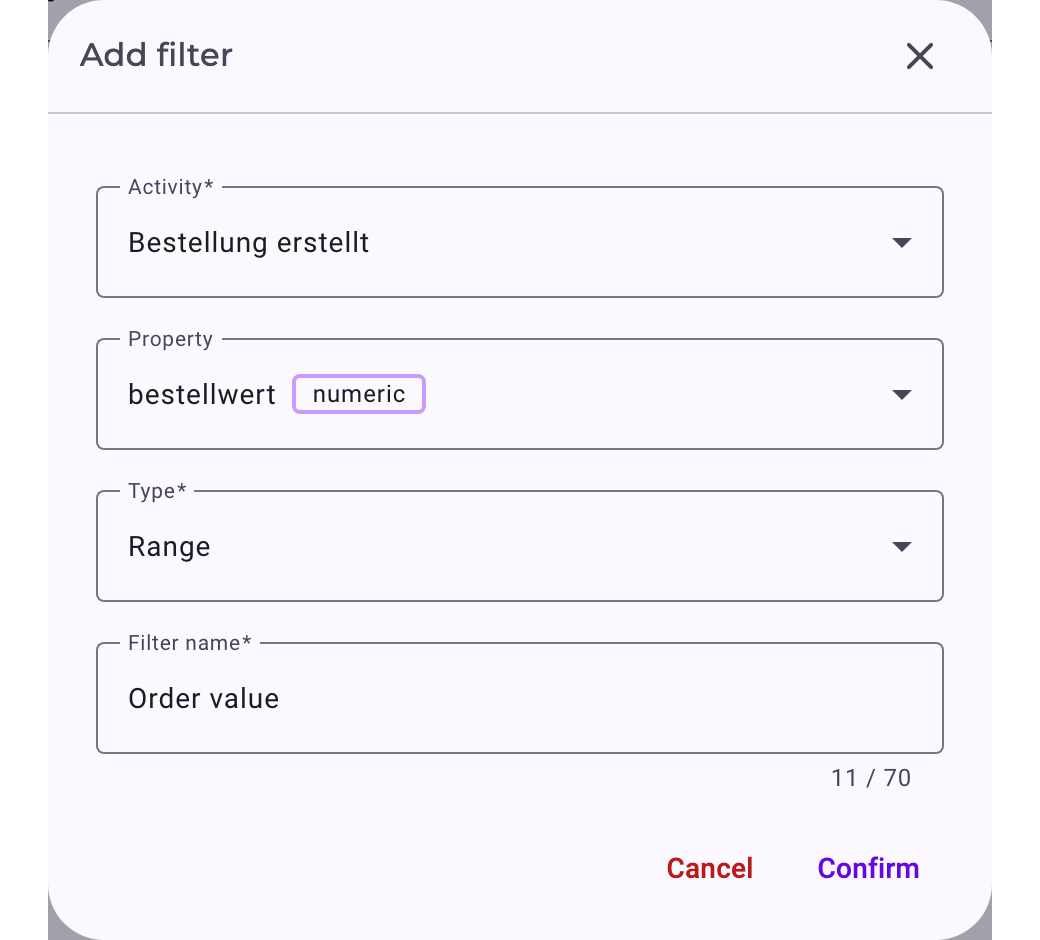
- Click Add filter.
- Choose the Activity and the Property. Properties from joined tables are listed under Joined tables; see Use Joined Properties.
- Choose the Type. Which types are offered depends on the property; see the table below.
- Give the filter a Filter name analysts understand, for example "Order value" instead of the column name. Names must be unique.
- Click Confirm.
Property | Types |
|---|---|
Text | Multi-select |
Number | Comparison operators, Range, Size range (S/M/L), Number list |
Date or date and time | Date range |
Yes/no | Toggle |
Duration | Duration, Size range (S/M/L) |
How analysts use the filters is described in Filter Cases in the Analyzer and Dashboards. If you delete a filter later, Noreja lists the analyzer tabs and dashboards that use it; it's removed from them.
4. Check the Summary and Add Context
The Summary page shows the start and end activities, the expected order (currently titled Causal hypothesis), the context and the filters. A warning appears if the case ID is missing: No Case ID set. The import will fail.
The context section (currently titled Dimension Context) holds what Minerva should know about this perspective as a whole and that the data doesn't show, for example the purchasing guideline or the approval limits that apply. Minerva uses it when it answers questions about the perspective.
- Add context: opens the same form as in the Context Hub, already attached to this perspective. Choose Text or File, enter the text or add the file, choose who may see it and whether it must stay away from public AI models, and click Save. Minerva writes the title and summary.
- Context Hub: opens the Context Hub in a new browser tab, filtered to this perspective, so the builder keeps your unsaved changes. The context appears there under Perspective context.
- Context search, sort and refresh: find context in a long list.
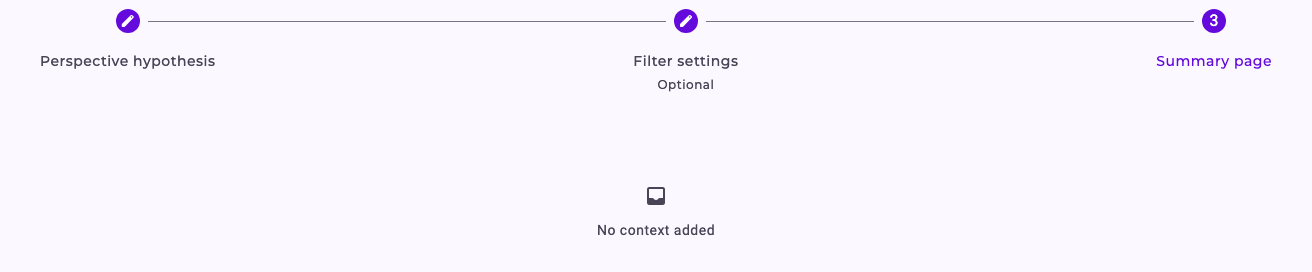
If the perspective hasn't been imported yet, its context is attached with the first import. See Context Hub: Knowledge for Minerva. Context for single activities is added in the entity; see Configure Objects and Relationships.
5. Import
Click Exit & import to start the import, or Exit to import later with Import in the list. The import runs in the background; the column Last import shows its progress and result.
- While a new import runs, the Analyzer and dashboards keep showing the result of the last successful import. If the import fails, that result stays.
- The import fails, among other reasons, if the case ID is missing, if the expected order isn't connected, or if you have marked relationships as Shortcut or Backjump and a loop has no relationship marked as Backjump. The import details then show the reason. See Import Entities and Perspectives: Status and Errors.
6. Complete the Expected Order from the Violations
After the first import, the builder shows where the cases deviate from the expected order. This is the quickest way to find relationships you forgot and steps that are allowed in practice.
- Click Configure in the list to open the builder again.
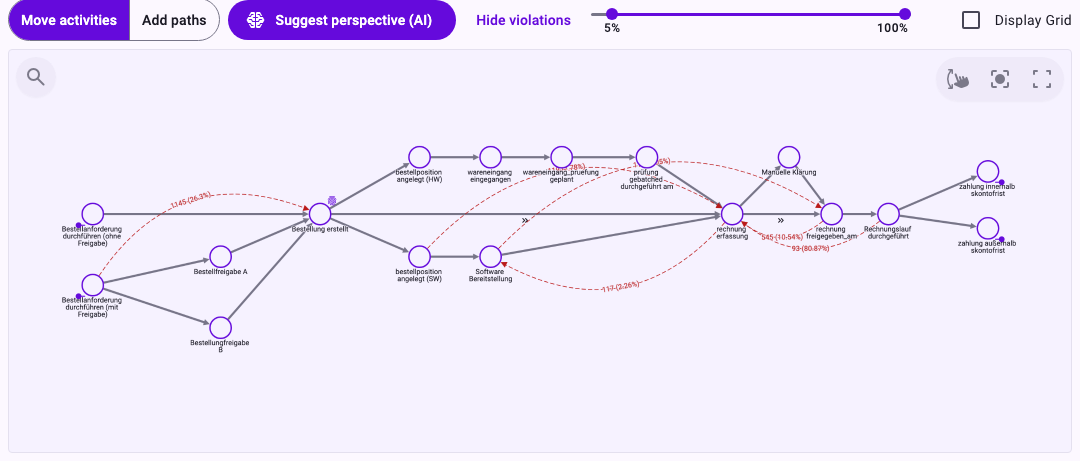
- Click Show violations. Red dashed curves appear between the activities. Each one is a step that cases actually took but that the expected order doesn't contain: a Disarray, Negligence or Rework. The label shows how many executions of the first activity took this step and their share, for example 1145 (26.3%).
- With the slider next to the button, hide the rare or the frequent violations. 100% stands for the most frequent violation, so 5% to 100% hides everything that happened less than a twentieth as often.
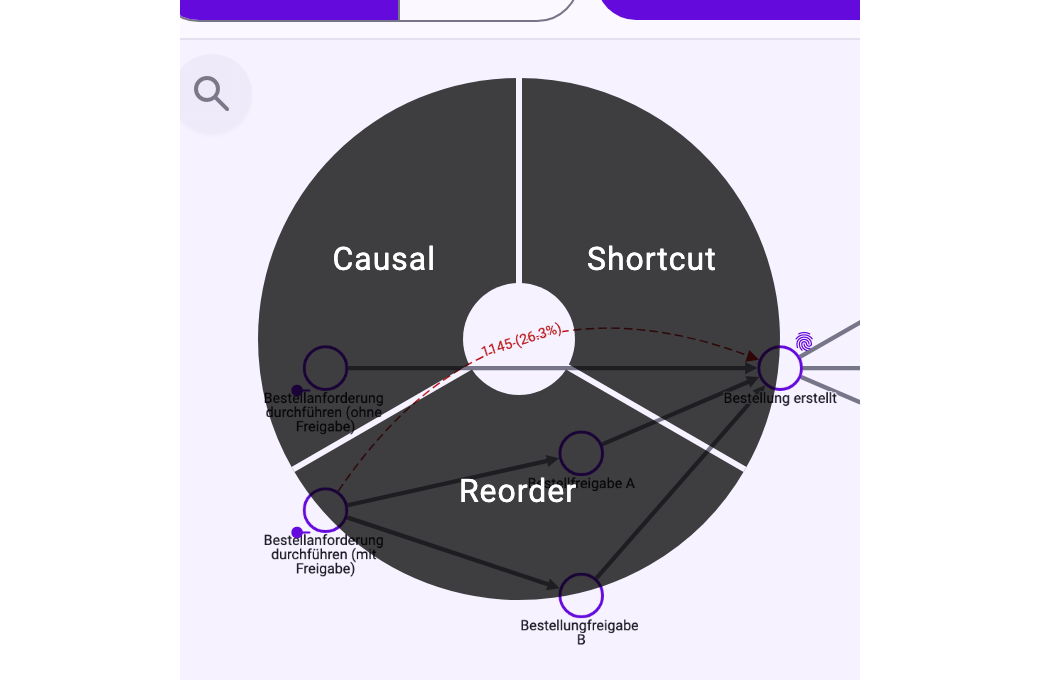
- Right-click a curve and choose how this step counts from now on (the entries are listed below the steps). The curve turns into a relationship of the expected order at once, and the change is saved immediately.
- Click Hide violations and import the perspective again. The cases are checked against the changed expected order only with the next import.
The entries in the menu on a curve:
- Causal: the step is part of the expected order and becomes a normal relationship.
- Shortcut: an allowed skip; it becomes a relationship marked as Shortcut.
- Reorder: an allowed jump back; it becomes a relationship marked as Backjump.
- Only violations between activities on the canvas are shown, and none where the two activities are already connected by a relationship in that direction.
- The curves come from the last successful import. Relationships you add or change afterwards don't change them until the next import.
- For a curve that leads back to an earlier activity, choose Reorder: as a normal relationship it creates a loop, and the import fails if a loop has no relationship marked as Backjump (see step 5).
- Mark only what is really expected or allowed: a marked step no longer counts as a violation in the Analyzer, on dashboards and for Minerva. See Process Patterns: Disarray, Negligence, Rework and Allowed Deviations.
- If nothing is found, Noreja says No violation patterns found. Before the first import, the button is greyed out with the hint Import required.
Change a Perspective Later
- Configure: opens the builder again. Changes reach the Analyzer and dashboards with the next import.
- Reset: discards all changes since the last import.
- Blocked actions: while the entity is being imported or has changes that aren't imported yet, the perspective's actions are blocked.
- Copy: creates a copy, also on another entity that has activities with the same names; filters whose property is missing there are left out. Export and Import configuration move a perspective to another Noreja installation; see Export, Import and Copy Perspectives and Entities.
- Delete: deletes the perspective together with its analyzer tabs and dashboards.