
Create an Entity, Manually or with Suggestions
This page walks you through creating an entity on an existing data source: naming it, choosing the tables, letting Noreja suggest objects and data connections or placing them yourself, and finishing with an import. What an entity is and how its parts work together is explained in Entities Explained; how to set up each object and data connection in detail is in Configure Objects and Relationships.
Permissions: feature Builder: Create to create entities and to add tables, objects and data connections, Edit to change their settings and to import, Delete to remove them and to delete entities; Share shows the sharing options. Feature Context: Read to see an activity's context, Create to add it. See Create and Edit Roles.
Before You Start
- The data source exists and has been tested successfully. Only tested data sources can be chosen for a new entity. See Connect a Data Source.
- You need a role that allows creating in the Builder. If you don't see Add entity, ask your administrator.
- Know which events of the process you want to see and in which tables they are recorded. Entity Modelling Best Practices helps with the choice. One entity can serve several perspectives later, each using the activities it needs.
1. Create the Entity
- Open Builder in the top menu and choose Entities.
- Click Add entity.
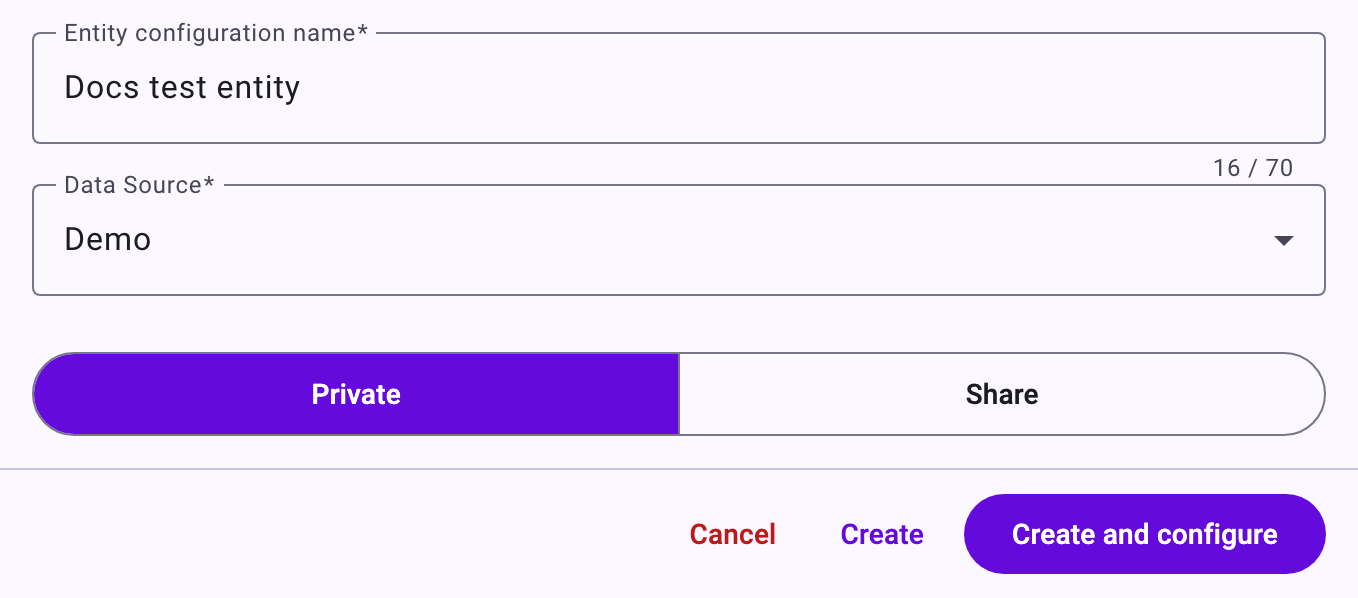
- Enter a name under Entity configuration name, for example the process and the system: "Purchasing ERP". It can have up to 70 characters.
- Choose the Data Source. It can't be changed later.
- Choose Private, or Share to share the entity with all users, single users or user groups. This choice only shows if your role allows sharing in the Builder.
- Click Create and configure to go straight to the entity builder. Create only saves the entity and keeps you in the list.
2. Select the Tables
The builder has three steps. In the first, Select objects, you choose the tables the entity will use:
- Under Available data objects, tick the tables you need. Type in the search field to find them.
- Click Add →. You can also drag tables across or use Add all →.
- To check a table, click its info icon: Data object metadata shows its number of columns and rows, its size and its keys.
- Click Next.
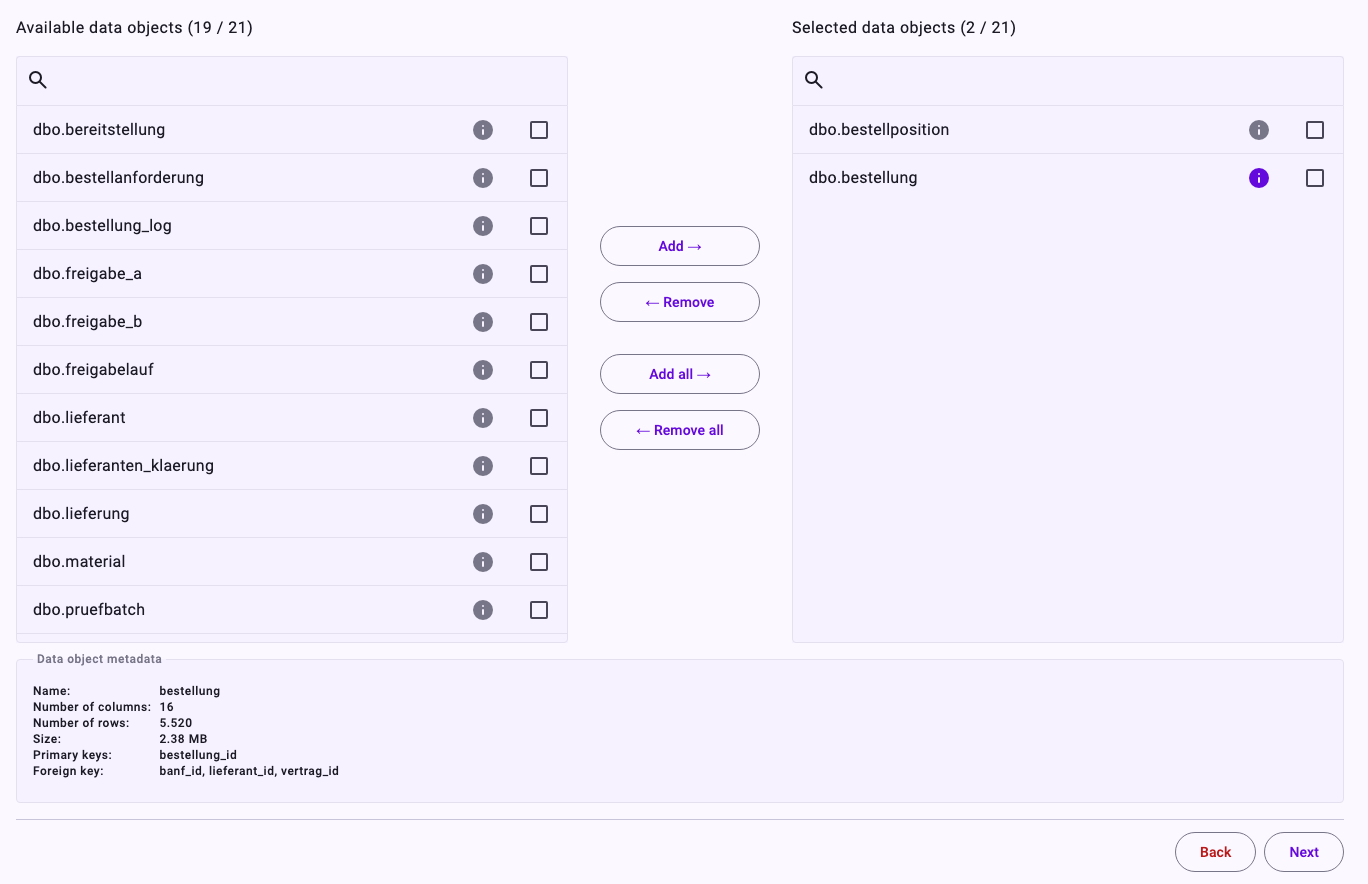
Your selection is saved as you go. Tables that only add columns to other objects, such as suppliers, don't need to be selected here; they are added in the object's JOIN clause. See Use Joined Properties.
The second step, Prepare timestamps, is optional. Use it if dates are stored as text or split into a date and a time column; see Timestamps: Formats, Preview and Distribution. Otherwise click Next.
3. Build the Entity
In the third step, Build entity, you place the objects on the canvas and connect them. You can let Noreja make a suggestion, place them yourself, or both.
Let Noreja Suggest Objects and Data Connections
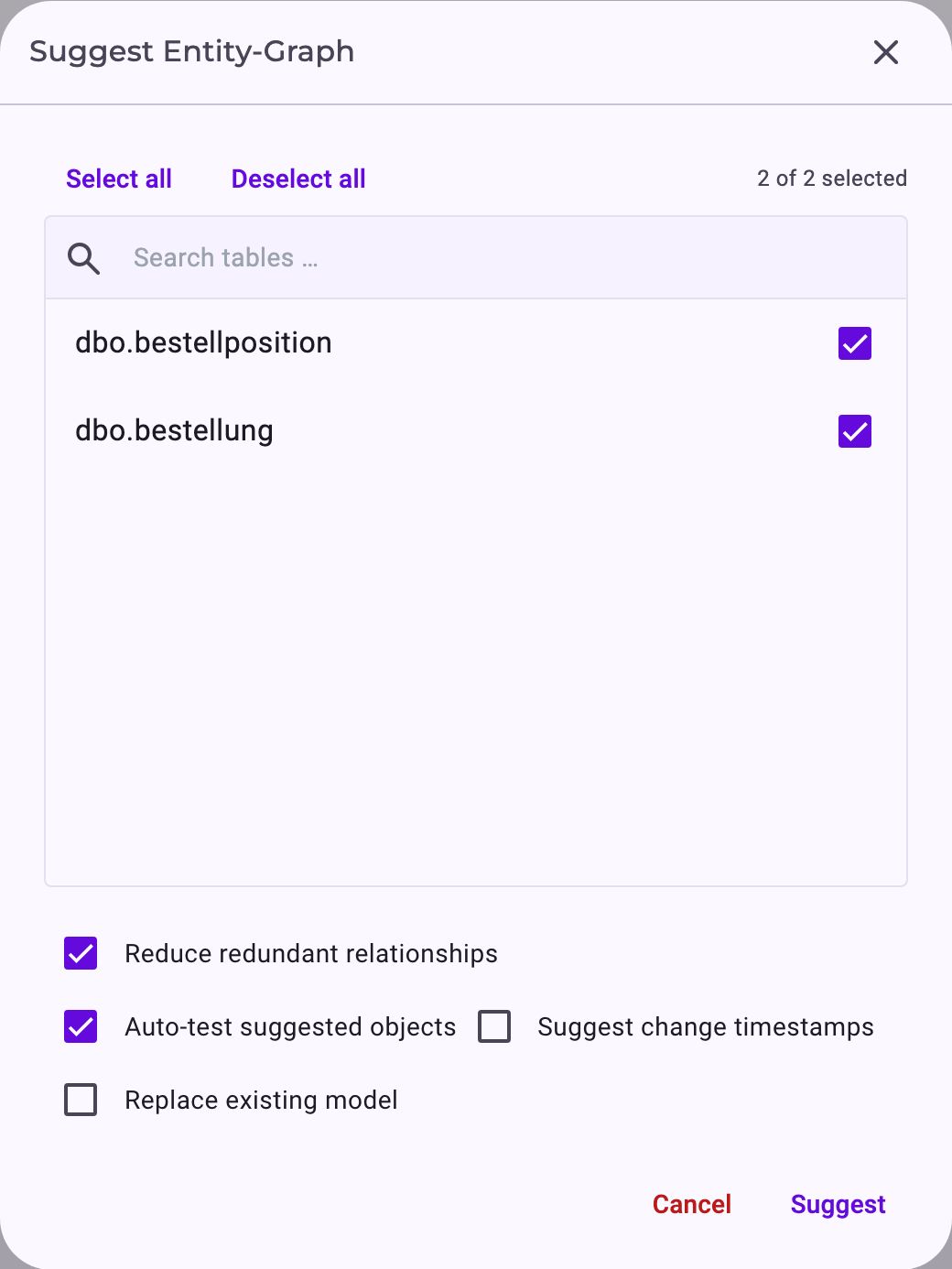
- Click Suggest entities.
- Tick the tables to include; all selected tables are ticked at first.
- Choose the options described below the steps.
- Click Suggest. Noreja analyses the tables, their time stamp columns and their keys; this can take a moment. Stop suggestion cancels it.
The options:
- Reduce redundant relationships: leaves out data connections that only repeat a route that exists anyway. Keys declared in the database are always kept.
- Auto-test suggested objects: tests each new object right away, so the ones that work are configured already.
- Suggest change timestamps: also proposes a change time stamp per object.
- Replace existing model: deletes the objects and data connections already on the canvas first. Without it, Noreja adds to them and updates objects of the same tables.
The result appears on the canvas: one object per table with a suggested start time stamp and unique identifier, and data connections based on the keys Noreja found. Click Reset zoom in the top right corner of the canvas to see all of it.
A suggestion is a starting point. Check every object and data connection, give the objects meaningful activity names (they are named after the tables at first) and add objects for further events of the same table.
Place Objects and Draw Data Connections Yourself
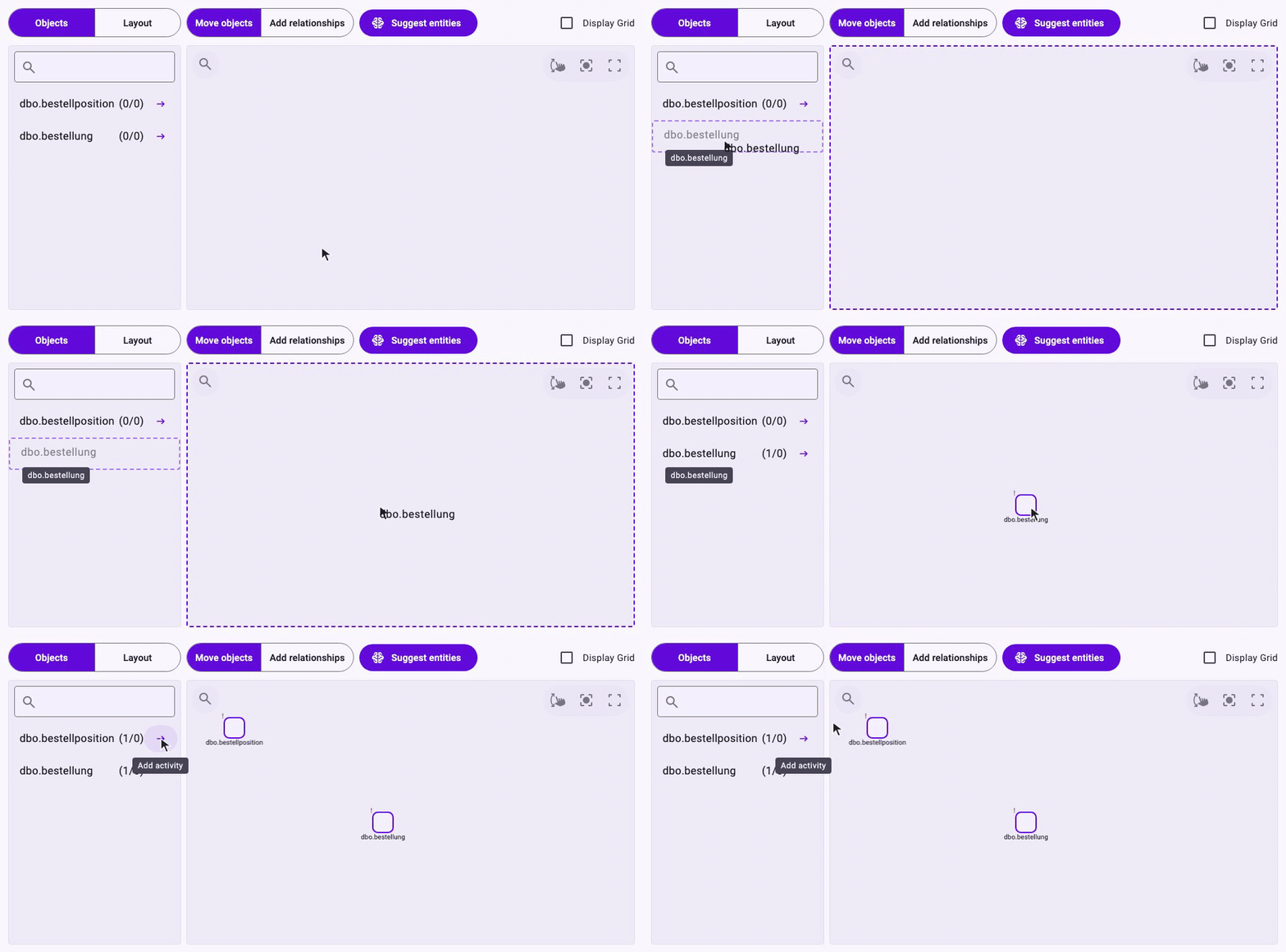
- Add an object: drag a table from the list onto the canvas, or click the arrow next to it (Add activity). The same table can be added several times, for different events.
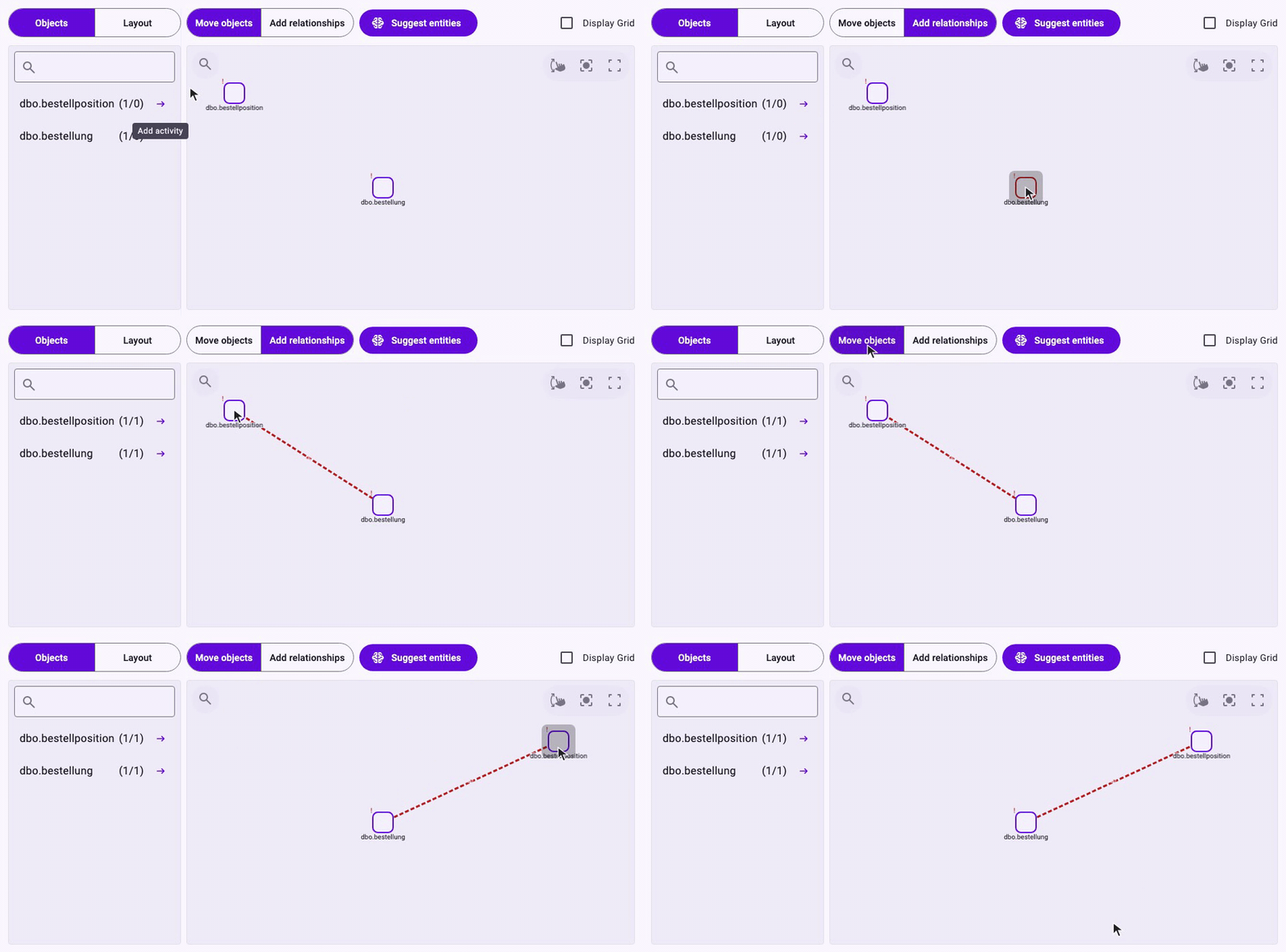
- Draw a data connection: switch from Move objects to Add relationships and drag from one object to the other. Switch back to Move objects to arrange the canvas.
- Configure: right-click an object or data connection and choose Configure. New objects and data connections are highlighted until they are configured. See Configure Objects and Relationships.
- Context: right-click an object and choose Context to add knowledge about this activity for Minerva. See Configure Objects and Relationships.
- Delete: right-click and choose Delete. This needs Builder: Delete or an Edit share of the entity. An object that a perspective uses can't be deleted until it's removed from the perspective.
Placing two objects: one table dragged onto the canvas, the other added with its arrow.
Drawing a data connection: with Add relationships on, a drag from one object to the other creates it; with Move objects on, a drag moves an object.
The canvas is saved automatically: objects, data connections and their positions. The settings of an object or data connection are saved when you click Confirm or Save draft in its panel.
4. Finish and Import
- Exit & import leaves the builder and starts the import of the entity.
- Exit leaves the builder without importing; you can import later from the list.
The import only starts once every object and data connection is configured and all objects are connected. Its progress shows in the Entities list; see Import Entities and Perspectives: Status and Errors. After the import, process analysts can build perspectives on the entity; see Create a Perspective.
Change an Entity Later
In the Entities list, each entity has these actions:
- Edit: changes the name and the sharing.
- Configure: opens the builder again. Changes take effect with the next import.
- Import: imports the entity again. Before it starts, Noreja lists the perspectives on this entity, which are reset to their current live configuration. While an import runs, Stop import takes its place.
- Reset: discards the changes made since the last import.
- Export: saves the configuration as a file; Import configuration above the list creates an entity from such a file, also on another Noreja installation. See Export, Import and Copy Perspectives and Entities.
- Copy: creates a copy, also on another data source with the same tables. It needs Builder: Create.
- Delete: deletes the entity and the perspectives built on it, after asking. It isn't offered on entities shared with you.
While an import is running, the entity can't be changed.
Related
- Entities Explained
- Configure Objects and Relationships
- Entity Modelling Best Practices
- Import Entities and Perspectives: Status and Errors