
Work with the Timeline View
The Timeline view shows how the transition duration between two activities develops over the calendar: for every relationship of the expected order, the average transition duration per week or month. Use it to spot trends, seasonal peaks and sudden changes, for example invoices that take longer to be released since a certain month. The expected order is explained in The Expected Order: Perspective Hypothesis, Shortcuts and Backjumps.
Permissions: feature Analyzer: Read to open analyzer tabs, or a tab shared with you. Settings are saved with the tab only if you may edit it. See Create and Edit Roles.
Open the Timeline View
In an analyzer tab, click Timeline at the top of the settings panel. Each relationship of the expected order gets a chart of its own, titled with its two activities, for example "Bestellung erstellt → rechnung erfassung".
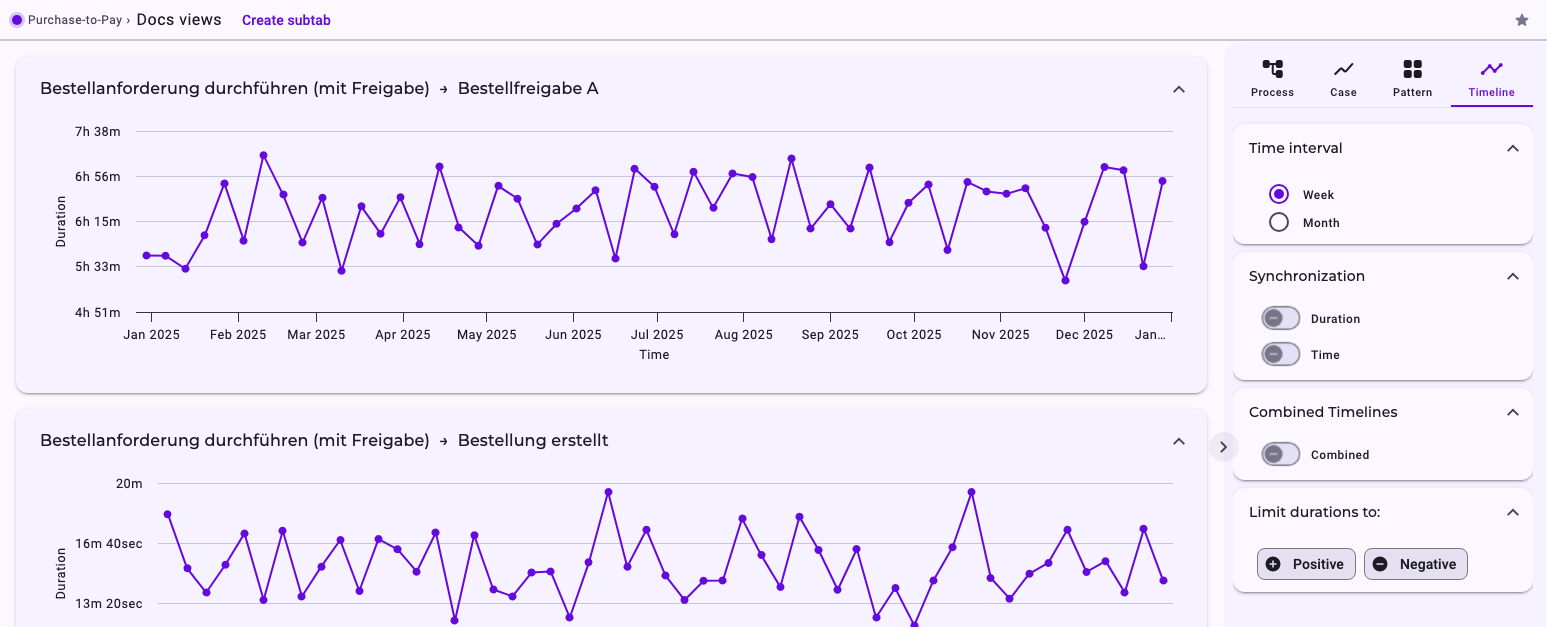
Horizontal is when, vertical is how long: each point is the average transition duration of the relationship for all cases in that week or month, counted in the week or month in which the first activity happened. Hover over a point to see its date and duration. Drag horizontally to zoom into a period; Reset zoom shows the whole range again.
Settings
Setting | Options |
|---|---|
Time interval | Week (default) or Month. |
Synchronization | Duration: all charts use the same scale for the transition duration, so you can compare their heights. Time: all charts cover the same period. |
Combined Timelines | Combined: all relationships as lines in one chart. Click a relationship in the legend to hide or show it. |
Limit durations to: | Positive or Negative: averages only positive or only negative transition durations. Click again to remove it. Charts whose values changed show a plus or minus icon. |
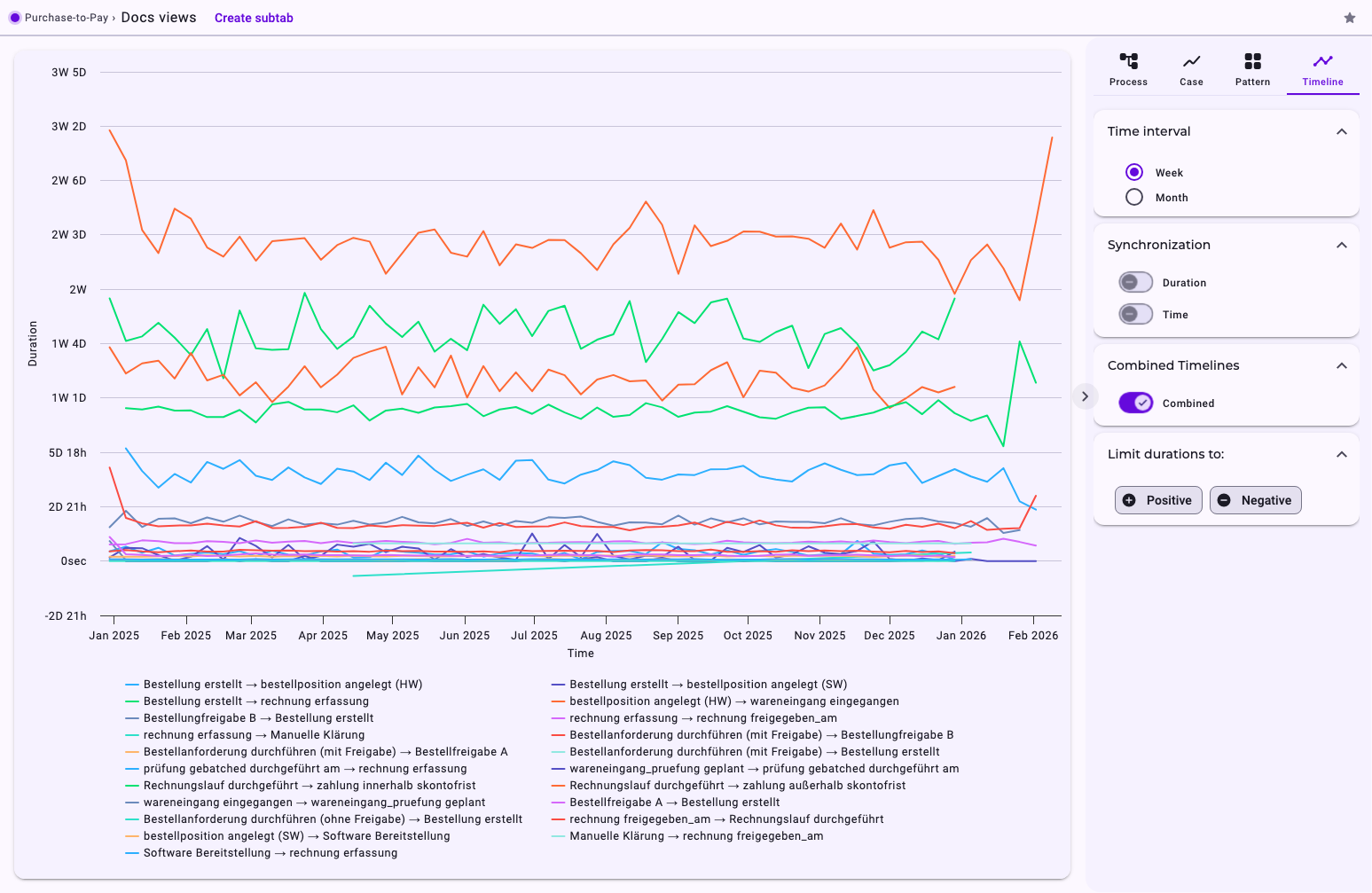
Reading Tips
- Look at the scale before comparing charts, or switch on Synchronization → Duration.
- A steady rise is a trend; peaks that repeat every year point to seasons, for example year-end closing.
- Negative transition durations mean that the second activity was recorded before the first. They point to steps done in a different order or to data issues; see Positive and Negative Times.
- How the averages are calculated is explained in Average Time Calculation.
- Compare a change with what happened in the company at that time, for example a new approval rule or a staff change.
Good to Know
- The charts use the cases that match the tab's filters; a variant you clicked in the process view doesn't count. See Filter Cases in the Analyzer and Dashboards.
- The settings are saved with the tab if you may edit it.
- The timeline view isn't available in fullscreen; see Work with the Process Graph in Fullscreen.