
AI Hub: Agents, Skills, Prompts and Workspaces
The AI Hub is where you configure how Minerva works for your company. Open it from the top navigation. It has four tabs:
- Agents: the assistants users can talk to, and the sub-agents they can delegate work to.
- Skills & prompts: the instructions agents follow.
- Context: the company knowledge Minerva can draw on. See Context Hub: Knowledge for Minerva.
- Workspaces: the file areas where Minerva creates and edits files.
Permissions: each tab has its own feature: Agent (Agents), Prompt (Skills & prompts), Context (Context) and Workspaces (Workspaces). Read shows the tab, Create, Edit, Delete and Share allow working on its items. The AI Hub appears in the top menu with Read on Agent, Prompt or Context. Items shared with you also open their tab without the feature, for example Noreja’s agents and skills, which are shared with everyone, or knowledge shared with all users. See Create and Edit Roles.
Agents
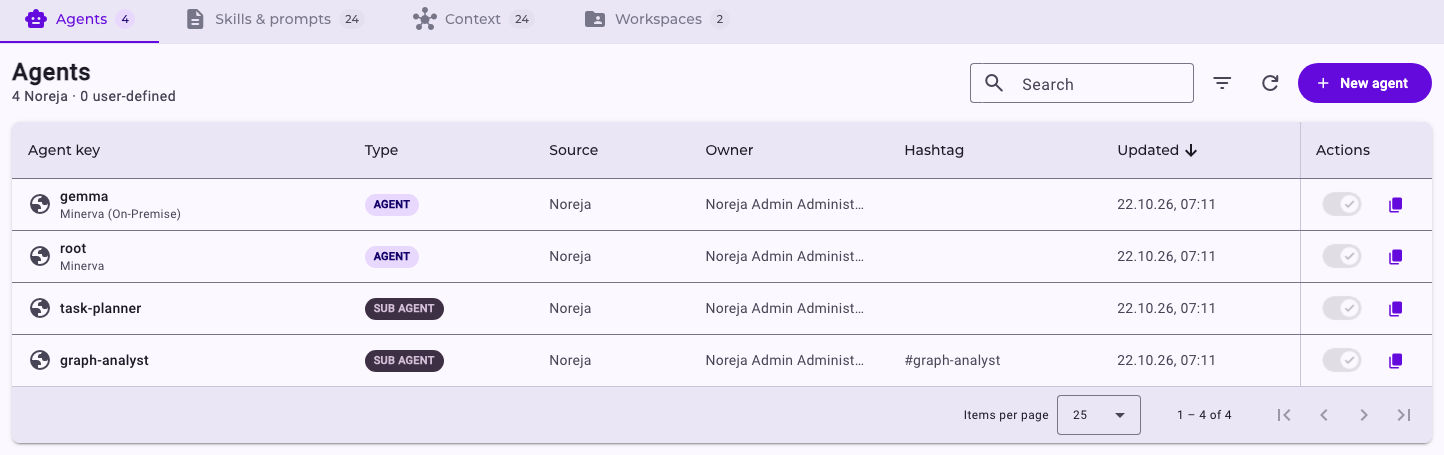
The list shows every agent with its key, type, source, hashtag and last change. Source tells you whether an agent comes from Noreja or was created by your company (Custom). Noreja's agents and skills are listed in Noreja's Agents and Skills. Use the filter to show only Agents or only Sub-agents.
- An agent appears in the chat selector and can start a conversation.
- A sub-agent can’t be chosen in the chat. Other agents start it to handle part of a task, for example analysing one perspective while another sub-agent analyses a second.
Agents from Noreja can’t be changed or deleted by your company. To build on one, use the copy icon in the Actions column (or Duplicate in the agent’s details), then adjust the copy.
Create an Agent
Click New agent. A panel opens with these sections:
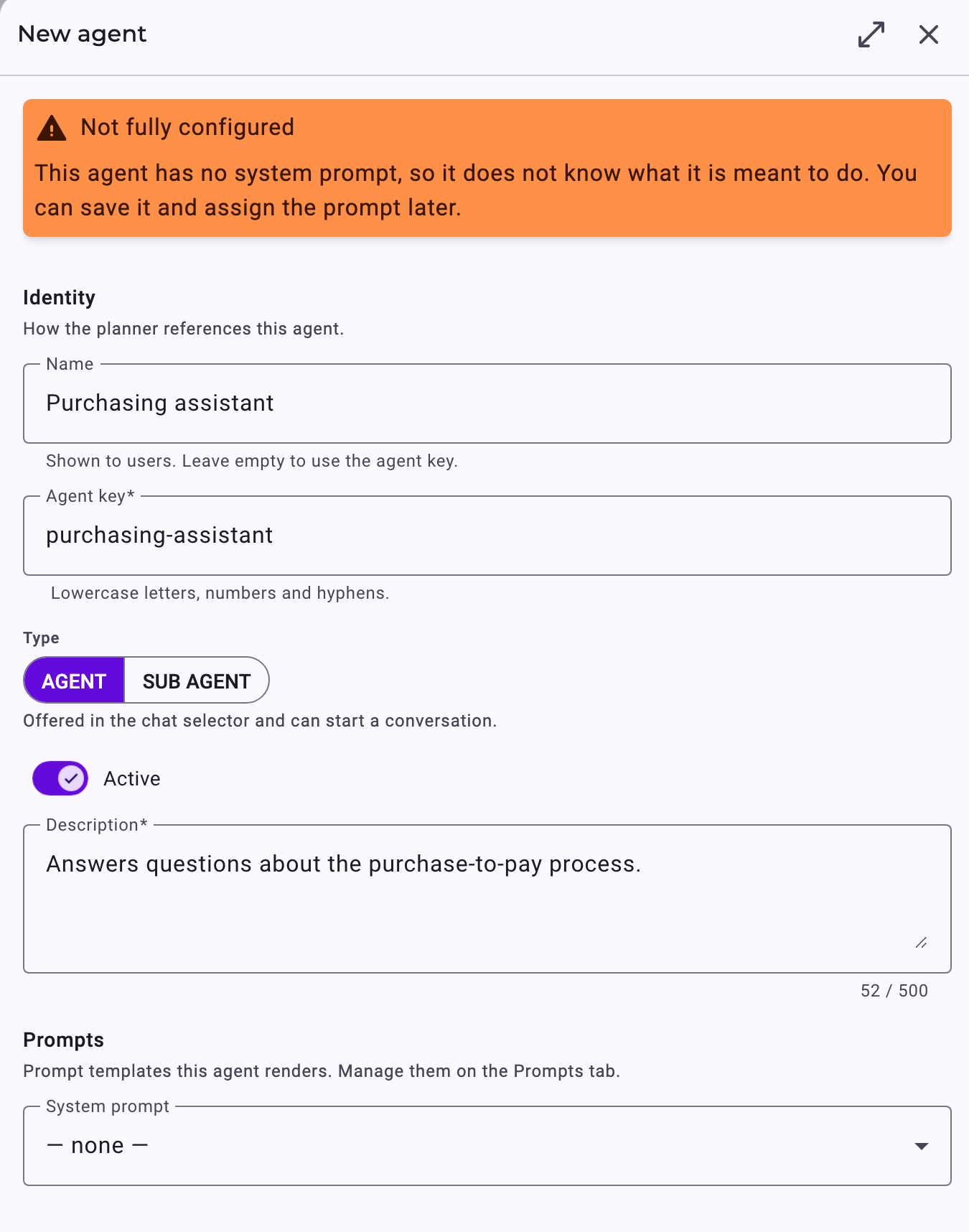
- Identity: a Name shown to users, a unique Agent key (lowercase letters, numbers and hyphens), the Type (Agent or Sub agent), whether it’s Active, and a Description.
- Prompts: the System prompt that tells the agent what it’s for. Without one, the agent is flagged as Not fully configured. You can save it anyway and add the prompt later.
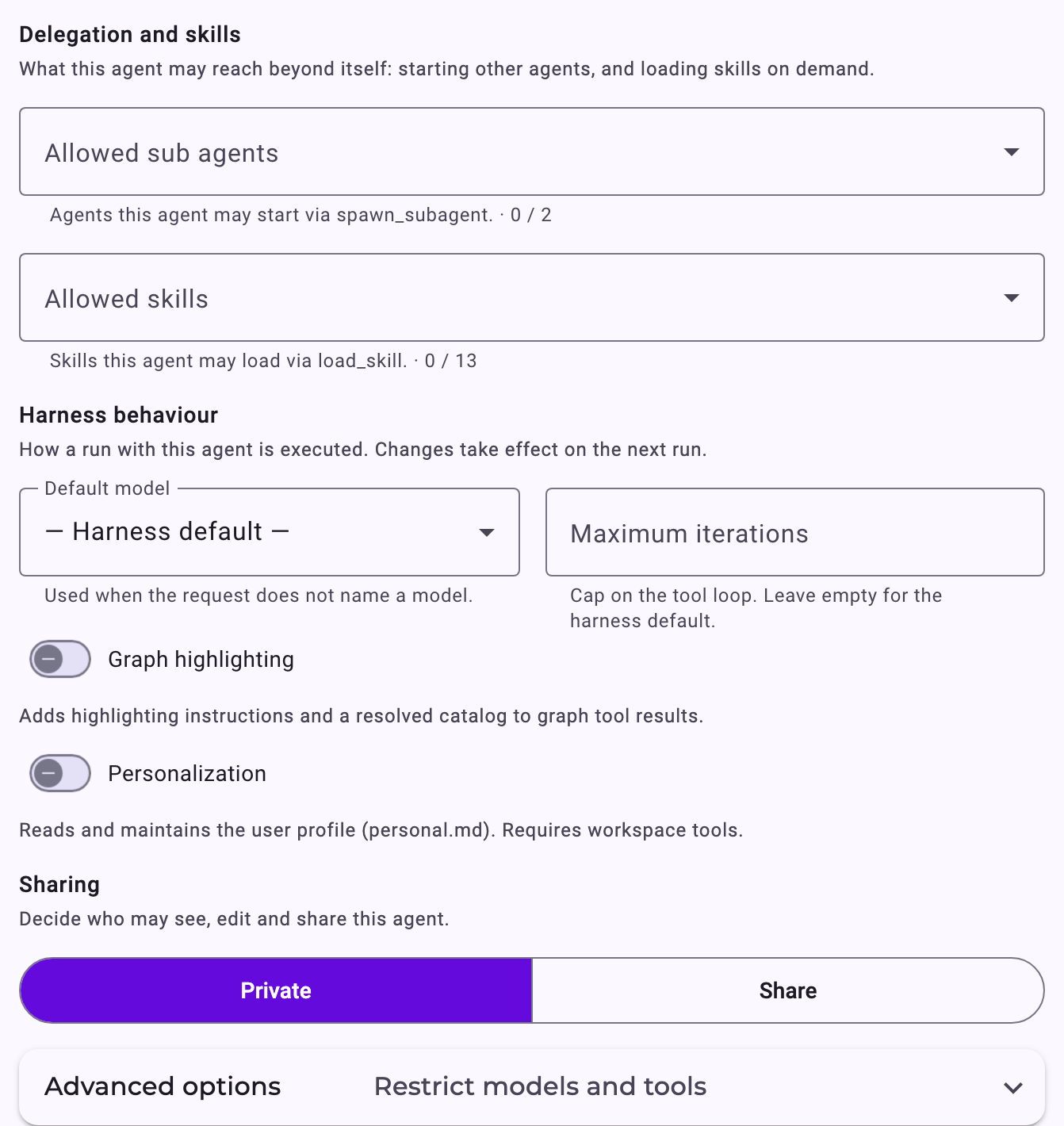
- Delegation and skills: which sub-agents it may start (Allowed sub agents) and which skills it may load when needed (Allowed skills).
- Harness behaviour: how a run is executed. Choose a Default model, optionally cap the Maximum iterations, and switch on Graph highlighting (Minerva links the activities, relationships, paths and violation patterns it mentions, so you can hover over them to highlight them in the process graph; cases and variants open as a graph when clicked). Leave Personalization switched off: the feature isn’t available at the moment. Changes apply from the next run.
- Sharing: keep the agent Private or Share it with all users, or with selected user groups and users.
- Advanced options: restrict which models and tools the agent may use.
Skills & Prompts
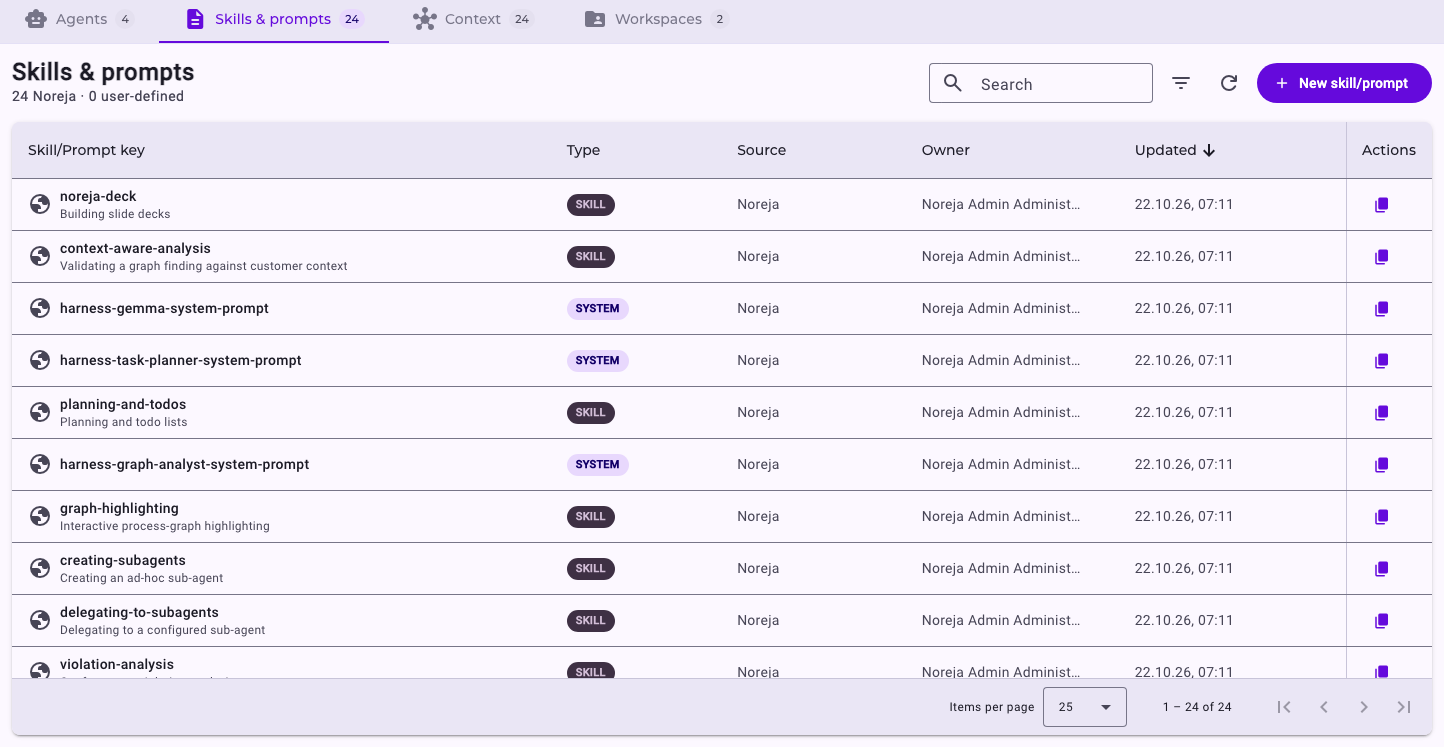
This tab lists the instruction templates agents use. There are three types:
- System: the core instructions that define an agent’s role and behaviour.
- User: templates for specific tasks, such as summarising a document or creating a chat title.
- Skill: specialised know-how an agent loads only when it needs it, such as conformance violation analysis or building Mermaid diagrams.
Only skills appear in the chat when users type /; system and user prompts don't. So the tab lists more items than the chat offers: besides the skills, it shows the system prompts of Noreja's agents and the user prompts Noreja uses internally.
To add one, click New skill/prompt and choose the Prompt type first, because the fields change with the type:
- For a system or user prompt, enter a Name, an optional Description and the Template body. A user prompt you create yourself isn’t used; see Write Your Own Skill.
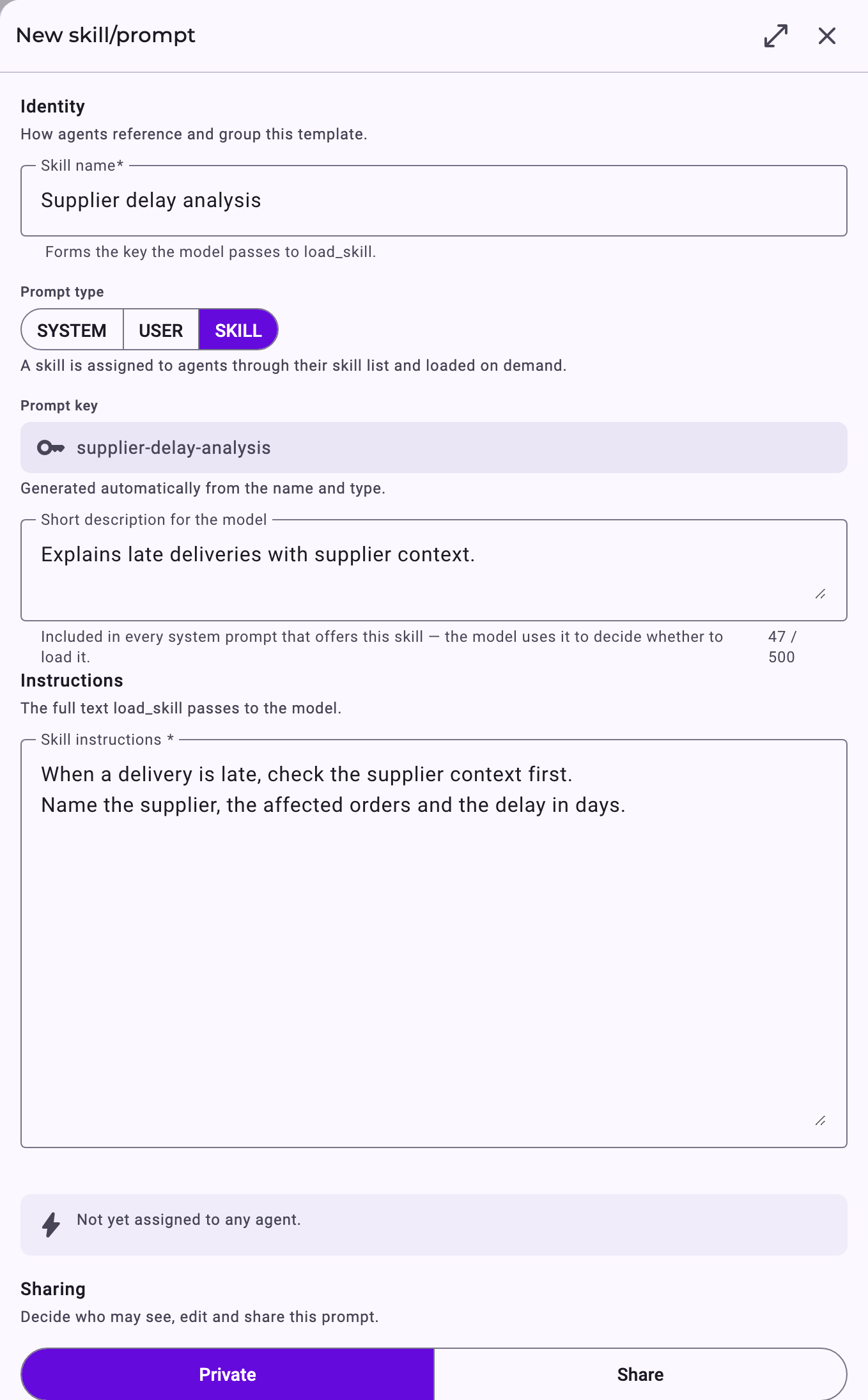
- For a skill, enter a Skill name, a Short description for the model and the Skill instructions. Agents see the short description in their list of available skills and use it to decide when to load the skill, so say clearly what the skill is for.
The key is generated from the name and type. Under Sharing you decide who may see, edit and share it.
A new skill only takes effect once an agent is allowed to use it under Allowed skills. Agents that allow all skills pick it up automatically.
Skills and prompts from Noreja can’t be changed by your company. Duplicate them to create your own version.
Workspaces
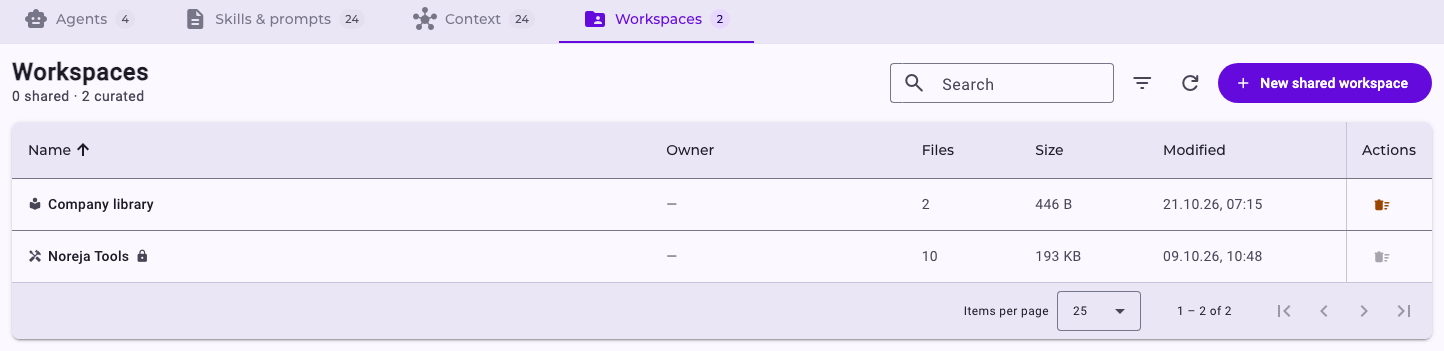
Minerva creates and edits real files, such as spreadsheets, charts and reports, in a workspace. Every user has a personal workspace, My workspace, which they find in the chat rather than in this list (see Work with Files in Minerva Workspaces). In addition:
- Shared workspaces can be shared with users, user groups or the whole company. Click New shared workspace to create one.
- The Company library holds templates and files everyone can read. Users whose role includes the Company library feature with Edit can maintain it.
- Noreja Tools holds the tools Noreja provides. It is read-only.
The Company library and Noreja Tools are available as folders in every workspace; Customer admins also see them in this list. The list shows each workspace’s owner, number of files, size and last change.
In the chat, Minerva always works in the workspace that is active for the conversation. If your access to a shared workspace is removed, the conversation falls back to your personal workspace. Files Minerva creates or edits carry a machine-readable marking that they were generated by AI.