
Import Entities and Perspectives: Status and Errors
Entities and perspectives become usable through an import: the entity import reads the data from the source, the perspective import builds the process models from the entity's data. This page explains where you see how an import is going, what happens while it runs, and what to do when it fails. It's for data specialists and process analysts alike.
Permissions: feature Builder: Read to see the status, Edit (or an Edit share of the entity or perspective) to start and stop imports. See Create and Edit Roles.
Where You See the Status
In the lists under Builder → Entities and Builder → Perspective:
- Status: Imported if a successful import exists, otherwise Not imported.
- Imported on: when the last successful import finished.
- Last import: the latest run, successful or not: Running with the step it's at (Step 3 of 39), Imported, Failed, Stopped or No import started.
Click a row to open its details on the side. Under Last import they show the result, start and end, the duration, who started it and its steps; while an import runs, the same appears as Current import with its progress. Earlier runs are listed under Archived imports.
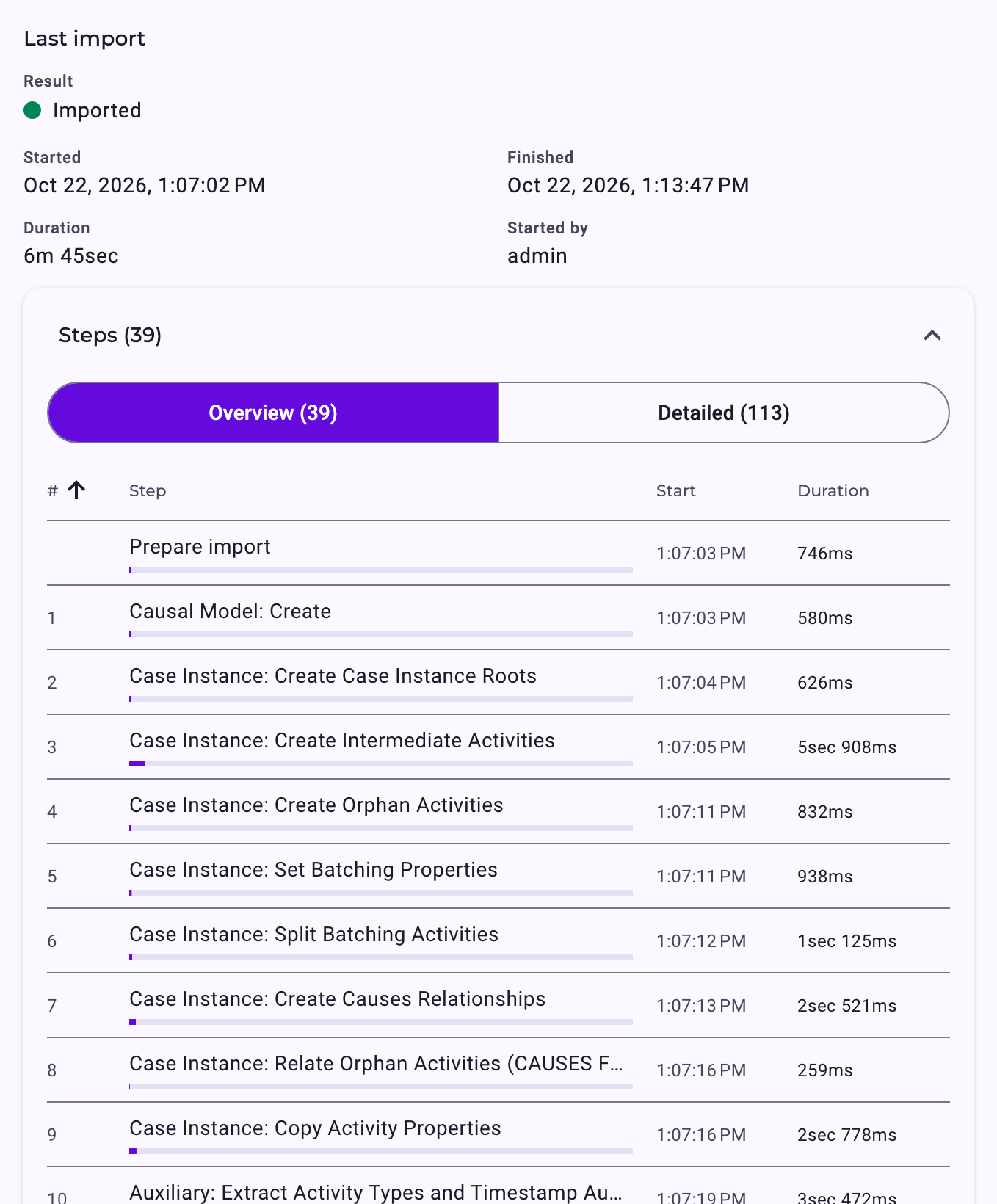
Overview lists the main steps, Detailed every single one. The duration of each step shows where an import spends its time; see Performance Tips for Large Imports.
Start an Import
- Click Import in the row of the entity or perspective, or Exit & import at the end of the builder; see Create an Entity, Manually or with Suggestions and Create a Perspective.
- Importing an entity resets the perspectives built on it to their current live configuration first; Noreja lists them and asks before it starts. Import the perspectives again afterwards.
- A running import can be stopped with Stop import.
While an Import Runs
- Analysts keep working with the result of the last successful import. The new result replaces it only when the import has finished successfully.
- An entity can't be changed while one of its perspectives is being imported: Editing is currently not possible due to an ongoing import.
- The perspectives of an entity are blocked while the entity is being imported, has changes that aren't imported, or has never been imported: Blocked due to parent entity configuration changes. Import the entity first.
When an Import Fails
The row shows Failed under Last import. The details show where it failed and the error; Copy error message copies it for your administrator or Noreja's support. The last successful result stays available.
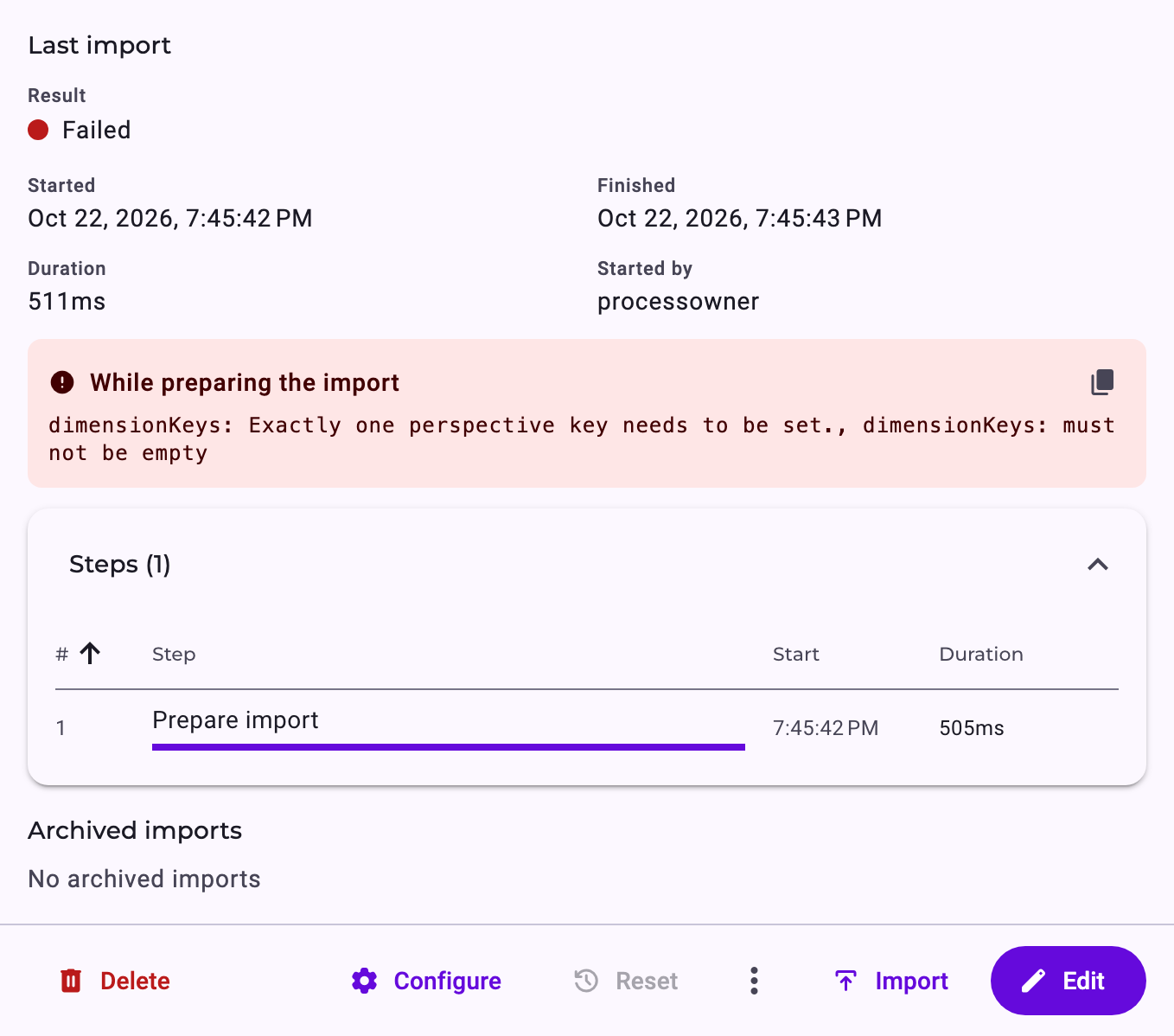
Common reasons:
Error (wording may vary) | Meaning | Fix |
|---|---|---|
Exactly one perspective key needs to be set. | The perspective has no case ID. | Set the Case ID on one activity; see Create a Perspective. |
Each causal model needs to be a connected graph. | The expected order has activities without relationships or separate groups. | Connect all activities. |
The causal model has a cycle through … mark a relationship on it as a backjump | Relationships in the expected order are marked as shortcut or backjump, and a loop has no backjump. | Mark one relationship of the loop as Backjump; see Perspective Modelling Best Practices. |
Each entity graph needs to be a connected graph. | The entity has objects that aren't connected to the rest. | Add the missing data connections; see Entities Explained. |
Activity … is not configured, Relationship … is not configured | An object or data connection of the entity wasn't confirmed. | Open it in the entity builder and click Confirm; see Configure Objects and Relationships. |
No imported Entity Graph available | The perspective's entity has no successful import. | Import the entity first. |
Errors from the source system, such as a refused connection or a missing table, are shown with the message of the database or interface. Check the data source with Test; see Connect a Data Source. More causes and fixes: Troubleshooting Imports.
Related
- Create a Perspective
- Create an Entity, Manually or with Suggestions
- Performance Tips for Large Imports
- Perspective Modelling Best Practices
- Troubleshooting Imports