
Create an Analyzer Tab
Every analysis in Noreja happens in an analyzer tab. A tab belongs to one perspective and keeps everything you set up for a question: the filters, the view and its settings. Create one tab per question, for example "Late payments" or "Rework in goods receipt", and come back to it whenever you need it. This page explains how to create an analyzer tab, what you see in it and what is saved. How to organise your tabs in folders, favorites and subtabs is described in Organise Your Analyses: Tab Explorer, Folders, Favorites and Subtabs.
Permissions: feature Analyzer: Read to open analyzer tabs, Create to create them, Edit, Delete and Share to change, delete and share your own tabs. Tabs shared with you can be opened without the feature. See Create and Edit Roles.
Before You Start
- You need at least one perspective. Perspectives are built in the Builder; see Create a Perspective. If the list is empty, ask the person who manages your data.
- Creating analyzer tabs needs a role that allows it. If you don't see the + in the Tab Explorer, ask your administrator.
Create an Analyzer Tab
- Open Analyzer in the top menu.
- Click + at the top of the Tab Explorer (New analyses). If no tab is open, you can also click Create Analyzer in the middle of the page.
- Under Perspective name, choose the perspective you want to analyse.
- Under Tab name, enter a name that says what you're looking into. Noreja suggests the name of the perspective; replace it with something you and your colleagues will recognise. The name can have up to 70 characters.
- Choose Private, or Share to share the tab with all users, with single users or with user groups right away. See Share Your Work with Colleagues.
- Click Create.
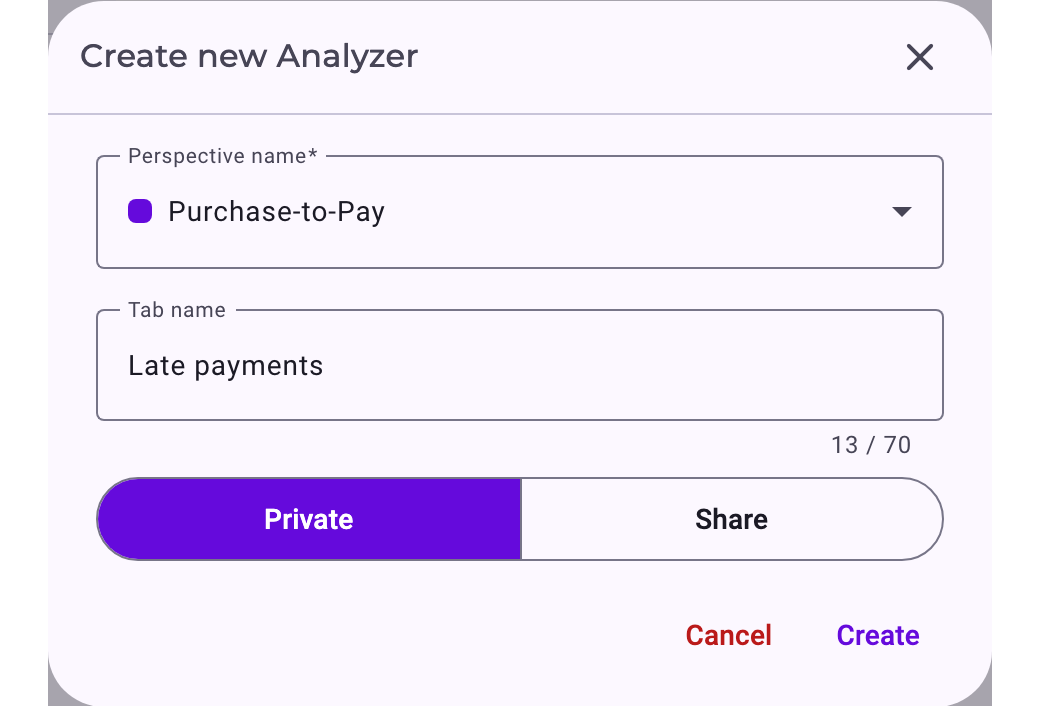
The tab opens with the process view of all cases and is listed in the Tab Explorer under its perspective. The coloured dot next to the name shows which perspective it belongs to.
What You See in the Tab
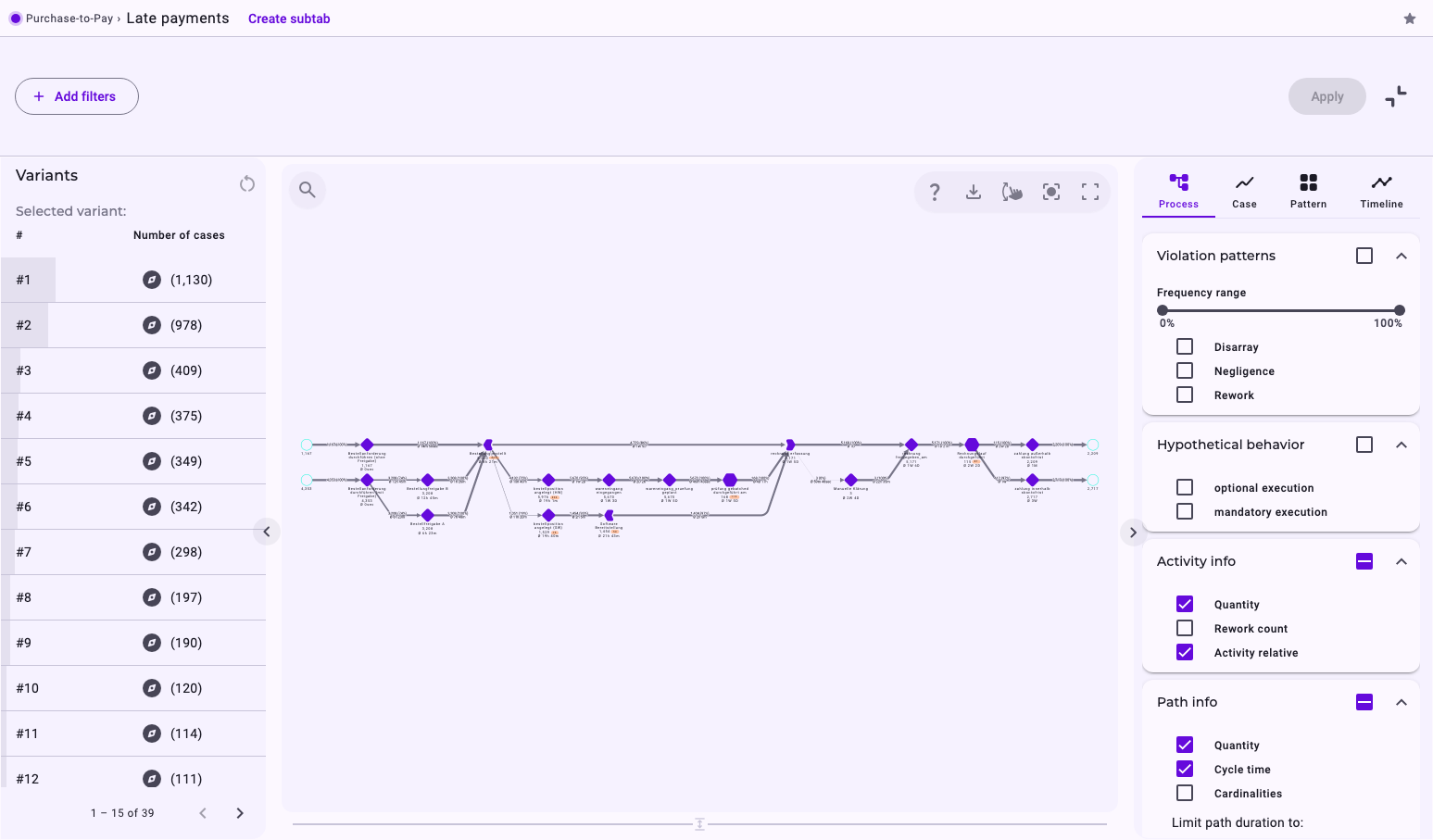
- Filter bar (top): Add filters limits the analysis to the cases you're interested in; Apply applies your changes. Collapse/expand filter bar in the tab bar shows or hides it. See Filter Cases in the Analyzer and Dashboards.
- Variants (left): the variants of the filtered cases with their number of cases, the most frequent first. Click a variant to look at its cases only. What a variant is is explained in Process Models and Levels: Case, Variant, Process Model.
- Graph (middle): the process model of the filtered cases, with search in the top left corner and legend, download, centring and fullscreen in the top right corner. Below it, Process details shows the key figures; see KPIs Explained.
- Settings panel (right): at the top, the four views; below them, what the graph shows, for example Activity info, Path info and Path highlighting. The arrow at the panel's edge collapses it.
View | What it shows | More |
|---|---|---|
Process | The process model of all filtered cases, or of the selected variant. | |
Case | One single case, as Model or as Instance. | |
Pattern | When the cases and their activities started, as a chart. Click a case to select it; Open in Case view opens it in the case view. | |
Timeline | How the transition durations between activities develop, per week or per month. |
The levels behind these views are explained in Process Models and Levels: Case, Variant, Process Model.
What Is Saved
An analyzer tab has no save button: changes are saved automatically a moment after you make them. This covers the filters you apply, the selected view, variant or case, and the settings in the panel. Changes are saved with the tab only if you may edit it (Analyzer: Edit, or an Edit share). Then, when you open the tab again, you continue where you left off.
Whether the filter bar is shown is remembered in your browser, for all tabs.
Rename, Share, Copy or Delete
Open the tab's menu (⋮) in the Tab Explorer. Rename / Share opens the dialog Edit analyzer tab, where you change the name and who the tab is shared with. Copy and Delete are in the same menu. See Organise Your Analyses: Tab Explorer, Folders, Favorites and Subtabs.
Tabs Shared with You
Tabs that colleagues share with you are listed under Shared with me in the Tab Explorer. If you may only read a tab, the tab header shows Read-only: you see the saved filters but can't change them. You can switch views and change settings to look around, but these changes aren't saved. Click Copy to my tabs to get your own copy you can change. How sharing works is explained in Share Your Work with Colleagues.
Related
- Organise Your Analyses: Tab Explorer, Folders, Favorites and Subtabs
- Work with the Process View
- Filter Cases in the Analyzer and Dashboards
- Create a Dashboard Tab
- Your First Analysis: From Dashboard to Minerva