
Import Users in Bulk
Add many users at once with the user mass import: list format, validation, the import itself, and what imported users get.
With the user mass import, Customer admins add many users at once from a list instead of one by one. This page explains the format, the check before the import and what happens afterwards. To add a single user, see Add a User.
Permissions: Customer admins only. See Access Management at Noreja.
Before You Start
- Only Customer admins can import users.
- Prepare one line per user with first name, last name, email and, optionally, user name, in this order, separated by a semicolon, comma, tab or vertical bar. For example:
Anna;Schmidt;anna.schmidt@example.com; - Every imported user receives the invitation email right away. Import only people who should get access now.
Import Users
- Open Settings (the gear icon) and choose Users under Authorizations.
- Click the upload icon at the top right of the list (User mass import).
- Choose how you provide the list. With Text import, paste the lines into User import, for example copied from a spreadsheet (choose Tab as delimiter then). With File import, click Select a file and choose a CSV or text file; tick Exclude first row if it starts with column headings.
- Choose the Delimiter your list uses. The default is the semicolon.
- Click Validate data. A table shows every user with its Status: Import pending for valid rows, Error with an Error reason for the others.
- Click Import data. The valid rows are created one after another; the progress shows how many users are imported.
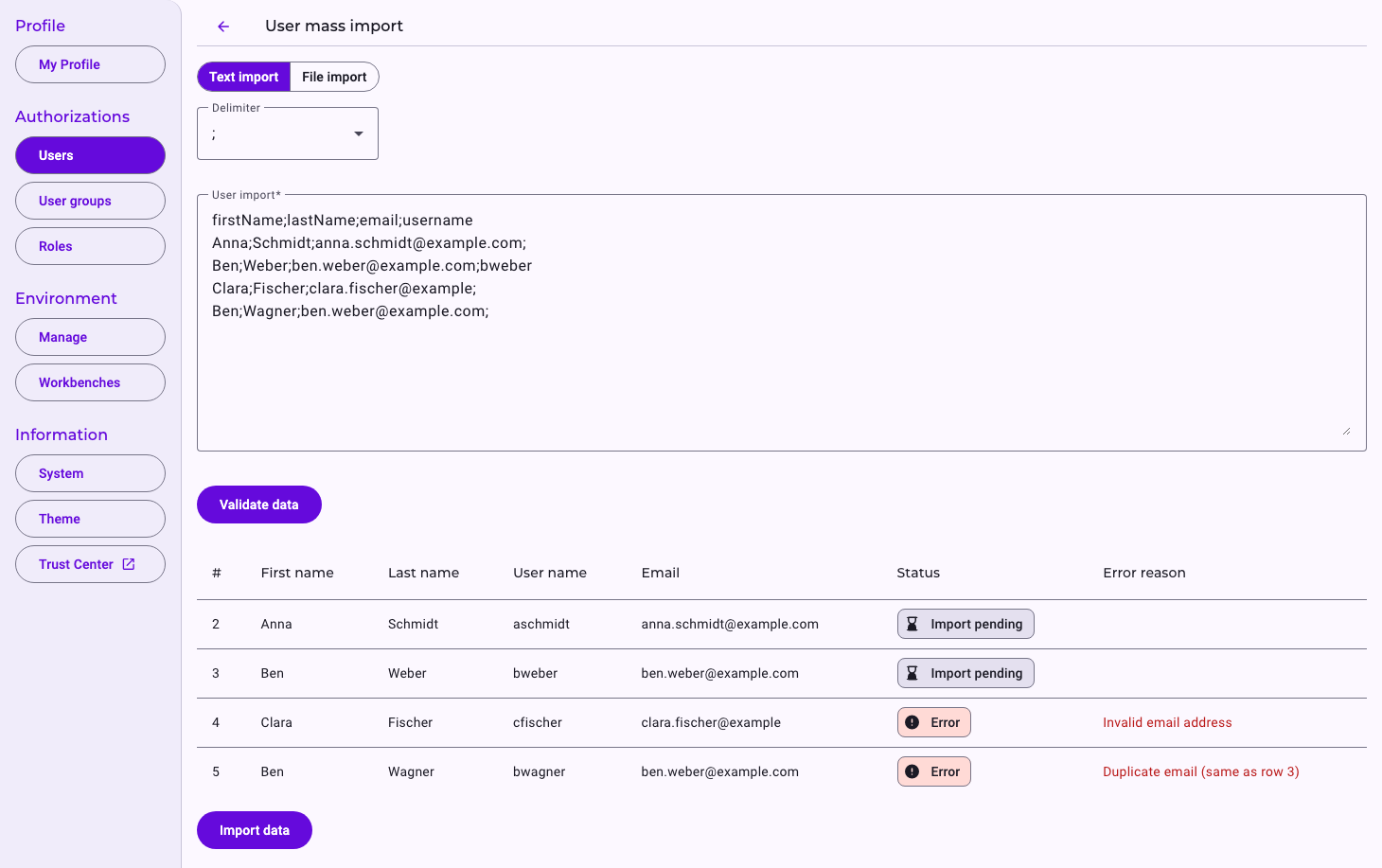
At the end, Noreja shows how many users were imported successfully and how many rows had errors. Back to the user list returns to the list.
Rules for the List
- First name, last name and a valid email address are required.
- Without a user name, Noreja creates one from the first letter of the first name and the last name, for example aschmidt for Anna Schmidt.
- A first line with column headings such as firstName or Vorname is recognised and skipped.
- The same email address or user name may appear only once in the list. Users who already exist in Noreja are rejected during the import with the reason from the system.
- Values can't contain the delimiter, and quotation marks aren't removed. Excel files can't be imported directly; save them as CSV (UTF-8) first.
After the Import
- Imported users are Normal user and have no user groups and roles yet. Add them to user groups or give them roles, for example in the user group's editor; see Manage User Groups and Create and Edit Roles.
- Each user receives an invitation email and sets a password while the link is valid (three days by default). See Sign In for the First Time.
- Rows with errors aren't imported. Correct them in your list and import only these rows again; rows already imported would fail as duplicates.