
Share Your Work with Colleagues
You can share analyzer tabs, dashboards, perspectives, entities, agents, skills, prompts and workspaces with colleagues: with everyone in your company, with single users or with user groups. Sharing adds to what their roles allow, for this one item. This page explains how to share, what the access levels mean and what your colleagues see. How sharing fits together with roles is explained in Access Management at Noreja.
Permissions: the action Share of the item's feature (for example Analyzer: Share for analyzer tabs, Builder: Share for perspectives and entities), or the level Share on an item shared with you. Customer admins have full control over items they own; on items shared with them, the sharing settings treat them like any other recipient. See Create and Edit Roles.
Share an Item
Every item uses the same sharing settings; only where you open them differs:
Item | Where |
|---|---|
Analyzer tab, dashboard | When you create it, or later in the Tab Explorer: ⋮ next to the tab → Rename / Share |
Perspective, entity | In the Builder: Edit in the row |
Agent, skill, prompt | AI Hub: section Sharing in the editor; if you may share but not edit, Share in the row. Noreja's own agents and skills can't be shared. |
Workspace | AI Hub → Workspaces: Edit, section Sharing |
For the AI Hub items, see also AI Hub: Agents, Skills, Prompts and Workspaces.
- Switch from Private to Share.
- Choose who gets access, with the options described below.
- Click Save.
Who Can Get Access
- Share with all users, regardless of their individual permissions?: everyone in your company, with Read or Edit.
- Share tab with user or Share tab with user group: pick the user or group and choose the level.
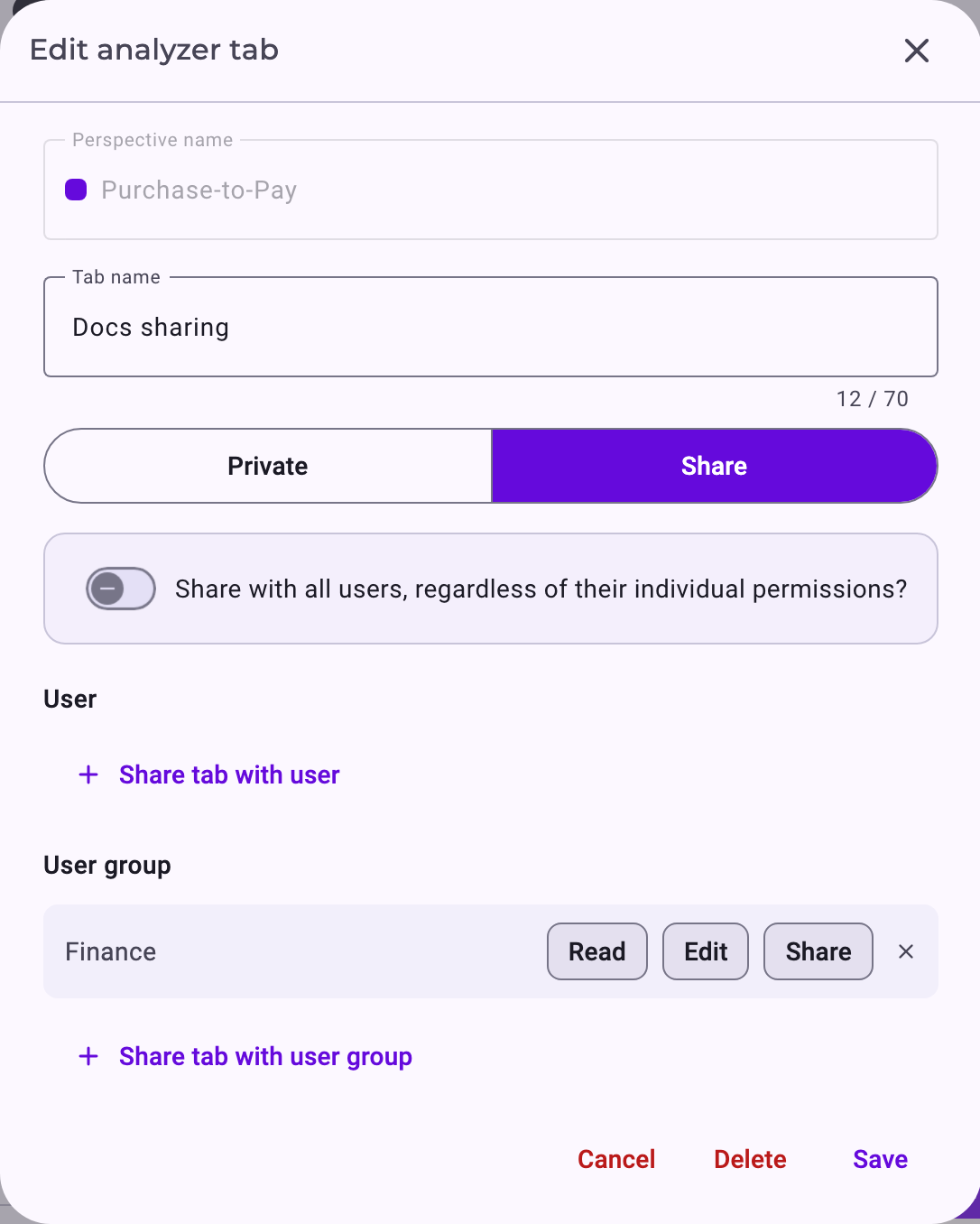
Choose a level for every user and group you add; a row without a level isn't saved. Switching back to Private removes all shares of the item.
Access Levels
- Read: open and look at the item.
- Edit: also change it. Includes Read.
- Share: also pass it on to others, with at most the levels they hold themselves. Includes Read. Only for users and user groups.
Nobody but the owner can delete an analyzer tab, a dashboard, a perspective or an entity, also not Customer admins. Sharing with roles isn't possible; to reach everyone with a role, share with a user group or with everyone.
What Your Colleagues See
- Analyzer tabs and dashboards appear in their Tab Explorer under Shared with me. With Read only, they can't change it, but Copy to my tabs gives them their own copy. They can hide it from their list; it stays shared. See Organise Your Analyses: Tab Explorer, Folders, Favorites and Subtabs.
- Perspectives and entities appear in the Builder lists with a note who shared them. Sharing a perspective doesn't share its entity. See Entities Explained.
- Agents, skills and prompts appear in the AI Hub with a globe icon; Duplicate makes a private copy.
- Workspaces appear in the chat's workspace selection. See Work with Files in Minerva Workspaces.
Colleagues aren't notified; tell them what you shared. A shared item opens its area for them even without a role for it: a perspective shared with everyone, for example, shows every user the Builder.
Rules
- Who an item is shared with is visible to its owner, to Customer admins and to people with Share on it.
- You can only remove shares you made yourself; the owner can remove all. This applies to Customer admins too.
- Customer admins see other people's private analyzer tabs, dashboards, perspectives, entities, agents and prompts only when they're shared with them. Workspaces and Context Hub knowledge are the exceptions: admins see all of them.
- Data sources and Tab Explorer folders can't be shared. Context Hub knowledge has its own access settings; see Context Hub: Knowledge for Minerva.
Related
- Access Management at Noreja
- Manage User Groups
- Organise Your Analyses: Tab Explorer, Folders, Favorites and Subtabs