
Sign In for the First Time
Your Customer admin adds you to Noreja. You then receive an invitation email, set your password and can start working. This page walks you through the first sign-in and the settings you may want to change afterwards. For what you'll see after signing in, see Navigating Noreja.
Permissions: none to sign in and to change your own language and password. Resending an invitation: Customer admins only. See Access Management at Noreja.
1. Open the Invitation Email
Look for an email with the subject You have been invited to join Noreja. It may also arrive in German, with the subject Du bist eingeladen, Noreja beizutreten and the button Einladung annehmen.
Click Accept Invite. The link is valid for a limited time, three days by default. If it has expired, see If the Link Has Expired below.
2. Set Your Password
The link opens the page Update password. Enter your new password under New Password and again under Confirm password, then click Submit.
The page lists the rules your password has to meet. By default these are:
- at least 15 characters;
- at least one special character, one uppercase letter, one lowercase letter and one digit;
- not your user name or email address, and not containing your user name.
After you submit, you're signed in straight away.
3. Where You Start
Noreja opens the first area your roles give you access to, in this order: Dashboard, Analyzer, Builder, Workbench. If your role only includes the Chat feature, you go directly to Minerva; see Chat with Minerva. On a small screen, such as a tablet in portrait mode, you also start in Minerva if you're allowed to chat.
What you see in the top bar depends on your roles and on what colleagues have shared with you. Navigating Noreja explains the areas.
4. Sign In Next Time
Open the Noreja address your company uses. On the sign-in page, enter your Username or email and your Password, then click Sign In.
- Remember me keeps you signed in on this browser for longer.
- The language switch in the top right of the page changes the language of the sign-in pages.
- For security, Noreja signs you out after a period without activity. Just sign in again.
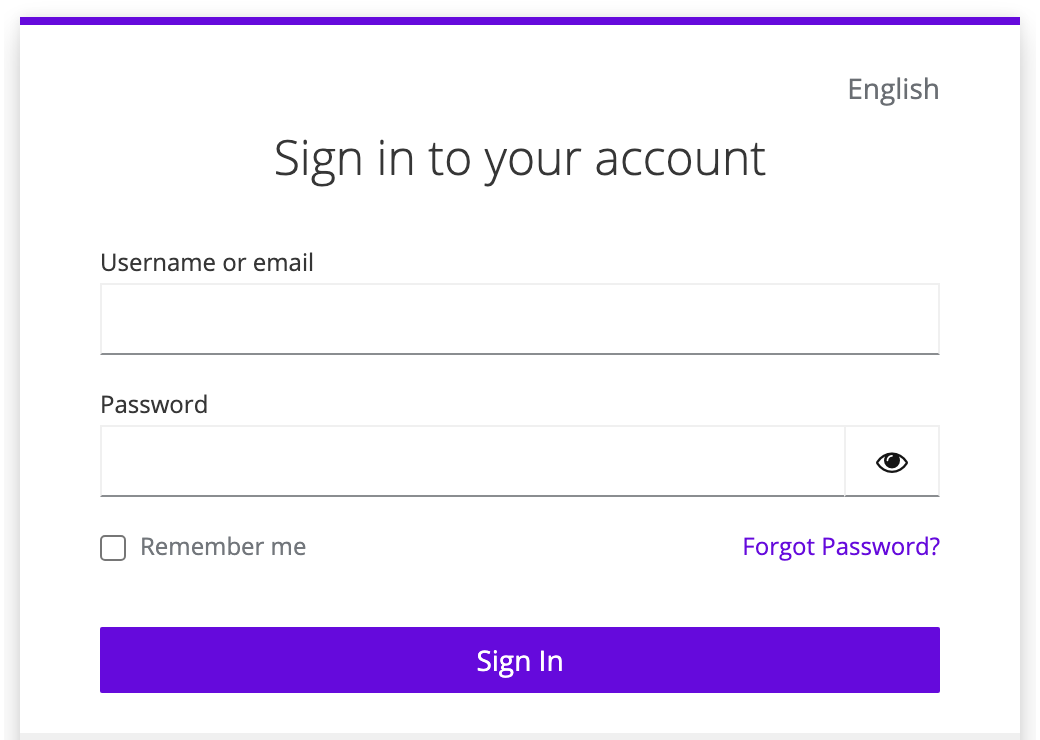
If your company uses single sign-on, the sign-in page shows an additional button for your company account. Use it instead of a Noreja password.
5. Choose Your Language
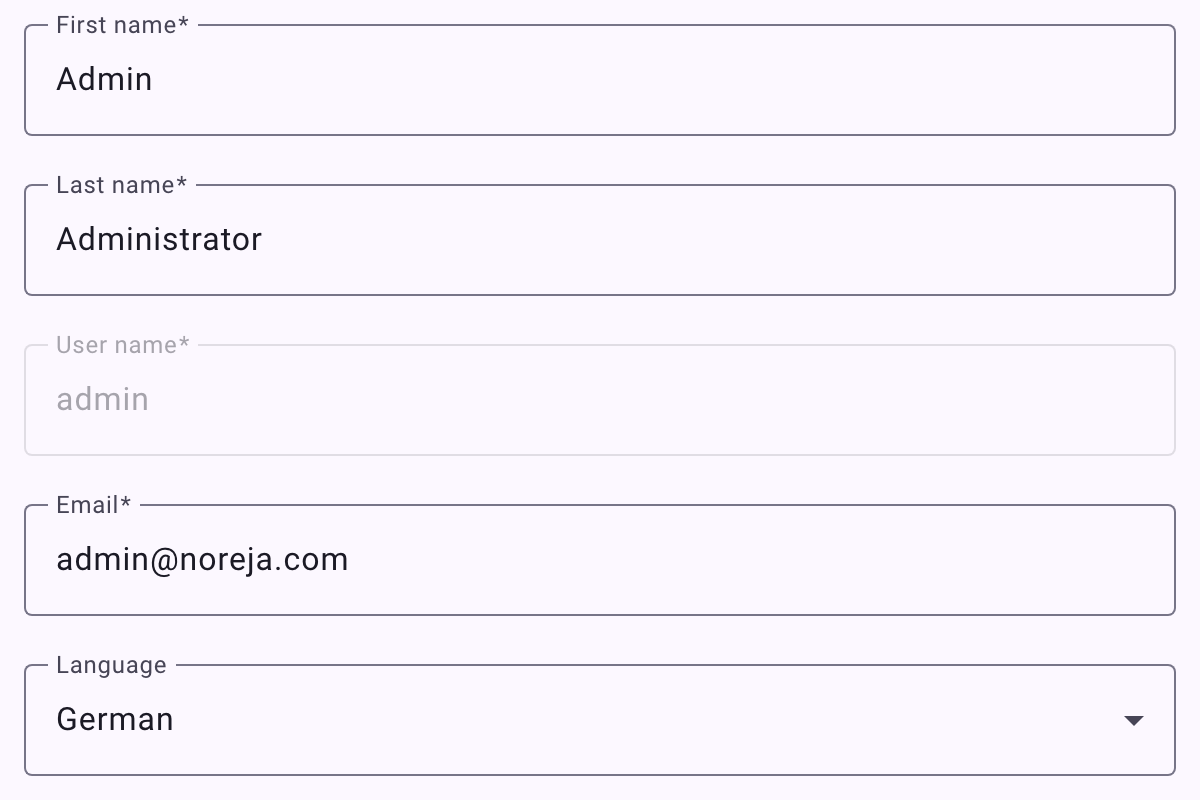
Click the Settings icon (⚙) in the top right and open My Profile. Choose your Language and click Save. The language is stored in your account, so Noreja and the emails it sends you use it from now on. My Profile also has the Dark mode switch; see Navigating Noreja.
6. Change Your Password
There are two ways:
- In My Profile, click Reset Password. The next time you sign in, Noreja asks you to set a new password.
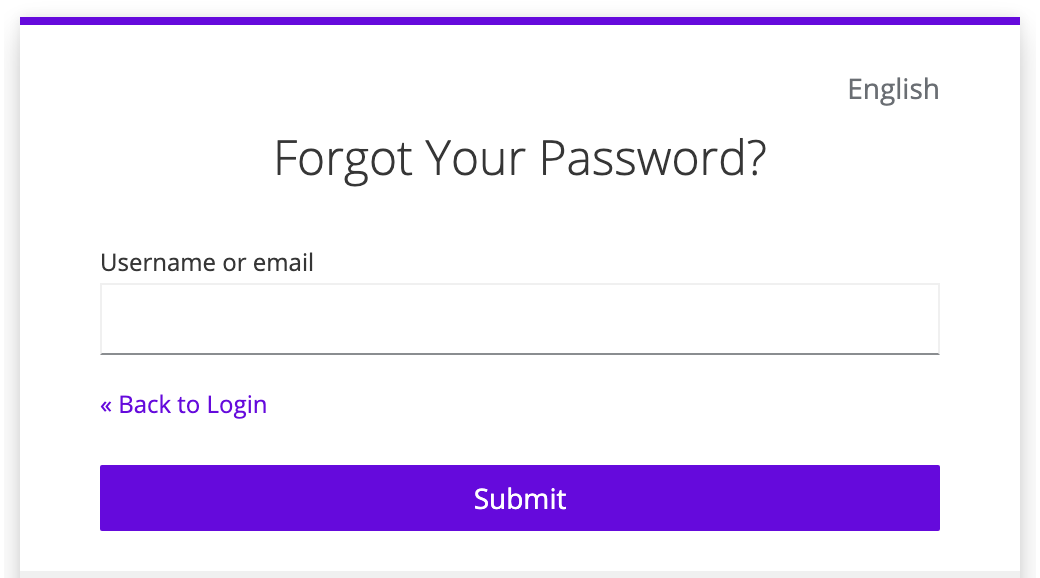
- On the sign-in page, click Forgot Password?, enter your user name or email and click Submit. You'll receive an email with a link to set a new password. This link is only valid for a short time, so use it right away.
If the Link Has Expired
Ask your Customer admin to send the invitation again. Admins: open Settings → Authorizations → Users and click the user. As long as the invitation hasn't been accepted, the page shows The invitation has not yet been accepted. and a Resend invitation button. The user receives a new email with a new link. See Edit, Delete and Re-Invite Users.
Tip: In the user list, the Status Invitation column shows who has already set a password.