
Access Management at Noreja
Core Structure
Noreja sets up your installation and its first Customer admin. From then on, your company manages its own structure. It consists of:
- Users, who are either normal users or Customer admins. Accounts with the role Noreja admin, used by Noreja, can also appear in the list.
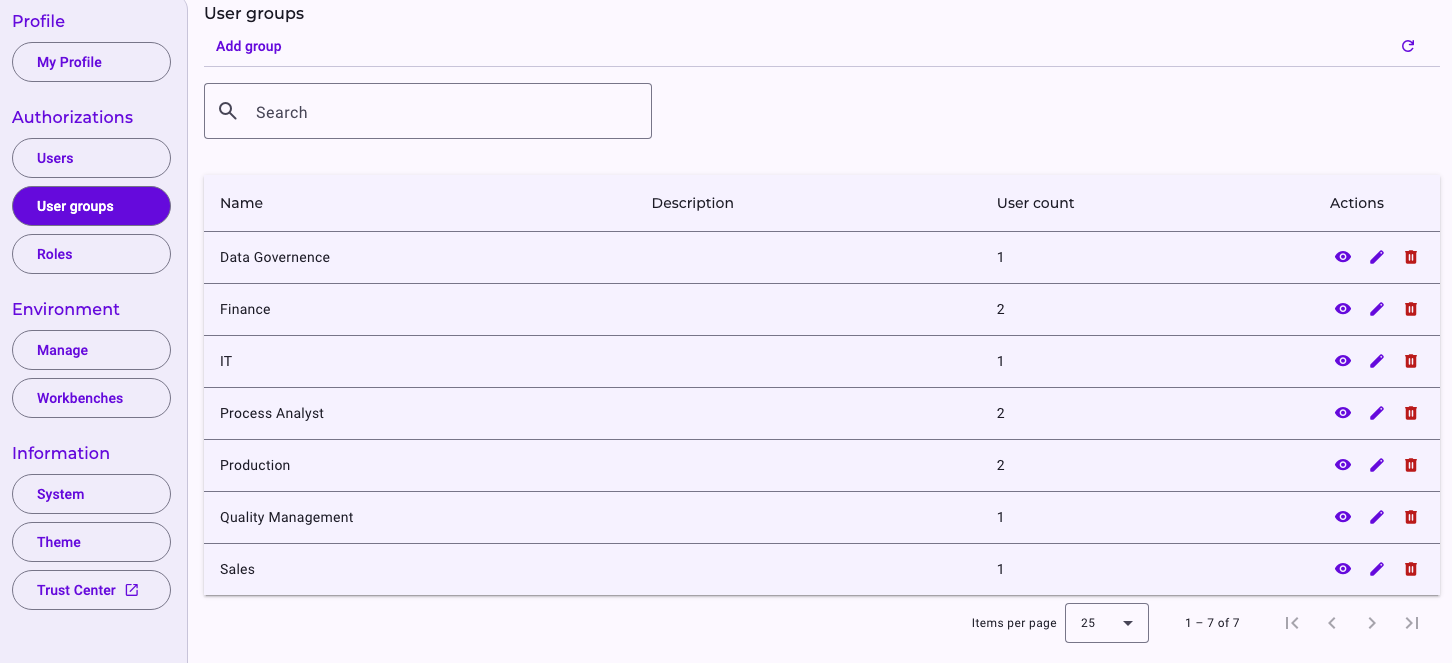
- User groups, which bundle users, for example by department or team.
- Roles, which define what their members are allowed to do.
All three are managed in one place: open Settings (⚙) in the top right and go to Authorizations. Only Customer admins can manage users, user groups and roles. See Add a User and Manage User Groups.
Customer admins can also use every feature without needing a role for it. They don’t automatically see other people’s private items, though: an analyzer tab, dashboard, perspective, entity, agent or prompt that hasn’t been shared with them stays hidden for them too. Shared Minerva workspaces and Context Hub knowledge are the exceptions: Customer admins see all of them. A user’s personal workspace (My workspace) stays hidden from admins.
Roles: The Baseline
A role combines one or more features with the actions allowed for each of them. The available actions are Create, Read, Edit, Delete and Share. How to set up roles and what each feature controls is described in Create and Edit Roles.
Features include Agent, Analyzer, Builder, Chat, Context, Dashboard, Manager, Prompt, Workbench, Workspaces and Company library.
As soon as you select any action other than Read, Read is included automatically, because you can’t edit or share something you can’t see.
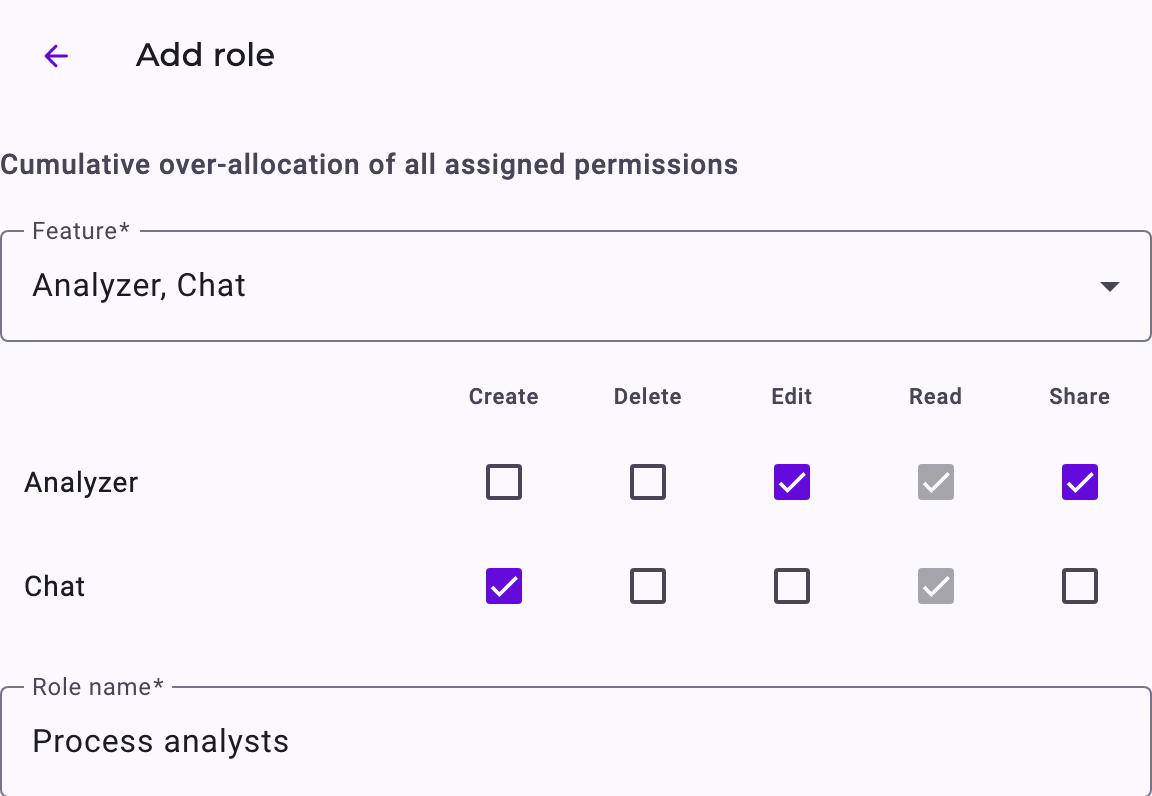
Roles can be assigned in three places: in the role itself (under Assigned users and Assigned groups), in a user, or in a user group.
How Permissions Add Up
A user inherits all roles of the user groups they belong to. Roles assigned to them directly are added on top. Permissions only add up: the user can do everything that any of their roles allows, and no role takes a permission away.
Tip: Assign permissions through user groups wherever possible and use direct roles only for exceptions. A change to a group then applies to everyone in it at once.
Sharing: Targeted Extensions
On top of roles, individual items can be shared directly. Sharing extends what someone can do; it doesn’t replace their roles.
What can be shared | Where you share it |
|---|---|
Analyzer tabs | When creating or editing the tab |
Dashboards | When creating or editing the dashboard |
Perspectives and entities | In the Builder |
Minerva workspaces | AI Hub, Workspaces tab |
Agents, skills and prompts | AI Hub, Agents and Skills & prompts tabs |
All of them can be shared with everyone in your company, with individual users and with user groups. For users and user groups you choose the access level: Read, Edit or Share (pass it on to others). Edit and Share include Read. When you share with everyone, you choose between Read and Edit.
When you create one of these items, you decide whether it stays private or is shared. Analyzer tabs and dashboards shared with you appear in the Tab Explorer under Shared with me. Perspectives and entities appear in the Builder lists with a note on who shared them, agents, skills and prompts appear in the AI Hub with a globe icon, and workspaces appear in the chat’s workspace selection. See Share Your Work with Colleagues; for the AI Hub items, see also AI Hub: Agents, Skills, Prompts and Workspaces.
Shared items open their area. A user can open an item shared with them even if none of their roles includes that feature. The area then appears in their navigation, showing only what has been shared with them. For example, a user without the Builder feature still sees the Builder if a perspective has been shared with everyone. So what someone sees depends on their roles and on what has been shared with them. See Navigating Noreja.
Sharing Rules
- If an item was shared with you, you can only pass on the rights you hold yourself.
- You can’t change or remove shares that other people have made. Only the item’s owner can.
- On items they own, Customer admins have full control. On items shared with them, the sharing dialog treats them like any other recipient.
- Who an item is shared with is visible only to its owner, to Customer admins and to people allowed to share it further.
- Only the owner can delete an analyzer tab, a dashboard, a perspective or an entity.
- An agent can only be started in Minerva by its owner and by the people it’s shared with: everyone, if it’s shared with everyone, or the selected users and user groups.
Access to Context
Knowledge that Minerva uses, such as company documents or notes on a perspective, has its own access settings. You can share it with all users or with selected user groups and users. Knowledge can also be given to a role, in the role’s Context access section. Minerva only uses context the current user is allowed to see. See Context Hub: Knowledge for Minerva for details.
Chat-Only Access
To make Minerva available without the rest of the platform, give users a role that contains only the Chat feature. There is no separate setting for this. These users land directly in Minerva, without the navigation to the rest of the platform; see Chat with Minerva. Items shared with them remain accessible, as described under Sharing.
Chats appear only in their creator’s chat list. Other users, including Customer admins, don’t see them in their chat list.
Guiding Principle
Roles define the baseline. Sharing enables flexible, targeted extensions.
Next step: Add a User.