
Dashboard Widgets
Widgets are the building blocks of a dashboard. This page lists all widgets you can add, explains the settings of the configurable widgets and what a widget shows when it has no data. How to add, move and remove widgets is described in Create a Dashboard Tab; what each figure counts and how it's calculated is explained in KPIs Explained.
Permissions: feature Dashboard: Read to see widgets, Edit (or an Edit share of the dashboard) to add, arrange and remove them. See Create and Edit Roles.
Standard and Configurable Widgets
- Standard widgets: show a fixed figure or chart. You add them as they are, and each one only once per dashboard. Twelve of them are the default widgets that Add default widgets? puts on a new dashboard; only Processes isn't.
- Configurable widgets: show what you choose, for example a property from your data. You configure and add them one at a time, and you can add each of them several times with different settings.
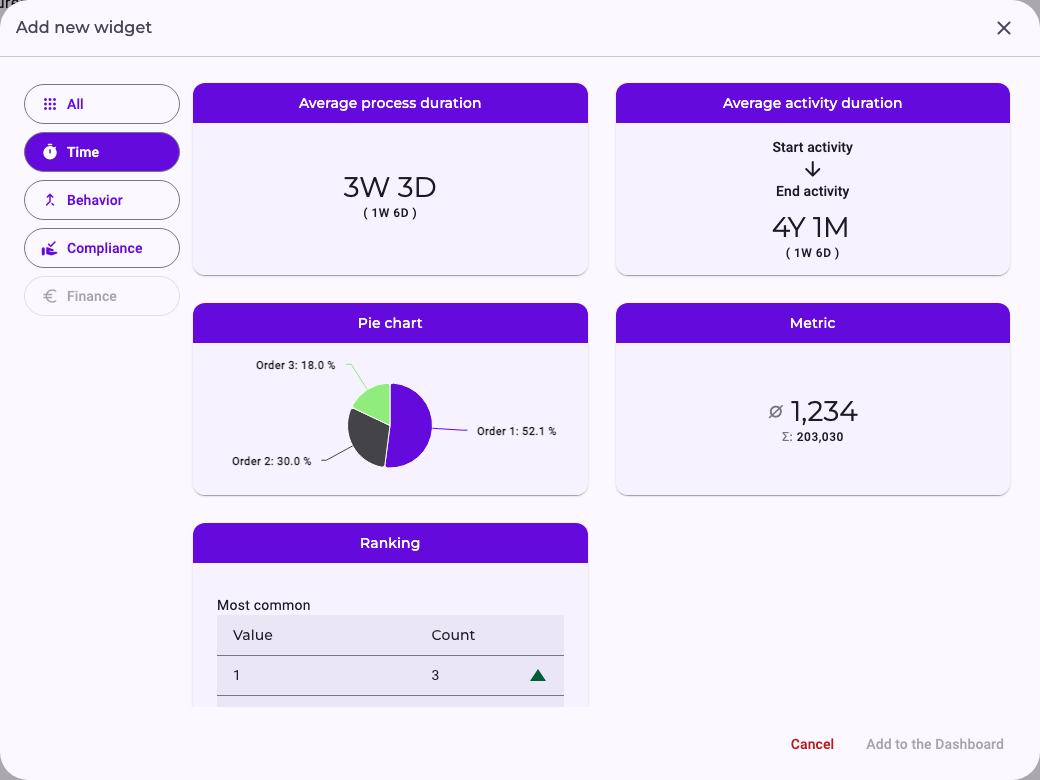
In the widget selector (Add new widget), the groups on the left narrow the list. Standard widgets show a preview with your data, configurable widgets an example.
All Widgets
Behavior
Widget | What it shows |
|---|---|
Case amount | The number of cases. |
Variant amount | The number of variants among these cases. See Process Models and Levels: Case, Variant, Process Model. |
Process complexity: Instance length | How many different activities a case has: average, minimum and maximum. |
Process complexity: Instance activities | How many activity executions a case has: average, total, minimum and maximum. |
Process complexity: Instance branching | How much the cases branch: average and maximum. |
Process complexity: Pattern distribution | For each process pattern (Simplification, Reorder, Negligence, Rework, Disarray): how many cases contain it, with their share of all cases in brackets (∅). See Process Patterns: Disarray, Negligence, Rework and Allowed Deviations. |
End activity type distribution | A bar chart of the activities the cases end with. |
Process variants | A bar chart of the number of cases per variant, the most frequent first. |
Batching activity distribution | For activities done for several cases at once: how many cases one execution combines. See Quantities and Cardinalities. |
Processes | A list of the case IDs, 15 per page, sorted by ID. Not a default widget. |
Time
Widget | What it shows |
|---|---|
Average process duration | The average cycle time of the cases, with the standard deviation in brackets. |
Average activity duration | Configurable: the average transition duration of one relationship of the expected order, from the start of the first activity to the start of the second. |
Pie chart | Configurable: how the values of a property are distributed. |
Metric | Configurable: a figure calculated from a numeric property, such as a sum or an average. |
Ranking | Configurable: the five most and least common values of a text property, each with its trend. |
Compliance
Widget | What it shows |
|---|---|
Violation rate | The number of cases with at least one order violation or skipped activity, as a gauge from 0 to the number of cases. |
Average rework rate | The share of cases with at least one rework, in percent. |
The group Finance is shown but not available yet. All lists every widget.
Configure a Widget
Select a configurable widget in the selector and click Configure. On the left you enter the settings, on the right the Preview shows the result with your data. Add to the Dashboard becomes available once all required settings are filled in.
Pie chart, Metric and Ranking take an Attribute: a property from your data. The list groups the properties by the activity they belong to, and the same property can appear under several activities. The widget counts over the executions of the activity you pick, so choose the activity that carries the values you mean. Type in the list to search it.
Once a configured widget is on the dashboard, its settings can't be changed. To change them, remove the widget and add it again.
Average activity duration
- Activities: choose a pair of activities from the list, shown as first activity → second activity. The list offers only pairs that are connected by a relationship of the expected order, so you can't pick two activities that lie further apart. See The Expected Order: Perspective Hypothesis, Shortcuts and Backjumps.
- Account exclusively for positive or negative values?: optional. Positive or Negative limits the average to positive or to negative transition durations; without a choice, all count. See Positive and Negative Times.
The widget has no name of its own; it's always called Average activity duration, although it shows the transition duration between two activities, not how long one activity takes. It shows the two activities, the average transition duration and the standard deviation in brackets. An icon shows whether negative or positive values are excluded; hover over it for details.
Pie chart
- Widget name: the title on the dashboard, up to 70 characters.
- Attribute: the property whose values the chart shows, for example a status or a product group.
Each slice is one value; the most frequent values get their own slice and the rest are combined as Others. Hover over a slice to see its share.
Metric
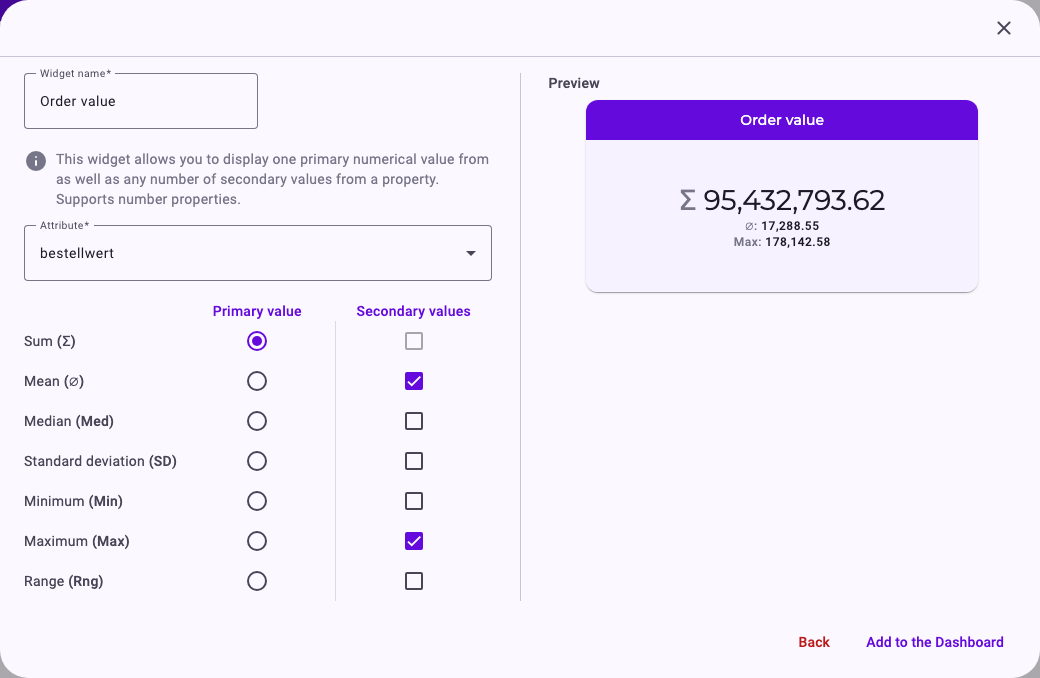
- Widget name: the title on the dashboard.
- Attribute: a property with numbers, for example an order value or a quantity. Only number and duration properties are offered.
- Primary value: the large figure. Choose one of Sum (Σ), Mean (∅), Median (Med), Standard deviation (SD), Minimum (Min), Maximum (Max) or Range (Rng). Mean is preselected.
- Secondary values: any number of further figures, shown smaller below the primary value. The figure you chose as primary value can't be a secondary value as well.
In the example, the order value of all 5,520 purchase orders adds up to 95,432,793.62; an order is worth 17,288.55 on average and 178,142.58 at most.
Ranking
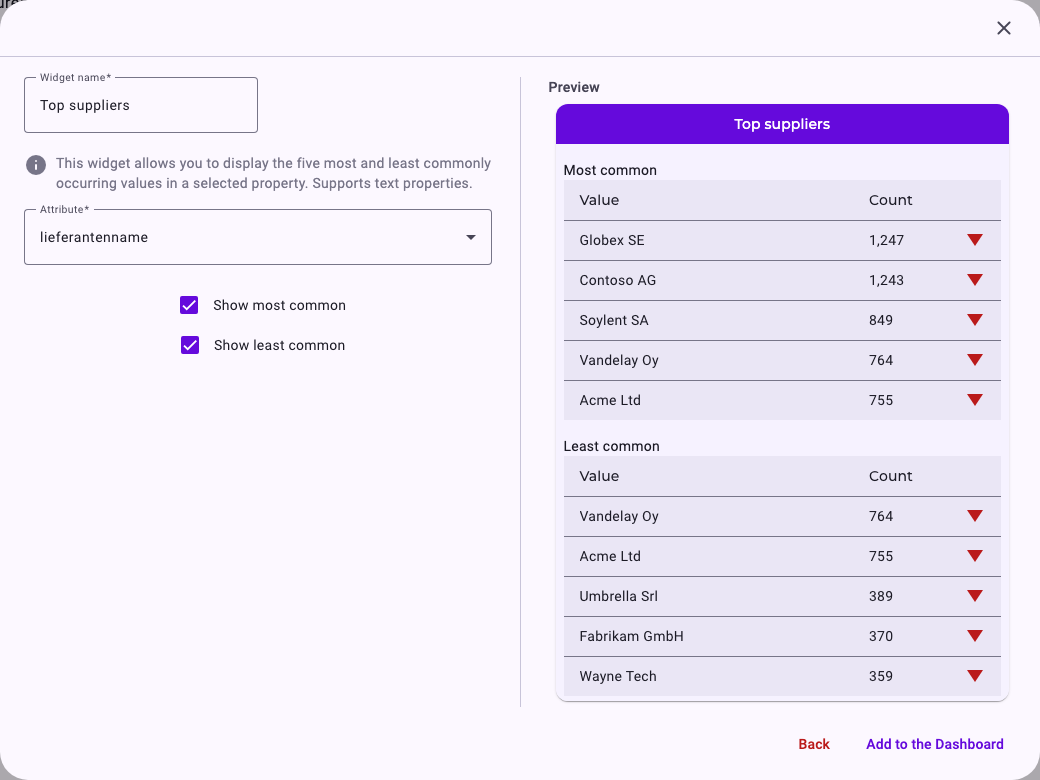
- Widget name: the title on the dashboard.
- Attribute: a property with text, for example a supplier, a cost centre or a payment method. Only text properties are offered; numbers, dates and yes/no properties can't be ranked.
- Show most common and Show least common: which of the two tables the widget shows. Both are ticked at first; at least one must stay ticked.
Each table lists up to five values with their Count: how many executions of the chosen activity have this value. If a property has fewer than ten different values, the same value can appear in both tables, like Vandelay Oy and Acme Ltd in the example.
The symbol after the count shows the trend of the value:
- Green arrow up: the value has become more frequent.
- Red arrow down: the value has become less frequent.
- Yellow dash: about the same.
The trend covers the twelve months before the end of the most recent case. For each month, Noreja counts the cases with this value that started in that month, divides by the number of days, and draws a straight trend line through the twelve monthly figures. A rising line gives the arrow up, a falling line the arrow down; only an almost flat line counts as unchanged. Noreja can change the period and how sensitive the trend is for your installation.
When a Widget Shows No Figures
- Loading: widgets show a spinner while they load. They reload every time you apply a filter.
- No data: if no case matches the filters, widgets say so, for example No data available for the current filter(s) or No data found for this selection. Check the filters of the dashboard; see Filter Cases in the Analyzer and Dashboards.
- Error: Error while requesting the data or Request Timeout means the figures couldn't be loaded. Try again later; if a widget keeps timing out, narrow the filters.
- Removed data: if the property or activity a configured widget uses has been removed from the perspective, the widget shows a message instead of figures. Remove the widget and add it again with an existing property.
Good to Know
- All widgets of a dashboard use the dashboard's filters. To compare two groups of cases, create two dashboards with different filters.
- Widgets show figures, not details: clicking a chart or a case in Processes doesn't open anything. To look into cases, use an analyzer tab with the same filters; see Create an Analyzer Tab.
- The pie chart, the bar charts and the box plot have a chart menu (☰) that appears when you hover over the chart; the Violation rate gauge has none. The menu offers View in full screen, Print chart and downloads as PNG, JPEG or SVG image. The menu is in English only. Figures can't be exported as data, for example to Excel. See Export Process Graphs.