
Chat with Minerva
Minerva answers questions about your processes in plain language. This page shows where you chat with Minerva, how the chat page is laid out, how to ask a question, follow what Minerva does, work with the answer and keep your chats organised. For what Minerva can do and which data it uses, see What Minerva Can Do.
Permissions: feature Chat: Read opens the chat page, where you can ask questions; Create adds the Minerva-AI switch next to dashboards and the Analyzer. Agents must be shared with you to choose them. See Create and Edit Roles.
Where to Chat with Minerva
- The chat page: open it from the profile menu (the person icon in the top bar; see Navigating Noreja). It shows Minerva across the full window, with your list of chats on the left and, on the right, process graphs and the workspace files next to the answer. See “The Chat Page” below.
- Next to a dashboard or the Analyzer: switch on Minerva-AI in the top bar. Minerva opens as a panel on the right, and you can drag its edge to make it wider. Ask about what you're looking at: Minerva can read the open tab, its filters and the selected element when your question needs them. See Create an Analyzer Tab.
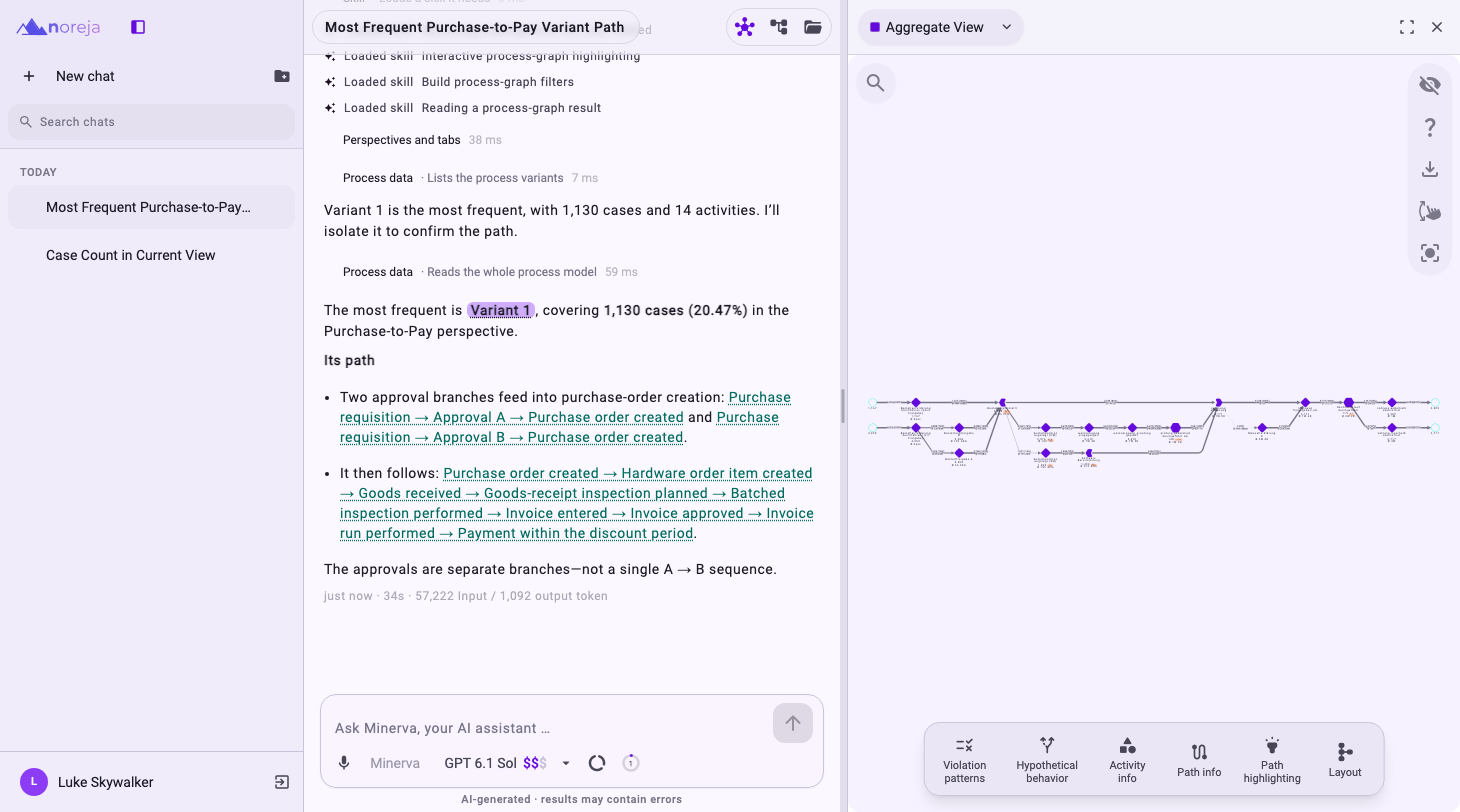
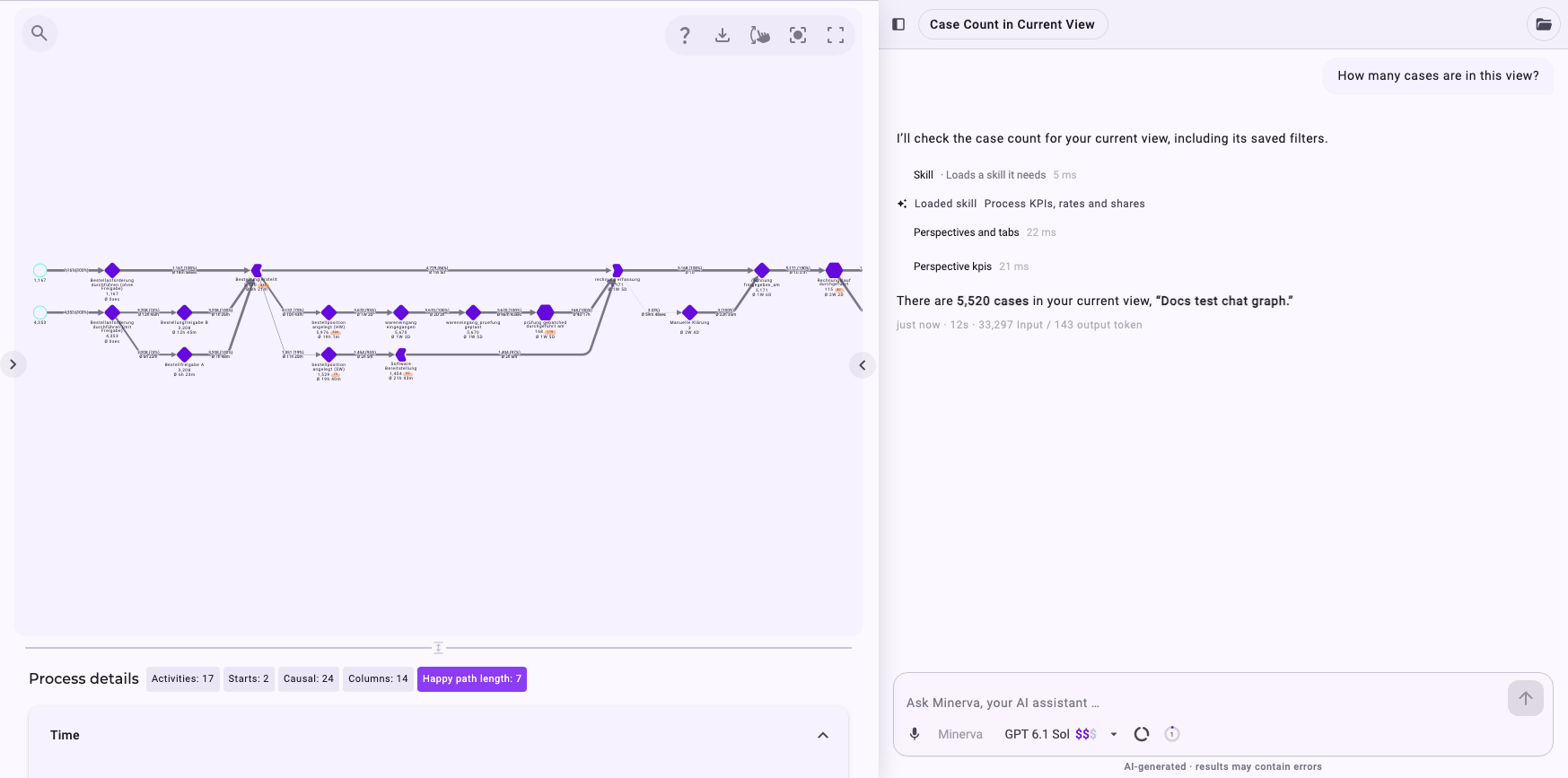
The panel next to a dashboard or the Analyzer has the same chat list and workspace files as the chat page, but no graph viewer of its own: underlined activities and relationships in an answer light up in the process graph of the open tab instead. When you open the workspace files there, the panel grows to make room for them.
The Chat Page
The chat page has three areas:
- The chat list on the left, with your chats and groups.
- The conversation in the middle, with the input field at the bottom.
- Side panels on the right: process graphs and the workspace files. Several panels are stacked; drag the line between two panels to share the height differently, and drag the edge between the conversation and the panels to make them wider.
The buttons at the top right open the side panels:
- Show graphs / Hide graphs (only when a graph is open): shows or hides all graphs at once, without closing them.
- Open a graph (pick a view): opens the process graph of one of your analyzer tabs.
- Workspace files (split panel): shows or hides your workspace files.
Each panel has Fullscreen and Close panel at its top right.
The chat page has no top bar. To go back to the other areas, open the chat list and click the exit icon (Leave the chat) next to your name at the bottom. Clicking your name opens Dark mode and Sign out. Users who may only chat with Minerva open Noreja directly on the chat page. On a phone or a small tablet, Noreja opens there for everyone who may use the chat.
The Chat List
Click Show chats (the icon next to the logo) to open the chat list; it stays open next to the conversation until you click the icon again (Hide chats). If you only point at the icon, the list slides in over the conversation and closes again when you move the pointer away.
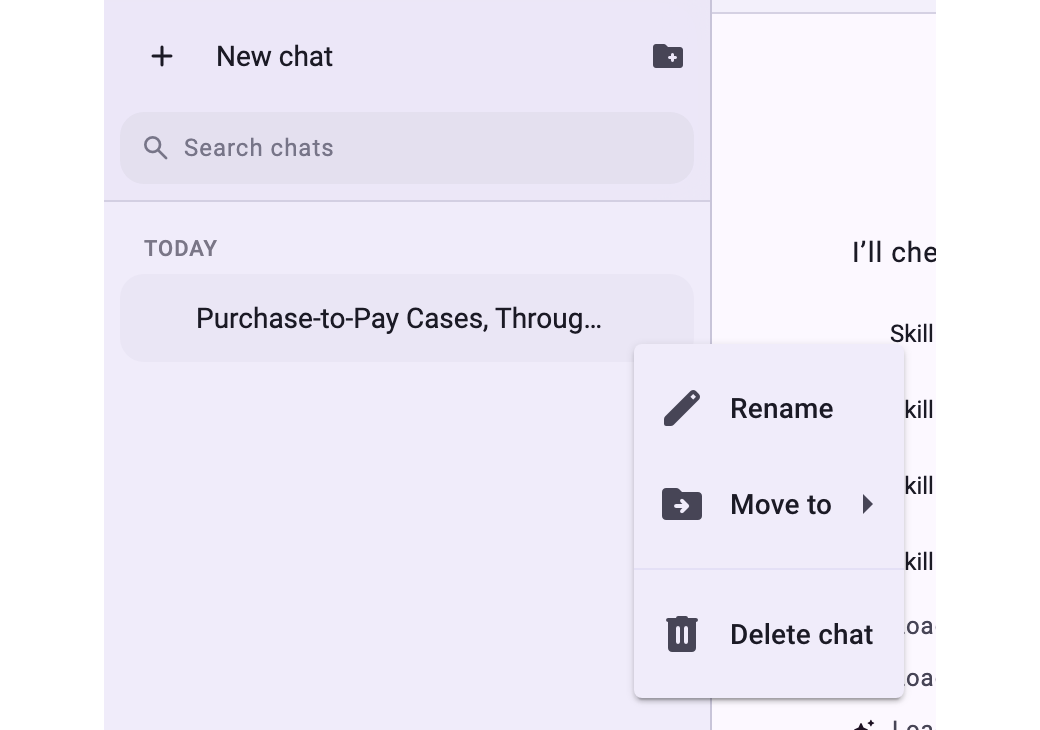
- New chat starts an empty chat.
- Search chats finds chats by their title, in all groups. Each result says which group it is in.
- Sorting: chats get a title automatically after the first answer and are listed by date, under Today, Yesterday and earlier dates. A bold title means there is an answer you haven't read yet. A spinner marks a chat in which Minerva is still working (Running), a red mark one that waits for your answer (Needs your input).
- Chat actions: hover over a chat and click ⋮ to Rename it, Move to a group or Delete chat.
With New group (the folder icon next to New chat) you group related chats, for example per project. Groups are listed above the chats under Groups:
- Open a group: click it. The list then shows only that group's chats, and New chat in this group starts a chat inside it. Click the group's name at the top (with the arrow) to go back.
- Add chats: drag a chat onto a group, or use Move to. To take a chat out again, drag it onto the group's name at the top, or choose Remove from group.
- Order: drag a group up or down to change the order of the groups.
- Rename or delete: use the group's ⋮ menu. When you delete a group, you choose whether its chats are deleted too or stay outside the group.
Your chats are personal: other users, including Customer admins, don't see them in their chat list. Deleting a chat can't be undone. Files Minerva created in the chat stay in the workspace.
Workspace Files
Click Workspace files (split panel) to see the files of your workspace next to the conversation: files you uploaded for Minerva and files Minerva created for you, such as Excel tables or slide decks. Click a file to attach it to your next question, and hover over it to download it. How to upload files, attach them and share a workspace with colleagues is described in Work with Files in Minerva Workspaces.
Process Graphs Next to the Answer
On the chat page you can open process graphs next to the conversation, to see what Minerva is talking about:
- Click Open a graph (pick a view) and pick one of your analyzer tabs. The list shows the analyzer tabs you can open; if you have none, it says No analyzer views found. See Create an Analyzer Tab.
- The process graph of that tab's perspective opens on the right (Aggregate View). Ask your question about the same perspective.
- Hover over an underlined activity or relationship in the answer to light it up in the graph; click it to keep it highlighted.
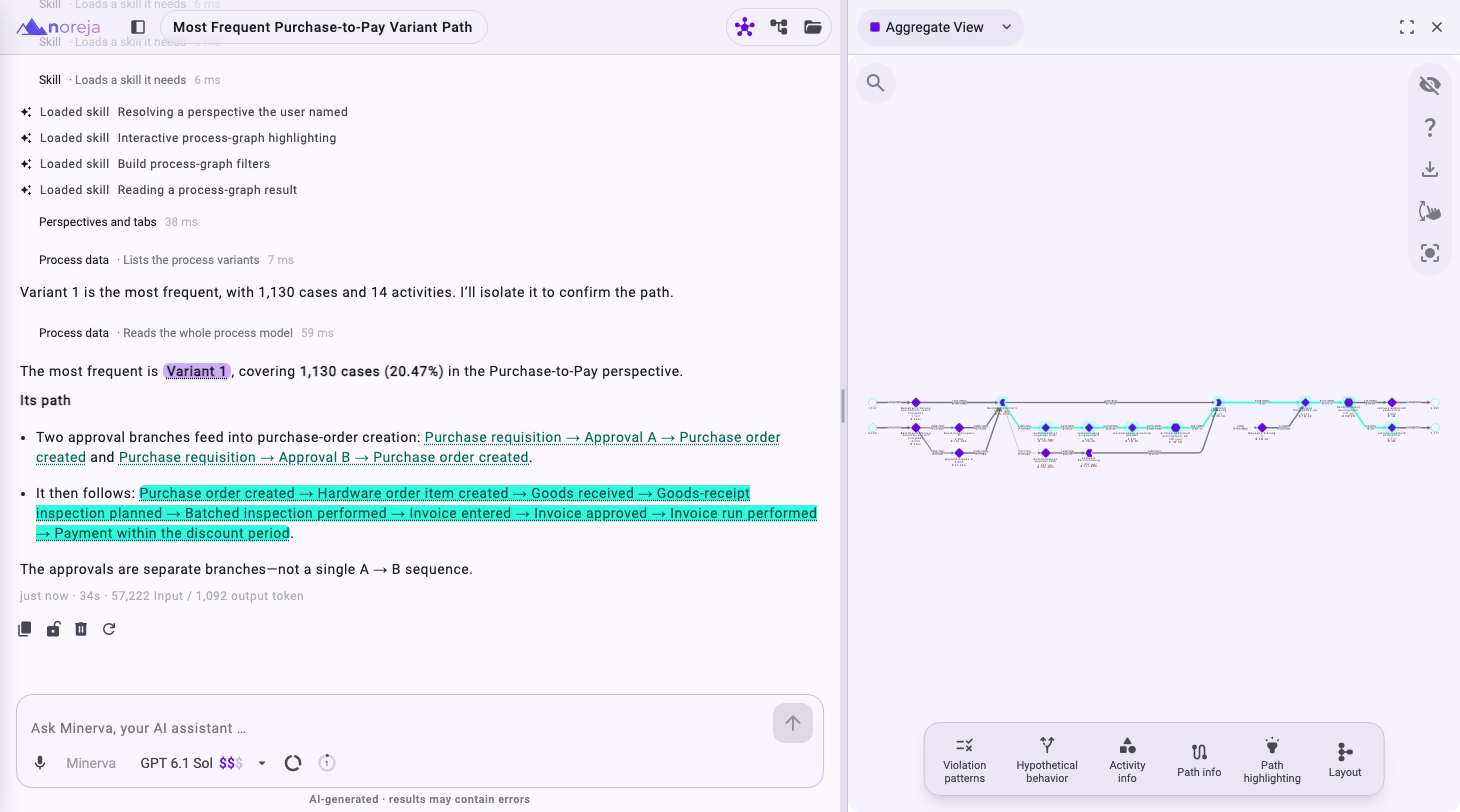
- Variants and cases: click a variant or case Minerva names in its answer to open it as another graph below the first one. This uses the perspective of the graph that is already open, so open the right perspective's graph first.
- Another variant, case or tab: click the selector at the top left of a graph (Aggregate View, or the variant or case it shows) to pick a variant, a case or another analyzer tab.
- Graph settings: the buttons at the bottom of the graph (Violation patterns, Activity info, Path info, Path highlighting, Layout and others) open the same settings as the Analyzer's graph. See Work with the Process Graph in Fullscreen.
Ask a Question
- Click New chat.
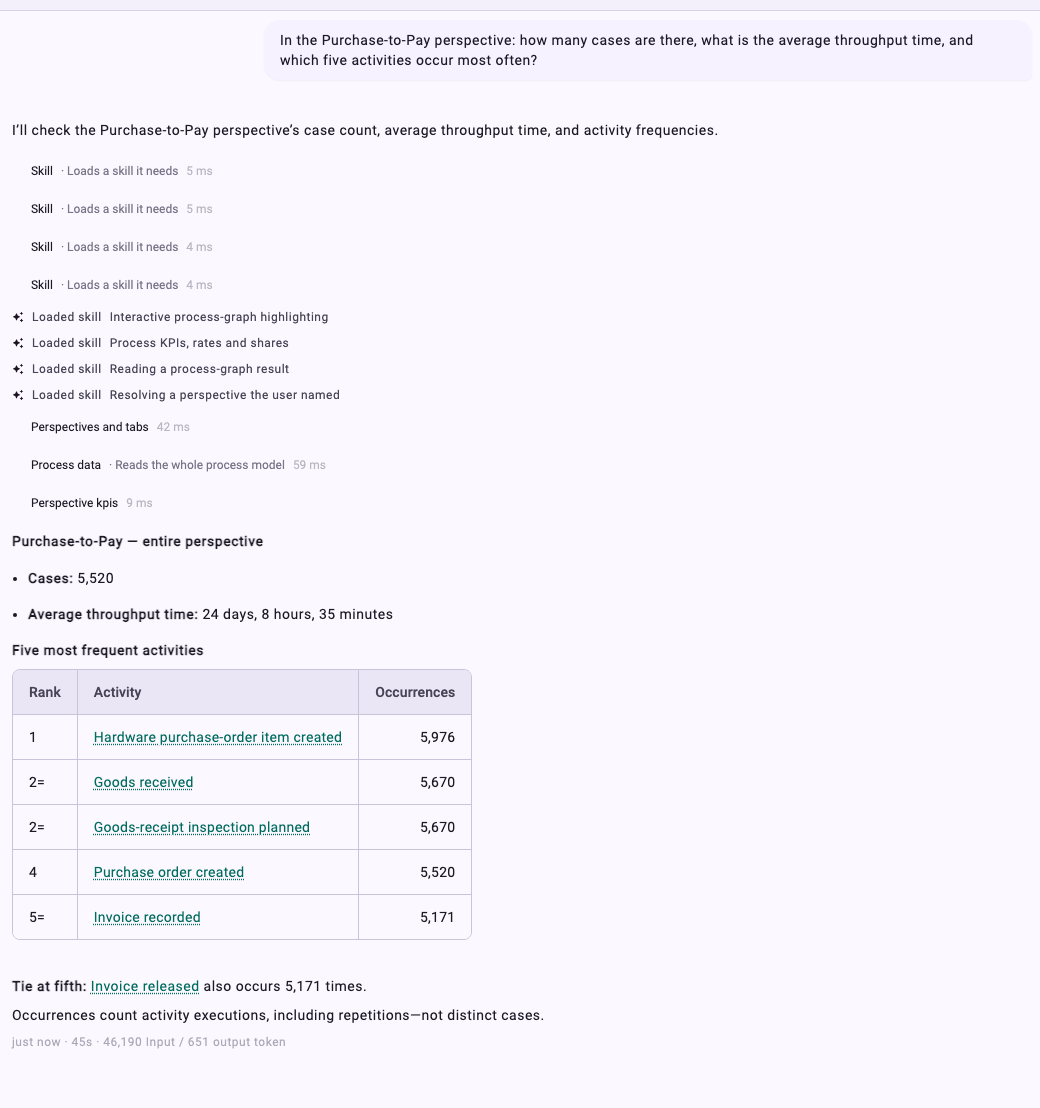
- Type your question into Ask Minerva, your AI assistant …. Name the perspective you mean, for example In the Purchase-to-Pay perspective: how many cases are there? If you don't, Minerva may use the analyzer tab you opened last, which can be a different perspective. See Get Better Answers from Minerva.
- Press Enter or click Send. Use Shift+Enter for a line break.
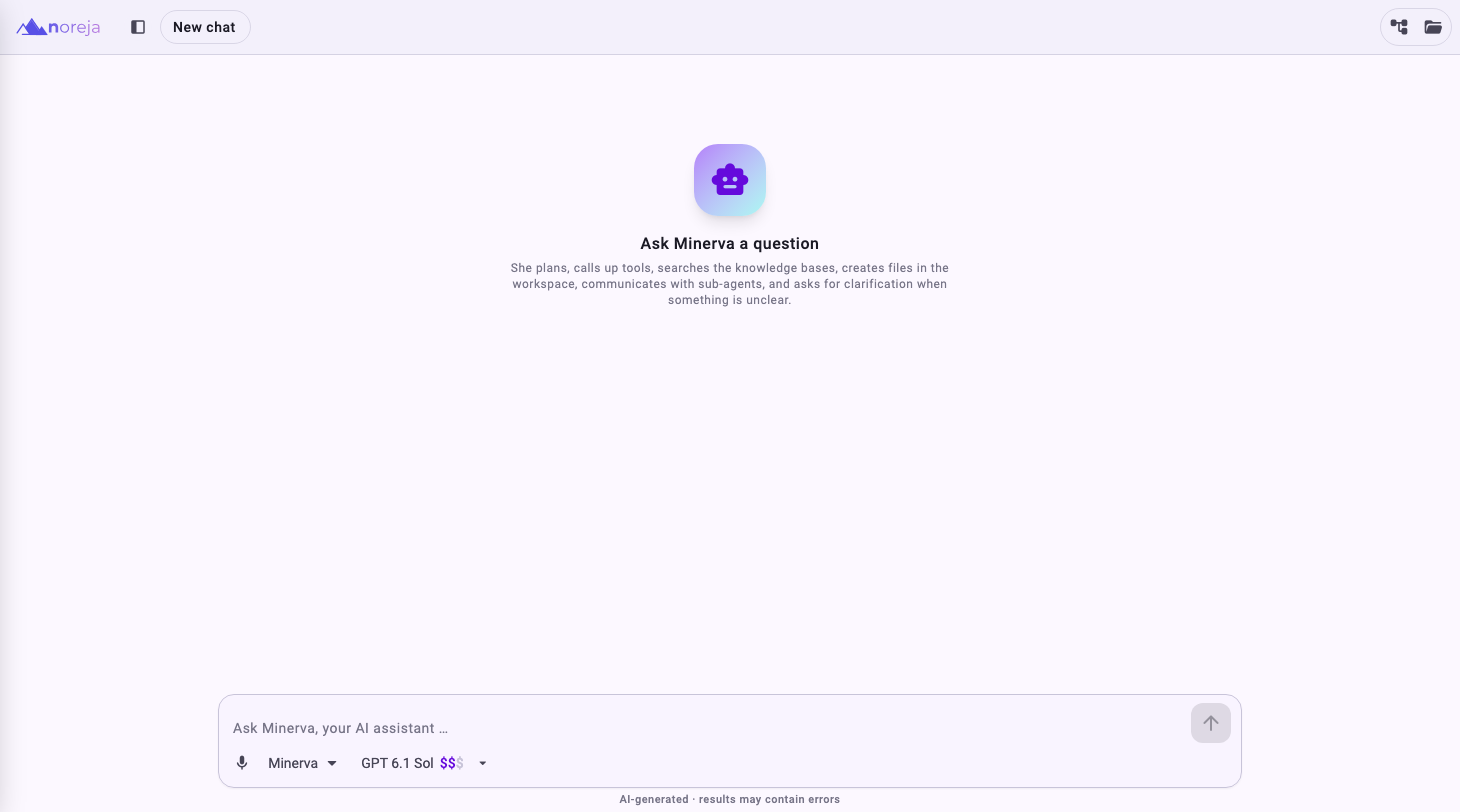
Instead of typing, you can click the microphone (Dictate), speak, and click it again (Stop dictation). The text is added to the input field, and you can correct it before sending. Your browser asks once for access to the microphone.
Important: Dictation is converted to text by a speech service from OpenAI, also when you have chosen a local model for the chat. If your recordings must not leave your company, type instead.
Below the input field you choose who answers and with which model:
- Agent: Minerva is the standard assistant. Your company may offer more agents for special tasks. The agent is fixed once a chat has started; for another agent, start a new chat. See Noreja's Agents and Skills.
- Model: the AI model that writes the answer, grouped into Local models (run on servers operated by Noreja or, in an on-premise installation, by your company) and External Models (cloud providers). External models show their price range as dollar signs; see What a Model Costs. When you switch from a local to an external model, Noreja warns you first, because the next questions are then sent to the cloud provider. It doesn't warn when a chat starts on an external model; check the model before you ask something confidential. See Minerva: Models, Data Flow and Data Protection.
Type / in the input field to see the Skills available to you. Picking one makes Minerva follow that skill's instructions for your question. You don't have to pick skills: Minerva loads the ones it needs by itself.
Tip: External models differ a lot in price. The dollar signs next to a model show its price range, hovering shows its prices, and Noreja asks before you use a premium model. See What a Model Costs.
Follow What Minerva Is Doing
Minerva shows its work while it answers: which skills it loaded, which data it read (for example Process data or the Noreja documentation) and, for larger tasks, the parts it handed over to sub-agents and a Plan with the open steps. Click a step to see its details.
- To stop an answer, click the stop button (Stop (sends queued next)). You can then write a new message, or click Continue to let Minerva carry on.
- You can already write your next message while Minerva is working. Pressing Enter queues it (Queued:), and it is sent as soon as the current answer is finished.
- A sub-agent that is still working can be stopped on its own with Stop. Its result is discarded; the rest of the answer continues.
- If Minerva needs a decision from you, it asks a question in the chat. Answer it in Your answer… and click Send answer.
- You can leave the chat while Minerva is working. The answer is finished in the background, and the chat list marks the chat as Running or Needs your input.
Work with the Answer
- Tables: hover over a table to copy it (Copy table to clipboard.) or download it as a CSV file (Download table as CSV.).
- Diagrams: Minerva can draw flow charts, timelines and similar diagrams. You can copy them, download them as SVG or PNG, or open them in full screen.
- Highlighting in the process graph: underlined activities and relationships are linked to the process graph. Hover over them to light them up in the graph next to the chat, click to keep them highlighted. This works next to an analyzer tab and with graphs opened on the chat page.
- Cases and variants: on the chat page, click a case or variant Minerva mentions to open it as a graph next to the chat. Open the perspective's graph first (see “Process Graphs Next to the Answer” above).
- Files: if Minerva created a file, open the workspace files to download it. See Work with Files in Minerva Workspaces.
Hover over an answer to see its actions:
- Copy answer.
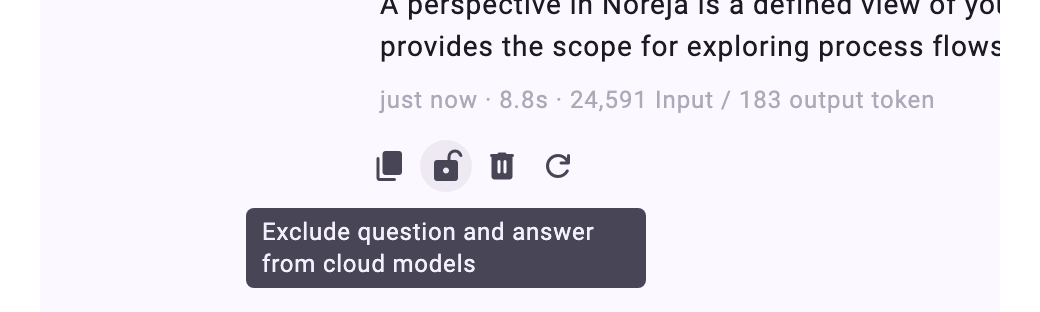
- Exclude question and answer from cloud models (the lock): this question and answer are then only sent to local models in later requests. See the next section.
- Delete message and answer.
- Re-run from here: Minerva answers the question again, for example after you chose another model. All later messages in the chat are removed.
On your own messages you find Copy message and Edit message. After editing, click Save and re-run; the later messages are removed and Minerva answers the changed question.
Below each answer you see when it was given, how long it took and how many tokens it used. Answers are written by AI and can contain errors, as the note below the input field says: check important figures in the Analyzer before you pass them on.
Keep Questions and Answers from Cloud Models
Under every answer there is a lock. It shows whether this question and its answer may go to external cloud models in later requests of the chat:
- Open lock: question and answer go along as usual. Click it (Exclude question and answer from cloud models) to keep them out.
- Closed lock: the question shows Local models only. In later requests, the question, Minerva's steps and the answer only go to the local model. Click it (Remove exclusion – release to cloud models again) to release them.
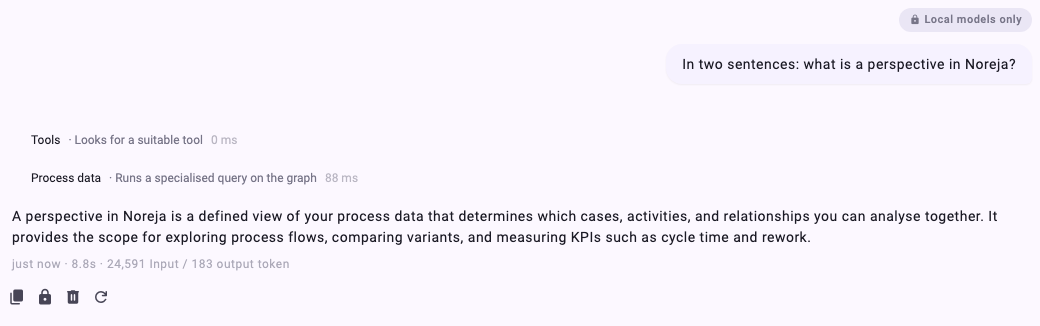
Minerva also excludes questions and answers by itself: answers from a local model, and answers for which it read confidential Context Hub knowledge (items marked Local LLM).
The lock only affects later requests: what a cloud model has already received can't be called back. When you switch from a local to an external model, Noreja warns you first, so you can lock the messages that must not be sent. Questions you excluded stay unchanged when the chat is compressed. See Minerva: Models, Data Flow and Data Protection.
Long Chats and Token Usage
Next to the model you find two indicators:

- Token usage: opens Conversation Tokens, the tokens this chat used by model, agent and tool, with an estimate of the cost. See What a Model Costs.
- The context indicator (the ring): how full the model's memory for this chat is. It turns red from 80%. Click it to compact the conversation: earlier requests are summarised, so Minerva can continue with less to read. Questions you excluded from cloud models stay unchanged. In long chats Minerva also compacts automatically.
Tip: For a new topic, start a new chat. Minerva then answers faster, and the chat list stays easy to search.
Related
- What Minerva Can Do
- Work with Files in Minerva Workspaces
- Get Better Answers from Minerva
- Create an Analyzer Tab
- What a Model Costs
- Minerva: Models, Data Flow and Data Protection