
Organise Your Analyses: Tab Explorer, Folders, Favorites and Subtabs
Analyzer tabs and dashboards are organised in the same way: in the Tab Explorer on the left, with folders, favorites and subtabs. This page explains how to create, find and arrange your tabs, how shared tabs appear, and how to clean up tabs you no longer use. The Analyzer and dashboards each have their own explorer.
Permissions: feature Analyzer for analyzer tabs, Dashboard for dashboards: Read to see and open tabs, Create for new tabs, Edit, Delete and Share to rename, delete and share your own tabs. Tabs shared with you appear without the feature. See Create and Edit Roles.
The Parts of the Screen
- Tab Explorer (left): all your tabs, grouped by perspective or by folder, with Favorites at the top and Shared with me at the bottom.
- Tab bar (top): the tabs you have open, like browser tabs.
- Tab header: where the open tab sits (perspective › folder › parent tab › name), Create subtab and the star for favorites. Click a parent tab there to go to it.
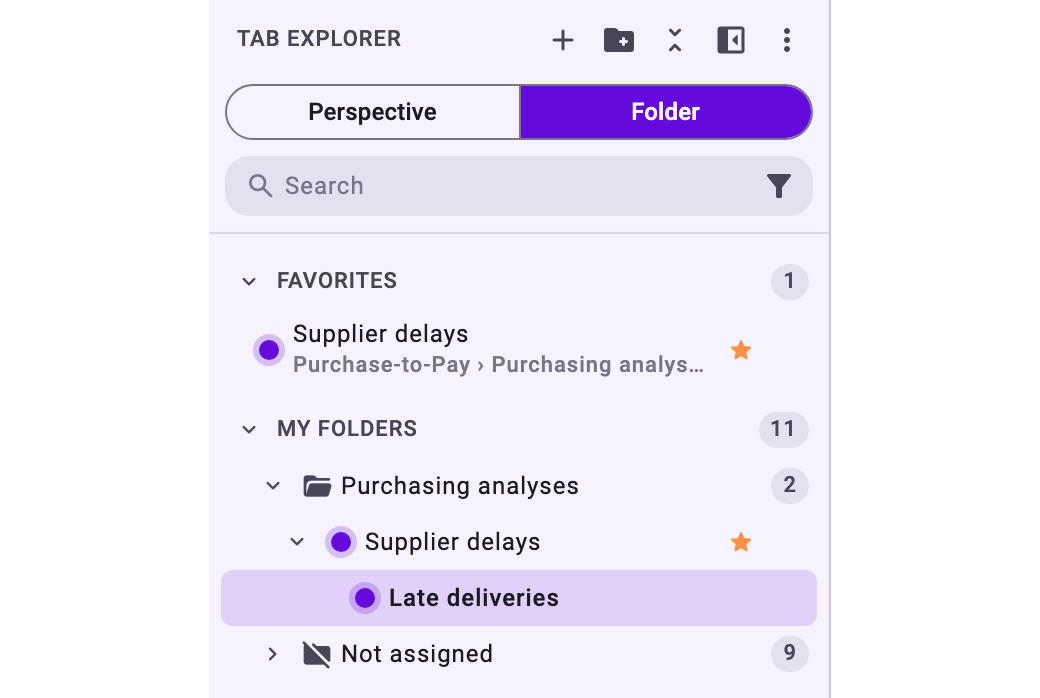
Use Collapse sidebar to get more room for the analysis; the collapsed bar still shows your favorites. On small screens and while Minerva is open next to the tab, the explorer collapses by itself (see Chat with Minerva).
Create a Tab
The details for each kind of tab are in Create an Analyzer Tab and Create a Dashboard Tab.
- Click + at the top of the Tab Explorer (New analyses in the Analyzer, Create Dashboard on dashboards). To create a tab directly in a perspective or folder, open its menu (⋮) and choose the entry for a new tab.
- Choose the perspective and enter a name. On dashboards, tick Add default widgets? to start with the standard widgets.
- Choose Private, or Share to share the tab right away. See Share Your Work with Colleagues.
- Click Create.
The tab is saved at once. In the Analyzer, changes such as filters or the view are saved automatically. Changes are saved with the tab only if you may edit it (Analyzer: Edit, or an Edit share). On dashboards, changes to the layout are saved when you click save after editing; if you close a dashboard with unsaved layout changes, Noreja asks whether to save them.
Find Your Tabs
- Perspective / Folder switches between grouping by perspective (My Perspectives) and by folder (My Folders, with Not assigned for tabs outside folders).
- Search finds tabs by name, by view (for example Process or Case) and by the filters they use. The filter button next to the field narrows the results further. Search also finds tabs you closed in the explorer.
- The numbers next to perspectives and folders show how many tabs they contain.
Favorites
Mark the tabs you use most as favorites: click the star in the tab header, or choose Favorite in the tab's menu. Favorites appear in the Favorites section with their location, first among their neighbours in the tree, and in the collapsed sidebar. Remove from favorites takes them out again.
Folders
Folders are your own way to group tabs, for example by project or topic. They are personal: colleagues don't see your folders, also not when you share a tab with them.
- New folder (at the top of the explorer or in a perspective's menu) creates a folder; New subfolder in a folder's menu creates one inside it.
- A folder can hold tabs of different perspectives. When you group by perspective, it appears under each perspective that has tabs in it.
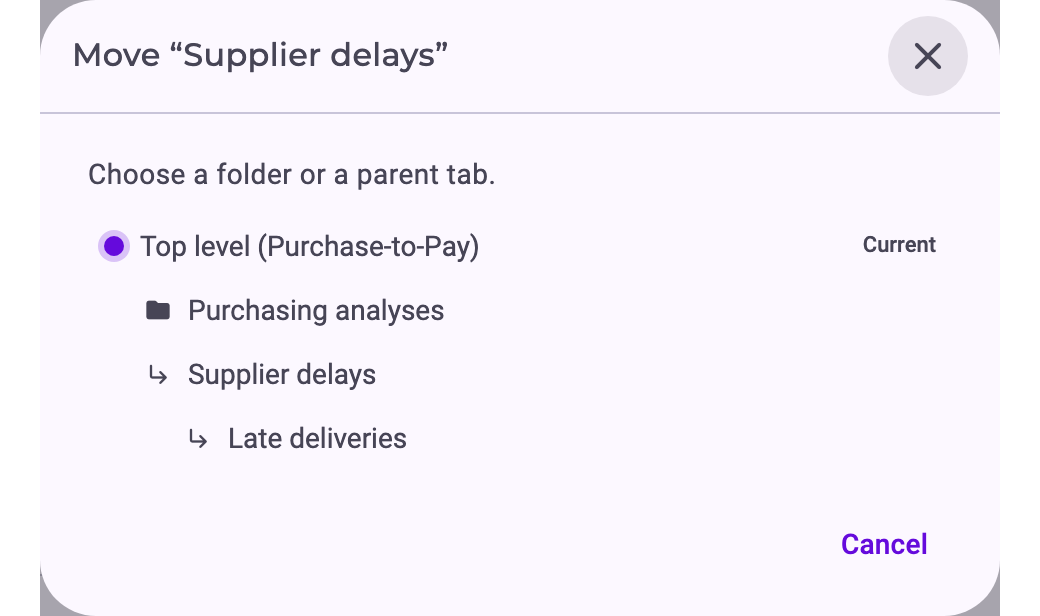
- To put a tab into a folder, drag it there, or choose Move in its menu and pick the folder.
- Rename and Move work for folders too.
- Dissolve folder removes the folder. Its tabs and subfolders are kept and move one level up. You can undo it right afterwards.
Subtabs
A subtab is a tab you place under another tab, for example a detailed view under an overview. It helps you keep related analyses together.
- To create one, open the tab and click Create subtab in the tab header, or choose New subtab in the tab's menu. You can also drag an existing tab onto another tab of the same perspective, or use Move.
- A new subtab starts without filters. It doesn't take over the filters of the tab above it; set the filters you need in the subtab itself. See Filter Cases in the Analyzer and Dashboards.
- Subtabs can have subtabs of their own. They move with their tab when you put it into a folder.
- Detach from parent tab in a subtab's menu makes it a normal tab again.
- If you delete a tab, its subtabs are kept and move one level up.
What You Can Do with a Tab
Hover over a tab in the explorer and click ⋮:
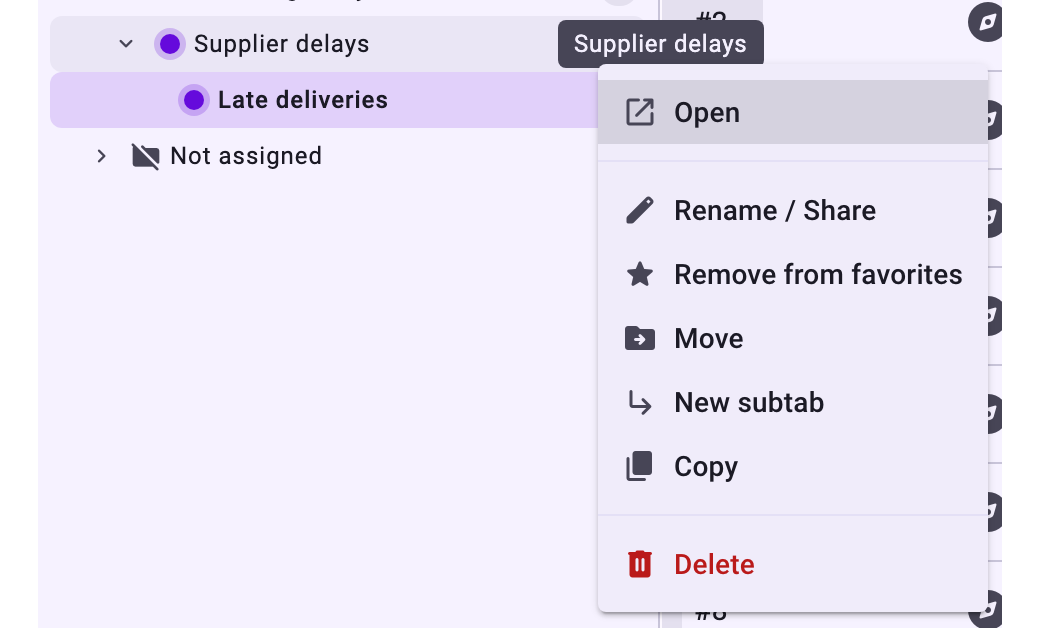
- Open: opens the tab. Ctrl-click or Cmd-click opens it in a new browser tab.
- Rename / Share: changes the name or who the tab is shared with. You see only Rename or Share if you may do only one of them.
- Favorite, Move, New subtab: see above.
- Copy: creates a copy with the same filters and settings (on dashboards, the same widgets), named "… - copy". The copy is private, also if the original was shared.
- Delete: deletes the tab for everyone it was shared with. This can't be undone.
Only the owner can move a tab, put it into a folder or add subtabs. Renaming, sharing and deleting also need the matching permissions for the Analyzer or dashboards.
Open Tabs
The tab bar shows the tabs you have open. Closing a tab there (×) only removes it from the bar; it stays in the explorer. The tab's menu in the bar also has Close others, an entry to close the tabs to its right (when more tabs follow), Close all, Reveal in explorer, which shows where the tab sits in the explorer, and Favorite or Remove from favorites. Drag tabs in the bar to change their order.
Tabs Shared with You
Tabs that colleagues share with you appear under Shared with me, with the name of the person who shared them. How sharing works is explained in Share Your Work with Colleagues.
- If you may only read a shared tab, the tab header shows Read-only. Click Copy to my tabs to get your own copy you can change.
- You can mark shared tabs as favorites, but not move them into folders or add subtabs.
- Remove from list takes a shared tab out of your explorer; it isn't deleted.
- Hide shared tabs in the explorer's menu (⋮ at the top) hides the whole section; Show shared tabs at the bottom brings it back.
Clean Up Tabs You No Longer Use
If some of your tabs haven't been opened for 14 days, a note at the top of the explorer says so. Favorites and the open tab don't count.
- Review lists these tabs, all selected. Delete selected deletes the selected tabs permanently; clear the checkbox of tabs you want to keep.
- Later hides the note for 14 days in this browser.
Important: Deleting tabs from the review deletes them for everyone you shared them with, and it can't be undone. Mark tabs you want to keep as favorites; favorites are never suggested for deletion.