
Connect a Data Source
A data source is Noreja's connection to a database or a business system. You set it up once; entities then read their tables from it. Noreja only reads from data sources, it never writes to them.
On this page you find:
- The steps in Noreja, for the data specialist: the supported systems, how to connect a database or an interface, test the connection and keep the data source up to date.
- The preparation of the source system, for its administrator: what every system needs, then one section per system with what's specific to it: Prepare Microsoft SQL Server, Prepare PostgreSQL, Prepare Oracle (with Oracle Gateway), Prepare SAP HANA 2, Prepare IBM Db2, Prepare Snowflake, Prepare ServiceNow and Connect via OData.
Two other pages help with the data itself: Prepare Your Source Data: Keys, Timestamps, Indices lists what the tables should offer for a good process model (stable keys, linking columns, clean time stamps) and which indexes make large imports faster. Using Advanced Queries in ServiceNow API explains the encoded queries that limit which records Noreja reads from ServiceNow.
Permissions: feature Builder: Create to add data sources, Edit to change them, Delete to delete them. Deleting a data source also deletes all entities and perspectives built on it. Data sources can't be shared. See Create and Edit Roles.
Before You Start
- Your IT has prepared the system: a user with read access, and the network opened for Noreja. The section for your system further down this page lists what's needed; the table below names it.
- You need a role that allows creating in the Builder.
Supported Systems
Connection type | Kind | Port | Preparation |
|---|---|---|---|
IBM Db2 11 | Database | By default 50000, or the SSL port | See Prepare IBM Db2 below |
MSSQL Server | Database | The instance's fixed TCP port; the default instance uses 1433 | See Prepare Microsoft SQL Server below |
Oracle | Database | The listener port, usually 1521 | See Prepare Oracle below |
Oracle Gateway (SAP data through an Oracle database) | Database | Ask Noreja | See Oracle Gateway in Prepare Oracle below |
Postgres | Database | Usually 5432 | See Prepare PostgreSQL below |
SAP HANA 2 | Database | The SQL port of the tenant database | See Prepare SAP HANA 2 below |
Snowflake | Database | 443 | See Prepare Snowflake below |
OData (version 2 or 4, detected automatically, for example SAP) | API (interface) | Leave empty | See Connect via OData below |
Service Now | API (interface) | Leave empty | See Prepare ServiceNow below |
Connect a Database
- Open Builder and choose Sources.
- Click Add source and keep Database selected.
- Enter a Name of the data source that says which system it is, for example "Purchasing ERP".
- Choose the Connection type.
- Enter the Database host (the server's name or IP address) and the Port. There is no default; enter the port your database listens on (see the table above).
- Under Authentication, keep User & password. Tick Use SSL for an encrypted connection.
- Enter the User and Password your IT created for Noreja.
- Enter the Database, or click the refresh icon next to it to choose from the databases this user can open. For Oracle, the field is called Service name. For IBM Db2, Oracle and Oracle Gateway there is no refresh icon; type the name.
- Under Schema, enter or choose the schemas that contain your tables (for IBM Db2, Oracle and Oracle Gateway, type them). They are required for Oracle, Oracle Gateway, SAP HANA and Db2.
- Click Create.
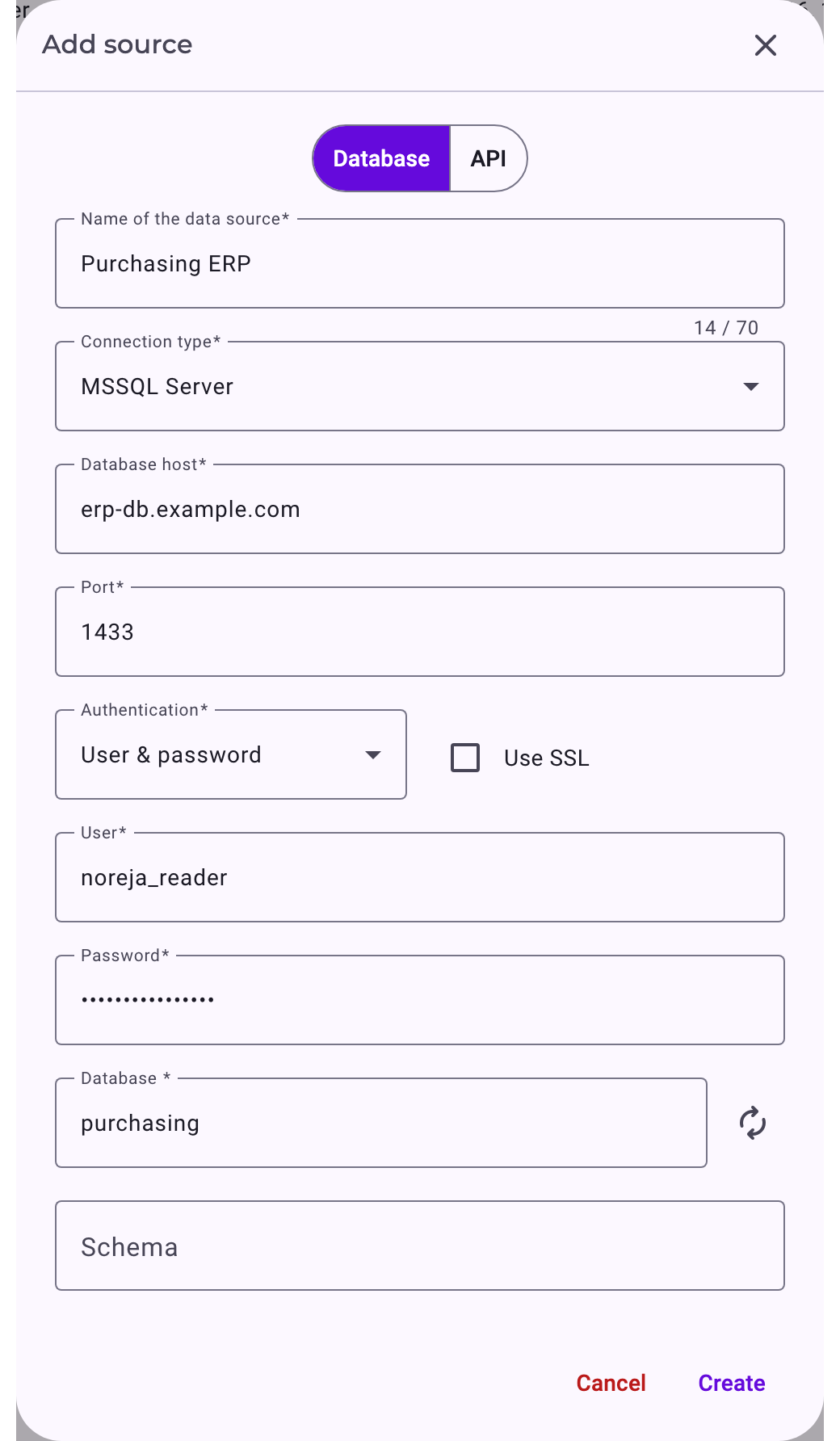
Some systems have extra fields:
- Oracle: for a multitenant database, tick Multi Tenancy? and enter the Container. Use SSL switches on Oracle's own network encryption.
- Snowflake: Warehouse is optional; without it, the user's default warehouse is used. Noreja works with the user's default role. Tick Use SSL; Snowflake requires it, and it isn't ticked by default.
The section for each system below lists its values in detail.
Connect an Interface
- Click Add source and choose API.
- Enter a Name of source and choose the Connection type.
- Enter the Server host with https://, for example the address of your ServiceNow instance or the service address of the OData service. Port is optional; for ServiceNow and OData, leave it empty.
- Choose the Authentication and fill in its fields (see below).
- Click Create.
The two kinds of Authentication:
- Basic Auth: a User and Password.
- OAuth2: the Token URL, Client Id and Client Secret of a client registered for Noreja, and Scopes if your system needs them. Noreja signs in as this client (client credentials grant), without a user.
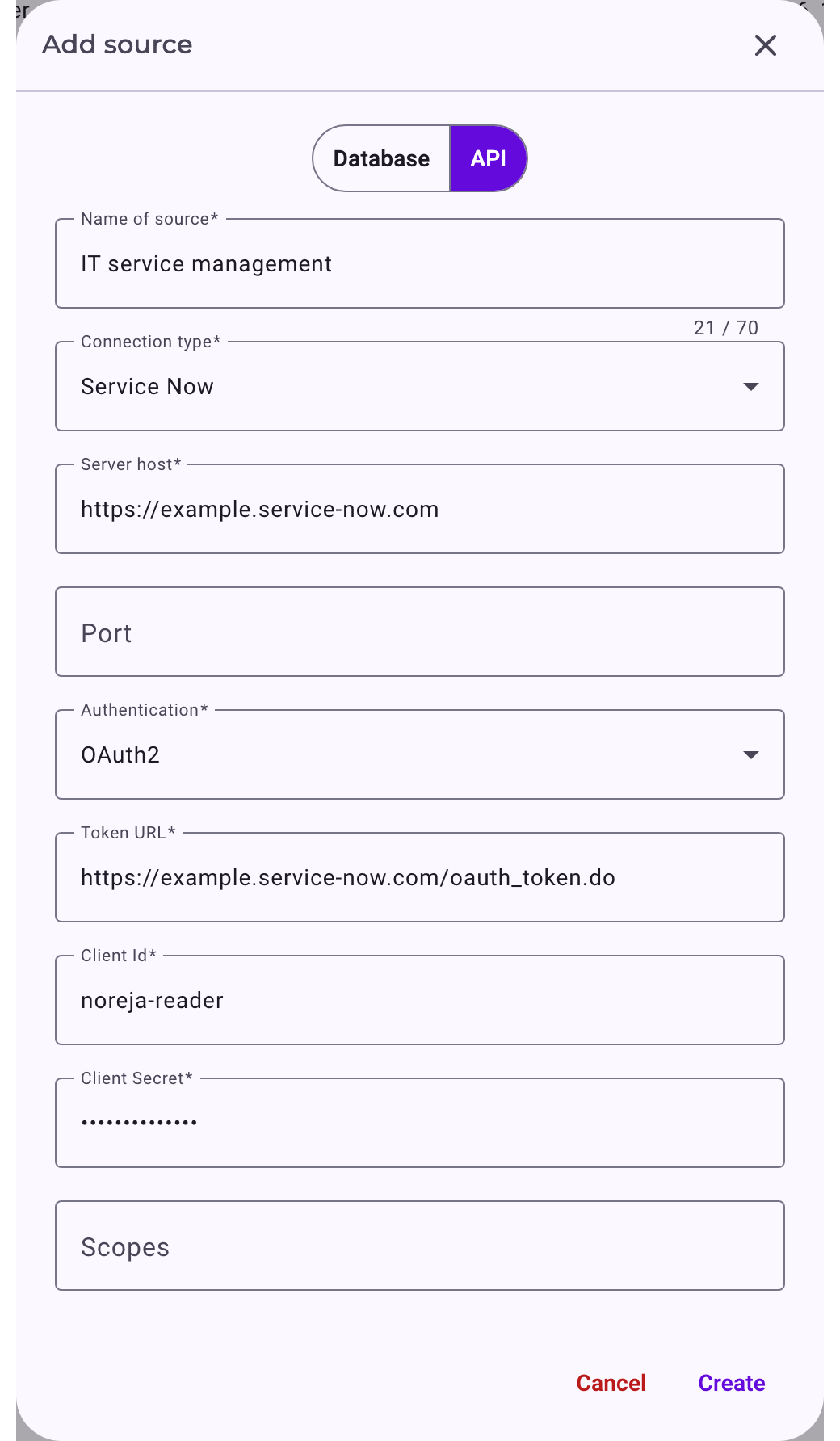
Test the Connection
A new data source is Not tested. In the list, click Test in its row. The test checks two connections: from the Builder and from Neo4j, which runs the import. Only tested data sources can be used for new entities.
If a check fails, Noreja opens the data source with the error:
- Importer connection error: the Builder couldn't reach the source or sign in.
- Neo4j connection error: Noreja's import couldn't reach the source. The import runs separately from the Builder, so the network must allow both.
Check host, port and credentials, and ask your IT whether the network is open for Noreja.
The status can show Tested even if the Neo4j check failed. Imports from such a data source fail. Use a data source for entities only once a test shows neither error.
Keep a Data Source Up to Date
- Edit: change the connection details. Afterwards the data source is Not tested again; test it.
- Renew cache: Noreja keeps the list of tables and columns of a data source. If tables or columns were added or changed in the source, renew it so the Builder shows the current state.
- Delete: deletes the data source together with all entities and perspectives built on it. The confirmation lists them.
What Every Source System Needs
This part and the sections after it are for the administrator who prepares the source system for Noreja. The data specialist then enters the connection in Noreja as described above.
- Network access: Noreja connects to your system, not the other way round; your system doesn't need to reach Noreja. Two parts of Noreja connect to a database: the Noreja services (for the test, the table list and test queries) and the Neo4j server, which runs the import queries. Open the database port in the firewall for connections from Noreja; if Neo4j runs on its own host, allow both hosts. Test checks both connections. Interfaces (ServiceNow, OData) are reached over HTTPS; if you restrict access by IP address, allow Noreja's addresses. If your Noreja runs in Noreja's cloud, ask Noreja for the addresses to allow.
- A user that can only read: with a password, and read access to the tables the entities will use (for a database, in one database). Don't give it write access; Noreja doesn't need it.
- Read-only queries: Noreja sends only SELECT queries to databases, generated from the entity's settings, and only GET requests to interfaces. As a safety net, Noreja also blocks common statements that change data, but the read-only user is what protects your data.
- Stored credentials: passwords and client secrets are stored encrypted.
- Values in Noreja: the connection type and the port are in the table under Supported Systems; host, user and password are your server and the user you created. The section for your system lists the other values.
- Table sizes: the Builder shows the size of each table. Without the right to read the system's size information, Noreja estimates them; everything else works. The section for your system names the grant.
- Passwords with special characters: for some databases, the test fails with certain characters in the password although the credentials are right. The section for your system names them; try a password without them.
- Indexes: imports read in pages. Indexes on the key, join and time stamp columns help large imports. See Prepare Your Source Data: Keys, Timestamps, Indices.
- Request time limit for interfaces: each request to ServiceNow or an OData service waits up to 50 seconds and is retried a few times before the import reports an error.
Prepare Microsoft SQL Server
Noreja connects to a host and a fixed port; it doesn't use the SQL Server Browser or instance names. It signs in with a SQL Server login and a password; Windows authentication isn't supported.
1. Allow Network Connections
- In SQL Server Configuration Manager, enable TCP/IP for the instance.
- For a named instance, give it a fixed TCP port instead of a dynamic one. The default instance uses 1433.
- Open this port in the firewall for connections from Noreja (see What Every Source System Needs above).
- Make sure the server allows SQL Server authentication (mixed mode).
2. Create a Login That Can Only Read
CREATE LOGIN noreja_reader WITH PASSWORD = '<strong password>';
USE purchasing;
CREATE USER noreja_reader FOR LOGIN noreja_reader;
-- read access to one schema:
GRANT SELECT ON SCHEMA::dbo TO noreja_reader;
-- optional: lets the Builder show table sizes
GRANT VIEW DATABASE STATE TO noreja_reader;
Instead of the schema grant, you can add the user to the role db_datareader for read access to the whole database. Without VIEW DATABASE STATE, Noreja estimates table sizes.
3. Values for Noreja
- Connection type: MSSQL Server.
- Database: the database with the tables; enter it by hand or pick it from the list the refresh icon loads.
- Schema: optional; the schemas with the tables, for example dbo.
- Use SSL: tick it to encrypt the connection.
- Password: if the test fails although the credentials are right, check whether the password contains
;, and try one without.
Prepare PostgreSQL
Noreja needs a role with a password and read access to the tables, in one database, and a TCP connection to the PostgreSQL port, usually 5432.
1. Allow Network Connections
- Make sure the server listens on a network address (listen_addresses in postgresql.conf).
- Add a line for Noreja to pg_hba.conf, for example
host purchasing noreja_reader <Noreja address>/32 scram-sha-256, and reload the configuration. This example allows only the database purchasing. The refresh icon in Noreja that lists the databases first connects to the database postgres, so either allow postgres as well, or enter the database by hand in Noreja.
- Open the port in the firewall for connections from Noreja. If Neo4j runs on its own host, allow both hosts in the firewall and in pg_hba.conf.
2. Create a Role That Can Only Read
CREATE ROLE noreja_reader LOGIN PASSWORD '<strong password>';
GRANT CONNECT ON DATABASE purchasing TO noreja_reader;
-- connected to the database purchasing:
GRANT USAGE ON SCHEMA public TO noreja_reader;
GRANT SELECT ON ALL TABLES IN SCHEMA public TO noreja_reader;
ALTER DEFAULT PRIVILEGES IN SCHEMA public
  GRANT SELECT ON TABLES TO noreja_reader;
Repeat the schema lines for every schema Noreja should read. The last line also covers tables created later, but only those created by the role that runs it. If another role creates the tables, for example the application's owner, add FOR ROLE <owner> after ALTER DEFAULT PRIVILEGES.
3. Values for Noreja
- Connection type: Postgres.
- Database: the database with the tables. Enter it by hand, or use the refresh icon, which lists the databases the role can connect to if pg_hba.conf also allows the database postgres.
- Schema: optional; the schemas with the tables. Without it, all schemas except the system schemas are used.
- Use SSL: tick it to encrypt the connection; the server must have SSL enabled.
Prepare Oracle
Noreja needs:
- Network access: a TCP connection to the listener port, usually 1521.
- The service name of the database (not the SID). For a multitenant database: the pluggable database to read from.
- A user with a password, CREATE SESSION and SELECT on the tables the entities will use.
Create a User That Can Only Read
CREATE USER noreja_reader IDENTIFIED BY "<strong password>";
GRANT CREATE SESSION TO noreja_reader;
-- for every table Noreja should read:
GRANT SELECT ON purchasing.bestellung TO noreja_reader;
GRANT SELECT ON purchasing.bestellposition TO noreja_reader;
Grants per table keep access to the minimum. If many tables are needed, your policy may allow a role with these grants instead.
Values for Noreja
- Connection type: Oracle.
- Service name: the service name of the database.
- Multi Tenancy? and Container: for a multitenant database, tick it and enter the service name of the pluggable database. Noreja then connects to it instead of the service name above.
- Schema: required; the schemas that own the tables, for example PURCHASING.
- Use SSL: switches on Oracle's native network encryption and integrity checks; the server must accept them (SQLNET.ENCRYPTION_SERVER and SQLNET.CRYPTO_CHECKSUM_SERVER at least ACCEPTED). Known issue: with Use SSL ticked, imports may fail even when Test succeeds. If you need an encrypted connection, contact Noreja.
- Password: if the test fails although the credentials are right, check whether the password contains
@or/, and try one without.
The Builder shows table sizes only for tables owned by the connecting user; for others it estimates them.
Oracle Gateway
The connection type Oracle Gateway reads the tables of an SAP system through an Oracle database that reaches SAP over a database link. It expects a specific setup on the Oracle side; contact Noreja before you use it.
Prepare SAP HANA 2
Noreja needs a TCP connection to the SQL port of the tenant database and a database user with a password and SELECT on the schemas with the tables. The port depends on the instance number and the tenant; your HANA administrator knows it. To read SAP data through OData services instead, see Connect via OData below.
Create a User That Can Only Read
CREATE USER NOREJA_READER PASSWORD "<strong password>"
  NO FORCE_FIRST_PASSWORD_CHANGE;
GRANT SELECT ON SCHEMA SAPHANADB TO NOREJA_READER;
Replace SAPHANADB with the schemas Noreja should read. Optionally, give the user read access to the monitoring views M_CS_TABLES and M_RS_TABLES, so the Builder can show table sizes; without it, sizes are estimated.
Values for Noreja
- Connection type: SAP HANA 2.
- Database host and Port: the HANA host and the SQL port of the tenant database.
- Database: the name of the tenant database; enter it by hand. The refresh icon then lists its schemas.
- Schema: required; the schemas with the tables.
- Use SSL: tick it to encrypt the connection; the server must have TLS enabled.
- Password: if the test fails although the credentials are right, check whether the password contains
&, and try one without.
Prepare IBM Db2
Noreja needs a TCP connection to the Db2 port, by default 50000 (or the SSL port, if you use encryption), and a user Db2 authenticates with a password, with CONNECT on the database and SELECT on the tables.
Grant Read Access
GRANT CONNECT ON DATABASE TO USER NOREJA;
-- for every table Noreja should read:
GRANT SELECT ON TABLE PURCH.BESTELLUNG TO USER NOREJA;
GRANT SELECT ON TABLE PURCH.BESTELLPOSITION TO USER NOREJA;
Db2 usually authenticates users through the operating system or LDAP; create the user there first. For table sizes in the Builder, the user needs to read SYSIBMADM.ADMINTABINFO; without it, sizes are estimated.
Values for Noreja
- Connection type: IBM Db2 11.
- Database: the database name; enter it by hand.
- Schema: required; the schemas with the tables, for example PURCH.
- Use SSL: tick it to encrypt the connection; use the server's SSL port.
- Password: if the test fails although the credentials are right, check whether the password contains
;, and try one without.
Prepare Snowflake
Noreja connects to your Snowflake account over HTTPS (port 443). If you restrict access with network policies, allow the addresses of both parts of Noreja (see What Every Source System Needs above). Noreja needs:
- A user with a password whose default role can read the tables. Noreja always works with the user's default role; there is no field for another role.
- A warehouse the role may use, as the user's default warehouse or entered in Noreja.
Create a Role and a User
CREATE ROLE NOREJA_READER;
GRANT USAGE ON WAREHOUSE ANALYTICS_WH TO ROLE NOREJA_READER;
GRANT USAGE ON DATABASE PURCHASING TO ROLE NOREJA_READER;
GRANT USAGE ON SCHEMA PURCHASING.ERP TO ROLE NOREJA_READER;
GRANT SELECT ON ALL TABLES IN SCHEMA PURCHASING.ERP
  TO ROLE NOREJA_READER;
GRANT SELECT ON FUTURE TABLES IN SCHEMA PURCHASING.ERP
  TO ROLE NOREJA_READER;

CREATE USER NOREJA PASSWORD = '<strong password>'
  DEFAULT_ROLE = NOREJA_READER DEFAULT_WAREHOUSE = ANALYTICS_WH;
GRANT ROLE NOREJA_READER TO USER NOREJA;
Noreja signs in with user and password. If your account requires multi-factor authentication or key pairs for all users, talk to Noreja before you set up the connection.
Values for Noreja
- Connection type: Snowflake.
- Database host and Port: your account's host name, for example
xy12345.eu-central-1.snowflakecomputing.com, and 443.
- Database: the database; the refresh icon lists the databases the role can use.
- Schema: the schemas with the tables.
- Warehouse: optional; the warehouse to use instead of the user's default.
- Use SSL: tick it. It's unticked for a new data source, and without it the connection doesn't work with a Snowflake account.
Imports run their queries on the warehouse and use its credits. Size it for the amount of data, and let it suspend automatically. See also Performance Tips for Large Imports.
Prepare ServiceNow
Noreja reads ServiceNow tables through the REST interface and never writes.
What Noreja Reads
Noreja only sends GET requests to these interfaces:
Interface | Used for |
|---|---|
Table API on sys_db_object | The list of tables. Noreja shows the tables whose application access has Can read switched on; the list doesn't depend on the integration user's rights on each table. |
Table API on sys_dictionary | The columns of the tables and their references |
Aggregate API ( | The number of records per table |
Table API on the tables you analyse, for example incident or change_request | The records, in pages, filtered by the object's WHERE clause (an encoded query; see Using Advanced Queries in ServiceNow API) |
1. Create an Integration User
- Create a user for Noreja, for example noreja.integration, and mark it as a web service user if your policy uses that.
- Give it read access to sys_db_object, sys_dictionary and the tables to analyse, and the right to use the Table API and the Aggregate API. Which roles grant this depends on your instance's access rules.
- Don't give it write access.
2. Choose How Noreja Signs In
- Basic authentication: Noreja signs in with the integration user's name and password. In Noreja, choose Basic Auth.
- OAuth2: register an OAuth client for Noreja in the Application Registry with the client credentials grant, linked to the integration user. The token address is
https://<instance>.service-now.com/oauth_token.do. Depending on your release, the client credentials grant has to be enabled first; see ServiceNow's documentation.
3. Values for Noreja
- Kind: API.
- Connection type: Service Now.
- Server host:
https://<instance>.service-now.com. Leave Port empty.
Large tables are read in pages. Limit them with WHERE clauses in the entity, for example to recent records; see Configure Objects and Relationships.
Connect via OData
Noreja can read data from OData services, for example SAP Gateway services, and only sends read requests. It needs:
- An OData service in version 2 or 4. Noreja detects the version itself from the service's metadata.
- Network access over HTTPS (see What Every Source System Needs above).
- A user, or an OAuth2 client with the client credentials grant, that may read the entity sets of the service. For SAP Gateway services, the service has to be activated and the user needs the authorisations to call it.
To read SAP HANA 2 directly over SQL instead, see Prepare SAP HANA 2 above.
What Noreja Reads
- Metadata: the service's metadata document, with the entity sets, their properties, keys and relations. Noreja uses the relations for suggestions in the entity builder; see Create an Entity, Manually or with Suggestions.
- Counts: the number of records per entity set.
- Records: in pages, with the usual OData query options (select, filter, top, skip, orderby and expand).
Values for Noreja
- Kind: API.
- Connection type: OData.
- Server host: the root address of the service, with https://, for example
https://sap.example.com:44300/sap/opu/odata/sap/ZPURCHASING_SRV.
- Port: leave it empty. If the service uses a special port, include it in the address as in the example.
When you test the data source, Noreja reads the service's metadata. If the test fails with a status code, check the address and the authorisations of the user.
The entity sets appear in the entity builder like tables. Their names are used as labels. For interface sources, objects have no unique identifier setting and use a join table instead of a JOIN clause; see Configure Objects and Relationships.