
Add a User
Only Customer admins can add users. For an overview of how users, user groups and roles work together, see Access Management at Noreja. To add many users at once, see Import Users in Bulk.
Permissions: Customer admins only. See Access Management at Noreja.
1. Open the User List
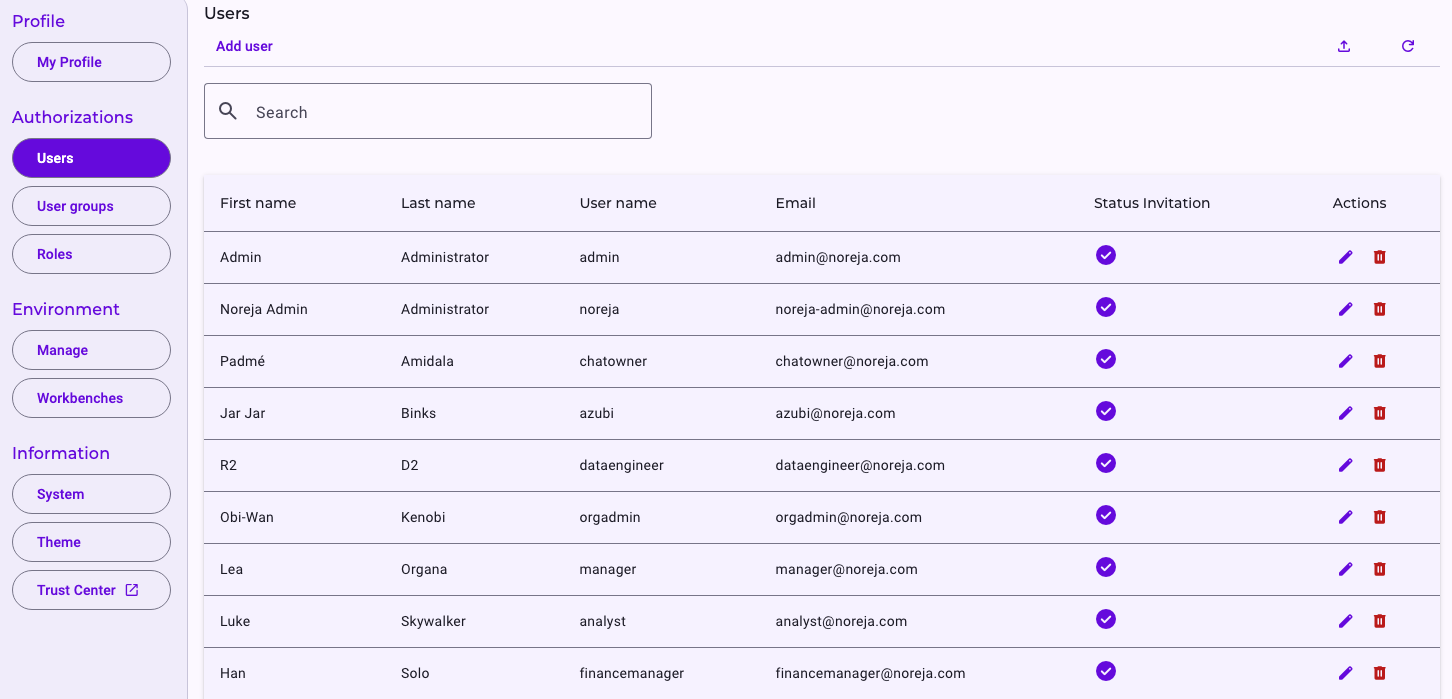
Click the Settings icon (⚙) in the top right. In the left menu, under Authorizations, select Users.
The list shows every user with their name, user name, email and invitation status. Use Search to find a user quickly.
2. Enter the User’s Details
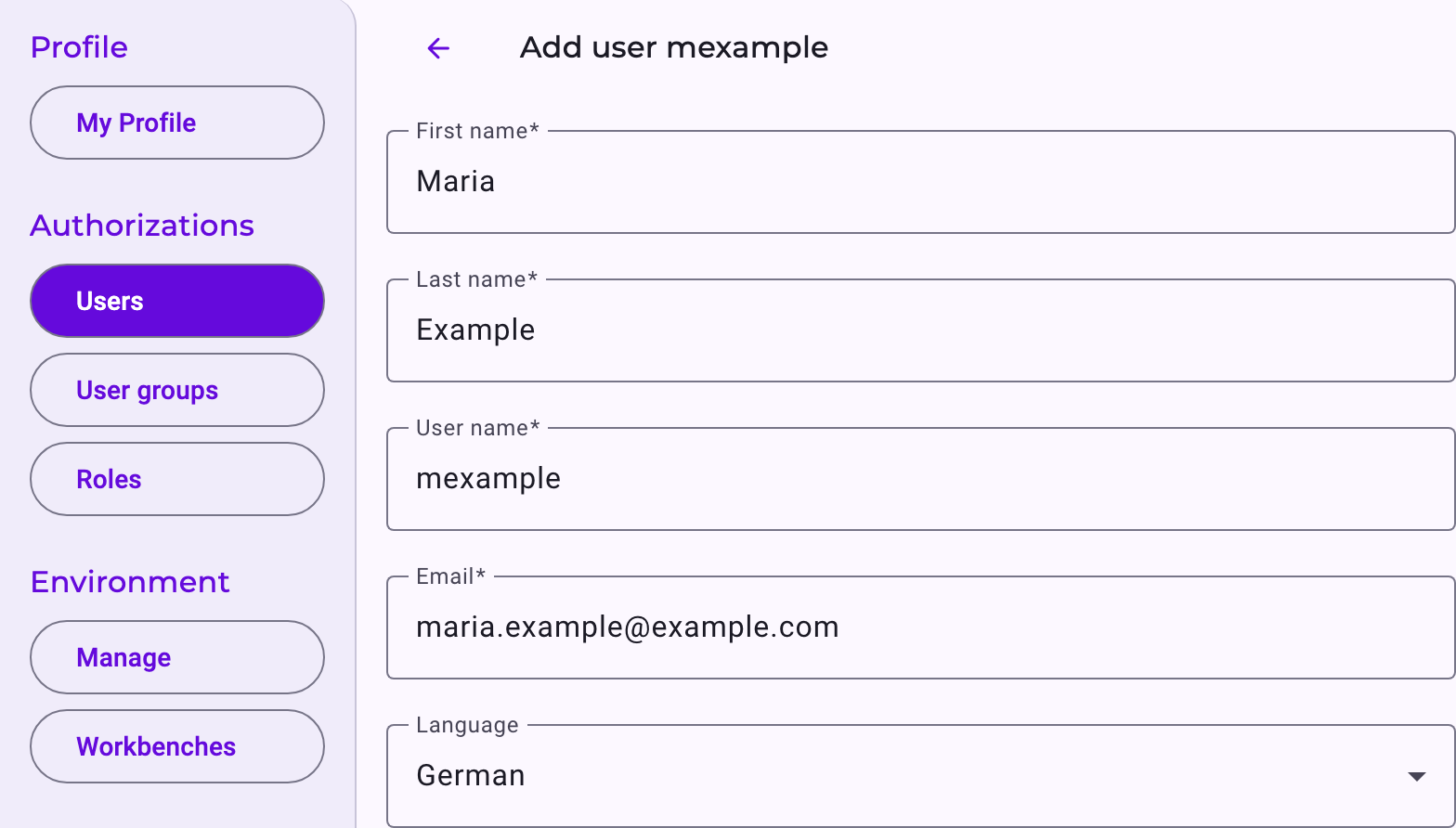
Click Add user and fill in the required fields:
- First name
- Last name
- User name, which the user logs in with
- Email, where the invitation is sent
Users choose the language they see Noreja in themselves, under Settings → My Profile.
3. Assign User Groups and Roles
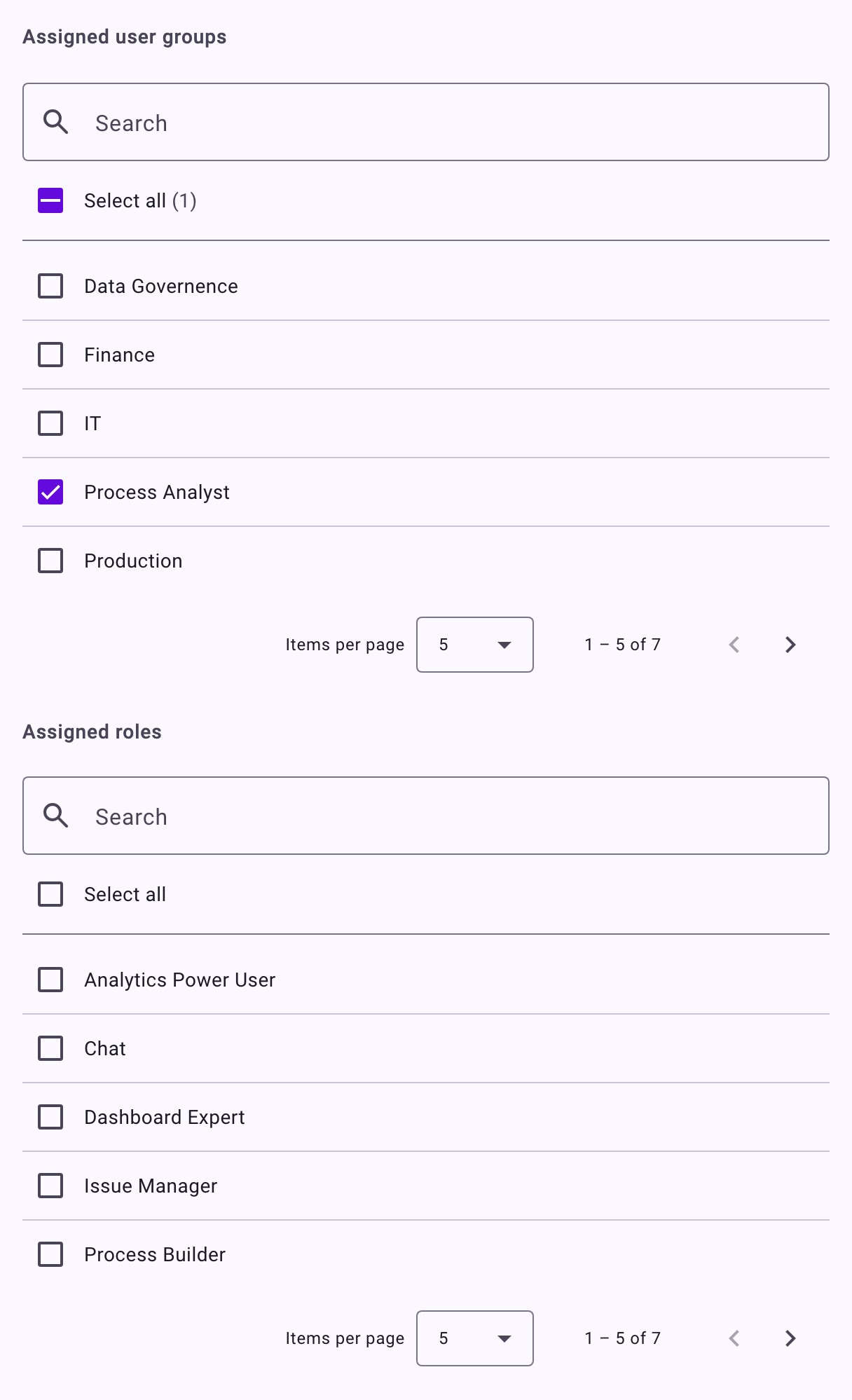
Under Assigned user groups, tick every group the user should belong to. The user automatically receives all roles linked to those groups. See Manage User Groups.
Under Assigned roles, tick any roles the user should have in addition to those from their groups. See Create and Edit Roles.
Both lists can be searched, and Select all ticks every entry on the current page.
As soon as you select a group or a role, an overview below the lists shows the permissions the user will have in total, per feature and action. It updates as you tick and untick entries, so you can check the result before saving.
Tip: Assign permissions through user groups wherever possible and use direct roles only for exceptions. That way, a change to a group applies to everyone in it at once.
4. Choose the Account Type (Optional)
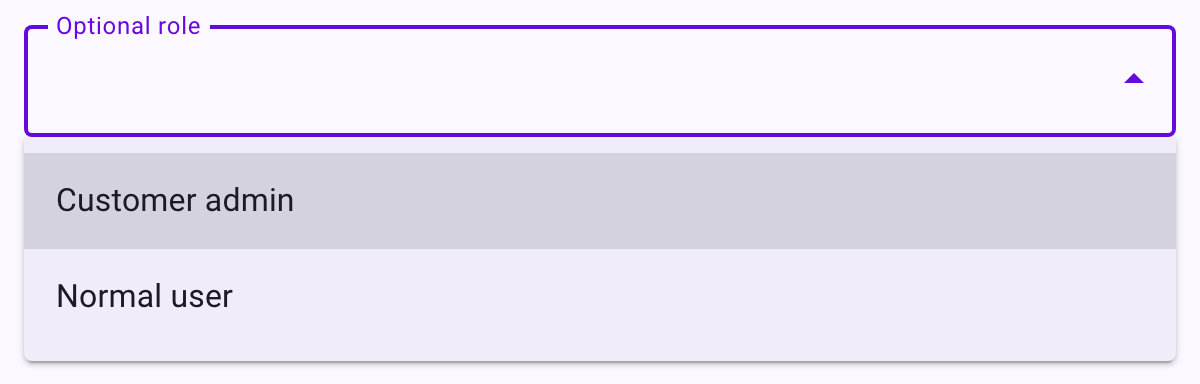
Under Optional role, choose:
- Customer admin: the user can manage users, user groups and roles, and can use every feature.
- Normal user: the user can do only what their user groups and roles allow.
If you leave the field empty, the user becomes a normal user.
5. Save
Click Save. The user immediately receives an invitation email with a link to set their password. The link is valid for a limited time (three days by default). What the user sees is described in Sign In for the First Time.
In the user list, the Status Invitation column shows a check mark once the user has set their password, and a clock while the invitation is still open. To resend the invitation or change the user later, see Edit, Delete and Re-Invite Users.