
Work with the Process View
The Process view shows the process model of an analyzer tab: every activity of the filtered cases and how the cases moved between them. This page explains how to work with it: look at variants, inspect activities and relationships, choose what the graph shows, highlight relationships, change the layout and present the result. What the shapes and numbers mean is explained in Elements in Noreja Process Graphs and Quantities and Cardinalities.
Permissions: feature Analyzer: Read to open analyzer tabs, or a tab shared with you. Settings you change are saved with the tab only if you may edit it. See Create and Edit Roles.
The Parts of the View
- Variants (left): the variants of the filtered cases. See Process Models and Levels: Case, Variant, Process Model.
- Graph (middle): the process model, with search on the left and the graph controls on the right.
- Details (below the graph): key figures for the whole process or for what you selected. Drag the handle between graph and details to make the graph taller or shorter.
- Settings panel (right): what the graph shows, highlighting and layout. The arrow at its edge collapses it.
The graph always shows the cases that match the tab's filters. With a filter, Noreja calculates the process model again from the matching cases, which can take a few seconds for large perspectives. See From Events to Process Model: What Is Aggregated Where.
Look at One Variant
The Variants list shows the variants with their Number of cases, the most frequent first, 15 per page. The bar behind each row shows its share of the cases.
- Click a variant to show only its cases in the graph and the details. Selected variant: shows which one is selected.
- Reset (the circular arrow) shows all cases again.
- The compass icon next to a variant (Open all cases of this particular variant) adds a Variants filter for this variant, applies it and switches to the Case view. Remove the filter to see all cases again.
With a filter, the variants keep their numbers, so the list can start with #4 or skip numbers.
Inspect an Activity or a Relationship
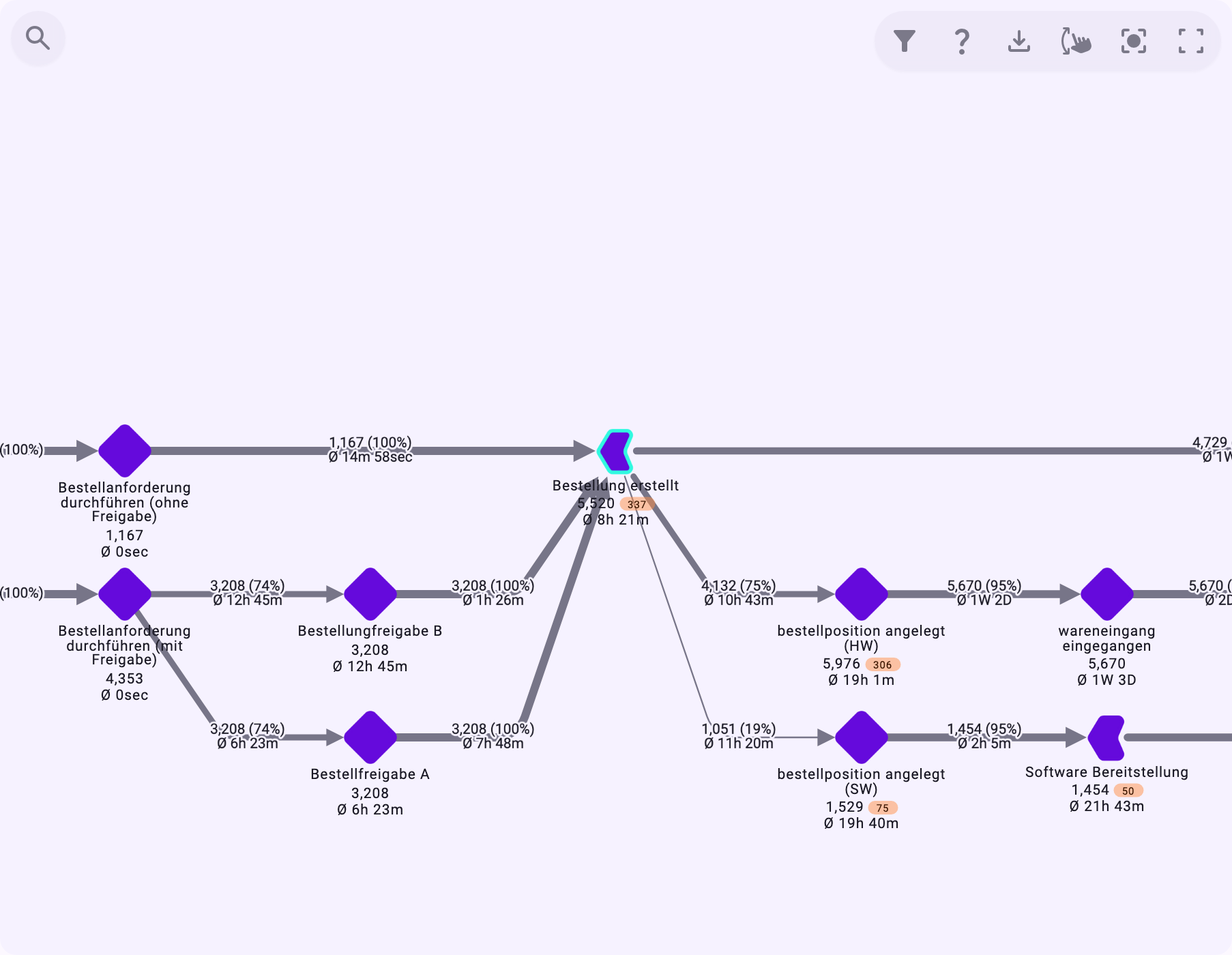
Click an activity or a relationship in the graph. It's outlined, and the table below the graph changes from Process details to Details with the figures of what you selected. Click an empty area of the graph to go back to the figures of the whole process.
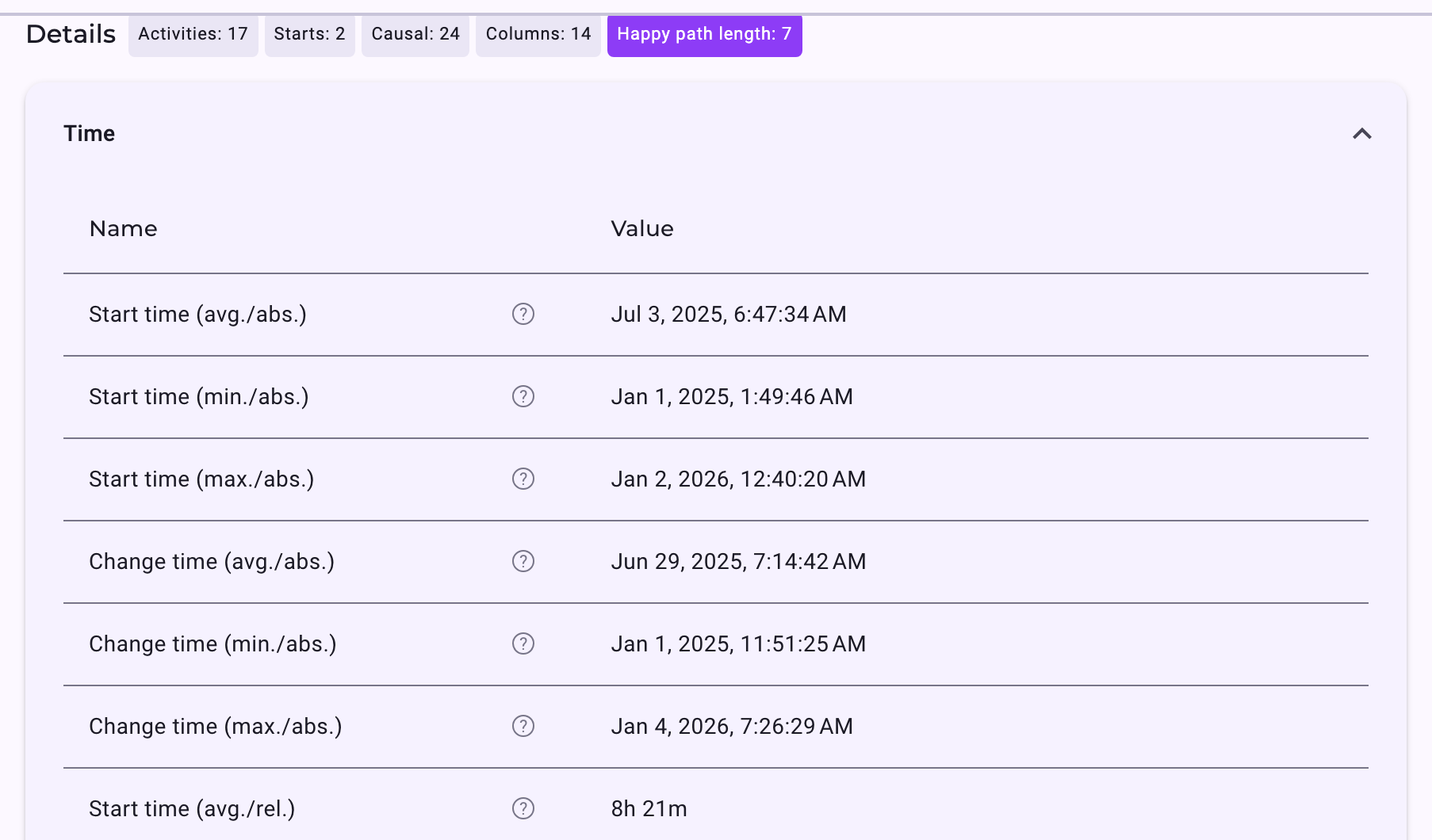
- The details are grouped into Time, Behavior and Properties (the properties from your data). Hover over the question mark next to a row for an explanation. All rows are described in KPIs Explained.
- The chips next to the title describe the graph: the number of activities (Activities), start points (Starts) and relationships of the expected order (Causal), the number of columns of the layout (Columns) and the number of steps on the happy path (Happy path length). Further chips appear when there are violations or activities off the main routes.
- To filter for the cases with this activity or relationship, click the filter button in the graph controls (Add activity to the filter or Add relation to the filter). The filter is added and applied at once. See Filter Cases in the Analyzer and Dashboards.
Find an Activity
Click the magnifier at the top left of the graph and type part of an activity's name (Search activity). Matching activities are outlined and everything else fades. Pick a result to zoom to the activity and select it. Close the search with ×.
Choose What the Graph Shows
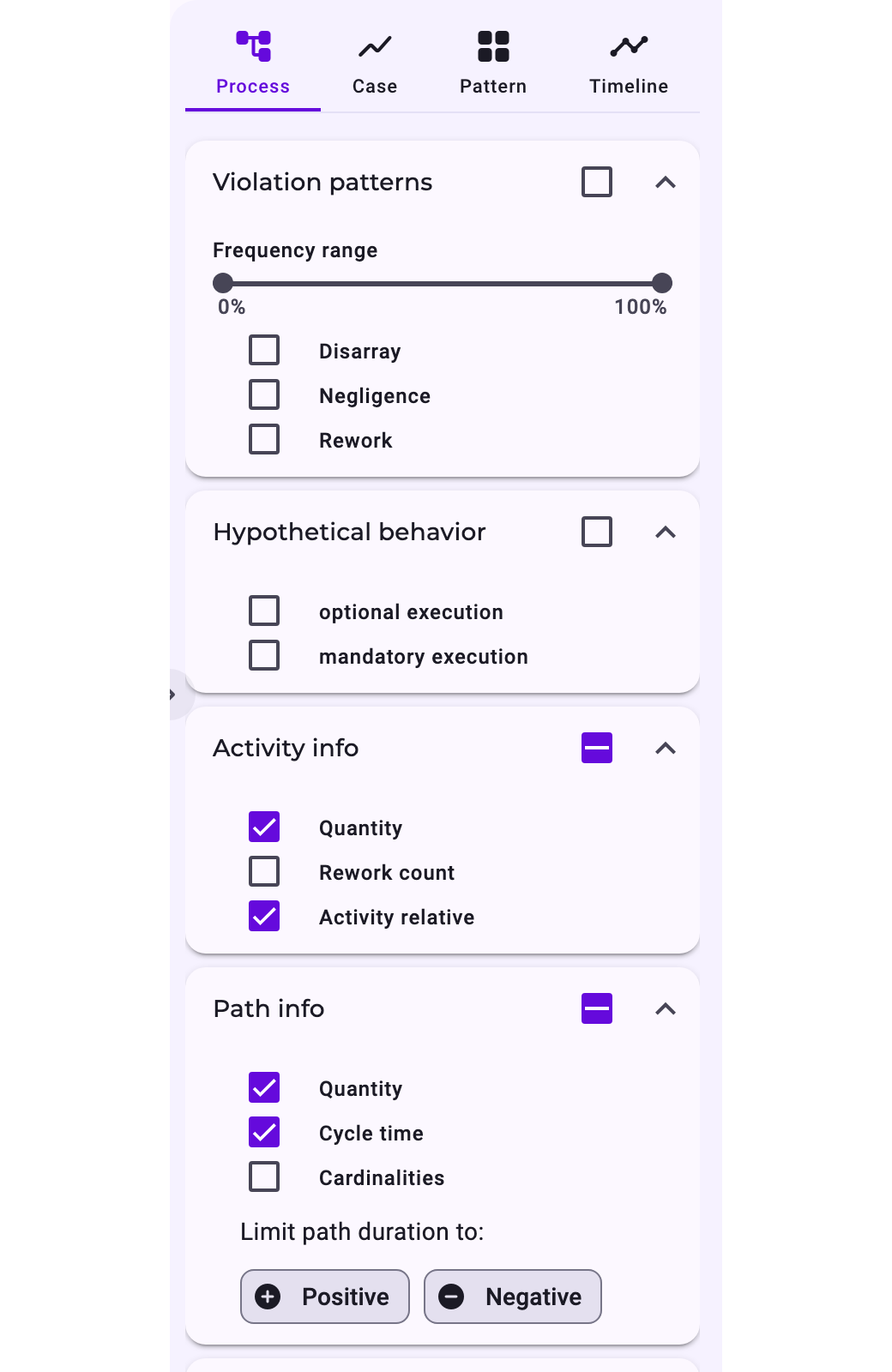
The settings panel next to the graph controls what is drawn. Its sections can be collapsed; the checkbox in a section's header selects or clears all its options.
Section | What it does | More |
|---|---|---|
Violation patterns | Draws Disarray, Negligence and Rework as red, curved relationships. Frequency range hides the rarest or the most frequent ones: it keeps the violations whose number lies in the chosen range, measured against the most frequent violation. | Process Patterns: Disarray, Negligence, Rework and Allowed Deviations |
Hypothetical behavior | Adds expected activities and relationships that no case took: optional execution for those the perspective allows to skip, mandatory execution for required ones. Their relationships are drawn dashed; optional activities have a dashed border, mandatory ones a solid border. They can't be selected. | The Expected Order: Perspective Hypothesis, Shortcuts and Backjumps |
Activity info | The numbers under each activity: Quantity, Rework count and Activity relative (average time since the start of the case). Quantity and Activity relative are shown by default. | |
Path info | The numbers on each relationship: Quantity, Cycle time (the average transition duration, from the start of one activity to the start of the next) and Cardinalities. Quantity and Cycle time are shown by default. | |
Limit path duration to: | Positive or Negative shows only positive or only negative transition durations on the relationships. Click again to show all. Not available while violation patterns are shown. |
Violation patterns, Hypothetical behavior and Limit path duration to: reload the graph, which can take a moment; the other options change it at once.
Highlight Relationships
Under Path highlighting, choose what to colour:
- Duration: relationships by their transition duration, from green (fastest) to red (slowest), in five steps. A bar below the graph shows which durations each colour stands for.
- Violations: relationships with violations in red.
- Simplifications and Reorder: allowed shortcuts and allowed jumps back in green.
- Happy path: the main path from start to end. Which path that is depends on Path Metric under Layout.
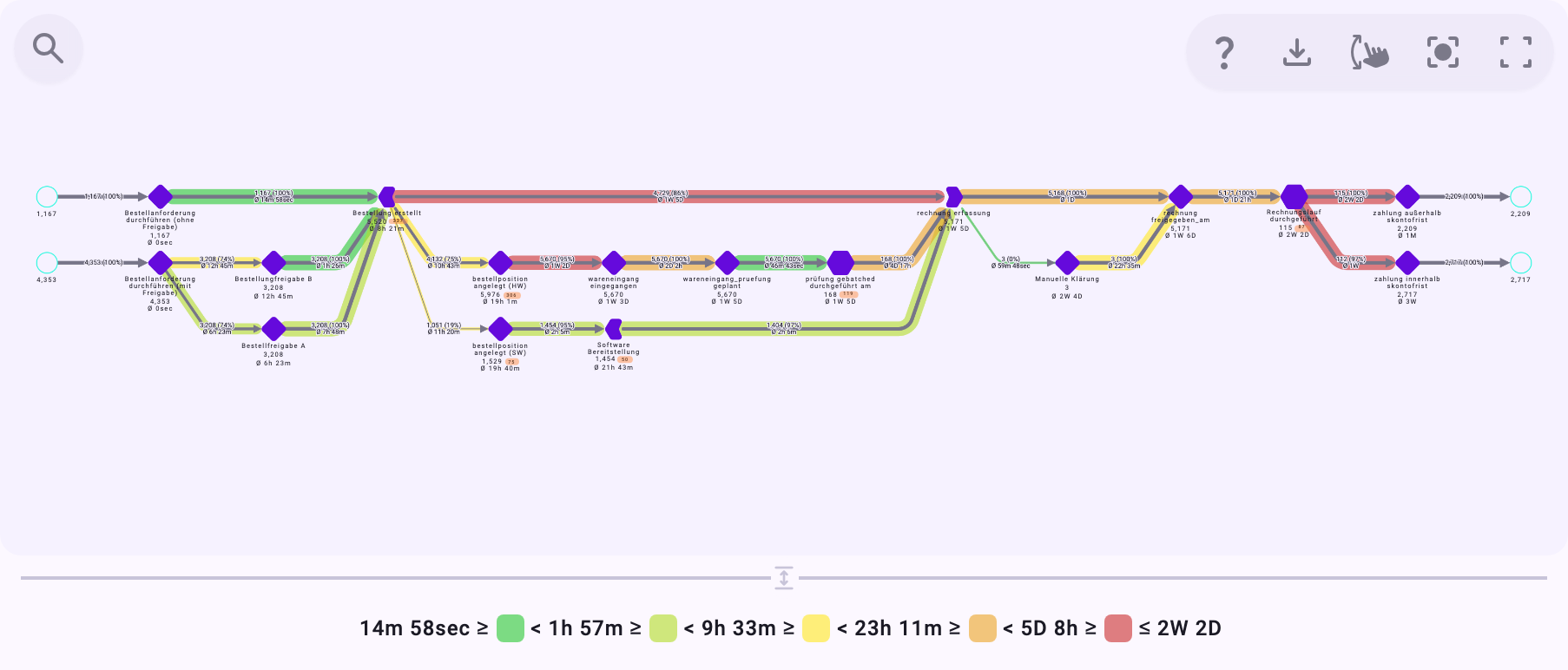
No highlighting switches it off.
Change the Layout
Under Layout you decide how the graph is arranged. Layout changes only move the elements; the figures stay the same.
- Orientation: Left → Right or Top → Bottom.
- Model: Layered shows each activity once. Swimlane gives each main path its own lane; All paths gives every path its own lane. In Swimlane, Violation patterns, Hypothetical behavior, Activity info and Path info aren't available.
- Path Metric: which path counts as the happy path and is placed first, for example Most probable route or Volume.
- Time axis: Linear or Logarithmic places the activities by their average time since the start of the case. This option is still under development.
- Detour level, Column spacing and Row spacing: fine-tune where detours and activities are placed.
- Reset: restores the default layout.
If a very large graph can't be arranged, Noreja says The process layout could not be created. Add filters to show fewer cases.
Zoom, Export and Present
- Zoom and move: zoom with the mouse wheel and drag the background to move the graph. Zoom speed sets how fast the wheel zooms; Centre fits the whole graph into the view again.
- Legend (?): explains every symbol.
- Download: the graph as BPMN (XML), PNG or JPG. See Export Process Graphs.
- Fullscreen: the graph fills the screen. The settings sections and Details open as movable panels from the bar at the bottom; the button at the top switches between the whole process (Aggregate View), variants and cases; Show / hide filters opens the filters. Hide controls hides the panels and the bottom bar, for presentations, and Open chat puts Minerva next to it. Exit ends fullscreen. See Work with the Process Graph in Fullscreen.
Ask Minerva about the Graph
With Minerva-AI switched on, Minerva can answer questions about the open tab. Activities and relationships that Minerva names in its answer are marked: hover over one to light it up in the graph, click it to keep it lit. See Chat with Minerva and Get Better Answers from Minerva.
What Is Saved
The selected variant and all settings of the panel, including highlighting and layout, are saved with the tab, if you may edit it. The height of the graph, the zoom speed and which sections are expanded are remembered in your browser.