
Create a Dashboard Tab
A dashboard shows the key figures of one perspective at a glance, as widgets: how many cases there are, how long they take, how many break the expected order and more. Use dashboards to keep an eye on a process over time; use the Analyzer to dig into the details (see Create an Analyzer Tab). This page explains how to create a dashboard tab, add and arrange widgets and save the result. How to organise your tabs in folders, favorites and subtabs is described in Organise Your Analyses: Tab Explorer, Folders, Favorites and Subtabs.
Permissions: feature Dashboard: Read to open dashboards, Create to create them, Edit to change widgets and layout. Dashboards shared with you can be opened without the feature. See Create and Edit Roles.
Before You Start
- You need at least one perspective. Perspectives are built in the Builder; see Create a Perspective. If the list is empty, ask the person who manages your data.
- Creating dashboards needs a role that allows it. If you don't see the + in the Tab Explorer, ask your administrator.
Create a Dashboard Tab
- Open Dashboard in the top menu.
- Click + at the top of the Tab Explorer (Create Dashboard). If no dashboard is open, you can also click Create Dashboard in the middle of the page.
- Under Perspective name, choose the perspective the dashboard is about.
- Under Dashboard name, enter a name that says what the dashboard is for, for example "Supplier overview". Noreja suggests the name of the perspective; replace it with something your colleagues will recognise. The name can have up to 70 characters.
- Tick Add default widgets? to start with the twelve standard widgets, such as Case amount, Average process duration and Violation rate. Without it, the dashboard starts empty.
- Choose Private, or Share to share the dashboard with all users, with single users or with user groups right away. You can change this later with Rename / Share in the tab's menu. See Share Your Work with Colleagues.
- Click Create.
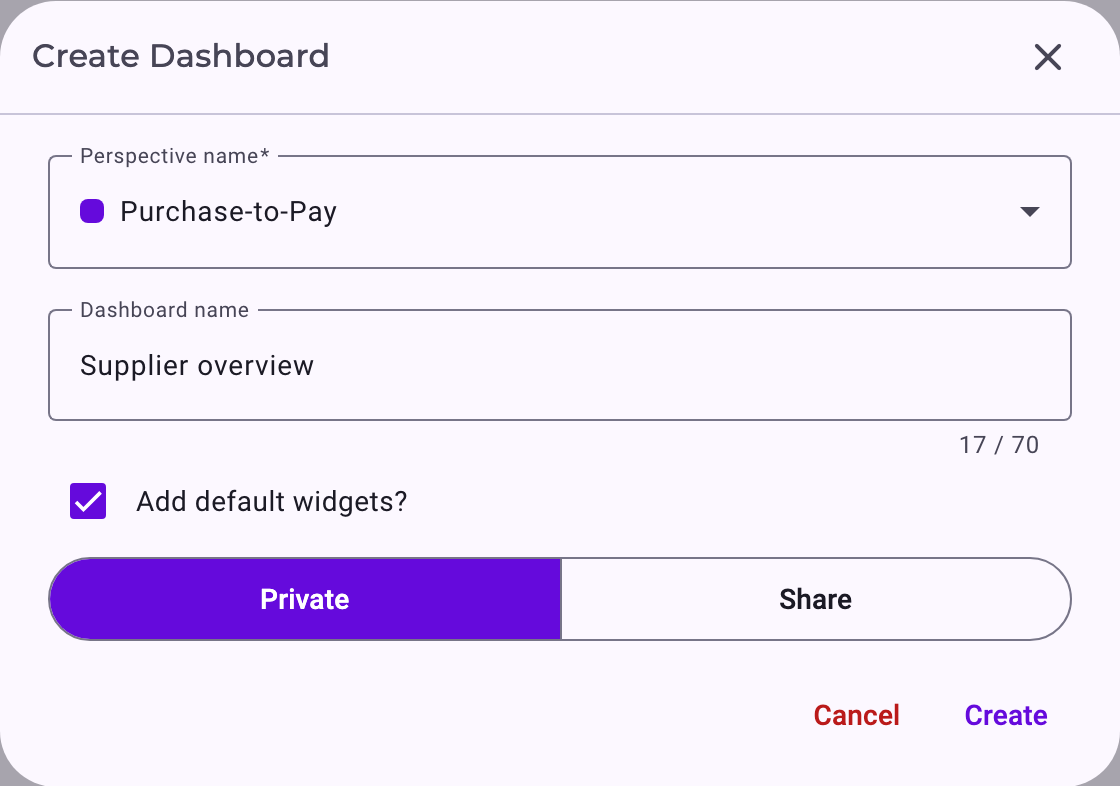
The dashboard opens and is listed in the Tab Explorer under its perspective.
Add Widgets
- Click Edit Dashboard in the tab bar (top right). The dashboard switches to edit mode. On an empty dashboard, click Add new widget in the middle of the page instead.
- Click Add new widget in the tab bar, or + at the bottom of the dashboard.
- On the left, choose a group to narrow the list: All, Time, Behavior or Compliance. Finance isn't available yet.
- Click the widgets you want; selected widgets get a coloured frame. You can select several at once.
- Click Add to the Dashboard.
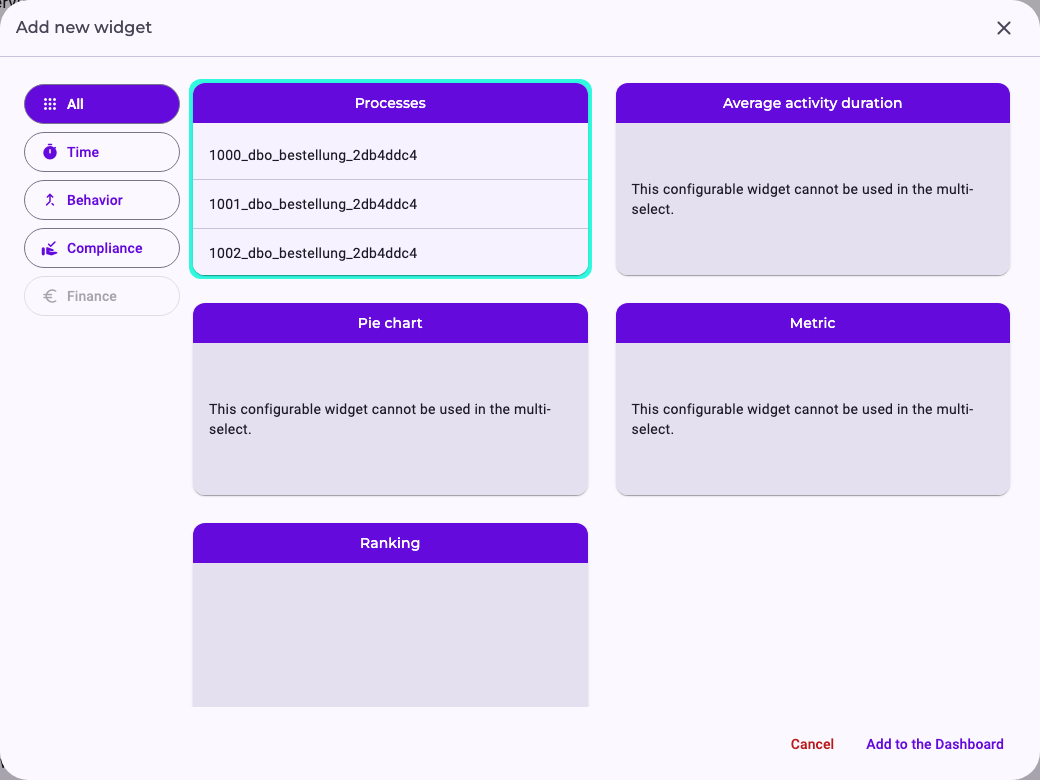
The selector only offers widgets that aren't on the dashboard yet. Each standard widget shows a preview with your data.
Four widgets need settings before you can add them: Average activity duration, Pie chart, Metric and Ranking. You add them one at a time, and you can add each of them several times with different settings:
- Click the widget, then Configure.
- Fill in the settings, for example the widget name and the attribute. The Preview on the right shows the result.
- Click Add to the Dashboard. Back returns to the list.
The settings of each widget are described in Dashboard Widgets.
New widgets are placed in the first free spot and briefly highlighted, so you can find them.
Arrange and Remove Widgets
In edit mode, each widget shows two buttons in its title bar:

- Move: drag the widget by its move handle (Drag to move). The other widgets make room.
- Resize: drag the widget's edge or corner.
- Remove: click × (Remove widget). The widget disappears at once, without asking. If you removed one by mistake, click Cancel edit before you save.
The dashboard has four columns. In a narrow browser window, the widgets are shown one below the other.
Save or Discard Your Changes
- Save Dashboard saves the layout and ends edit mode.
- Cancel edit ends edit mode without saving. If you changed something, Noreja asks first (Unsaved changes); Confirm discards the changes.
- If you close a dashboard with unsaved changes, Noreja asks whether to save them before it closes.
Filter the Dashboard
Above the widgets is the same filter bar as in the Analyzer. Filters apply to all widgets of the dashboard: click Add filters, set the filter and click Apply. Collapse/expand filter bar in the tab bar shows or hides the bar; its badge shows how many filters are set. How filters work is described in Filter Cases in the Analyzer and Dashboards.
Filters are saved with the dashboard as soon as you apply them. You don't need edit mode or Save Dashboard for that. Filters are saved only if you may edit the dashboard (Dashboard: Edit, or an Edit share); otherwise the filter bar is shown collapsed and your filters aren't kept.
Good to Know
- Changing a widget's settings: the settings of a configured widget can't be changed once it's on the dashboard. Remove it and add it again with the new settings.
- Changes to the perspective: if an attribute or activity that a configured widget uses is removed from the perspective, the widget shows a message instead of figures. Remove it and add it again.
- Dashboards shared with you: if you may only read a dashboard, you see its widgets and saved filters but can't change them, and Edit Dashboard isn't shown. Click Copy to my tabs to get your own copy. See Share Your Work with Colleagues.
- What the figures mean: what each figure means and how it's calculated is explained in KPIs Explained.