
Context Hub: Knowledge for Minerva
Why Context Matters
Process data shows what happened. It rarely shows why. A delay in purchasing might come from an approval rule, a known supplier problem or a change in how a department works, none of which appears in the event data. We call this knowledge context.
When you give Minerva this context, it can interpret anomalies more accurately, prioritise issues better and explain findings in business terms instead of only describing them.
Permissions: feature Context: Read shows the Context tab in the AI Hub, Create adds context, Edit and Delete change and remove it. Context shared with you also opens the Context tab without the feature, for example knowledge shared with all users. Which context Minerva uses for you is decided by each item’s access settings. See Create and Edit Roles.
Types of Context
Noreja has three types of context, depending on what the knowledge belongs to:
- Company context: general knowledge about your company as a whole, for example the organisation, policies, the system landscape or a glossary of internal terms. Company context can be organised in folders.
- Perspective context: knowledge about one perspective, that is one process, for example the purchasing guideline or the approval limits that apply to Purchase-to-Pay. If the perspective has been imported, it’s attached right away; otherwise with the perspective’s first import. See Create a Perspective.
- Activity context: knowledge about one activity of an entity, for example what "Manuelle Klärung" means and when it's needed. See Entities Explained.
Workspace or Context Hub?
Both hold documents, but Minerva uses them differently. As a rule of thumb: files Minerva should work with go into the workspace; knowledge Minerva should know for many questions goes into the Context Hub.
Workspace | Context Hub | |
|---|---|---|
What belongs there | Files Minerva should read, analyse or change now, and the files it creates for you, for example a supplier list, meeting minutes or a report | Lasting company knowledge for many questions, for example policies, manuals, process descriptions or a glossary |
How Minerva uses it | Reads a file when you attach it or name it in your question | Searches it by itself for every question it fits, and can name the document it used |
Who sees it | My workspace: only you. Shared workspace: everyone with access | Whoever the entry is shared with: all users, user groups, single users or only you |
Formats | CSV, text, Excel, Word, PowerPoint and PDF files, up to 50 MB each | Free text up to 10,000 characters or a PDF up to 50 MB |
Confidential content | Goes to the model you choose: pick a local model for confidential files | Never allow access to public LLMs? is selected by default: then only the local model uses the entry |
How long it stays | Until someone deletes the file, also when the chat is deleted | Until the entry is replaced or deleted |
Only need a figure or a sentence for one question? Type it into the question. Files can't be added to the chat directly: upload them to the workspace and attach them. See Work with Files in Minerva Workspaces.
Where to Find the Context Hub
Open AI Hub in the top navigation and select the Context tab. It has one tab for each type: Company context, Perspective context and Activity context.
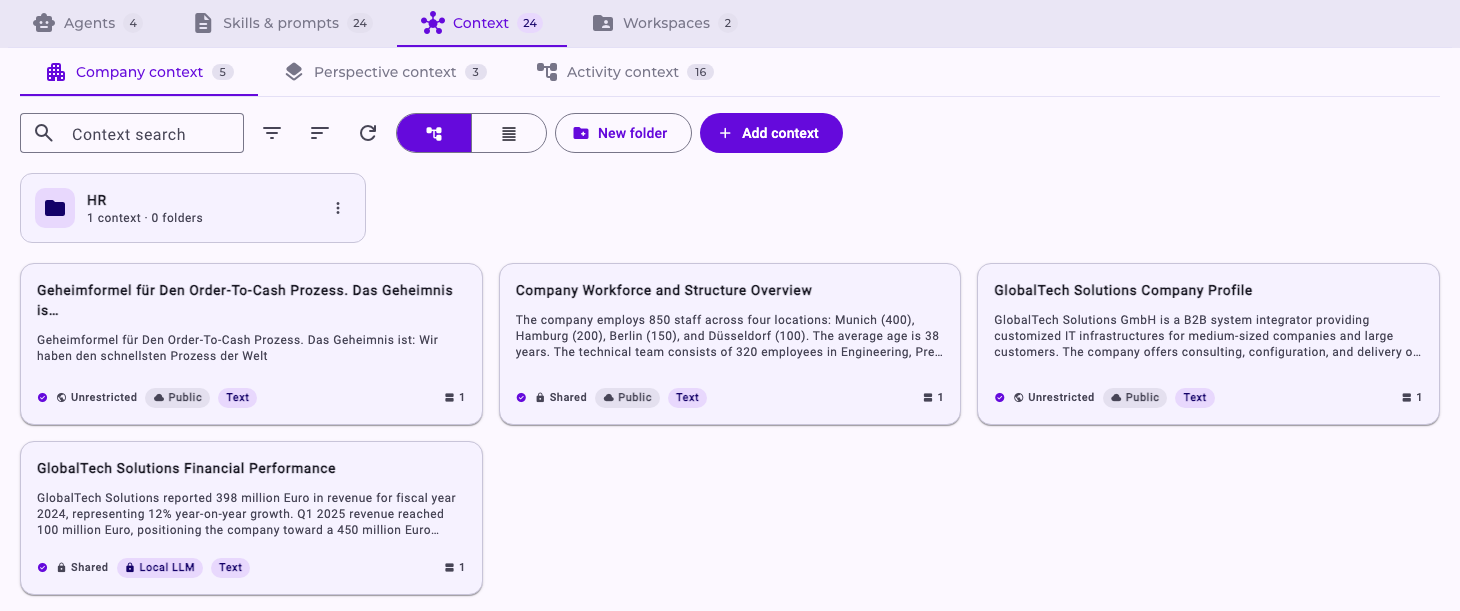
Each card shows a short summary and, at the bottom:
- Access: Unrestricted (all users), Shared (selected user groups and users) or Private (only the person who added it).
- Model restriction: Public (Minerva may use it with public AI models) or Local LLM (Minerva uses it only with your locally hosted model).
- Type and chunks: Text, or the file type such as PDF, and the number of chunks the content was split into for search.
On the Perspective context tab, each card also shows the perspective it belongs to; on the Activity context tab, the entity and the activity.
Use Context search and the filter and sort buttons to find what you need. You can filter by owner and by the user groups and roles an item is shared with.
On the Company context tab, the view switch next to the search lets you choose between Folder view, which shows your folder structure, and Flat list, which shows all items at once without folders.
Organise Context in Folders
As your knowledge base grows, folders keep it manageable, for example one folder per department or topic. Folders only affect how context is organised. They don’t change who can see an item or which AI models may use it, and search always covers all folders.
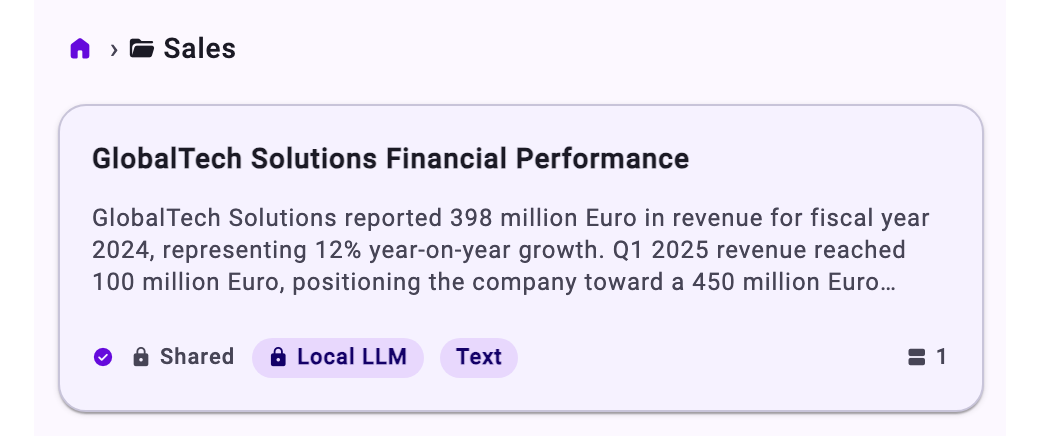
Folders are available for company context, in Folder view. Each folder card shows how many context items and subfolders it contains. Click a folder to open it. The breadcrumbs at the top show where you are; click the home icon to go back to the top level.
Create a Folder
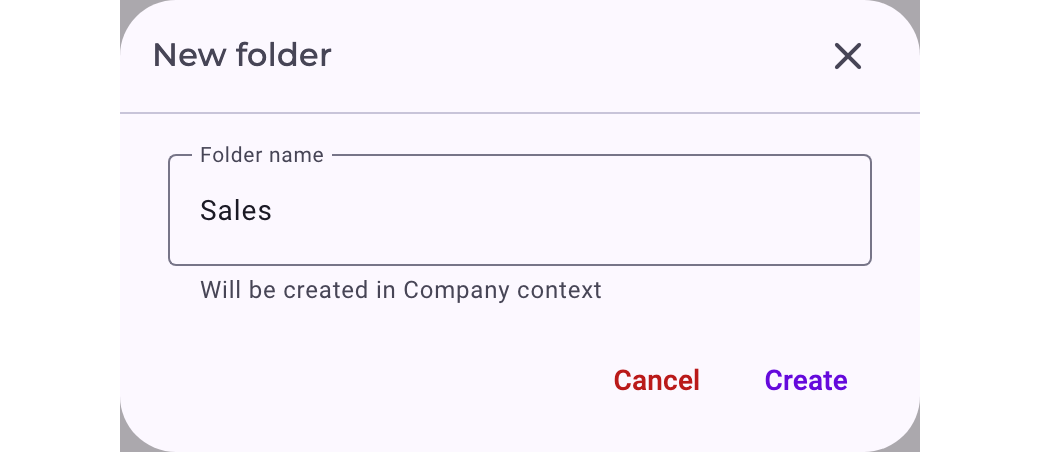
- Open the tab and, if needed, the folder in which the new folder should be created.
- Click New folder.
- Enter a Folder name and click Create.
Rename, Move or Delete a Folder
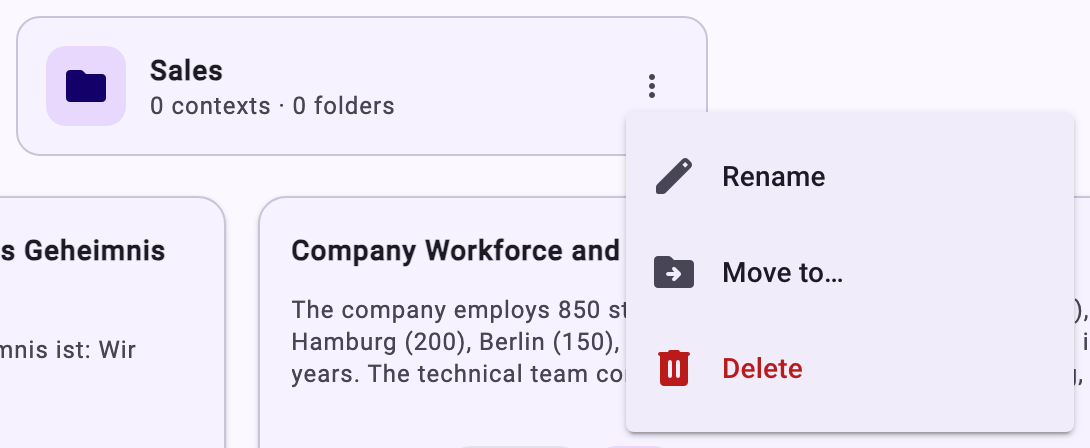
Click the menu (⋮) on the folder card. It offers three actions:
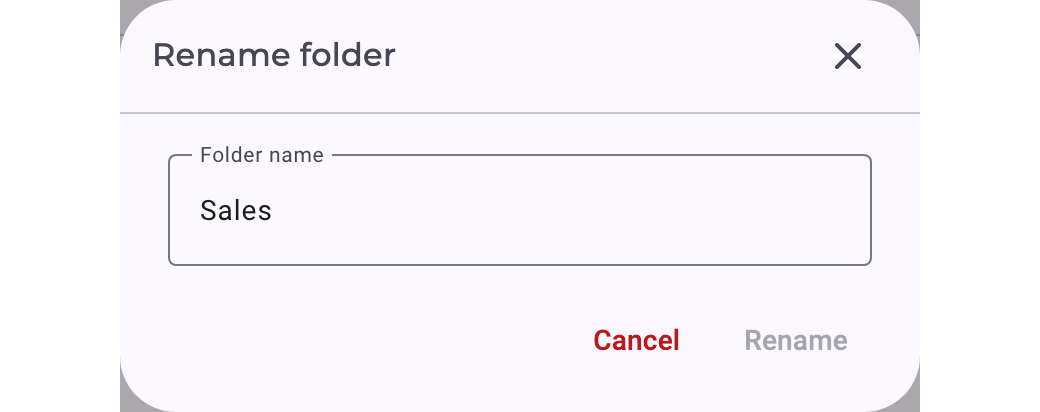
- Rename: enter the new Folder name and click Rename.
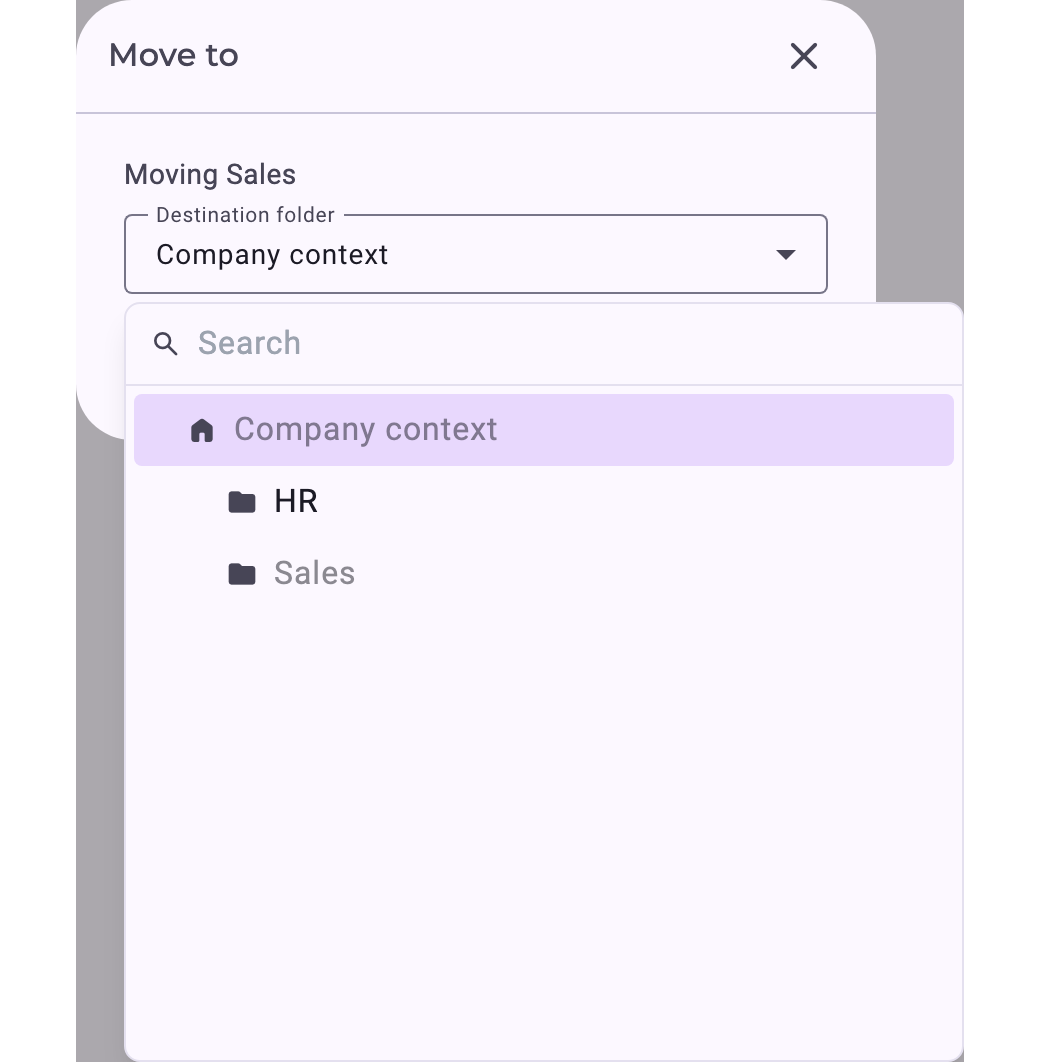
- Move to…: under Destination folder, pick the folder it should be moved into (the tree can be searched) and click Move. To move a folder back to the top level, click Company context in the tree, even if it already looks selected. If there is no other folder yet, the dialog tells you so.
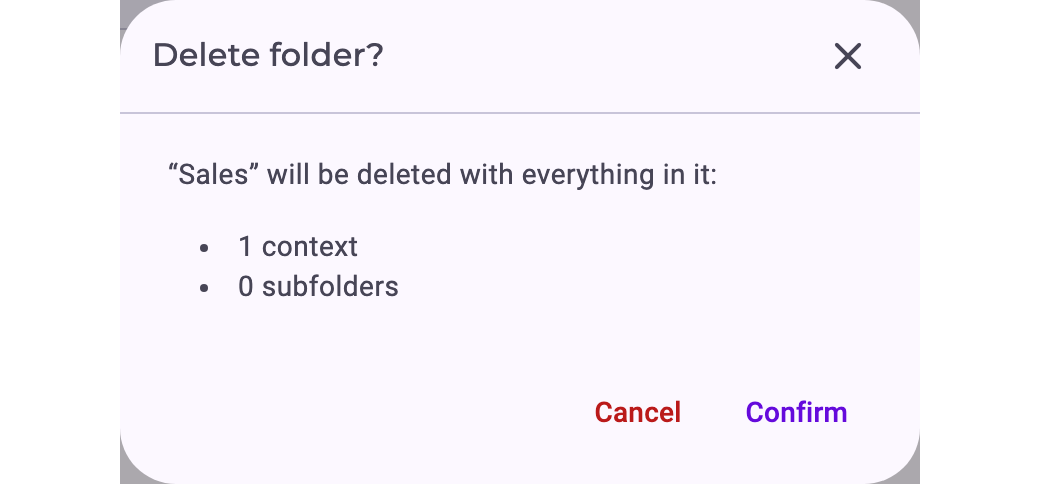
- Delete: removes the folder after you click Confirm. While an item in the folder is still being processed, the folder can’t be deleted; try again once processing has finished.
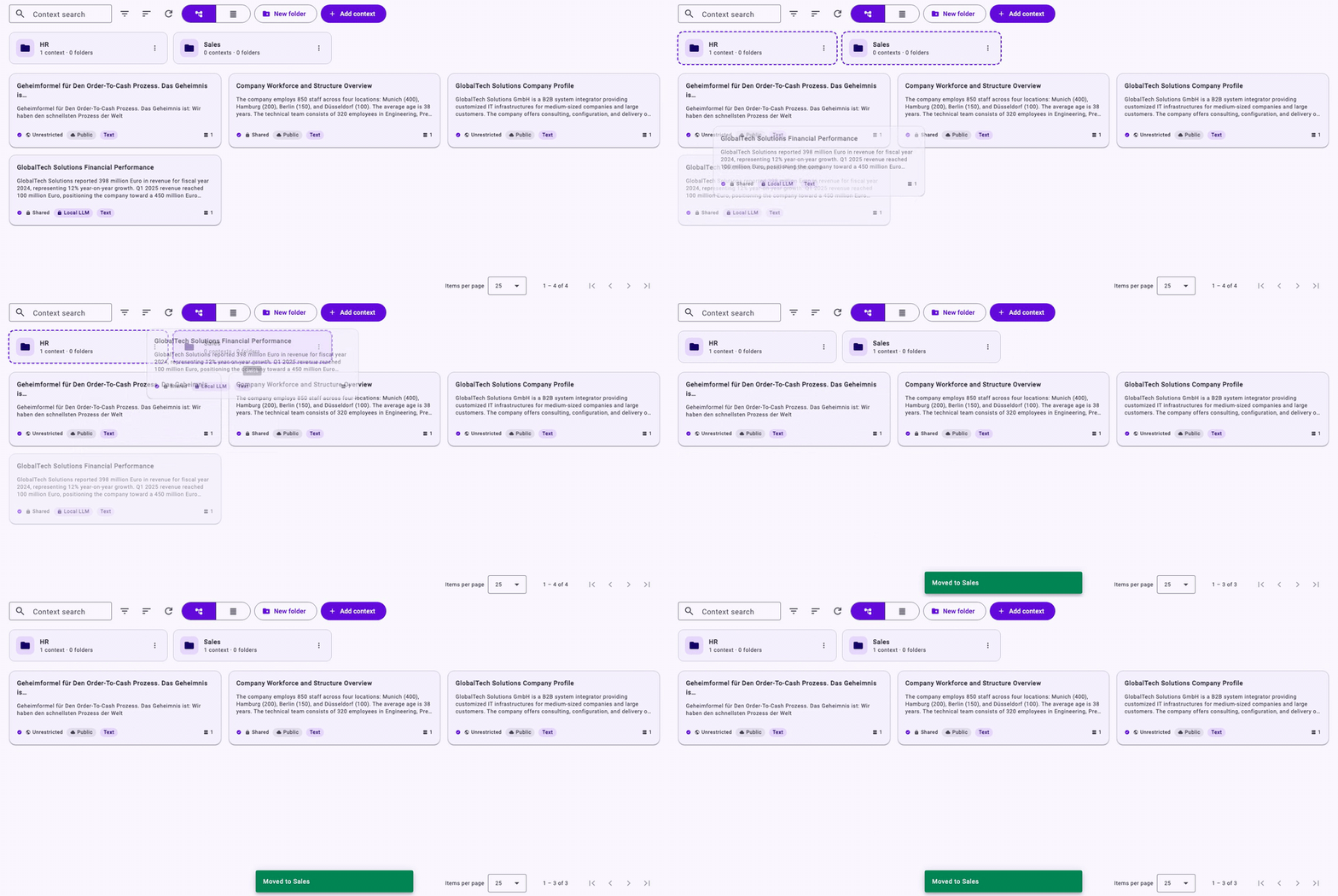
You can also drag a folder onto another folder to move it there, or onto the home icon in the breadcrumbs to move it back to the top level.
Important: Deleting a folder also deletes everything in it, including all context items and subfolders. Before you confirm, the dialog shows how many contexts and subfolders will be deleted. To keep the content, move it to another folder first.
Move Context into a Folder
There are two ways to move a context item.
Drag and drop: in Folder view, drag the context card onto the folder card and release it. A confirmation such as Moved to Sales appears, the card disappears from the current view, and the folder’s count goes up.
To move an item out of a folder, open the folder and drag the card onto the home icon in the breadcrumbs (or onto a higher-level folder in the breadcrumbs).
Edit the context item:
- Click the context card to open its details and click Edit.
- Open the Directory dropdown. It shows the folder tree, with the tab itself (for example Company context) as the top level. Use the search field to find a folder quickly. If the folder doesn’t exist yet, click New folder at the bottom of the dropdown.
- Select the target folder and click Save.
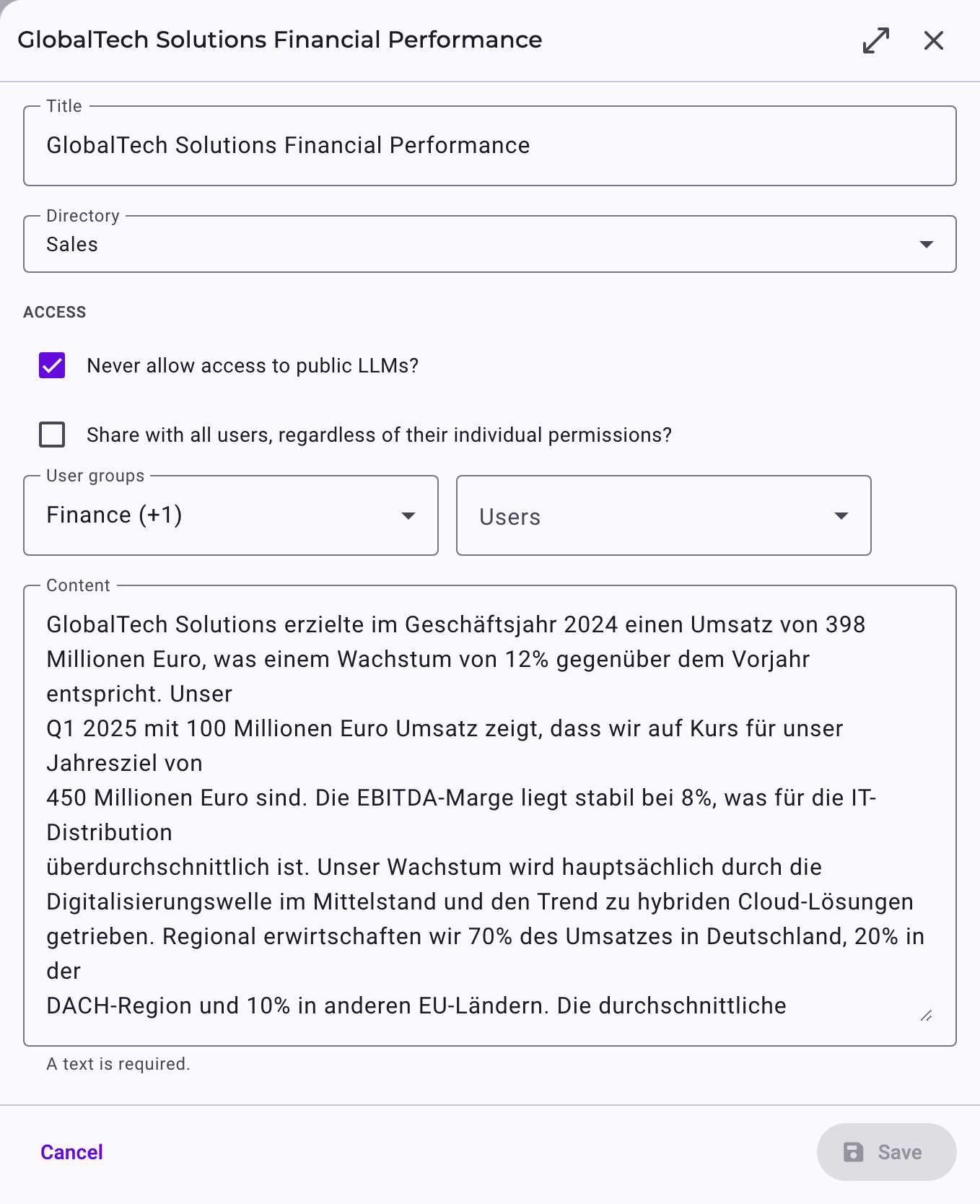
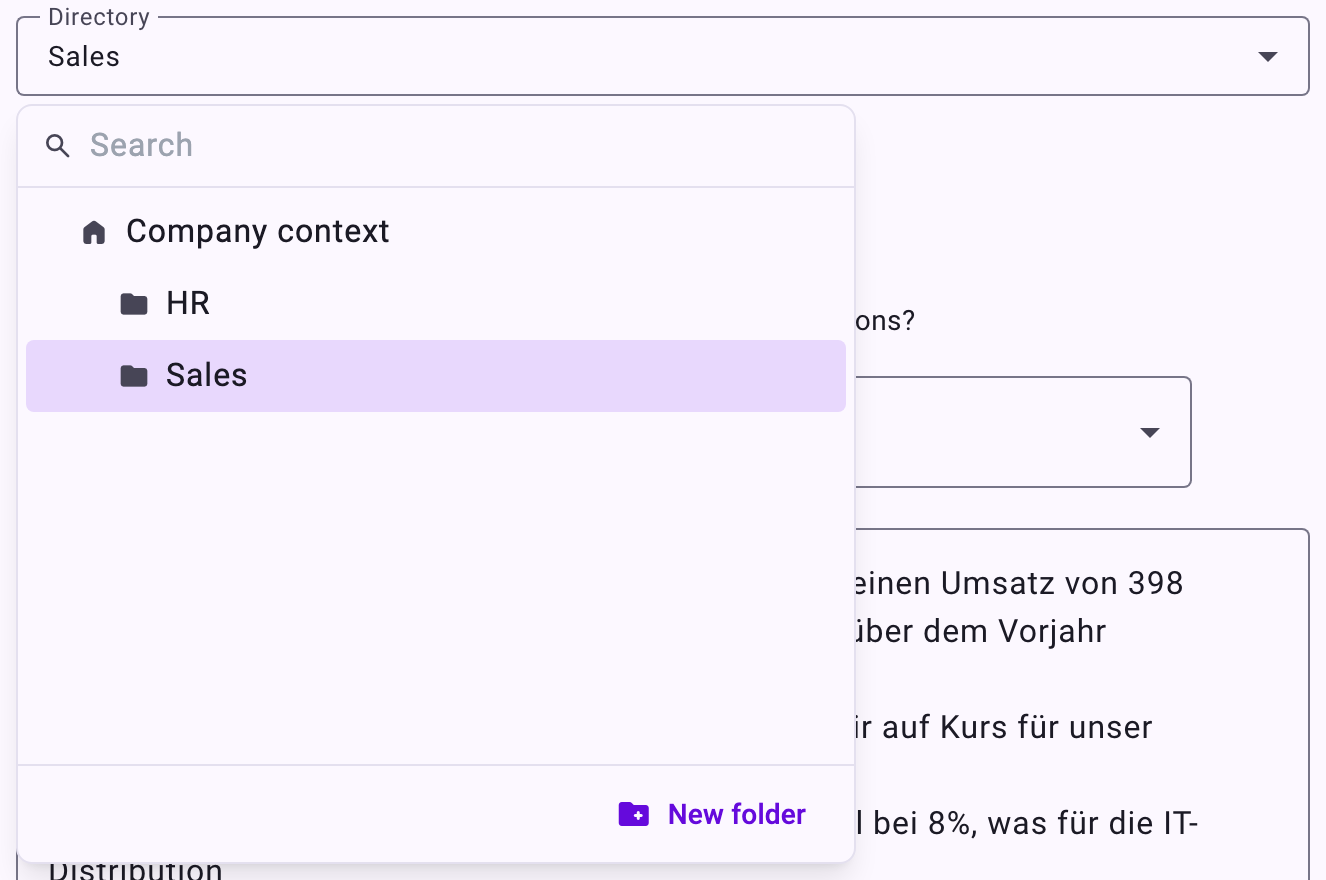
A confirmation Changes saved appears and the item now sits in the selected folder. To move it back to the top level, choose the tab name (for example Company context) as the directory.
Moving an item only changes where it’s filed. Its access settings, its model restriction and what Minerva can find stay the same.
Add Context
- Click Add context.
- Choose Company context, Perspective context or Activity context, and say what the context belongs to. For company context, pick the Directory (folder). For perspective context, pick the perspective. For activity context, pick the entity first, then the activity.
- Choose Text to type or paste up to 10,000 characters, or File to upload a PDF of up to 50 MB.
- Decide which AI models may use it. Never allow access to public LLMs? is ticked by default, so Minerva uses the content only with your locally hosted model. Untick it only for content that may be sent to public AI models. You can change this setting later with Edit.
- Decide who may use it. Tick Share with all users, regardless of their individual permissions?, or select specific User groups and Users. If you select nobody, only you can use it.
- Click Save. Minerva creates the title and summary for you.
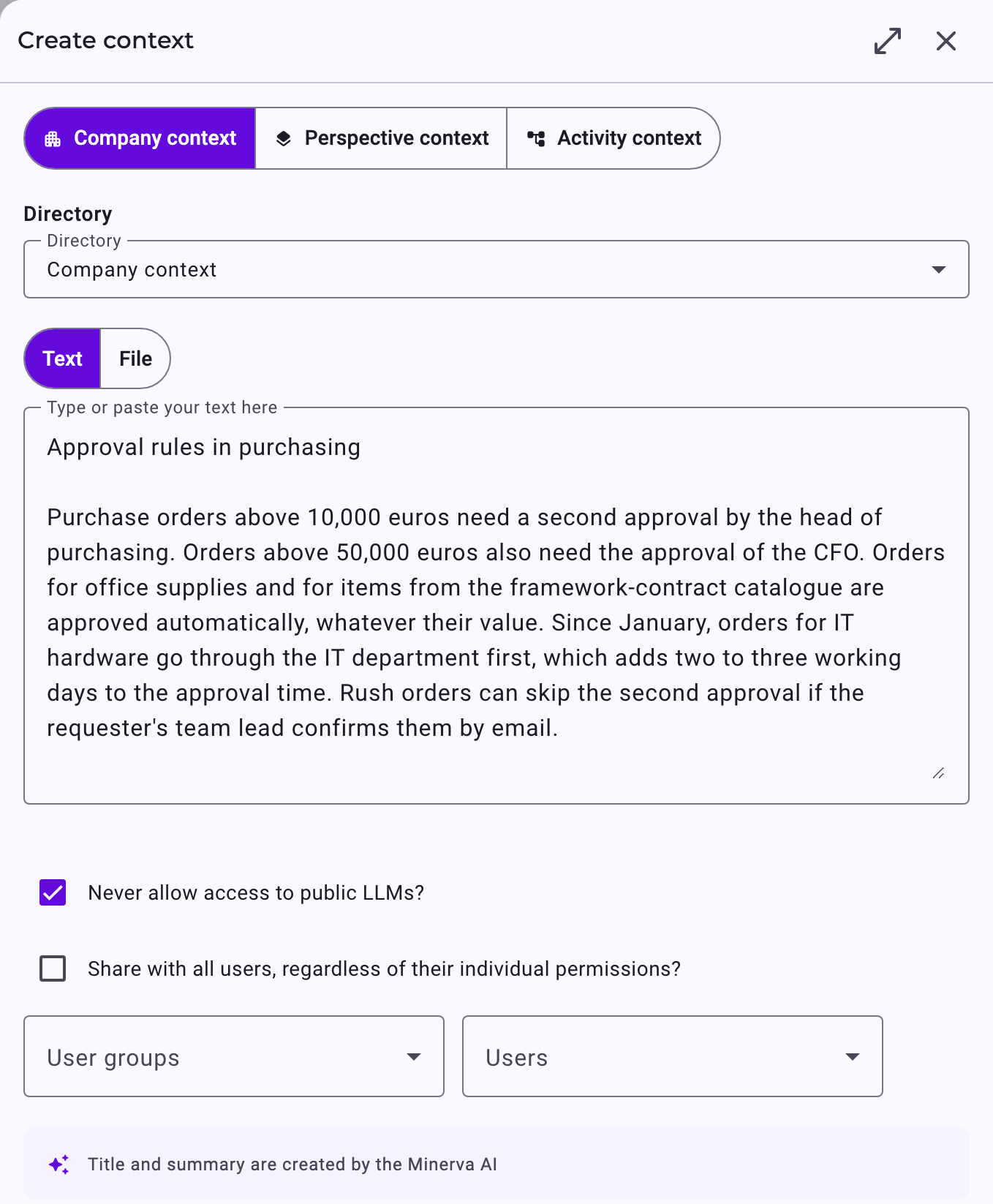
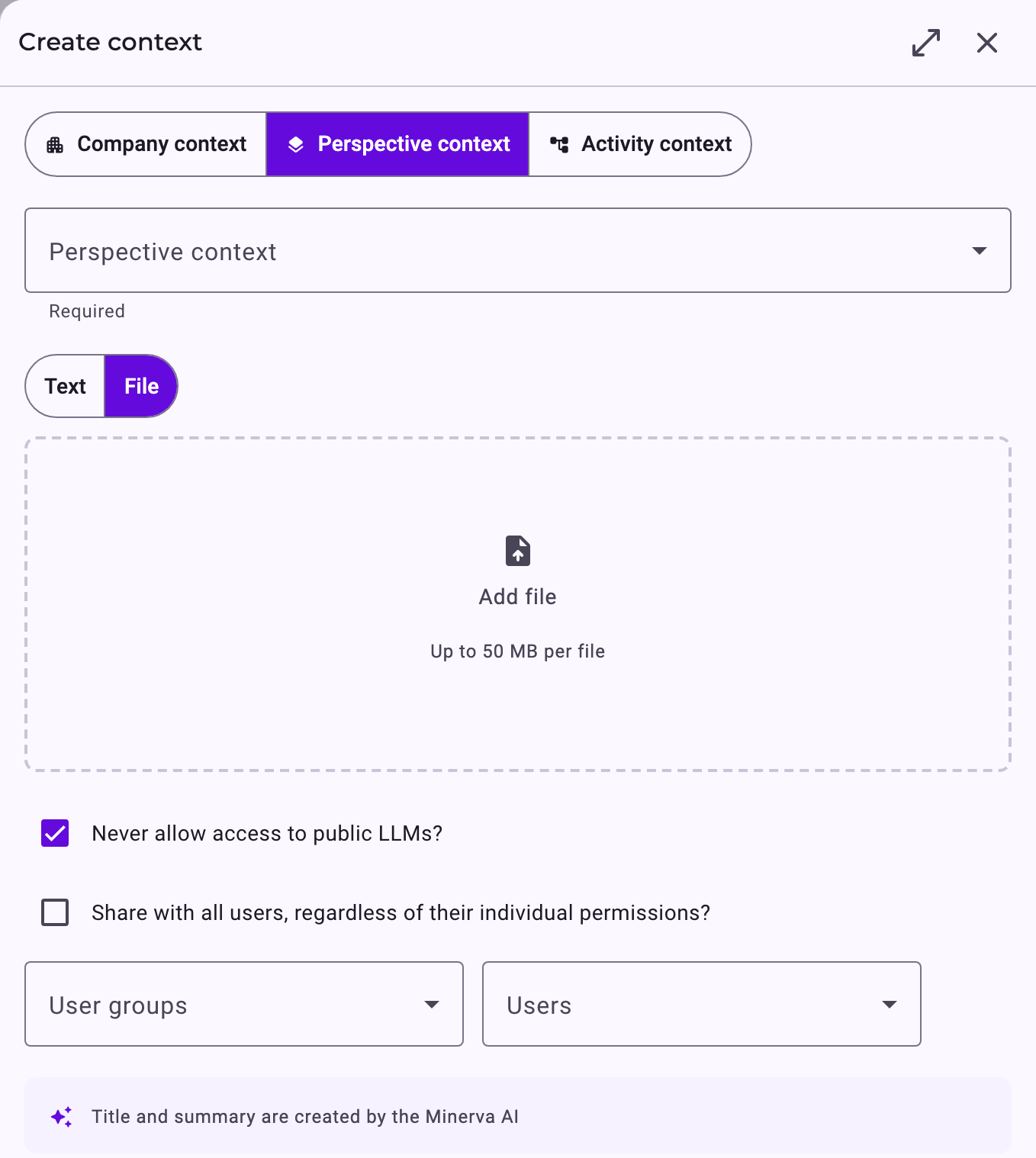
For texts shorter than 400 characters, no title and summary are created, and the form tells you so. The first line of the text is used as the title instead; you can change it later with Edit.
Processing runs in the background, so you can leave the page right away. When it’s done, the item is marked Indexed and Minerva can use it. Perspective context is used once the perspective has been imported, activity context once its entity has been imported; until then the card says Import pending.
Perspective context stays attached when the perspective is re-imported. Activity context is matched to its activity again with each import of the entity; if the activity is missing after that import, the item is marked Orphaned context.
View and Maintain Context
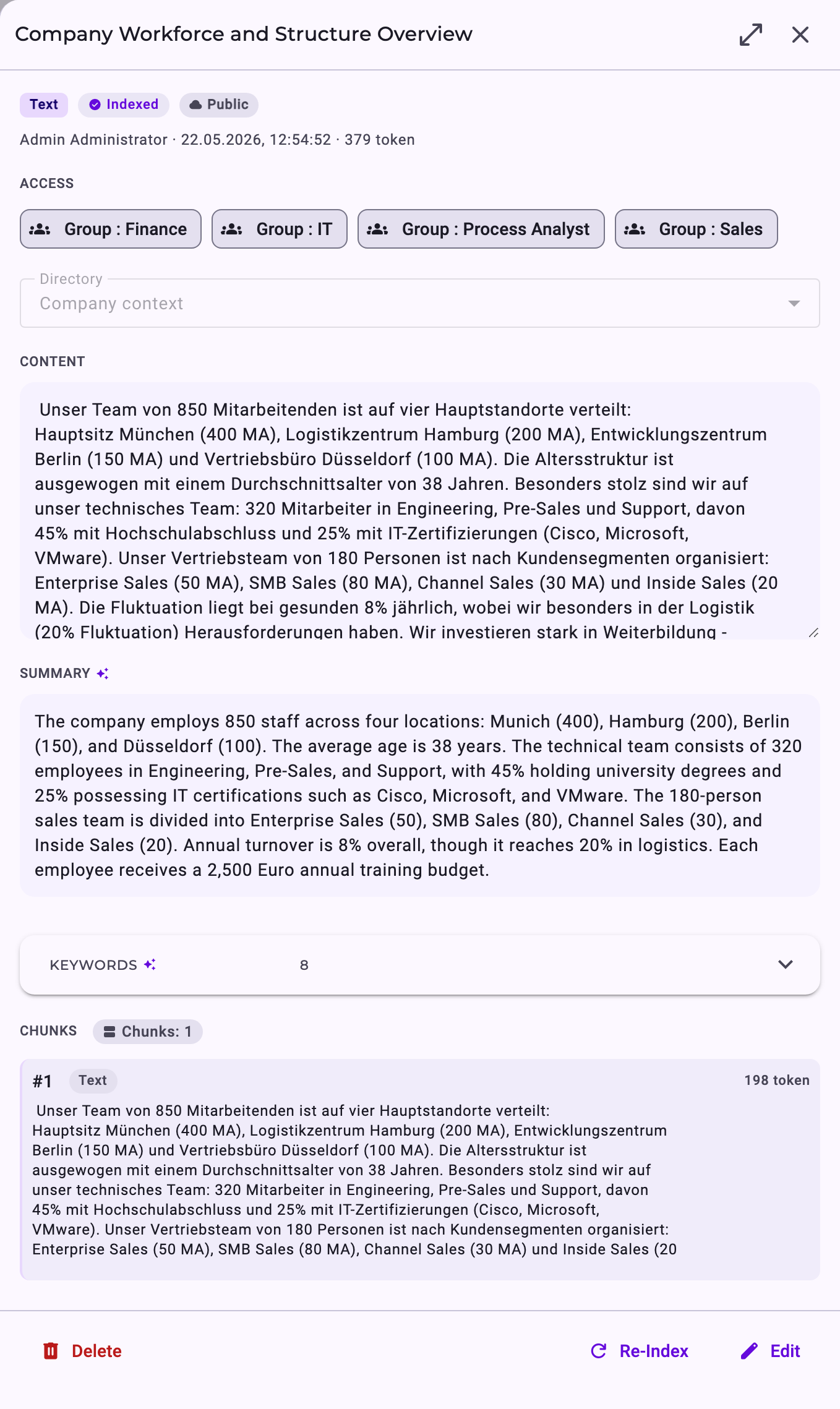
Click a card to open its details. You’ll see who added it and when, its access settings, the original content, the AI-generated summary and keywords, and the chunks used for search. For documents, chapters and images are listed too; images are interpreted so that diagrams and screenshots are searchable as well.
From here you can Edit the item, Re-Index it after a change, or Delete it. When editing, you can change the title, the directory (company context only), who may use it, the content and Never allow access to public LLMs?. A PDF can’t be edited, only replaced by a new file.
When you tick Never allow access to public LLMs? on an existing item, the panel warns you that chat answers that already used the item are marked confidential too: they are no longer sent to cloud models in later requests. Unticking the box doesn’t release those answers again; their owners can release them one by one with the open lock in the chat.
How Minerva Uses Context
When you ask a question, Minerva first finds the most relevant documents using their summaries, then searches inside them. It can also open a document’s chapters directly. Minerva only uses context you’re allowed to see, and items marked Local LLM only when it runs on your locally hosted model. Changes to access apply to new chats; answers already given aren’t changed.
The passages Minerva finds go to the model that answers. With an external model, that is the cloud provider; items marked Local LLM are left out of the search then. Preparing a document (its summary, title, keywords and search index) always runs on the local model. See Minerva: Models, Data Flow and Data Protection.