
Create and Edit Roles
A role says what its members may do: for each feature, such as Analyzer or Builder, which actions are allowed. Roles are given to users directly or through user groups. Noreja comes without predefined roles, so each company creates the roles it needs. The ideas behind roles, groups and sharing are explained in Access Management at Noreja.
Permissions: Customer admins only.
Open the Roles
Open Settings (the gear icon) and choose Roles under Authorizations. Only Customer admins can manage roles. Customer admins themselves don't need roles: they may use every feature.
Create or Edit a Role
- Click Add role, or the pencil of an existing role.
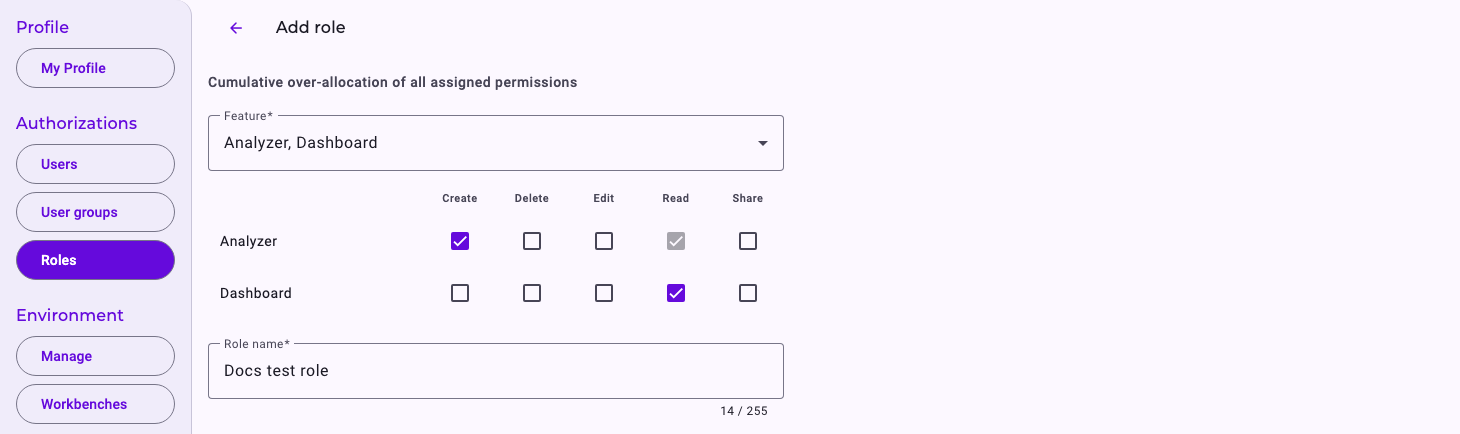
- Under Feature, choose the features the role covers. A row appears for each.
- Tick the actions per feature: Create, Delete, Edit, Read, Share. As soon as you tick another action, Read is ticked too.
- Enter the Role name, unique within your company, for example "Dashboard reader".
- Optionally, tick users under Assigned users and user groups under Assigned groups.
- Click Save. The change applies to everyone with this role right away.
Once a role exists, its page also has Context access: which knowledge members may use with Minerva. See Context Hub: Knowledge for Minerva.
What the Features Control
Feature | What it allows |
|---|---|
Analyzer | Read: the Analyzer and analyzer tabs. Create: new analyzer tabs. Edit, Delete, Share: change, delete and share them. See Create an Analyzer Tab. |
Dashboard | The same for dashboards. See Create a Dashboard Tab. |
Builder | Data sources, entities and perspectives: Read to see them, Create, Edit, Delete to work on them, Share for entities and perspectives. See From Data Source to Perspective: How the Builder Works and Who Does What. |
Chat | Read opens the chat page, where you can ask questions; Create adds the Minerva-AI switch next to dashboards and the Analyzer. A role with only Chat gives chat-only access. See Chat with Minerva and Navigating Noreja. |
Context | The Context tab in the AI Hub, where knowledge for Minerva is viewed and maintained. Which knowledge Minerva uses for a user depends on each item's access settings, not on this feature. Edit also opens Manage with the AI settings; see Environment Settings: Branding, AI and Import. |
Prompt | Skills and prompts in the AI Hub. See AI Hub: Agents, Skills, Prompts and Workspaces. |
Agent | Agents in the AI Hub. |
Workspaces | The Workspaces tab in the AI Hub; Create for shared workspaces, Share to share them. The top menu shows AI Hub only with Agent, Prompt or Context, so combine Workspaces with one of them. See Navigating Noreja. |
Company library | Edit: maintaining the company library, the shared folder of skills and templates in every workspace. See Work with Files in Minerva Workspaces. |
Workbench | Create: using the workbench, which can read the process data of all perspectives, also those not shared with the user. Without Create, the top bar shows no Workbench; see Navigating Noreja. Edit and Delete: restarting and stopping workbenches. See Create and Use a Workbench (Jupyter Notebook) and Manage Workbench Instances. |
Manager | An older feature. It also opens the Minerva chat and the Minerva-AI switch; use Chat for that instead. |
How Roles Add Up
- A user's permissions are everything their direct roles and the roles of their user groups allow together. No role takes a permission away.
- Items shared with a user add to their roles for that item; see Share Your Work with Colleagues.
- Prefer assigning roles through user groups; see Manage User Groups.
Delete a Role
Click the red bin in the role's row and confirm with Confirm. Users and groups lose the role's permissions right away. Deleting can't be undone.
If the role has entries under Context access, remove them first. Otherwise the role may stay in the list without a message.