Minerva - Chat UI functionalities
The chat in Noreja serves as a central interface for analyzing, interpreting, and discussing process data. The user interface is designed to provide clear visibility into context, control mechanisms, and traceability at all times.
Context and Dimension
The active dimension is displayed in the top-left corner of the chat. This dimension defines which process data, entities, and relationships are considered when generating responses.
Marking a Chat as an Issue
In the top-right corner, users can select “Mark as issue”. When a chat is marked as an issue, a corresponding task is created in the Task Manager. This task becomes visible to all authorized users and can be reviewed, discussed, and prioritized collaboratively. This allows insights from the chat to be seamlessly transferred into operational workflows.
User Message Actions
Each user message supports several actions:
- Copy the message content
- Mark as confidential: Confidential messages are only visible to local LLMs in the chat history and are not forwarded to cloud-based models
- Edit the message after submission
- Delete the message from the chat history
These controls provide fine-grained management of content, data exposure, and auditability.
LLM Response Actions
Responses generated by the LLM can also be managed directly within the chat:
- Copy the response
- Mark as confidential, following the same logic as user messages
- Regenerate the response based on the same input
- Delete the response from the conversation
This enables iterative exploration and comparison of different model outputs.
Model Selection
In the bottom-left corner of the chat, users can select the LLM currently in use. This allows switching between different models, such as local versus cloud-hosted LLMs or different providers. The selected model directly influences response quality, style, and reasoning behavior.
Standalone Chat Access (/chat)
The chat is also accessible independently of the main Noreja application via the /chat route. In this standalone mode, the interface is optimized primarily for mobile devices.
This allows users to access Minerva without navigating through the full platform interface, enabling lightweight and focused interaction.
Chat History Sidebar
On the left-hand side, the chat provides a collapsible sidebar containing all previous conversations. Users can expand or collapse this list as needed.
This ensures quick navigation between ongoing discussions, past analyses, and previously generated insights.
Mobile Usage and Continuous Access
The standalone chat experience is designed to provide users with continuous access to process data, analyses, and contextual insights — anytime and from any device.
Especially on mobile devices, this enables:
- Quick validation of KPIs
- Reviewing process performance
- Checking compliance-related insights
- Following up on discussions marked as issues
This ensures that operational intelligence is always within reach, even outside the traditional desktop environment.
App Availability and Home Screen Shortcut
Minerva Chat is currently not available as a native mobile application.
However, users can easily add the chat to their smartphone home screen as a shortcut, enabling app-like access:
How to add the chat to your home screen
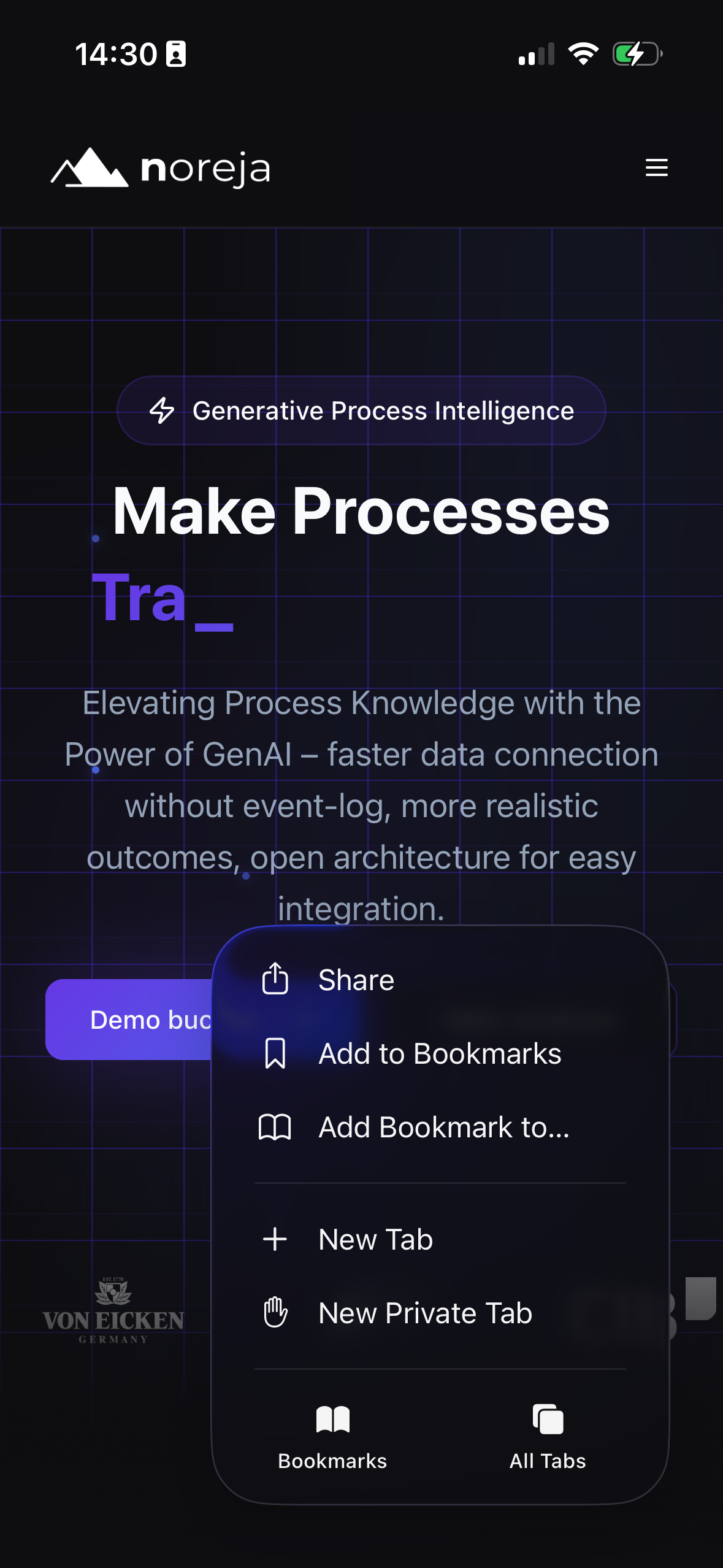
On iPhone (Safari):
- Open the
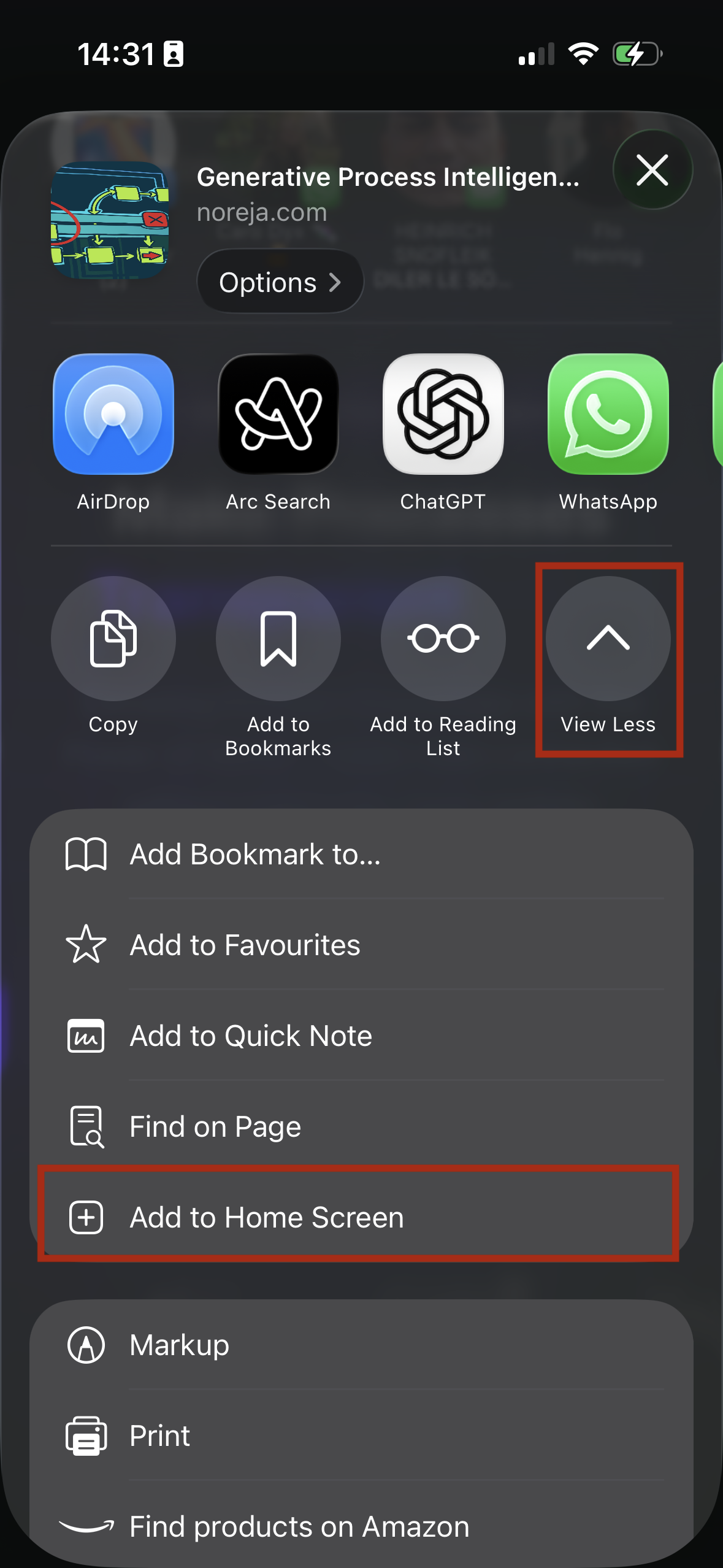
/chatURL in Safari - Tap the Share icon
- Select “Add to Home Screen”
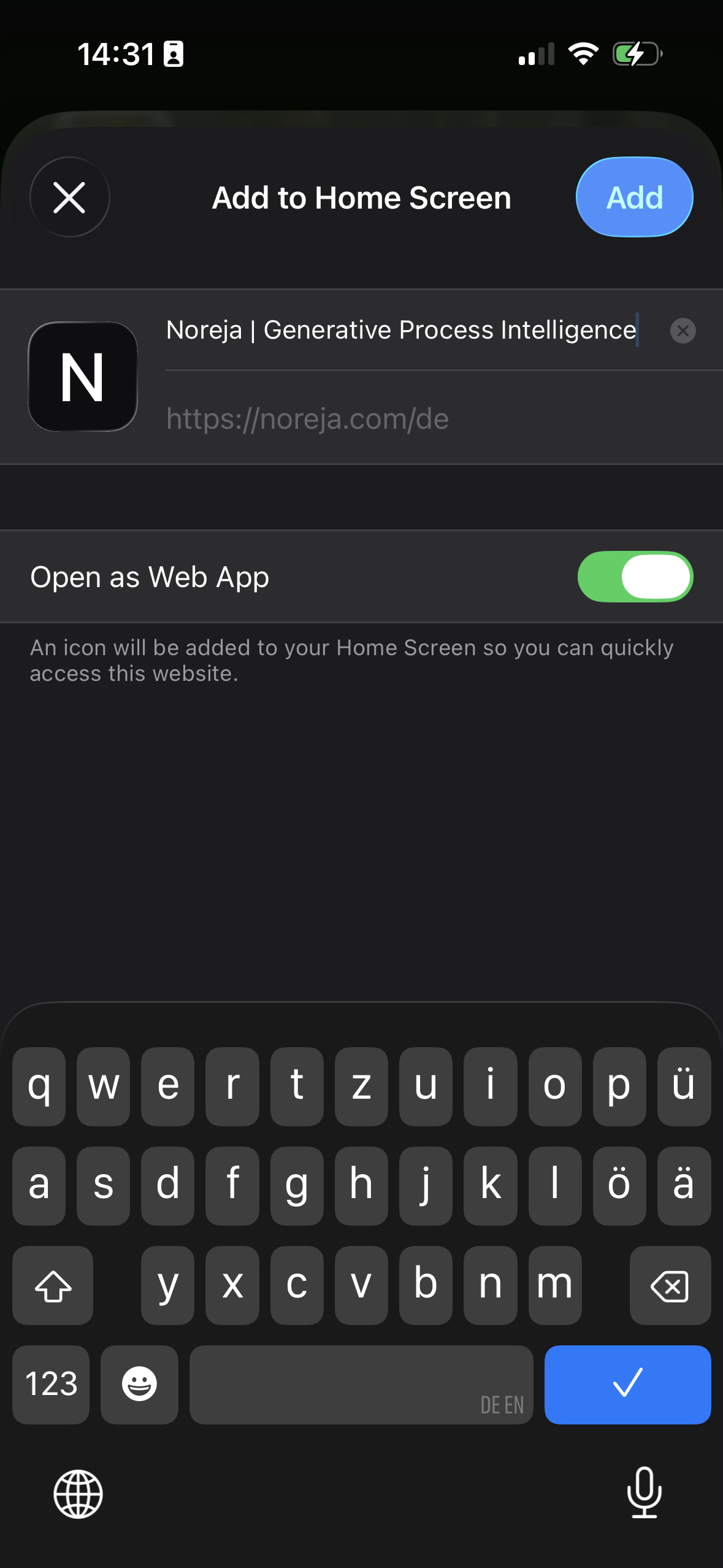
- Toggle "Open as Web App"
- Click "Add"
Here is an example of the flow with the noreja.com website:
On Android (Chrome):
- Open the
/chatURL in Chrome - Tap the three-dot menu
- Select “Add to Home screen”
- Confirm
The shortcut will behave similarly to an app icon and provides direct, fast access to the chat interface.