Working on Issues in the Manager
Overview
When you open an issue from the Manager board, you step into a focused workspace designed to give you full context and control. This view is divided into three primary areas—left, center, and right—each dedicated to guiding you through understanding, discussing, and configuring the issue at hand. Together, they form a seamless environment where you can track progress, interact with our AI assistants, and fine-tune all relevant details without ever losing sight of where the issue sits in your overall workflow.
Kanban Phase Sidebar
On the left, a slim vertical replica of your Kanban board highlights the current phase of this issue. As you navigate here, the sidebar automatically scrolls to and emphasizes the column—backlog, in progress, on hold, insights generated, or discarded—where the card currently resides. This persistent overview keeps you grounded in the broader lifecycle of your work, ensuring you always know whether you’re still investigating root causes, refining potential solutions, or wrapping up insights.

Issue Settings Panel
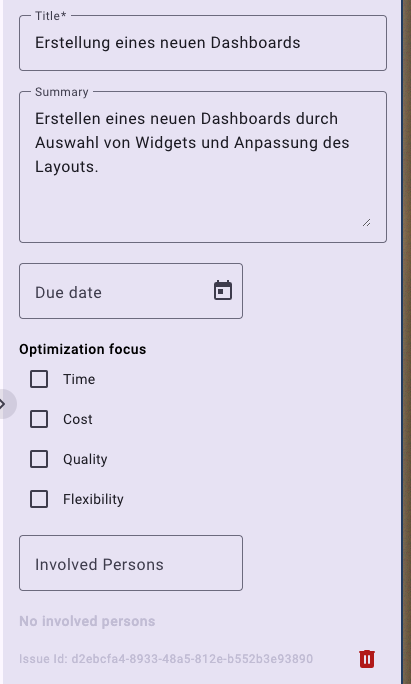
The right-hand panel houses all the configurable properties of your issue. At the top, you’ll find the Title and AI-generated Summary, which you’re free to tweak manually for clarity or precision. Below that, set a Due Date to establish your resolution target. Next, choose one of the four process-improvement dimensions—Time, Cost, Quality, or Flexibility—to align the issue with your strategic goals (an UX-friendly nod to the classic “devil’s quadrangle” in business process management). You can
then @mention colleagues or stakeholders to loop them into the conversation. Finally, a small trash-bin icon at the bottom lets you delete the entire issue, with a confirmation prompt to prevent accidental loss.
AI-Powered Chat Window by Minerva-AI
Dominating the center of the screen is the interactive chat interface—your direct line to intelligent assistance throughout the issue’s lifecycle. Here, you type questions, hypotheses, or requests much as you would in familiar AI chat tools. A dropdown lets you switch between different LLM engines, giving you flexibility to test various models or performance profiles. After composing your prompt in the text field, click Send to receive real-time analysis: from diagnosing root causes and estimating business impact to brainstorming improvement ideas. As your conversation evolves, the AI retains context, helping you iterate seamlessly from identification through to resolution.
Dimension Indicator
In the top-left corner of the view, a label indicates the process dimension—such as procurement, onboarding, or support—associated with the current AI chat. This label serves as a subtle yet helpful reminder of the context in which you're operating, making it easier to stay focused on the specific part of the process you're analyzing and aiming to improve.