
Filter Cases in the Analyzer and Dashboards
Filters limit an analyzer tab or a dashboard to the cases you're interested in, for example the orders of one quarter, the cases with violations or the orders paid too late. The Analyzer and dashboards use the same filter bar. This page explains how to add filters, what each filter type keeps, how to combine filters and how to read the filter summary.
Permissions: feature Analyzer or Dashboard: Read to open the tab. Filters are saved with the tab only if you may edit it. Which properties can be filtered is set in the perspective (see Create a Perspective). See Create and Edit Roles.
A filter always keeps or drops whole cases: the cases it keeps are shown with all their activities. See From Events to Process Model: What Is Aggregated Where.
Add a Filter
- If the filter bar is hidden, click Collapse/expand filter bar in the tab bar. Its badge shows how many filters the tab has.
- Click Add filters. Once the tab has filters, use + (Add new filter) in the group you want to add to.
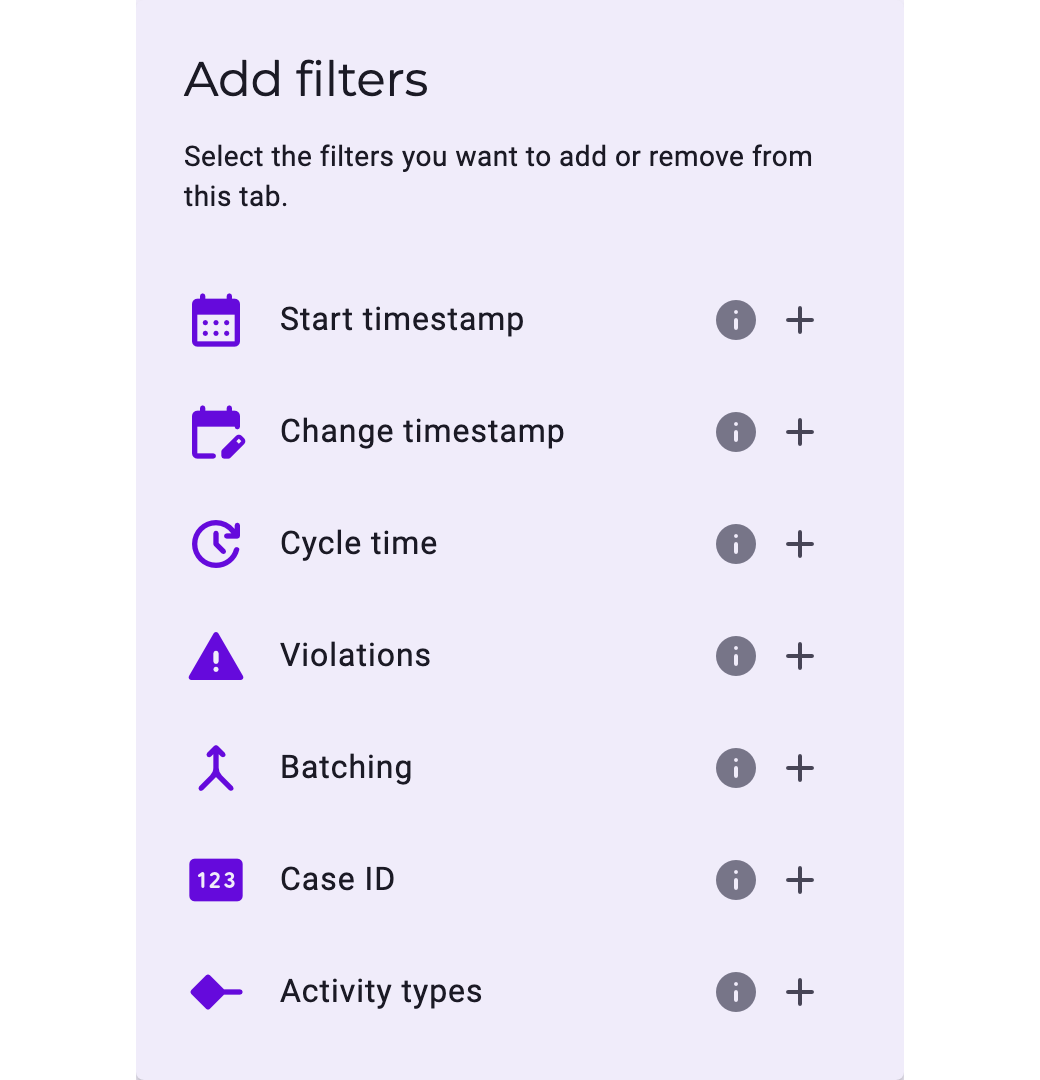
- The list shows the filter types of the perspective. Hover over the info icon for a short explanation; a badge on the type's icon on the left shows how often a type is already used. Click + next to the type you want.
- Set the filter's values in the filter bar.
- Click Apply. Until then, the analysis still shows the previous result.
Minimalize filter and hiding the filter bar also apply changes you haven't applied yet.
Filter Types
Every perspective has the same standard filters. Further filters come from the perspective's own properties (see the end of the table).
Filter | Keeps the cases that … |
|---|---|
Start timestamp | started in the chosen period. Pick the dates or a preset such as last 7 days, this month or last quarter. |
Change timestamp | were changed in the chosen period. Same settings as Start timestamp. |
Cycle time | have a short (S), medium (M) or long (L) cycle time. Each class shows its range: S covers the first 15% of the range from the shortest to the longest cycle time, M up to 75%, L the rest. |
Violations | have at least one violation (✓) or none (✗). Violations are Disarray and Negligence; see Process Patterns: Disarray, Negligence, Rework and Allowed Deviations. |
Batching | contain an activity done for several cases at once (✓), or don't (✗). See Quantities and Cardinalities. |
Case ID | have one of the selected IDs. Type to search; the list shows 15 IDs per page. |
Activity types | contain at least one of the selected activities. |
Activity with start- / Endpoint | contain the selected activity. With Restriction, only where the activity is a Start point, End point or Intermediate end, expected or unexpected. With several rows, a case is kept if any row matches. |
Variants | belong to the variants in the chosen range, for example 1 to 10. The numbers are those of all cases: 1 to 10 are the ten most frequent variants overall, also when other filters are set. See Process Models and Levels: Case, Variant, Process Model. |
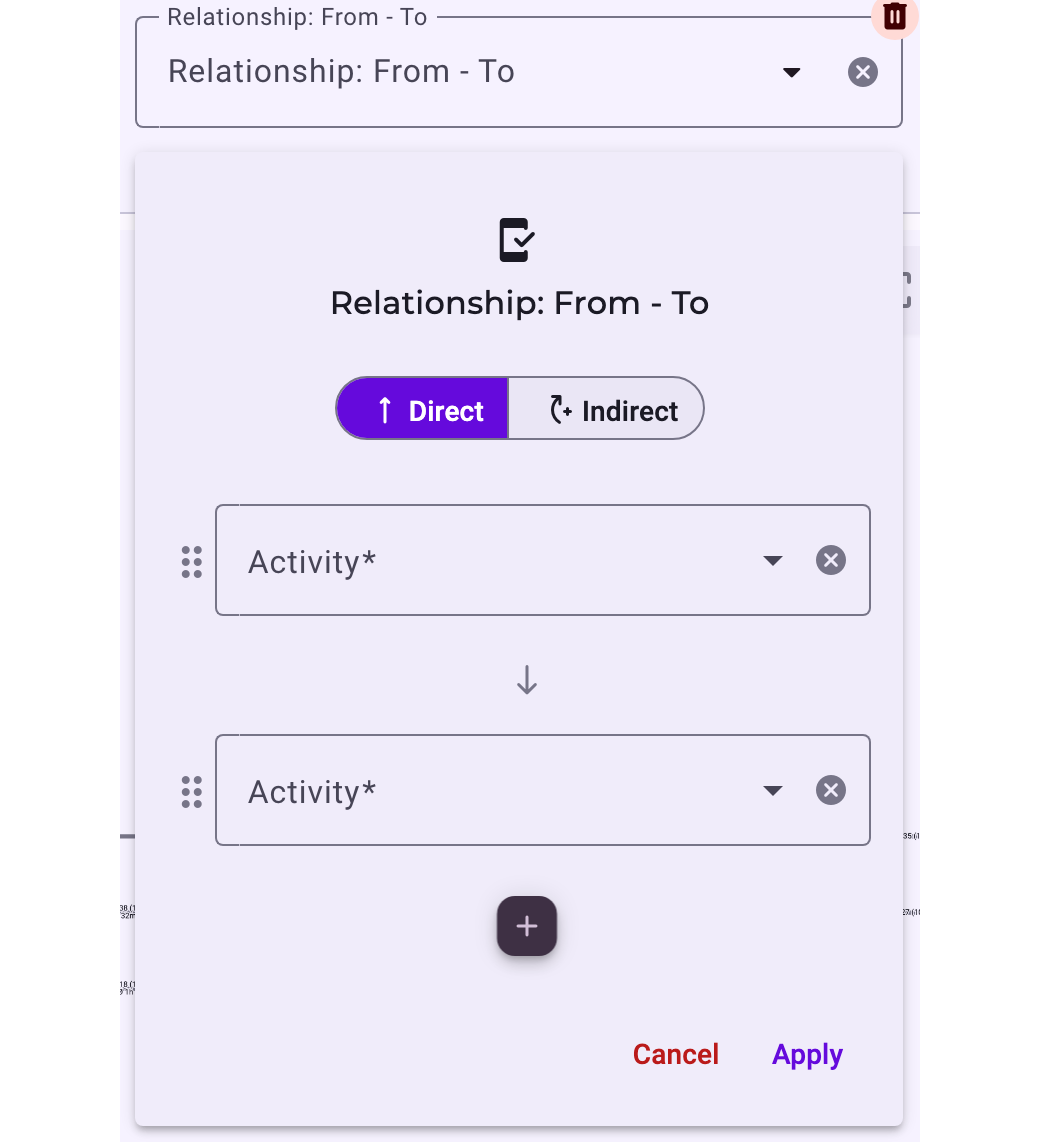
Relationship: From - To | have a relationship from the first chosen activity to the next in the case's graph. The filter follows the relationships of the expected order and the Disarray, Rework and Negligence relationships of the case; it doesn't compare time stamps. Direct: the activities are connected by one such relationship; Indirect: other activities may lie in between, so the activities are connected by a path. Add more activities with + to filter for a longer path. |
Process pattern | contain at least one of the selected patterns: Disarray, Rework, Negligence, Simplification or Reorder. |
Start/End points | have a Start point, End point or Intermediate end of the chosen kind: Expected, Unexpected or both. An intermediate end shows objects that got stuck. See Elements in Noreja Process Graphs. |
Filters of the perspective, for example rechnung_id | have at least one execution of an activity whose property matches. Depending on the property, you pick values from a list, set a range or a comparison (==, !=, >, <, >=, <=), choose S, M or L, a date range, or ✓ / ✗. These filters are set up in the Builder by whoever manages the perspective; see Create a Perspective. |
Lists of values show all values of the perspective, also values that no longer occur in the cases your other filters keep. A filter without values is ignored.
Combine Filters
Filters are always part of a group. Between the filters of a group is AND or OR:
- AND: a case is kept only if it matches every filter of the group.
- OR: a case is kept if it matches at least one.
Click the chip to switch between AND and OR. The choice applies to the whole group. To mix them, put filters into groups of their own.

In the example, the group keeps the orders that were paid outside the discount period and have a violation: 465 of the 5,520 orders in Purchase-to-Pay.
- IS / NOT: at the start of a group, click it to turn the group around. NOT keeps the cases that don't match the group.
- Add group: adds a new group right after the current one, at the same level. Indent group and Outdent group move a group one level in or out, for example to nest the new group. Nested groups are shown in different colours.
- Remove group: deletes a group with its filters, after asking. It's only possible once the group has no groups inside.
- Delete icon and ×: each filter has a delete icon to remove it and an × to clear its values.
Filter from the Graph
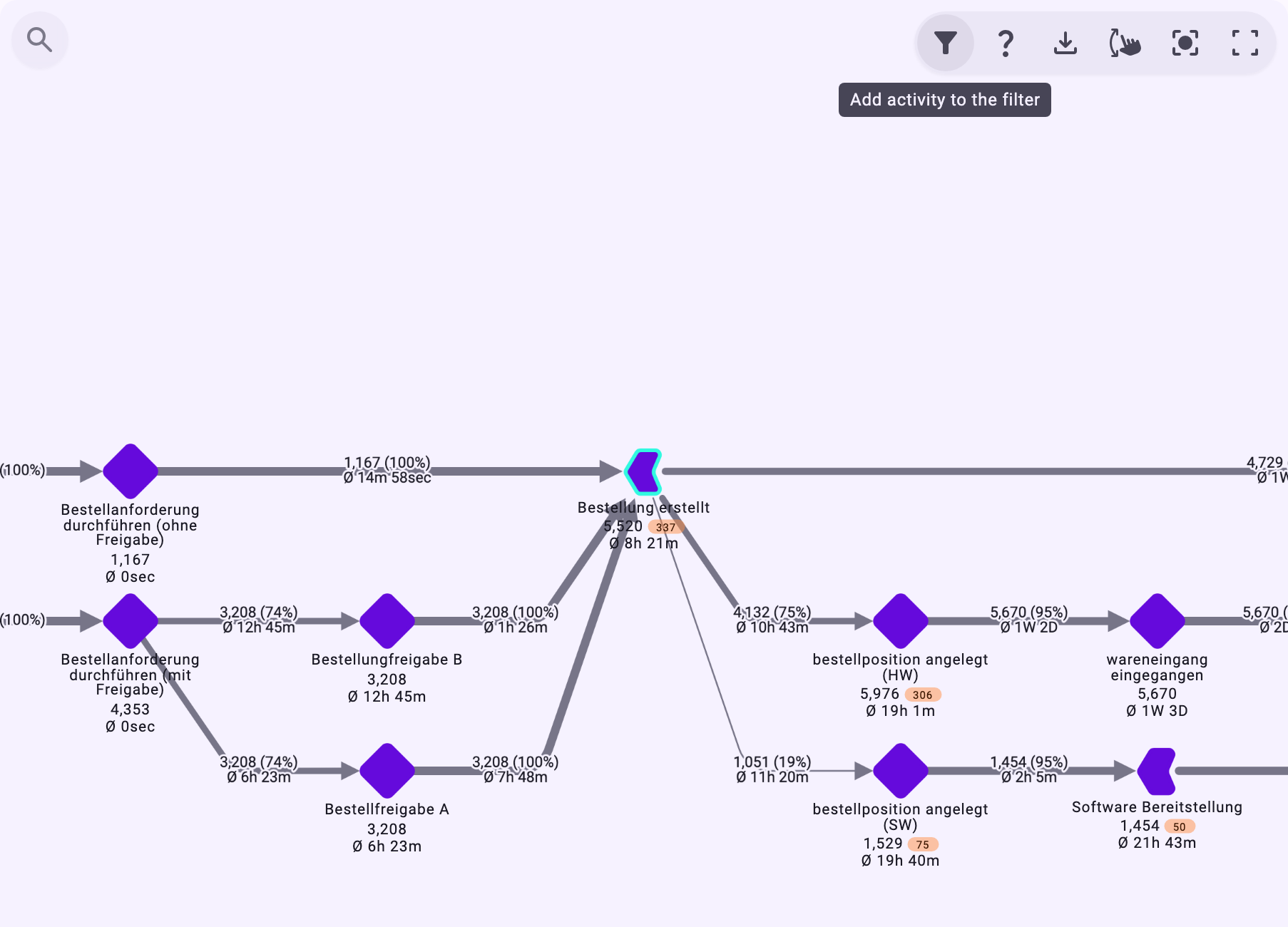
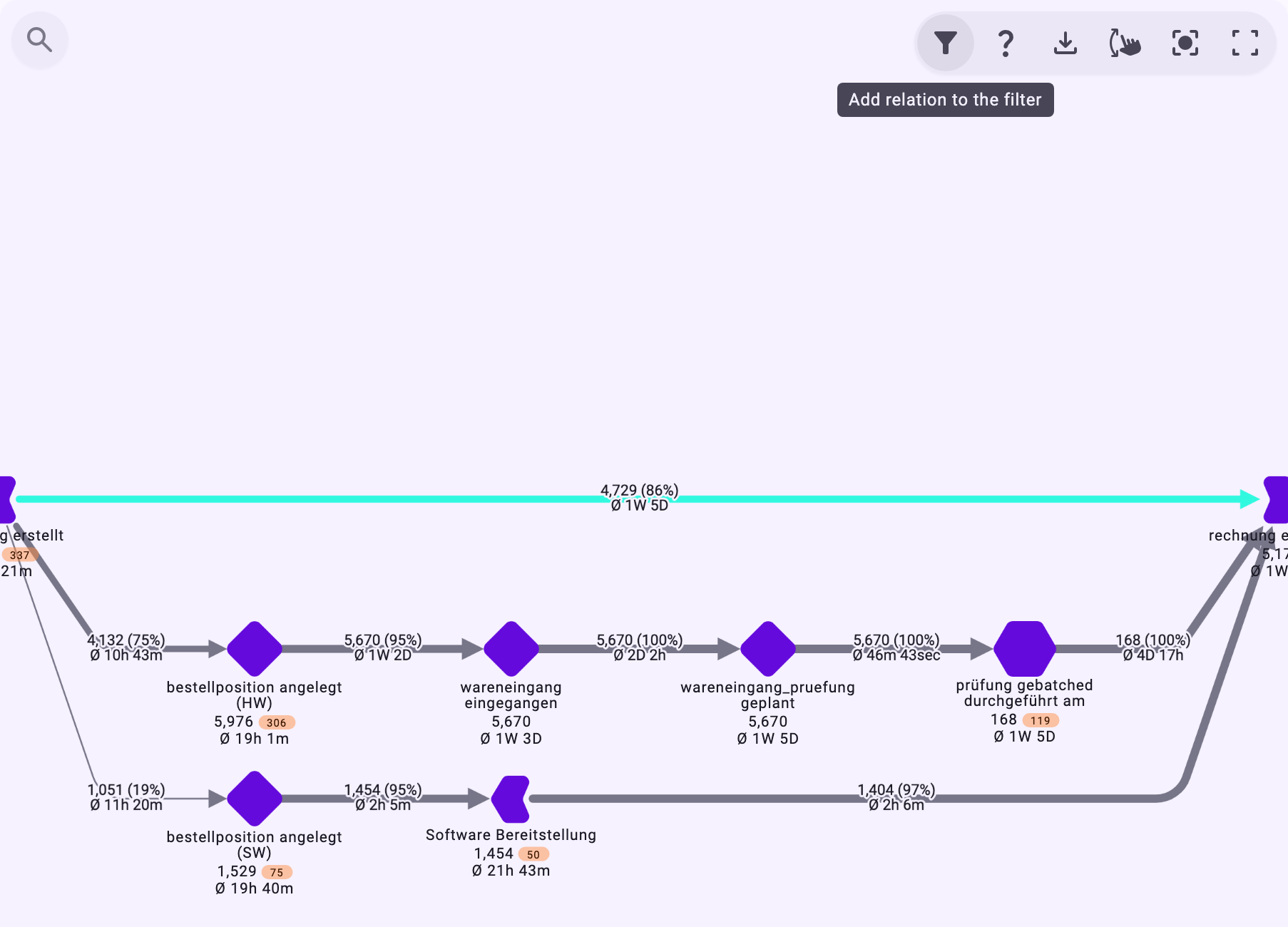
Some filters can be added directly from the Process view. They're added as a group of their own and applied at once, and a message confirms it, for example The selected activity has been added to the filter bar. Start and end points can't be added this way.
An Activity
Click an activity in the graph. A filter button appears in the graph controls at the top right (Add activity to the filter). Click it to add an Activity types filter for this activity.
A Relationship
Click a relationship. The filter button in the same place now adds a direct Relationship: From - To filter for its two activities (Add relation to the filter).
A Variant
In the Variants list, click the compass icon next to a variant (Open all cases of this particular variant). It adds a Variants filter and opens the Case view.
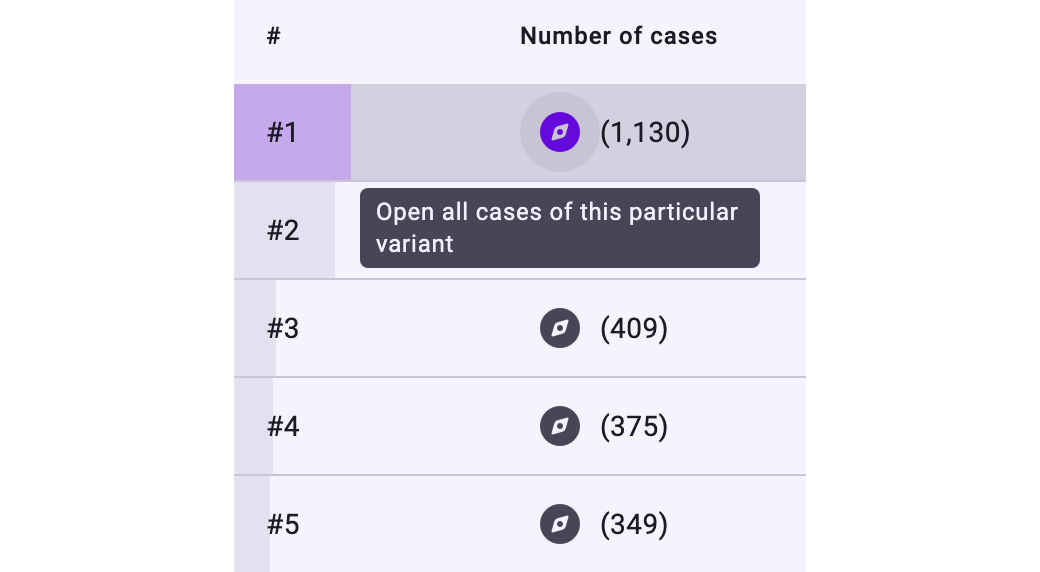
A variant you select in the Variants list (by clicking the row, not the icon) works like an extra filter on top of the filter bar. See Work with the Process View.
See Which Filters Are Set
Minimalize filter reduces the filter bar to one line: each filter becomes a chip with its values, for example Violations: True, and groups are shown in brackets. Expand filter opens the full filter bar again.

If no case matches the filters, the Process view says No data available for the current filter(s). Change or remove a filter.
Analyzer and Dashboards
- In an analyzer tab, filters are saved with the tab as soon as you apply them. In fullscreen, Show / hide filters opens the same filters as a floating panel; see Work with the Process Graph in Fullscreen.
- On a dashboard, the filters apply to all widgets and are saved with the dashboard when you apply them. See Create a Dashboard Tab.
- If you may only read a shared tab or dashboard, you see its filters but can't change them. Without filters, it says that write permissions are needed to edit them. See Share Your Work with Colleagues.
- If a filter of the perspective is removed in the Builder, tabs that used it open without it.