
Navigating Noreja
This page shows you around Noreja: the top bar and its areas, where Noreja opens after you sign in, your profile and the settings, and where to get help. For what Noreja does, see Welcome to Noreja.
Permissions: each area appears with its feature: Dashboard: Read, Analyzer: Read, Workbench: Create, Builder: Read, AI Hub with Agent, Prompt or Context: Read. The Minerva-AI switch needs Chat: Create. Something shared with you also opens its area. My Profile, the Help Center, System and Trust Center: everyone. The other settings: see the table under The Settings Menu. Customer admins see everything. See Create and Edit Roles.
The Top Bar at a Glance
The top bar is always at the top of the screen:

- Logo: takes you back to your start page. Your company can replace the Noreja logo with its own; see Environment Settings: Branding, AI and Import.
- Areas: Dashboard, Analyzer, Workbench, Builder and AI Hub. The area you're in is highlighted. Point at an area to see what it is for, for example Analyze processes.
- Minerva-AI: opens or closes Minerva next to dashboards and the Analyzer.
- ?: opens the Help Center. See Get Help below.
- Settings (gear icon): your profile and, depending on your roles, the administration and environment settings.
- Profile (person icon): shows who is signed in, opens the Minerva chat page and has Sign out.
What the Areas Are For
Area | What you do there | Read more |
|---|---|---|
Dashboard | See the key figures of a perspective at a glance, in widgets you arrange yourself. | |
Analyzer | Explore a perspective in depth: the process graph, single cases, patterns and timelines. | |
Workbench | Run your own analyses of the process data in Jupyter notebooks. | |
Builder | Connect data sources and model entities and perspectives, the basis of every analysis. Its menu on the left has Perspective, Entities and Sources. | From Data Source to Perspective: How the Builder Works and Who Does What |
AI Hub | Set up how Minerva works, in the tabs Agents, Skills & prompts, Context and Workspaces. |
Dashboards and the Analyzer are organised the same way: the Tab Explorer on the left lists your tabs, the tab bar at the top shows the tabs you have open. See Organise Your Analyses: Tab Explorer, Folders, Favorites and Subtabs.
Minerva Next to Your Analysis
Switch on Minerva-AI to open Minerva next to the dashboard or analyzer tab you're looking at, so you can ask about it directly. Switch it off to close the panel. Noreja remembers the switch in your browser.
For the full chat page, with your earlier chats and workspace files, open the profile menu (person icon) and choose the Minerva chat entry (currently spelled Minverva chat). The chat page has no top bar; to come back, click the exit icon Leave the chat at the bottom of the chat list. See Chat with Minerva.
Where You Start
After signing in, and whenever you click the logo, Noreja opens the first area your roles give you, in this order: Dashboard, Analyzer, Builder, Workbench. Customer admins start on the dashboard.
- Users who may only chat with Minerva open Noreja on the chat page, without the top bar.
- On a small screen, such as a tablet in portrait mode, Noreja opens the chat page for everyone who may chat with Minerva.
- Areas that only appear because something was shared with you count only if you have no other area.
The first sign-in is described in Sign In for the First Time.
Why Your Top Bar May Look Different
Which areas you see depends on your roles and on what colleagues have shared with you. A user who may only read, for example, sees no Workbench and no Minerva-AI switch:

- Workbench appears for users who may create workbenches.
- Minerva-AI appears for users whose role includes Chat: Create. With Chat: Read alone, you chat with Minerva on the chat page.
- AI Hub appears with Agent, Prompt or Context; Workspaces alone doesn't show it.
- An area can also appear because something in it was shared with you. If a colleague shares a perspective with you, for example, you see the Builder even if none of your roles includes it, and you can open what was shared with you there.
- Customer admins see all areas.
If you miss an area you need, ask your Customer admin for the right role. For details, see Access Management at Noreja.
In a narrower browser window, the areas turn into round icons; point at an icon to see its name and what it is for. On very wide screens, each area shows an icon next to its name.

The Profile Menu
Click the person icon at the right of the top bar:
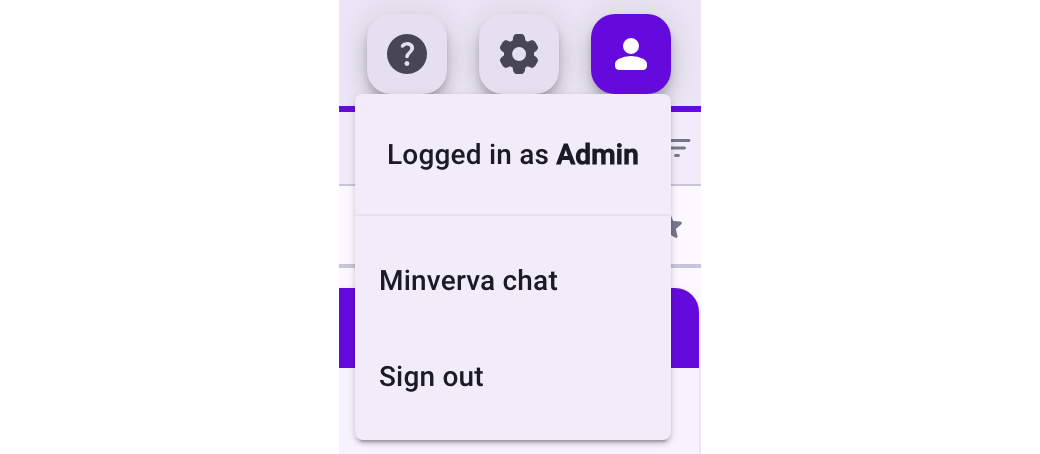
- Logged in as shows the first name of the account you're signed in with.
- The Minerva chat entry opens the chat page. It appears if your roles include the chat.
- Sign out signs you out of Noreja. On the chat page, click your name at the bottom of the chat list for Dark mode and Sign out.
Noreja also signs you out after a while without activity. Just sign in again.
The Settings Menu
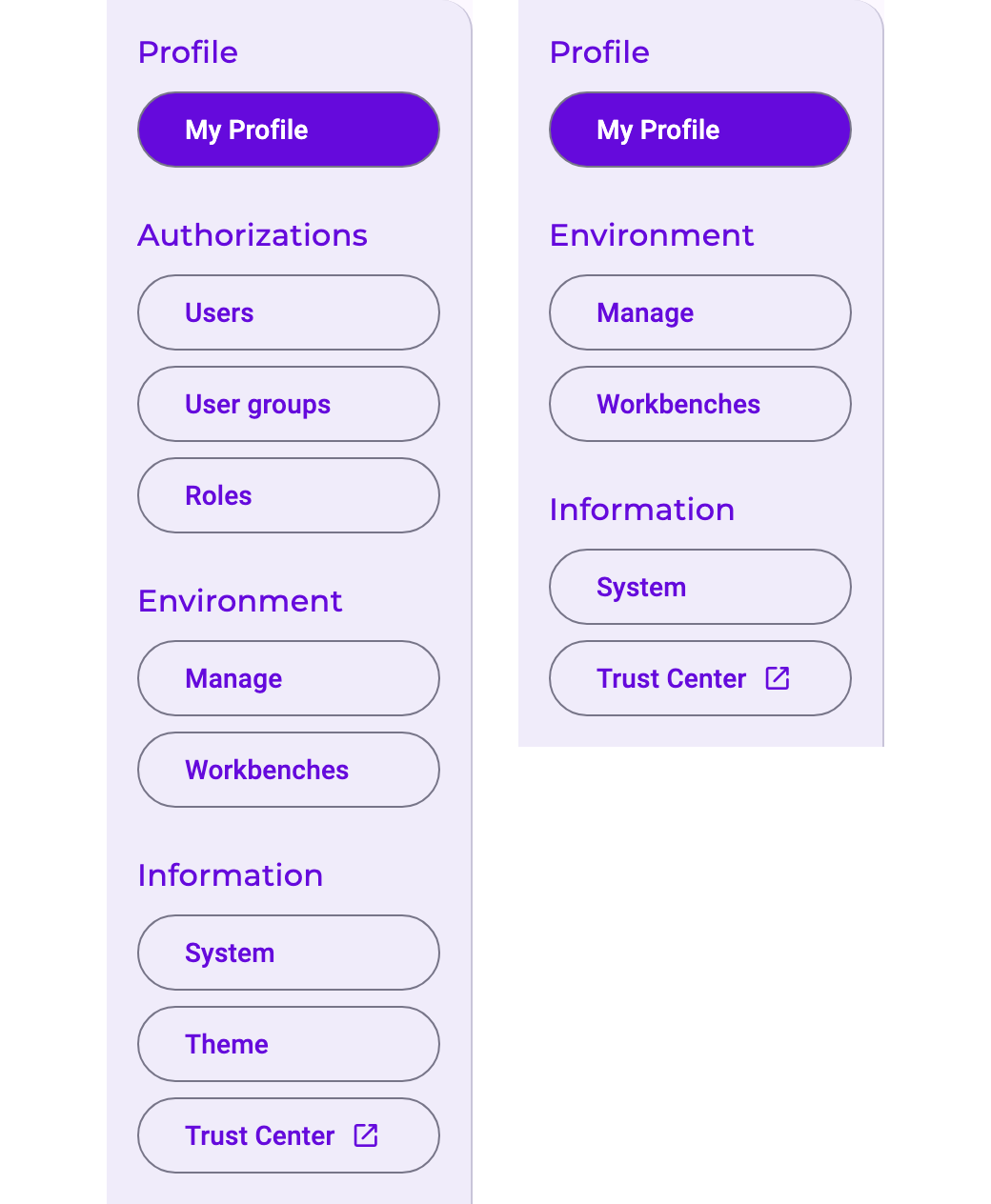
Click the gear icon (Settings). Noreja opens My Profile, with the settings menu on the left. What the menu contains depends on your roles. A Customer admin sees all entries (left); a process analyst, for example, sees only some of them (right):
Entry | What it is for | Who sees it |
|---|---|---|
My Profile | Your name, email, language and dark mode, and an overview of your access. See below. | Everyone |
Users | Add, edit and re-invite users. See Add a User. | Customer admins |
User groups | Group users and give roles to a whole group. See Manage User Groups. | Customer admins |
Roles | Define which features and actions a role allows. See Create and Edit Roles. | Customer admins |
Manage | Company logo and colours, AI and import settings. See Environment Settings: Branding, AI and Import. | Customer admins; with Context: Edit the AI settings only |
Workbenches | The running workbench instances. See Manage Workbench Instances. | Workbench: Read, Customer admins |
System | The version of your installation, for support requests. See System Information and Trust Center. | Everyone |
Theme | The colours and design elements of the interface, for reference. | Customer admins |
Trust Center | Noreja's public Trust Center on security and data protection, in a new browser tab. | Everyone |
The entries are grouped under Profile, Authorizations (users, user groups, roles), Environment (Manage, Workbenches) and Information. How users, user groups and roles work together is explained in Access Management at Noreja.
My Profile
My Profile shows your account and what you may do in Noreja:
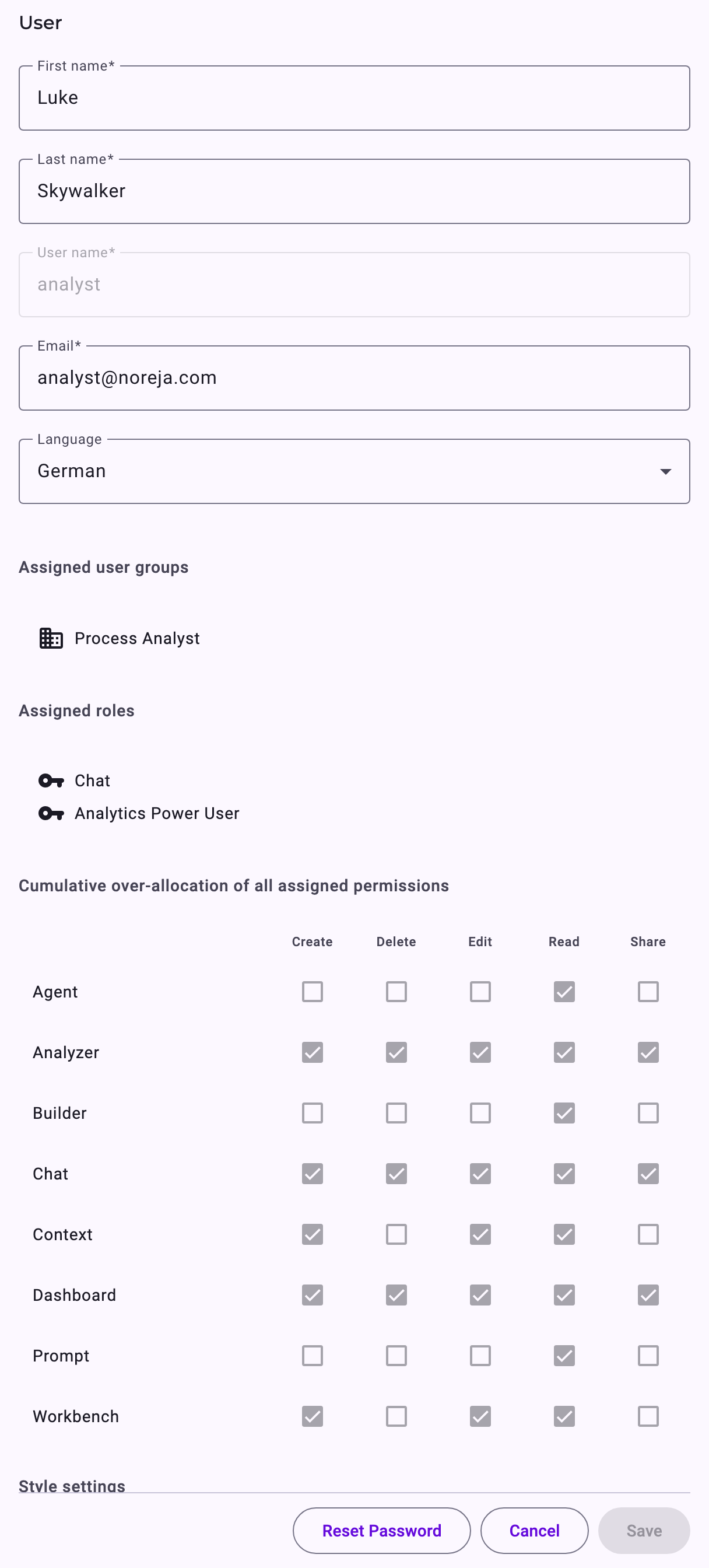
- First name, Last name, Email: you can change them yourself. The User name can't be changed.
- Language: the language of Noreja, of the emails Noreja sends you and of the Help Center.
- Assigned user groups and Assigned roles: what your Customer admin has given you. Only Customer admins can change them.
- Permissions table (currently titled Cumulative over-allocation of all assigned permissions): which actions you have per feature, from all your roles and user groups together. For Customer admins, a note above it says that they have all permissions.
- Style settings: the Dark mode switch.
- Reset Password: the next time you sign in, Noreja asks you for a new password.
- Context access (further down, if you may use the Context Hub): the Context Hub knowledge you have access to. See Context Hub: Knowledge for Minerva.
Click Save to keep changes to your name, email and language. Cancel discards them.
Change the Language
Choose the Language in My Profile. Noreja switches to it at once, so you can see the result. Click Save to keep it; if you leave the page without saving, Noreja goes back to your previous language. The language is stored in your account, so it applies on every computer you sign in from.
Switch to Dark Mode
Under Style settings, switch Dark mode on or off. It takes effect at once, without Save. Dark mode is remembered in your browser, not in your account: on another computer or browser you choose it again. Until you choose, Noreja follows the light or dark setting of your operating system.
Get Help
Click ? in the top bar to open the Help Center. Click anywhere outside it to close it again.
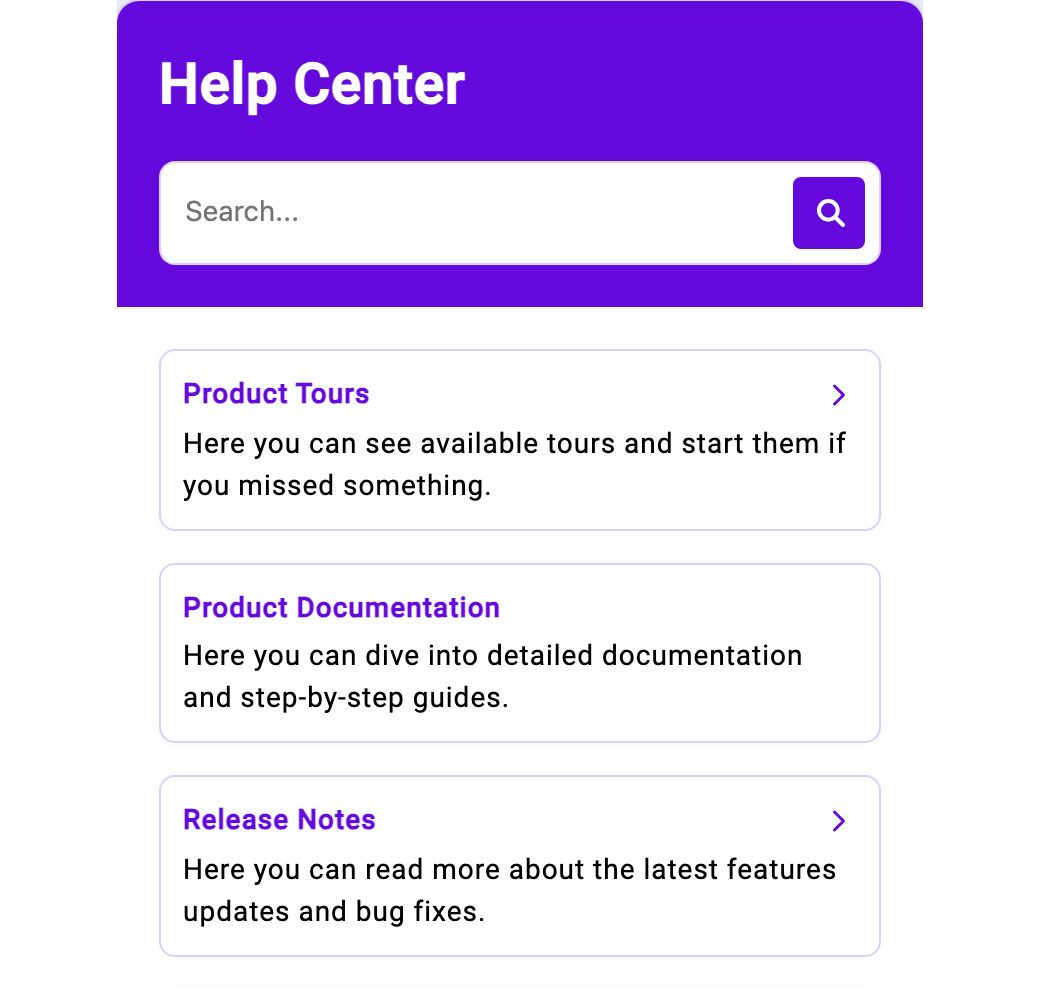
- Search: enter a question or a term and click the search icon. The Help Center shows a short summary generated from the documentation, followed by the matching articles and release notes.
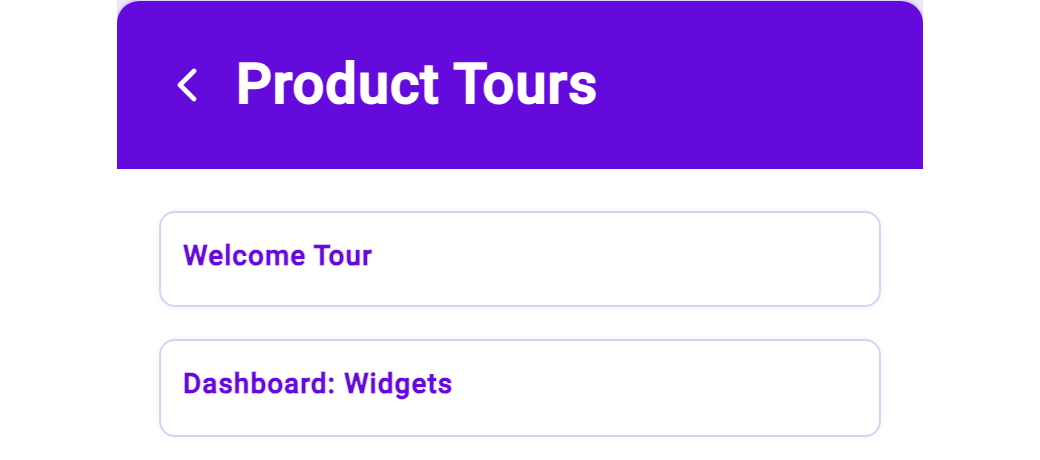
- Product Tours: guided tours that walk you through a screen step by step. Click a tour to start it. Which tours are listed can differ from user to user.
- Product Documentation: opens the full documentation, with articles like this one, in a new browser tab.
- Release Notes: what changed in each version, newest first. To see which version you're using, open Settings → System.
Below these sections, the Help Center can also show videos, such as an introduction to Minerva. The Help Center uses the language set in My Profile.
On the dashboard, new users may also see an onboarding checklist with first steps, each of which starts a tour. The button below the checklist folds it into a small bar at the bottom left; click the bar to open it again.
Send Feedback
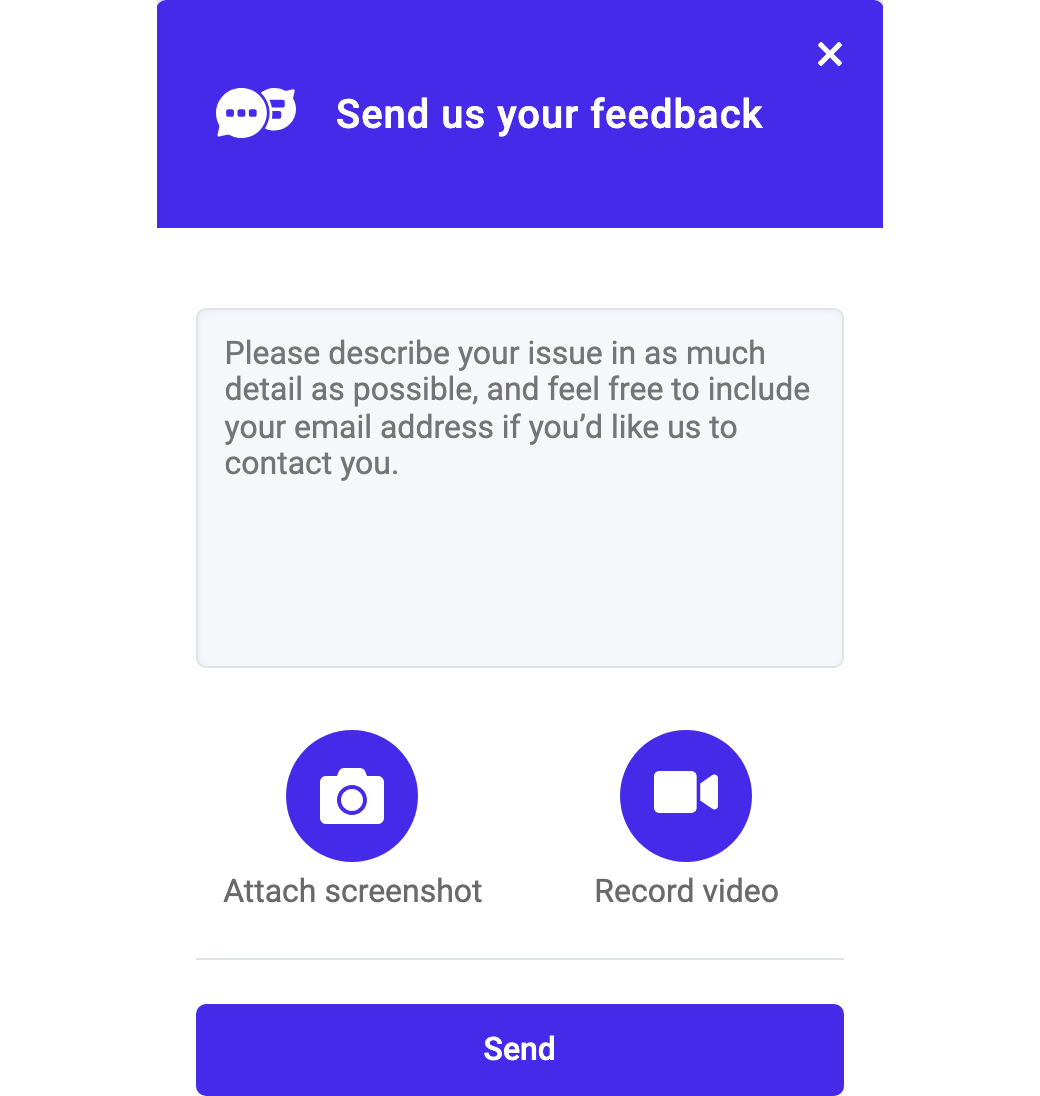
Click Feedback at the bottom of the Help Center to tell Noreja about a problem or an idea. Describe it in the text field, add a picture of the screen with Attach screenshot or a short recording with Record video, and click Send. If you'd like an answer, include your email address in the text.
Other Ways to Get Help
- Ask Minerva: Minerva knows the Noreja documentation, so you can ask it questions such as How do I share a dashboard with my team? See What Minerva Can Do.
- Missing access: if you can't see an area or an item you need, ask your Customer admin. See Access Management at Noreja.
- Problems: when you report one, say what you did and where, and add the versions from Settings → System → Copy all. See System Information and Trust Center.
- Common questions: see General FAQ.
The Help Center is opened from the top bar, so it isn't available on the chat page.