
Edit, Delete and Re-Invite Users
Customer admins can change a user's details, user groups and roles, send the invitation again, make the user change their password, and delete the user. This page explains each, and what happens to the items of a deleted user.
Permissions: Customer admins only. Every user can change their own language and password under My Profile; see Sign In for the First Time. See also Access Management at Noreja.
Open a User
Open Settings (the gear icon) and choose Users under Authorizations. The list shows each user's names, email and Status Invitation: a check mark when the user has accepted the invitation, a clock while it's open. Search the list by name, user name or email. Click the pencil in a row to edit the user.
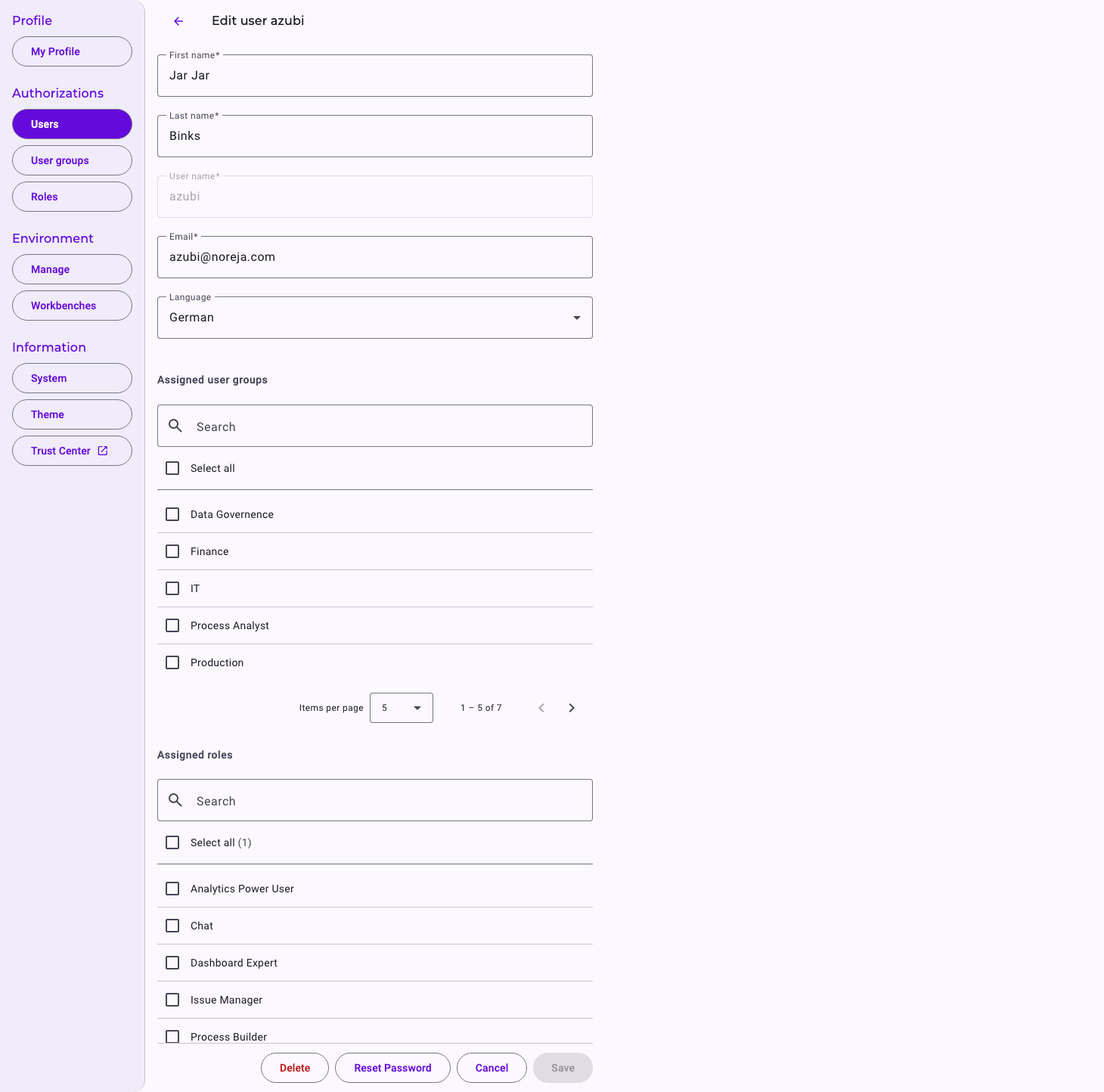
Change a User
- First name, Last name and Email can be changed. The User name can't. Each email address can belong to only one user.
- Language sets the user's interface language.
- Assigned user groups and Assigned roles: tick the user groups and roles. The list of roles shows only roles given to the user directly; roles from user groups appear in the permission overview below. See Manage User Groups and Create and Edit Roles.
- Optional role makes the user a Customer admin or a Normal user. Customer admins see the note This user has admin privileges and therefore has all permissions at the tenant level.
Click Save. Changes to user groups and roles take effect right away; the user may need to reload the page before their menu shows them.
Send the Invitation Again
As long as a user hasn't accepted the invitation, their page shows The invitation has not yet been accepted. with Resend invitation. Click it to send a new invitation email with a fresh link, valid for three days by default. If the email address was wrong, correct it and save first. The list shows no separate status for an expired invitation: the clock stays until the user accepts.
Make a User Change Their Password
Reset Password makes the user choose a new password the next time they sign in (The user will be prompted to change their password the next time they log in.). No email is sent, and the user still signs in with their current password first. Users who forgot their password use the link Forgot Password? on the sign-in page.
Delete a User
- Click the red bin in the user's row, or Delete on their page.
- Confirm with Confirm: The user will be permanently deleted.
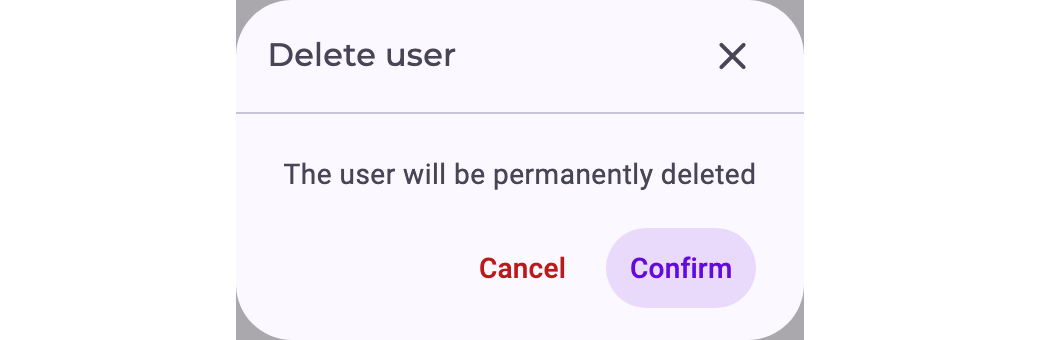
- The user can no longer sign in, and their user group memberships and roles are removed. A deleted user can't be restored. A new user with the same name or email address is a different user.
- The user's analyzer tabs, dashboards, perspectives and other items stay. What they shared stays shared; their private items remain but nobody can manage them any more. Before deleting someone, ask them to share or hand over what others still need; see Share Your Work with Colleagues.
- Noreja doesn't prevent you from deleting or demoting your own account. Make sure at least one other Customer admin remains.