
Work with the Pattern View
The Pattern view shows all cases of an analyzer tab as a dotted chart: one row per case, one dot per activity, coloured by activity type. It makes timing patterns visible at a glance: batches processed on the same day, waiting times, outliers that take much longer than the rest. Examine what you find afterwards in the case view or the process view; see Work with the Case View and Work with the Process View.
Permissions: feature Analyzer: Read to open analyzer tabs, or a tab shared with you. Settings are saved with the tab only if you may edit it. See Create and Edit Roles.
Open the Pattern View
In an analyzer tab, click Pattern at the top of the settings panel.
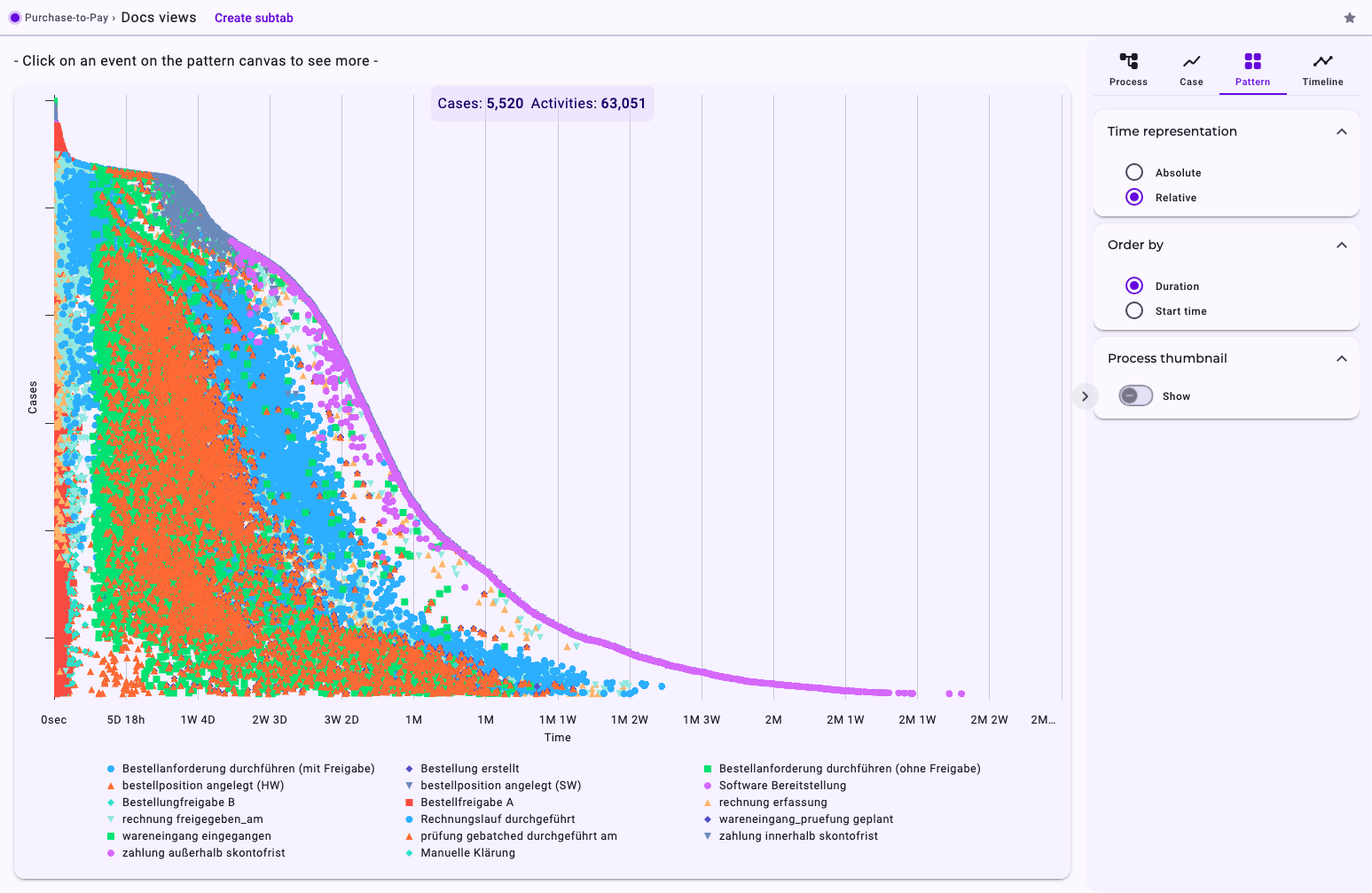
The counter at the top shows how many cases and activities are drawn. The vertical axis holds the cases, the horizontal axis the time. Each activity type has its own colour and symbol; when there are many activity types, colours repeat with a different symbol. Below the chart, the legend lists the activity types; click one to hide or show its dots.
Settings
Setting | Options |
|---|---|
Time representation | Relative (default): the time since each case started, so all cases begin on the left. Shows how long the steps take. Absolute: the calendar date, so you see when things happened, for example busy weeks. |
Order by | Duration (default): the shortest cases first. Start time: the earliest cases first. |
Process thumbnail | Show (off by default): clicking a dot also opens a small graph of that case over the chart. |
Look at a Case
- Hover over a dot to see the activity, the case ID (Process instance ID) and the time.
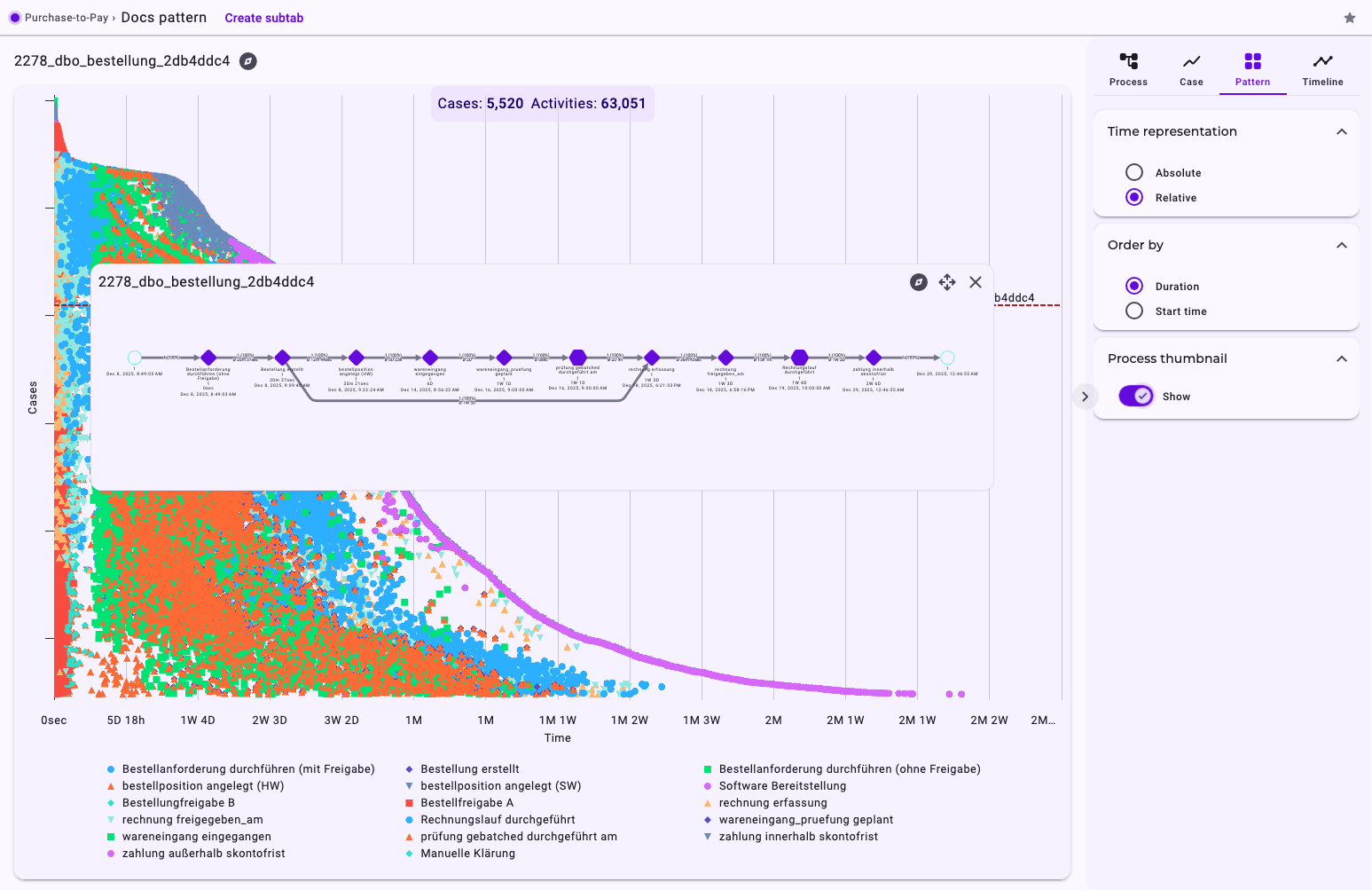
- Click a dot: a red dashed line marks its case, and the case ID appears above the chart. The compass icon next to it (Open in Case view) opens the case. Click the chart background to clear the selection.
- With Process thumbnail → Show, the click also opens the thumbnail: the graph of the case with the start date of each activity. Drag it by the four-arrow handle; the compass icon (Open individual view) opens the case in the case view, × (Close preview) closes the thumbnail.
- Drag along the axis of the cases to zoom into a range; Reset zoom shows all cases again.
Good to Know
- The chart shows the cases that match the tab's filters. A variant you clicked in the process view doesn't count; use a filter instead. See Filter Cases in the Analyzer and Dashboards.
- For very large data, Noreja draws an evenly spread sample of the cases and shows Sampling above the chart. A filter reduces the data and switches sampling off.
- The settings are saved with the tab if you may edit it.
- The pattern view doesn't show violations; those are in the process and case views. See Process Patterns: Disarray, Negligence, Rework and Allowed Deviations.
- The pattern view isn't available in fullscreen; see Work with the Process Graph in Fullscreen.