
Write Your Own Skill
A skill teaches Minerva how your company wants one kind of task done: what a management briefing must contain, how your purchasing team defines a late delivery, or which figures belong in a monthly report. This guide explains when a skill is the right tool, how to create and test one, and what makes a skill work well.
Permissions: feature Prompt: Create to create skills, Share to share them. To add a skill to your own agents, also Agent: Edit. See Create and Edit Roles.
Skill, System Prompt or User Prompt?
In the AI Hub, under Skills & prompts, you find three types (see AI Hub: Agents, Skills, Prompts and Workspaces). Only two of them are useful to create yourself:
Type | What it is | When to use it |
|---|---|---|
Skill | Know-how for one kind of task. An agent loads it only when a question needs it. | Most cases: a report format, your company's definitions, a way of analysing something. |
System | The basic instructions of one agent: what it is for and how it behaves. It applies to every question that agent answers. | Only when you build your own agent with a clearly limited purpose. Minerva's own system prompt can't be changed. |
User | Templates Noreja uses internally, for example to give chats a title. | Don't create these: a user prompt you create yourself is never used. |
If you're unsure, write a skill. It doesn't make Minerva's other answers longer or slower, because only its name and short description are read until a question needs it.
How Minerva Uses a Skill
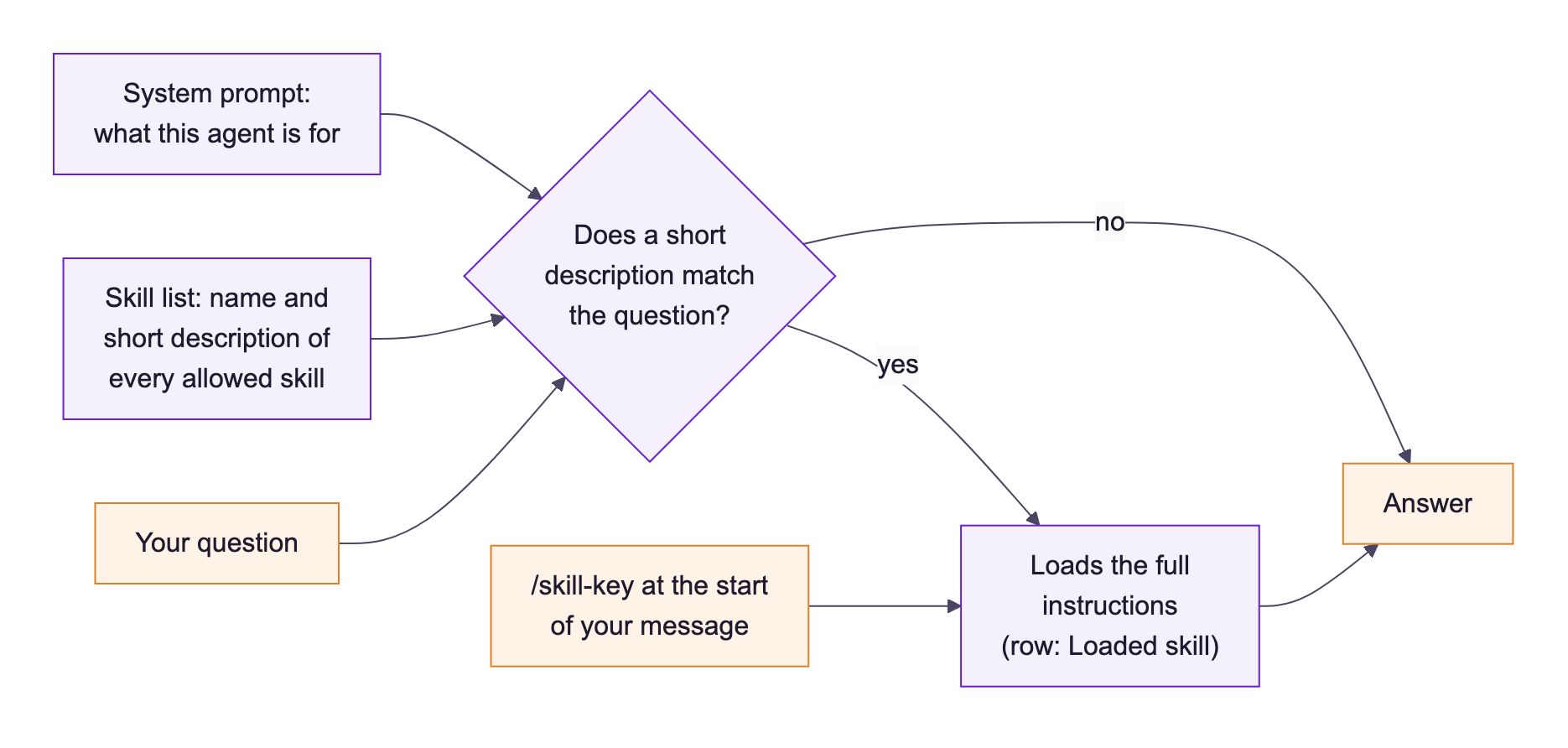
- At the start of every answer, the agent sees a list of the skills it may use, each with its name and Short description for the model.
- If a short description matches the question, the agent loads the full Skill instructions and follows them. In the chat you see a row Loaded skill with the skill's name.
- Users can also start a skill themselves: typing / in the chat lists the skills, and a message that starts with /compliance-briefing loads that skill right away.
So the short description decides whether a skill is used, and the instructions decide how the task is done.
1. Create the Skill
- Open the AI Hub and the tab Skills & prompts.
- Click New skill/prompt.
- Under Prompt type, choose SKILL. Do this first: the fields change with the type.
- Enter the Skill name, for example Compliance briefing. The Prompt key is created from it (compliance-briefing); users type it after / in the chat.
- Write the Short description for the model: when the skill should be used, in the words your users type (up to 500 characters).
- Write the Skill instructions. See the tips and the complete example below.
- Under Sharing, decide who may see and edit the skill (see "Private and shared skills" below).
- Click Save.
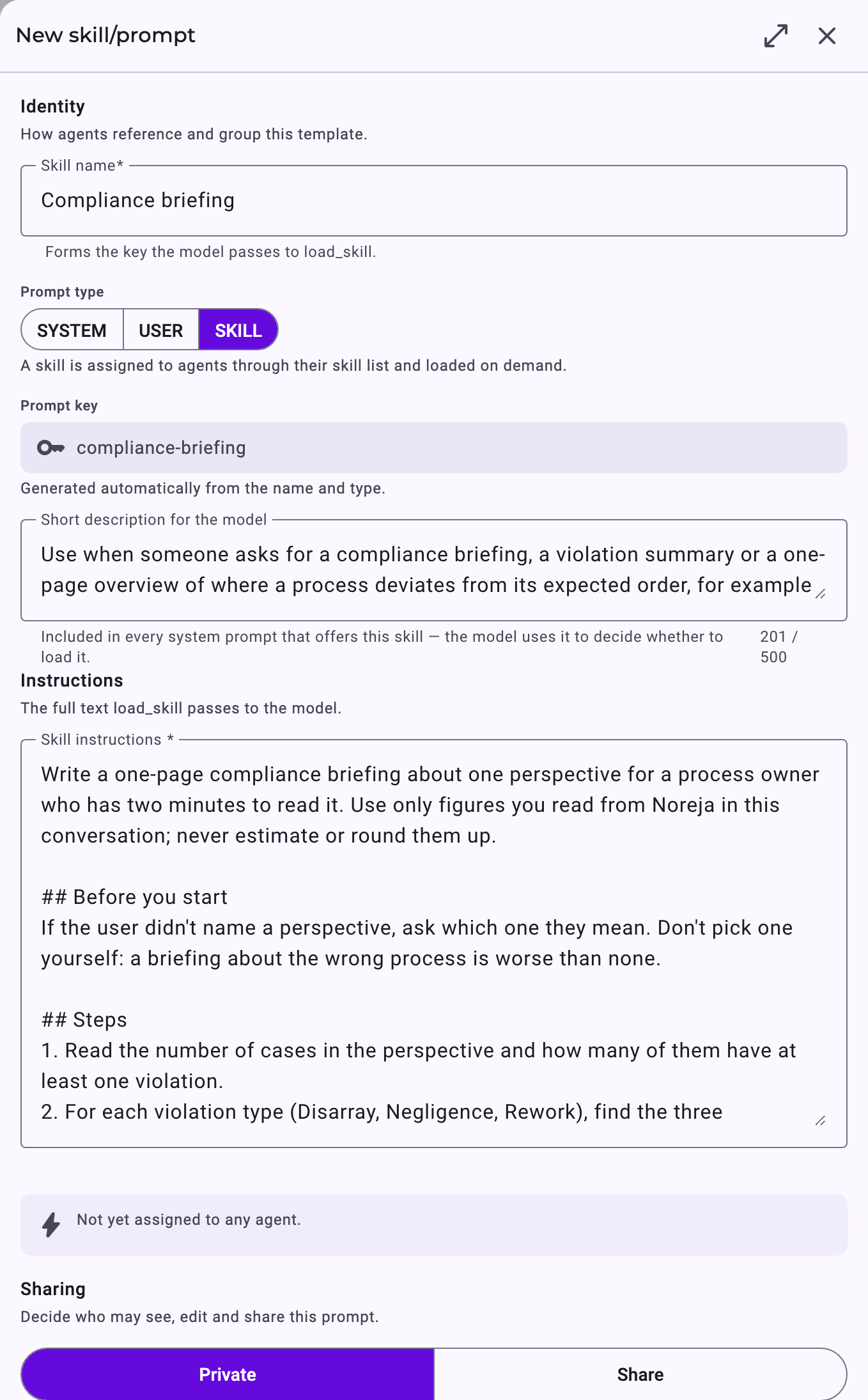
Important: The name and the key can't be changed after saving. Avoid umlauts and special characters in the name: they become hyphens in the key (Verzögerung becomes verz-gerung).
2. Make the Skill Available to an Agent
- Minerva: may use all skills, including new ones. Your skill is available to Minerva as soon as you save it; there is nothing to do.
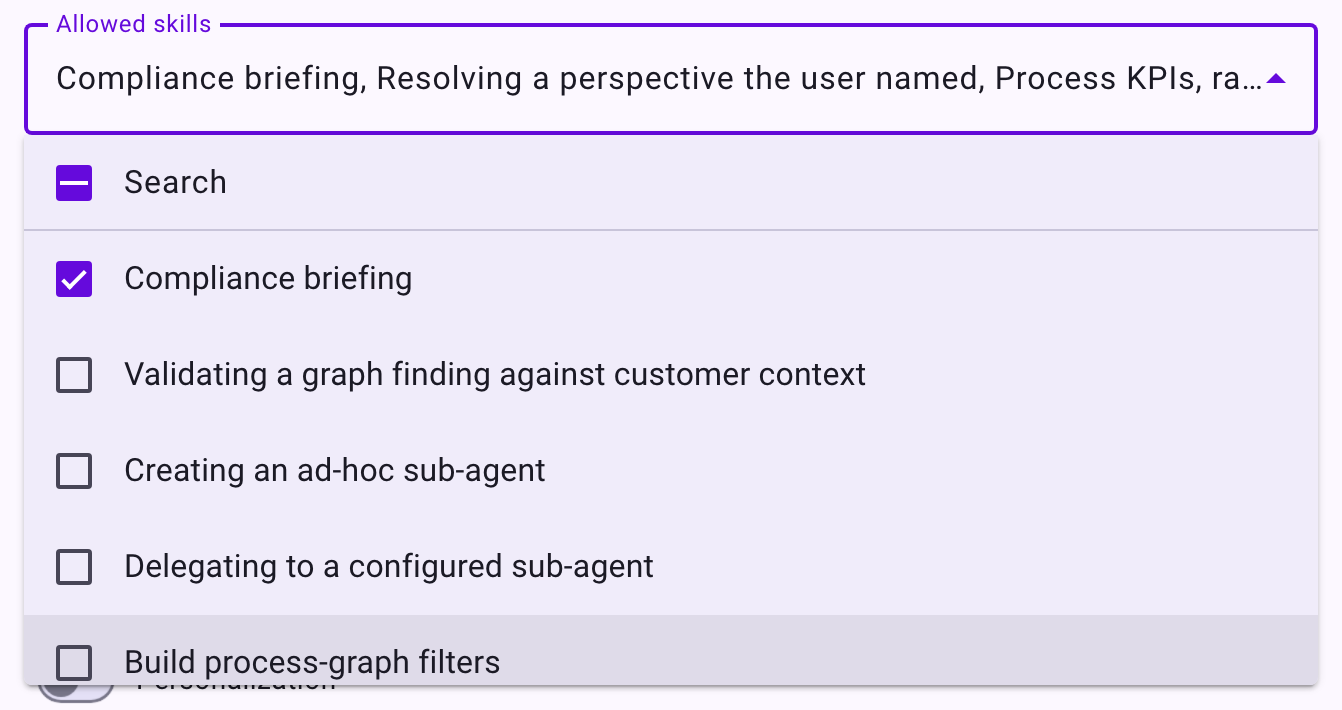
- Your own agents: open the agent in the AI Hub under Agents, and under Allowed skills tick your skill. If the list shows All — including future ones, the agent already picks up new skills automatically.
An agent with a narrow set of skills still needs Noreja's skills for the groundwork (see Noreja's Agents and Skills). In the example below, the agent may load the compliance briefing plus Noreja's skills for finding the perspective, counting cases and reading violations:
Agents from Noreja can't be changed. To build your own, duplicate one in the agent list and adjust the copy; give it a new name, because the copy keeps the original's name.
3. Test the Skill
Test every new or changed skill in a new chat, with the agent it is meant for:
- A question that should use the skill, worded the way your users would ask. Check that the row Loaded skill with your skill's name appears, and that the answer follows your instructions.
- A question that should not use it. Your skill should not appear under Loaded skill. If it does, make the short description more specific.
- The skill by its key: type /, pick your skill and add the rest of the question, for example /compliance-briefing Purchase-to-Pay.
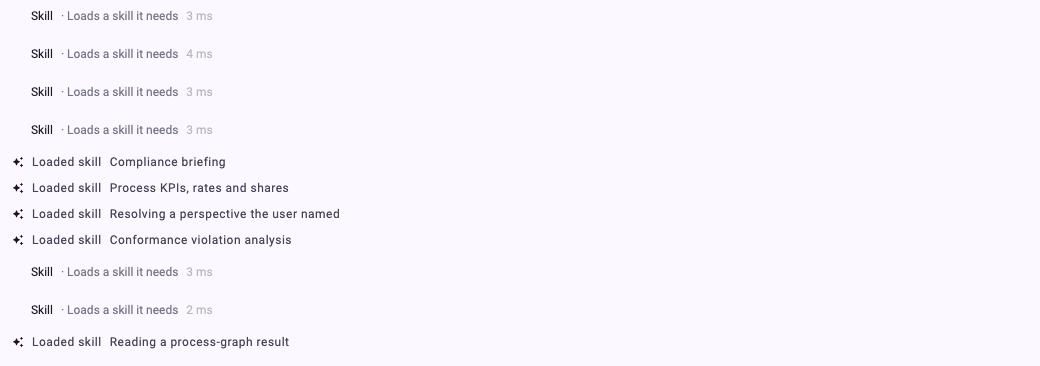
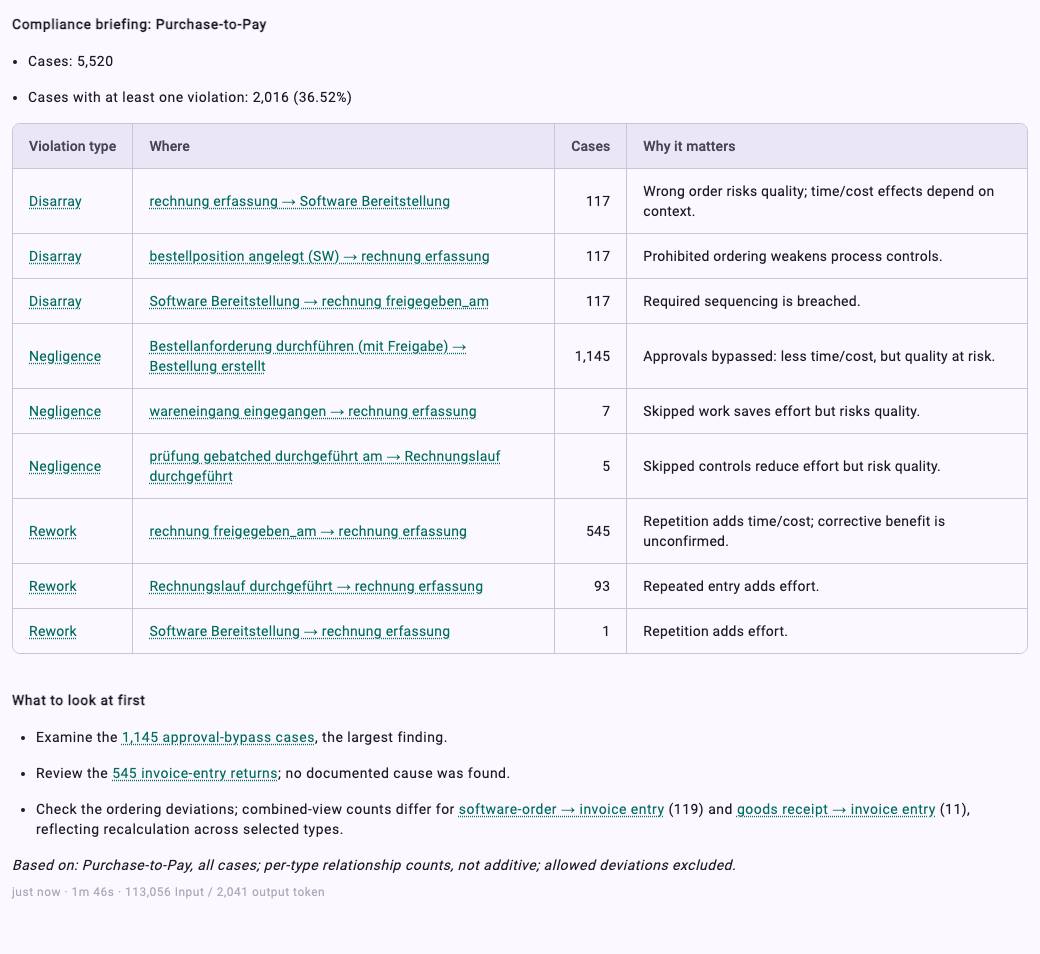

Why a new chat: a skill Minerva already loaded earlier in a chat stays in that chat as it was. Changes to a skill reach new questions right away, but in a new chat you can be sure Minerva works with the current text.
Write a Skill That Works
These rules come from the skills Noreja wrote for Minerva:
- The short description is the trigger. Say when to use the skill, with the words your users type: "Use when someone asks for a compliance briefing, a violation summary or a one-page overview …". A description that only says what the skill contains is often missed.
- One task per skill. About 300 to 700 words is a good size. Two tasks make two skills.
- Purpose and main rule first. The first two sentences say what the result is for and the one rule that must never be broken.
- Numbered steps where the order matters, for example "first find the perspective, then count, then explain".
- A fixed output format, written out as it should look. This is what makes answers comparable from week to week.
- Reasons for the rules. "Keep it under 250 words: process owners read it on their phone" is followed more reliably than "max. 250 words".
- One worked example, such as one complete table row.
- Don'ts with the alternative: not only "don't estimate", but "write not available instead of a number".
- What to answer when nothing is found, so Minerva doesn't fill the gap with guesses.
- Real figures only. Tell Minerva to use only figures it read from Noreja.
Leave out what Minerva already does well, such as how to find a perspective or read the process graph: Noreja's own skills cover that, and Minerva combines them with yours.
The Example: Compliance Briefing
The example skill used on this page produces a one-page briefing about the violations in one perspective. Copy it as a starting point and adapt it to your company.
Field | Value |
|---|---|
Skill name | Compliance briefing |
Short description for the model | Use when someone asks for a compliance briefing, a violation summary or a one-page overview of where a process deviates from its expected order, for example for a process owner or a management meeting. |
Skill instructions:
Write a one-page compliance briefing about one perspective for a process owner who has two minutes to read it. Use only figures you read from Noreja in this conversation; never estimate or round them up.
>
## Before you start
If the user didn't name a perspective, ask which one they mean. Don't pick one yourself: a briefing about the wrong process is worse than none.
>
## Steps
1. Read the number of cases in the perspective and how many of them have at least one violation.
2. For each violation type (Disarray, Negligence, Rework), find the three relationships with the most cases, using the number of cases Noreja reports for each relationship. Leave out deviations that are allowed in the perspective (reorder and simplification): they are part of the expected process.
3. Search the company knowledge for known reasons for the top findings. Use a reason only if a document states it, and name the document.
4. Write the briefing in the format below.
>
## Format
Use exactly this structure, in the language of the question:
\\Compliance briefing: <perspective>\\
- Cases: <number of cases>
- Cases with at least one violation: <number> (<share in %>)
| Violation type | Where | Cases | Why it matters |
|---|---|---|---|
| … | <activity> → <activity> | … | one short sentence |
\\What to look at first\\
1. <one sentence>
2. <one sentence>
3. <one sentence>
\Based on: <perspective>, all cases unless the user named a filter.\
>
## Rules
- Keep the whole briefing under 250 words. Process owners often read it on their phone.
- Write activity names as they appear in the perspective; don't translate or reword them, so the reader can find them in the Analyzer.
- Skipped steps (Negligence) make cases faster and cheaper, so they can look like an improvement. Always say that they put quality at risk.
- Describe processes, not people. Don't name users, teams or departments as the cause of a violation.
- Don't recommend tools, projects or organisational changes; the process owner decides on actions.
>
## Example row
| Negligence | Order created → Goods received | 412 | The approval is skipped, so orders reach suppliers without a second check. |
>
## When nothing is found
If the perspective has no violations, write only: "No violations found in <perspective>." and the line with the number of cases. If a figure can't be read, write "not available" instead of a number and say why.
The lines starting with ##, -, | and \\** are Markdown. Minerva reads them as headings, lists, a table and bold text; you can write instructions with or without them.
Private and Shared Skills
- Private: only you see the skill in the list and in the / list of the chat, and only you can edit it.
- Share: the people you share it with see it too and, depending on the level, can edit or share it.
Important: Sharing controls who sees and edits a skill, not who benefits from it. Every agent that may use the skill, including Minerva, uses it for everyone's questions, also when the skill is private. Don't put confidential information into a skill; put it into the Context Hub with the right access instead; see Context Hub: Knowledge for Minerva.
Good to Know
- Noreja's own skills can't be changed. To adapt one, use Duplicate in the list and edit the copy; it gets a new key, and Noreja's skill stays available.
- An agent's list shows up to 15 of your company's skills by name. If you have more, Minerva finds the others by searching the words in their short descriptions, so precise descriptions matter even more.
- /key only works at the very beginning of a message. Elsewhere in the text it is sent as normal text.
Related
- What Minerva Can Do
- AI Hub: Agents, Skills, Prompts and Workspaces
- Get Better Answers from Minerva
- Context Hub: Knowledge for Minerva