
Timestamps: Formats, Preview and Distribution
All times in Noreja are calculated from the time stamps of the objects: case durations, transition durations between activities, the order of events. This page explains how to choose the right columns, how to prepare dates that are stored as text or split into two columns, and how time zones are handled.
Permissions: feature Builder: Create to add timestamp settings, Edit to change them, Delete to remove them; an Edit share of the entity allows all three. See Create and edit roles.
Choose the Right Columns
Each object needs a Start timestamp, the moment the event happened, and can have a Change timestamp for a later change. Both are set in the object's settings; see Configure Objects and Relationships. If a table has several date columns, Timestamp distribution in the object's settings helps to pick them:
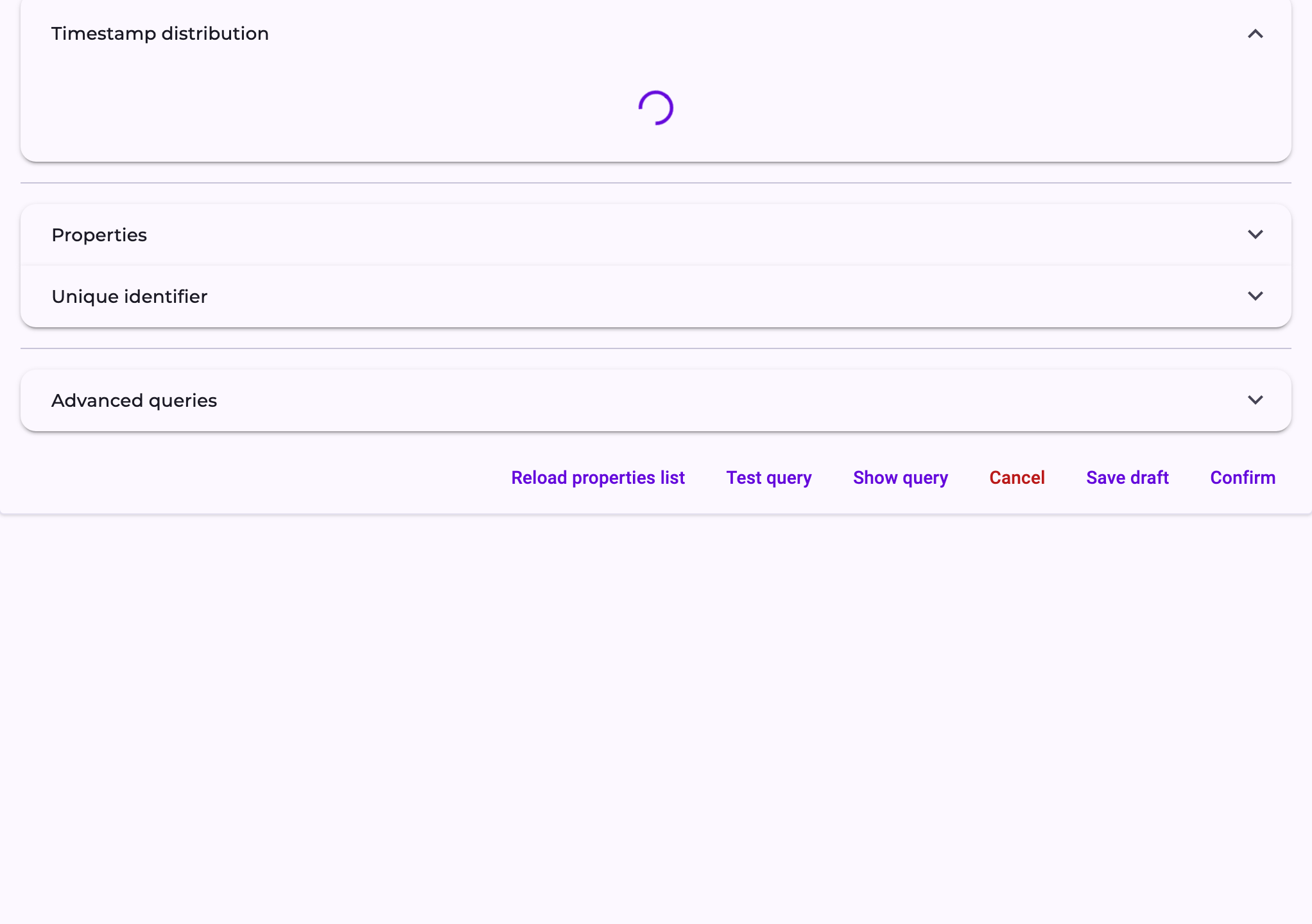
- Typical order of timestamps: for each date column, how often it holds the earliest and how often the latest value of a row. The column that is usually earliest is a good start time stamp, the one usually latest a good change time stamp.
- Charts: below, one chart per column: the time range, the number of values (n), the share of empty values, and how the dates spread over the months. Gaps or spikes point to missing or bulk-loaded data.
The change time stamp is only used where it lies after the start time stamp; otherwise it's ignored for that row.
Prepare Dates Stored as Text
Noreja reads real date and time columns directly, and text in ISO format such as 2025-07-23T15:24:00Z. For other text, for example 230720251524 or a date and a time in separate columns, define the format in the second step of the entity builder, Prepare timestamps:
- In the entity builder, go to Prepare timestamps.
- Open the table and then the column. Filter Transformations shows only columns that already have settings.
- Enter the Format of the values, for example
ddMMyyyyHHmm.
- Choose the Time zone the values are in, if they don't contain one.
- If the time of day is in another column, as often in SAP systems, tick Concatenate time from different column to date value, choose the column under Concatenate time and add the hours, minutes and seconds to the format. Noreja joins the date and the time with a space, so the format needs one between them, for example
yyyyMMdd HHmmss.
- Check the result under Test transformation: Input shows a sample value of the column, Output the date and time Noreja reads from it.
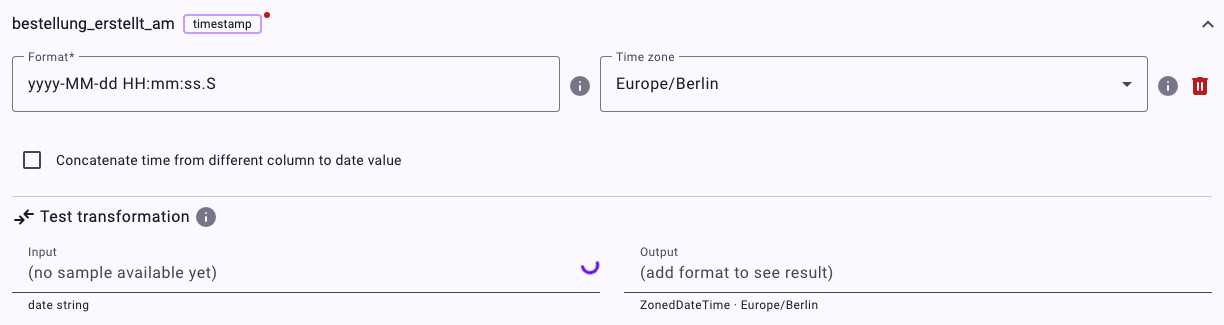
The settings are saved as you type. The bin icon removes them again.
Format Symbols
The format uses the pattern letters of Java's DateTimeFormatter; upper and lower case matter. The most common ones:
Symbol | Meaning | Example |
|---|---|---|
yyyy | Year, four digits | 2025 |
MM | Month, two digits | 07 |
dd | Day, two digits | 23 |
HH | Hour, 24-hour clock | 15 |
mm | Minutes (lower case; MM is the month) | 24 |
ss | Seconds | 00 |
S | Fractions of a second | 0 |
X | Time zone offset | Z or +02 |
'T' | A fixed letter, in single quotes | T in 2025-07-23T15:24 |
Examples: 230720251524 is ddMMyyyyHHmm; 23.07.2025 15:24 is dd.MM.yyyy HH:mm; `2025-07-23T15:24:00 is `yyyy-MM-dd'T'HH:mm:ss.
Time Zones
- Values that contain a time zone, such as
Zor+02:00, keep it.
- Values without a time zone are read in the time zone you choose under Time zone, which is filled with Europe/Berlin when you add the settings for a column; change it if your data uses another one. For columns without such settings, Noreja assumes UTC by default.
- Dates without a time are read as midnight in that time zone. The order of events on the same day is then lost; prefer columns with the time of day.
- Transition durations between activities don't depend on the time zone.