
Work with Files in Minerva Workspaces
Minerva keeps files in a workspace: files you upload for it to read, and files it creates for you, such as Excel tables, reports or slide decks. This page shows how to open your workspace, upload and attach files, get files from Minerva and work with workspaces you share with colleagues. For how the chat itself works, see Chat with Minerva.
Permissions: feature Chat for your own workspace: Read opens the chat page, where you can ask questions; Create adds the Minerva-AI switch next to dashboards and the Analyzer. Shared workspaces: feature Workspaces, Read for the Workspaces tab in the AI Hub, Create to create one, Share to share it. Maintaining the company library needs Company library: Edit. See Create and Edit Roles.
Your Workspaces
- My workspace: your own workspace. Only you and Minerva, in your chats, see its files. It is created automatically the first time you open it or Minerva writes a file.
- Shared workspaces: workspaces a colleague created in the AI Hub and shared with you, for example for a project team. Everyone with access sees the same files. See AI Hub: Agents, Skills, Prompts and Workspaces.
Every workspace also contains two folders you can open but not change:
- library, the Company library: files your company provides to everyone, for example templates. Your company's colours and logo for Minerva's documents are kept there too. Users with the permission Company library can change it.
- tools, the Noreja Tools: what Minerva needs to create files. Noreja keeps it up to date.
Workspace or Context Hub?
Both hold documents, but Minerva uses them differently. As a rule of thumb: files Minerva should work with go into the workspace; knowledge Minerva should know for many questions goes into the Context Hub.
Workspace | Context Hub | |
|---|---|---|
What belongs there | Files Minerva should read, analyse or change now, and the files it creates for you, for example a supplier list, meeting minutes or a report | Lasting company knowledge for many questions, for example policies, manuals, process descriptions or a glossary |
How Minerva uses it | Reads a file when you attach it or name it in your question | Searches it by itself for every question it fits, and can name the document it used |
Who sees it | My workspace: only you. Shared workspace: everyone with access | Whoever the entry is shared with: all users, user groups, single users or only you |
Formats | CSV, text, Excel, Word, PowerPoint and PDF files, up to 50 MB each | Free text up to 10,000 characters or a PDF up to 50 MB |
Confidential content | Goes to the model you choose: pick a local model for confidential files | Never allow access to public LLMs? is selected by default: then only the local model uses the entry |
How long it stays | Until someone deletes the file, also when the chat is deleted | Until the entry is replaced or deleted |
Only need a figure or a sentence for one question? Type it into the question. Files can't be added to the chat directly: upload them to the workspace and attach them. See Context Hub: Knowledge for Minerva.
1. Open the Workspace Files
On the chat page, click the folder icon at the top right (Workspace files (split panel)). Next to a dashboard or the Analyzer, the same button is at the top of the Minerva panel.

The files open next to the chat. To see more, drag the edge of the panel or click Fullscreen.
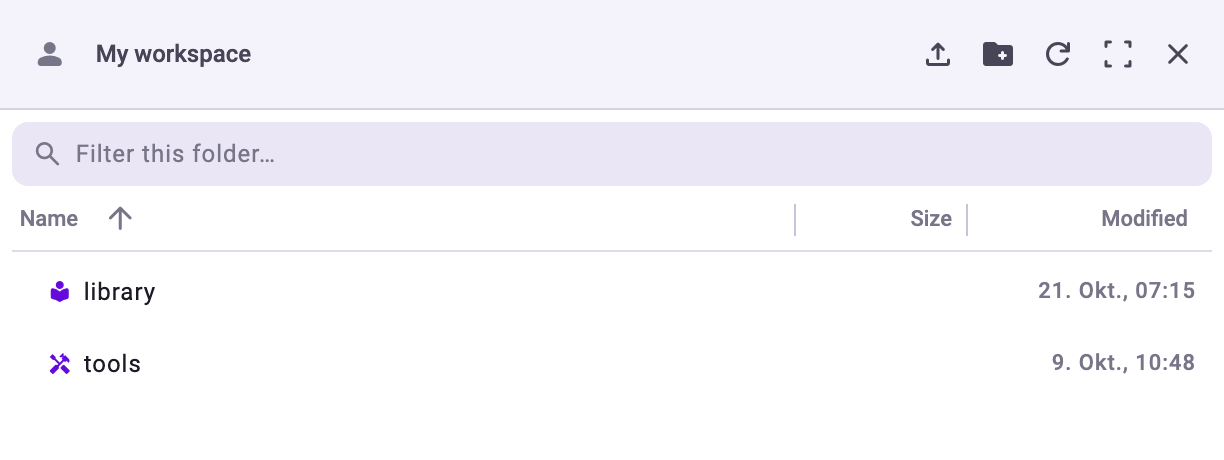
- Click the workspace name to switch to a shared workspace. A lock next to the name means you may only read there.
- Click a folder to open it, and use the path above the list to go back.
- Filter this folder… filters the open folder by name. Click Name, Size or Modified to sort.
- New folder creates a folder; Refresh shows changes colleagues made.
2. Upload a File
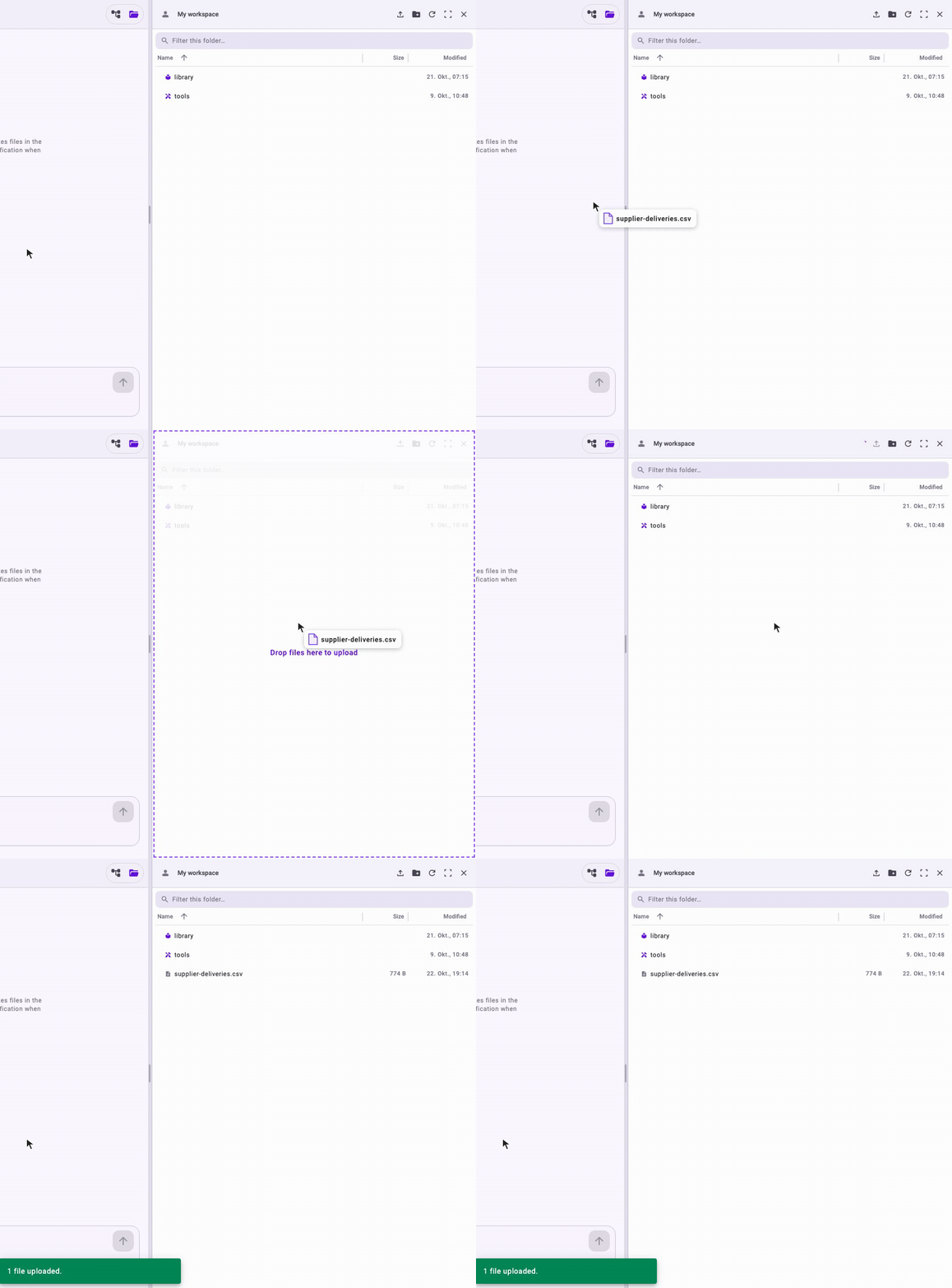
Click Upload file (the arrow icon) and select one file or several at once: hold Ctrl (Cmd on a Mac) to pick several files, or Shift for a range. The files land in the folder that is open. When they're done, Noreja confirms how many were uploaded, for example 2 files uploaded.
You can also drag one or more files from your computer onto the panel. While you drag them over it, the panel is outlined and shows Drop files here to upload; let go to upload them into the open folder. Where you may only read, for example in a shared workspace with read access, the panel doesn't take dropped files.
- Each file can be up to 50 MB. If one of the selected files is larger, Noreja names it and uploads none of them; select the others again without it.
- If files with the same names already exist in the folder, Noreja asks Replace files? and lists them. Confirm to replace them; if you cancel, none of the selected files is uploaded.
- Folders can't be uploaded. If you drag a folder together with files, Noreja shows Folders can't be uploaded and uploads only the files. Upload the files inside a folder instead.
- Minerva can read CSV, text, Excel, Word, PowerPoint and PDF files, including scanned PDFs. In pictures it can read text, but it doesn't understand what a picture shows.
3. Attach the File to Your Question
Click the file in the panel. A check mark appears next to it, and the file is shown above the input field. Then type your question and send it. To remove an attachment, click the × next to it.
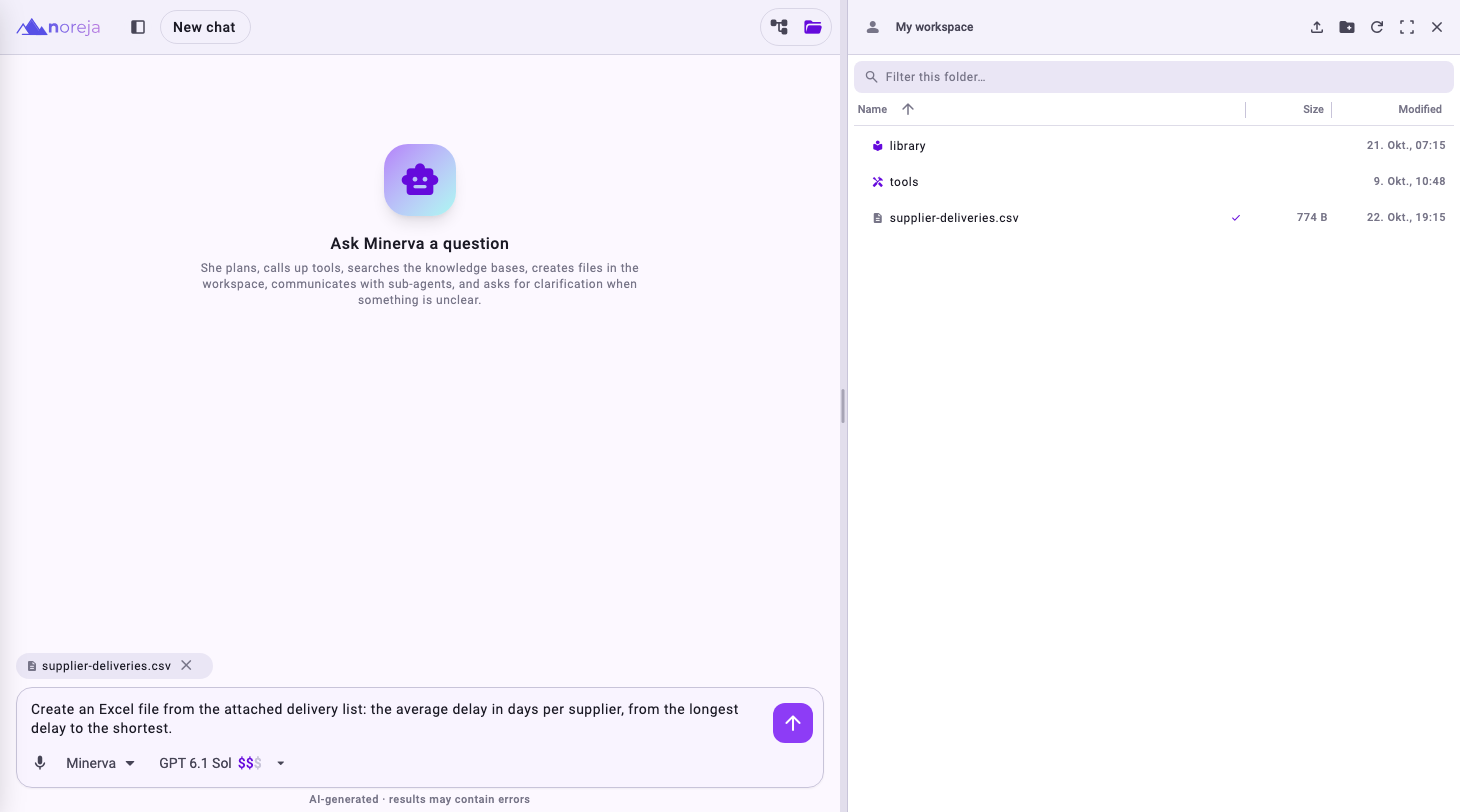
Minerva can also find files in the workspace without an attachment if you name them in your question. Attaching makes sure it uses the right one.
4. Let Minerva Create a File
Ask for the file you need, for example Create an Excel file with the average delay per supplier or Make a slide deck with the three main findings in Purchase-to-Pay. Minerva can create, for example:
- Excel and CSV tables;
- charts as images;
- Word and PDF documents;
- PowerPoint decks in your company's colours and with its logo;
- plain text and Markdown files, and many more.
When Minerva is done, it names the file in its answer, and the file appears in the panel. Hover over the file and click Download to open it on your computer; the panel has no preview.
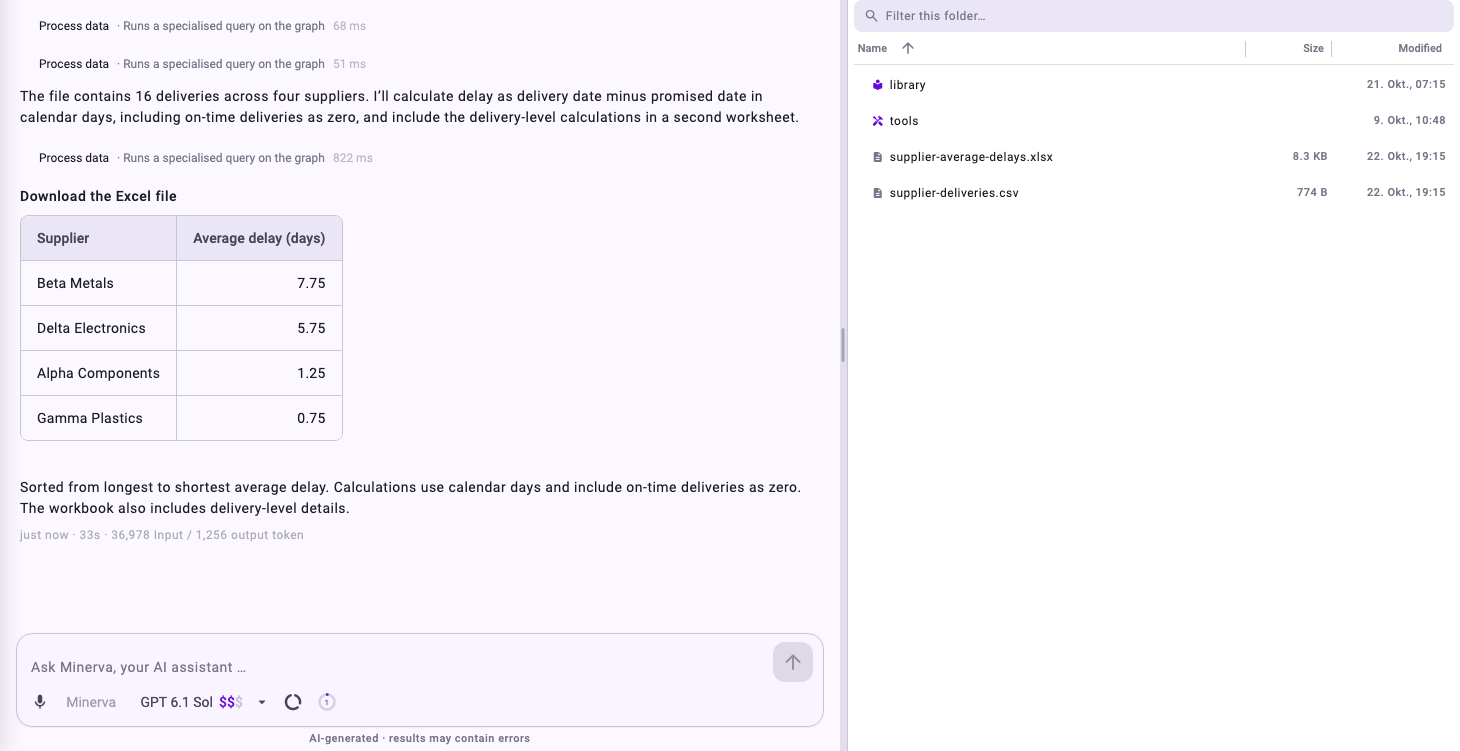
Files created by Minerva are marked as AI-generated: in the file's properties for Excel, Word, PowerPoint, PDF and images, and at the top of Markdown and text files. CSV files carry no mark.
Tip: Your company's colours and logo come from the company settings. A Customer admin sets them under Settings → Environment → Manage → Branding. See Environment Settings: Branding, AI and Import.
5. Rename, Move or Delete Files
- Hover over a file or folder and click ⋮ (Actions) to Rename or Delete it.
- Drag a file onto a folder, or onto a folder in the path above the list, to move it.
Important: Deleting is permanent; there is no recycle bin. Deleting a folder deletes everything in it. In a shared workspace, the file is deleted for everyone.
Work Together in a Shared Workspace
- New chat in a shared workspace: before you send the first message, switch the panel to the shared workspace. The chat then works in that workspace, and Minerva saves its files there.
- Existing chat: switching the panel only changes which files you see. On your next message, Minerva asks whether to move the chat to the other workspace; you confirm with Approve or keep it with Deny.
- Read or Edit: with read access you and Minerva can open, download and attach files, but not upload, create, rename or delete. With edit access, both of you can change files.
- Chats stay private: colleagues see the same files, but not your chats.
- Lost access: if you lose access to a shared workspace or it is deleted, the chat continues in My workspace. Minerva tells you that the earlier files can't be reached any more.
Good to Know
- Files stay in the workspace when you delete a chat.
- What Minerva reads from a file is sent to the model you chose, which may be an external cloud model. For confidential files, choose a local model. See Minerva: Models, Data Flow and Data Protection.
- Your own workspace has a storage limit, 5 GB by default. When it's full, uploads and new files from Minerva are refused until you delete files or an administrator raises the limit.